
Toshiba Protege X-30E Key Issues
Exploring the causes and troubleshooting steps for non-responsive keys
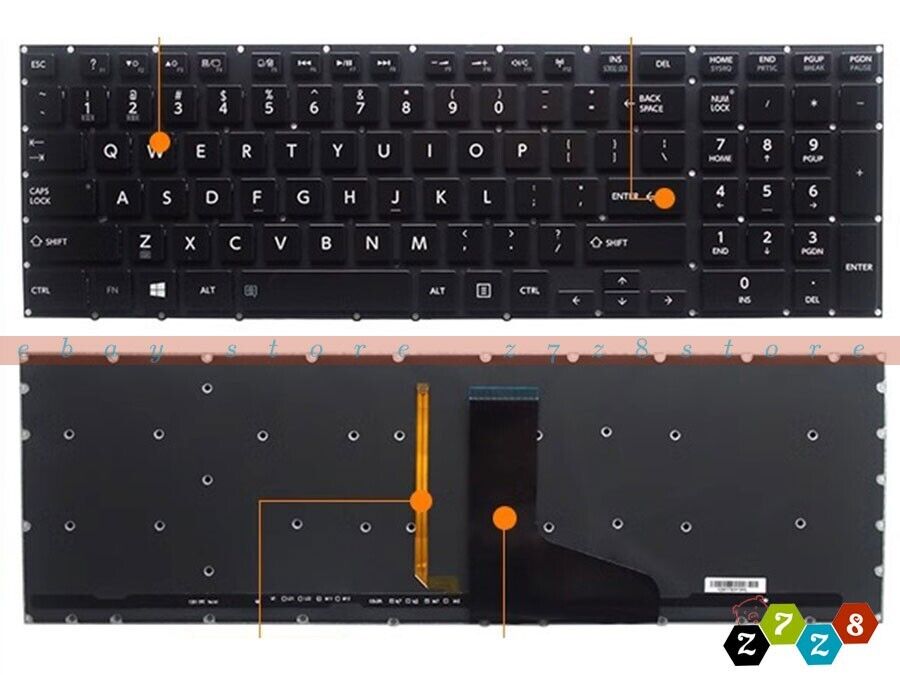
Key Highlights
- Hardware and Connection Issues: Faulty ribbon cables, worn-out key switches, and debris accumulation are common culprits.
- Driver and Software Factors: Outdated or corrupt keyboard drivers and conflicting settings can lead to malfunctioning keys.
- Physical Damage and Environmental Effects: Liquid spills and physical wear from prolonged use may cause specific keys to fail.
Detailed Analysis of Potential Causes
Hardware Concerns
Faulty Ribbon Cable and Connector Issues
One significant reason the arrow and slash ("/") keys might stop functioning on a Toshiba Protege X-30E is related to hardware connections. A deteriorated or loosely connected ribbon cable between the keyboard and the motherboard can lead to partial failure of the keys. Over time, wear or damage to this cable, which is responsible for transmitting keypress signals, could disrupt the functionality of the affected keys.
Worn Out or Damaged Key Switches
Frequent use over an extended period can wear out key switches, especially on keys like arrows and the slash key which might be used regularly. Physical degradation from constant tapping, heavy usage, or manufacturing deficiencies may lead to non-responsive behavior. In such cases, individual key repairs or complete keyboard replacement may be necessary.
Accumulation of Dust and Debris
Dust, dirt, and moisture can accumulate beneath or around the keys. This buildup can obstruct key movements, cause sticking, or short out the internal connections of the keyboard, resulting in erratic behavior. Using compressed air or other cleaning methods may mitigate this issue if it is identified early.
Driver and Software Considerations
Outdated or Corrupt Keyboard Drivers
Keyboard drivers are essential in ensuring that the operating system correctly interprets keypress signals. Outdated, incomplete, or corrupt drivers might cause specific keys to stop working. In this scenario, updating the keyboard or HID (Human Interface Device) drivers from the official Toshiba support website or using trusted driver updating utilities is recommended.
Software Conflicts and Keyboard Settings
Sometimes, the issue may not be purely hardware-related but due to an unintentional change in settings. For example, enabling the Num Lock function might remap the arrow keys to produce numbers rather than directional inputs. Furthermore, software conflicts, such as those arising from recent operating system updates or third-party applications interfering with the device manager, can also disable certain keys. Verifying these settings or performing a system restore might resolve the conflicts.
Environmental and Physical Damage Factors
Liquid Spills and Physical Impact
Physical damage is another critical factor contributing to key failure. Accidental liquid spills can damage the internal circuitry of the keyboard and cause corrosion or short circuits. In addition, physical impacts from drops or excessive force during use might damage the keyboard's membrane or connection points. It is essential to quickly power off the laptop after liquid exposure and consider professional cleaning or replacement.
Physical Wear and Tear Over Time
With everyday use, keys may simply wear out due to prolonged operation. Constant pressure and friction can eventually affect the micro-mechanisms beneath each key. Regular maintenance or using an external keyboard in the interim can help manage the issue while planning for replacement.
Troubleshooting Steps and Preventive Measures
Initial Diagnosis and Checks
1. Verify Keyboard Settings
Begin by checking that the keyboard settings are correctly configured. Confirm whether the Num Lock key is active, as this can inadvertently remap arrow keys to produce numbers instead of moving the cursor. Consult your device manager to ensure that the keyboard is recognized and has no disabled statuses.
2. Update or Reinstall Drivers
Visit Toshiba’s official site or trusted driver update sources to download and install the latest keyboard and HID drivers. Reinstalling these drivers might resolve issues stemming from corruption or incompatibilities.
3. Clean the Keyboard
Use compressed air or a soft brush to remove dust and debris. If liquid spillage is suspected, gracefully dry the keyboard and avoid accidental connections that might cause electrical interference.
4. Inspect for Physical Damage
Examine the keyboard and the surrounding area for any signs of physical damage such as cracks or visible wear on the keys. If liquid damage is evident, consider consulting a professional technician who can assess the internal conditions of the keyboard and its components.
5. External Keyboard Test
As a diagnostic step, connect an external USB keyboard. If the external device functions without issues, it confirms that the problem is likely isolated to the laptop's keyboard hardware. This test helps narrow down the issue to either a system-wide software problem or a hardware fault.
Preventive Maintenance
Regular Cleaning and Inspection
Preventing dust buildup and mitigating long-term wear requires regular cleaning. Make sure that the laptop is kept in a dust-free environment and use cleaning tools periodically. Preventive maintenance might prolong the life of the keyboard.
Software and Driver Maintenance
Keep the operating system and drivers updated to ensure compatibility and avoid conflicts. Regular checks for software updates can preclude issues related to driver obsolescence or system glitches.
Comparative Table: Causes and Troubleshooting
| Issue Category | Possible Causes | Troubleshooting Steps |
|---|---|---|
| Hardware | Faulty ribbon cables, worn key switches, debris, physical damage, liquid spills. | Check physical connections; inspect and clean the keyboard; consider professional hardware inspection. |
| Driver & Software | Outdated or corrupt drivers, software conflicts, and incorrect keyboard settings. | Update/reinstall drivers; verify keyboard settings; perform a system restore if necessary. |
| Environmental Factors | Dust accumulation and exposure to liquids. | Regular cleaning; avoid exposure to liquids; use protective covers or cases. |
Additional Considerations
Temporary Solutions
External Keyboard Use
If the laptop’s keyboard continues to malfunction after applying the troubleshooting steps, it might be practical to use an external USB keyboard to maintain productivity until a permanent solution is implemented.
Consulting Professional Help
For issues that persist despite self-troubleshooting, consulting a certified technician or reaching out to Toshiba support can provide more in-depth diagnostic procedures and repair services. Specialists can test the internal connections and components to determine if a hardware replacement is necessary.
Monitoring and Long-Term Keyboard Health
Regularly monitoring your laptop for signs of degradation can help prevent unexpected keyboard failures. Stay proactive about software updates, perform periodic hardware inspections, and maintain hygienic care for the device. These practices not only address the immediate issue but also contribute to overall system health.
References
- Fixed: Toshiba Laptop Keys Not Working - Driver Easy
- Keyboard Troubleshooting - Dynabook & Toshiba Support
- Left, Right, and Bottom Arrow Keys Issue - Tom's Guide Forum
-
Toshiba Laptop Keyboard Repair - Practical Tech
- A Few of My Toshiba Laptop Keys Stopped Working - SuperUser
Recommended Related Queries
Last updated March 23, 2025