
Transforming User IDs to User Names in Salesforce CRM Analytics Dashboards
A comprehensive guide to displaying user names instead of IDs in your CRM Analytics dashboards for enhanced readability and understanding.
Key Highlights for Converting User IDs to User Names
- Leverage SAQL Queries: Employ SAQL queries to derive user names from user IDs within your CRM Analytics dashboards.
- Utilize Text Widgets: Display the results of your SAQL queries in text widgets, providing a user-friendly view of user names.
- Explore USERPRINCIPALNAME or USERNAME: In Power BI, use these functions to fetch the user's login name and display it effectively.
When designing dashboards in Salesforce CRM Analytics, displaying user names instead of user IDs can significantly improve readability and user experience. Here’s a detailed guide on how to achieve this.
Methods to Display User Names Instead of User IDs
Several approaches can be used to convert User IDs to User Names in Salesforce CRM Analytics. Each method leverages different aspects of the platform's capabilities.
Using SAQL Queries and Text Widgets
One effective method involves using SAQL (Salesforce Analytics Query Language) to derive the user's name and then displaying it using a text widget.
- SAQL Query: Write a SAQL query to fetch the user's name based on the User ID. This query will extract the relevant user information from the dataset.
- Text Widget: Use a text widget on the dashboard to display the result of the SAQL query. This allows the user's name to be shown dynamically.
Alternative Approaches and Considerations
While SAQL queries and text widgets are effective, other methods and considerations can further enhance your dashboard design.
Leveraging USERPRINCIPALNAME or USERNAME in Power BI
If you're working with Power BI, you can use the USERPRINCIPALNAME or USERNAME functions to get the user's login name. You might need to extract the text before the "@" delimiter from USERPRINCIPALNAME to display only the username.
Custom Formula Fields in Salesforce
Within Salesforce, custom formula fields can be used to convert User IDs to User Names. This approach is useful when you need to display the user's name in various contexts within the platform.
Disconnected Tables in Power BI
In Power BI, you can create a disconnected table that holds the full name (first name & last name) and the USERPRINCIPALNAME. Then, use a measure to display the user's name.
Using the Management API in Auth0
If you're using Auth0, you can change the name of a user via the Management API's Update a user endpoint. This is useful for managing user profiles directly through Auth0.
Practical Implementation Steps
To implement the conversion of User IDs to User Names, follow these steps:
- Identify the Data Source: Determine the source of the User IDs in your dashboard.
- Create a Mapping Table: If necessary, create a mapping table that links User IDs to User Names. This table can be a separate dataset or a lookup table within your CRM Analytics environment.
- Write the SAQL Query: Write a SAQL query that joins the main dataset with the mapping table to retrieve the User Name based on the User ID.
- Configure the Text Widget: Add a text widget to your dashboard and configure it to display the result of the SAQL query.
- Test and Refine: Test the dashboard to ensure that the User Names are displayed correctly. Refine the query and widget configuration as needed.
Illustrative Examples and Scenarios
To further clarify the process, let's explore some practical examples and scenarios where converting User IDs to User Names is beneficial.
Scenario 1: Displaying the Current User's Name
In many dashboards, it's useful to display the name of the currently logged-in user. This can be achieved using the CurrentUser namespace expressions in Salesforce.
- Accessing User Information: Use expressions like
$User.FirstNameand$User.LastNameto retrieve the user's first and last names. - Combining Names: Concatenate the first and last names to display the full name in a text widget.
Scenario 2: Filtering Data by User Name
Sometimes, you need to filter dashboard data based on the user. This can be accomplished by using the active user as a filter.
- Using User.Name: Utilize the
User.Namefield from a Salesforce object in your CRMA data asset. - Creating a Filter: Create a filter in the dashboard that uses the
User.Namefield to display data relevant to the current user.
Enhancements Through Visualizations
Incorporating visual elements can significantly enhance the understanding and usability of your dashboards. Here's how you can use visualizations in conjunction with user names.
Tableau CRM and Salesforce Native Analytics
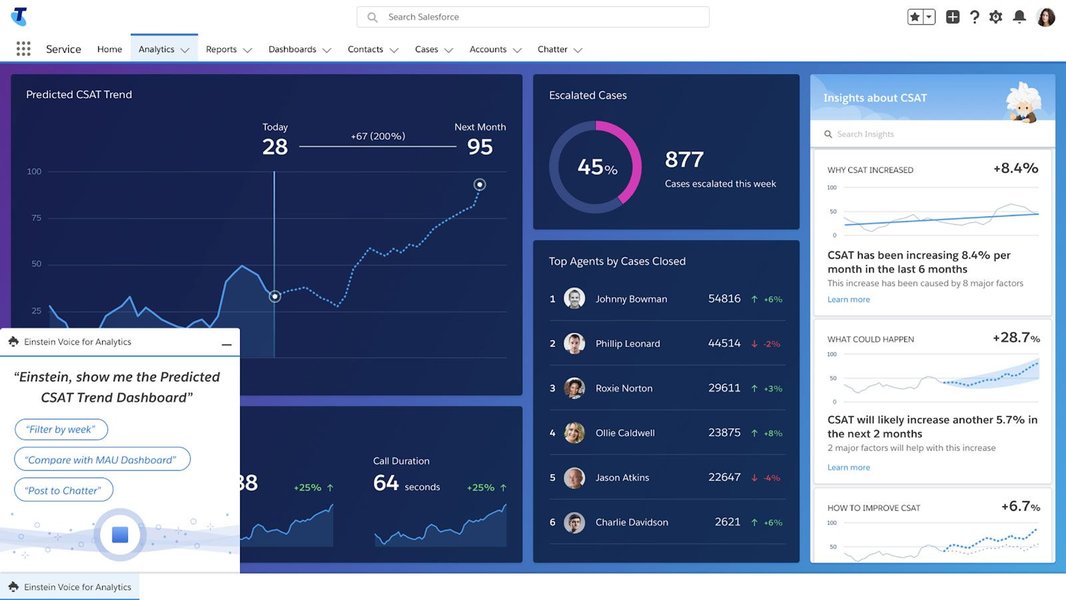
Tableau CRM offers native analytics capabilities within Salesforce, enabling you to create dashboards that provide a 360-degree view of accounts. Integrating user names into these dashboards can provide personalized insights.
Here is an example of a Tableau CRM dashboard:
Illustrative Table
This table summarizes the methods discussed for converting User IDs to User Names, highlighting their applications and key considerations.
| Method | Application | Key Considerations |
|---|---|---|
| SAQL Queries and Text Widgets | Displaying User Names in CRM Analytics Dashboards | Requires understanding of SAQL; ensures dynamic updates |
| USERPRINCIPALNAME/USERNAME in Power BI | Fetching User Login Names in Power BI Reports | May require extracting text before "@" |
| Custom Formula Fields in Salesforce | Displaying User Names in Various Salesforce Contexts | Useful for consistent display across the platform |
| Disconnected Tables in Power BI | Linking Full Names to USERPRINCIPALNAME in Power BI | Requires creating and maintaining a separate table |
| Management API in Auth0 | Managing User Profiles Directly in Auth0 | Useful for applications using Auth0 authentication |
Visual Learning: Displaying User Information
The following video provides a visual guide on how to display a user's name after they log into a website, offering practical steps that can be adapted to various dashboard environments.
This video demonstrates how to display the username of a customer after they log into your website. The techniques shown can be adapted to display user names in dashboards by retrieving the current user's information and displaying it in a text widget or similar element. This enhances the personalization of the dashboard and provides a more user-friendly experience.
FAQ Section
How do I write a SAQL query to convert User ID to User Name?
You can write a SAQL query that joins your main dataset with a User object or a mapping table containing User IDs and corresponding User Names. Use the join and lookup functions to retrieve the User Name based on the User ID.
Can I use custom formula fields in Salesforce to achieve this?
Yes, custom formula fields can be created to convert User IDs to User Names. This is particularly useful if you need to display User Names in various parts of the Salesforce platform, not just in CRM Analytics dashboards.
What if I am using Power BI?
In Power BI, you can use the USERPRINCIPALNAME or USERNAME functions to get the current user's login name. You might need to extract the actual User Name from the USERPRINCIPALNAME by removing the domain part.
How can I display the current user's first name in CRM Analytics?
You can use SAQL to query the User object and retrieve the FirstName field for the current user. Then, display this value in a text widget on your dashboard.
Is it possible to filter a dashboard based on the current user's name?
Yes, you can use the User.Name field from a Salesforce object in your CRMA data asset and create a filter in the dashboard that uses this field to display data relevant to the current user.
References
Last updated April 11, 2025