
Transitioning from Stripe Checkout Sessions to Stripe Pricing Tables in Python
A Comprehensive Guide to Implementing Promo Codes and Free Trials Without Breaking Existing Code
Key Takeaways
- Utilize Stripe Pricing Tables to seamlessly integrate promo codes and free trials into your existing payment flow.
- Embedding the Pricing Table using Stripe's JavaScript requires minimal backend changes and is easier to integrate than the Customer Portal for new subscriptions.
- Proper setup of webhooks and backend handling ensures a smooth transition without disrupting existing functionality.
Introduction
If you're currently using stripe.checkout.Session.create with a price line item in your Python application and wish to enable features like promo codes and free trials, transitioning to a Stripe Pricing Table is an effective solution. This comprehensive guide will walk you through the step-by-step process of making this transition without breaking your existing codebase. We'll also compare embedding the Pricing Table using Stripe's JavaScript with using the Customer Portal link, helping you choose the option that integrates more seamlessly with your current setup.
Understanding Stripe Pricing Tables
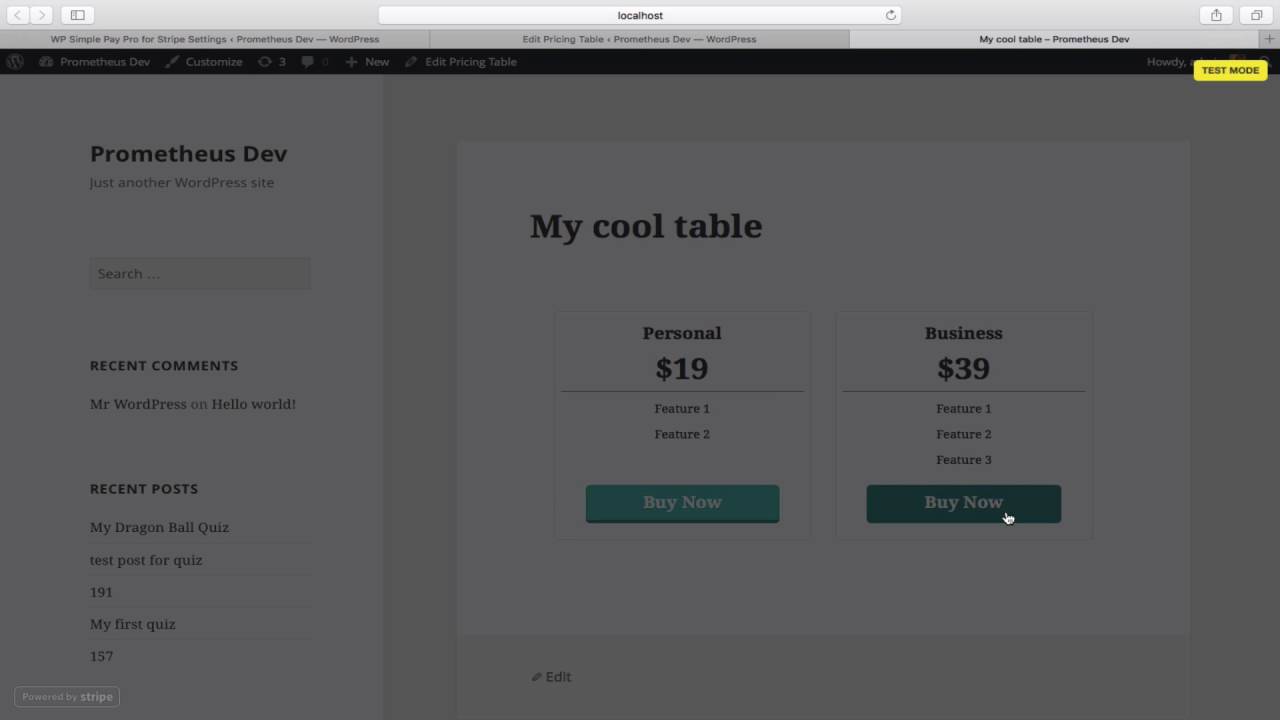
Stripe Pricing Tables offer an embeddable, customizable way to display your products and pricing plans directly on your website. They handle the creation of Checkout Sessions, allowing you to offer promo codes and free trials effortlessly. By embedding a Pricing Table, you centralize your pricing options, simplify subscription management, and enhance the user experience.
Benefits of Using Pricing Tables
- Enables promo codes and free trials without complex code changes.
- Offers a seamless and intuitive UI for customers to select plans.
- Minimizes backend modifications since Stripe handles Checkout Sessions.
- Provides an out-of-the-box solution for displaying pricing options.
Step-by-Step Transition Guide
Below is a detailed roadmap to transition from stripe.checkout.Session.create to using a Stripe Pricing Table in your Python application.
Step 1: Create Products and Prices in Stripe Dashboard
Begin by setting up your products and pricing options in the Stripe Dashboard.
- Access the Products Section: Log in to your Stripe Dashboard and navigate to Products.
- Create a New Product: Click Add product and enter the details of your subscription service.
- Set Up Pricing: Under the pricing section, configure the price points (e.g., monthly, annual) and set up free trial periods if desired.
- Enable Promo Codes: Ensure that your account settings allow the use of promo codes:
- Navigate to Billing > Coupons and promo codes.
- Enable Allow promo codes.
Step 2: Create a Pricing Table in Stripe Dashboard
Next, create a Pricing Table that will display these products to your customers.
- Navigate to Pricing Tables: In the Stripe Dashboard, go to Products > Pricing tables.
- Create a New Pricing Table: Click Create pricing table and select the products and prices you want to include.
- Customize the Table: Adjust the appearance and settings of the pricing table as needed, including:
- Setting the table's name and description.
- Choosing the features to display for each plan.
- Configuring payment methods and currencies.
- Enabling promo codes and adjusting trial settings.
- Save the Pricing Table: Once configured, save the pricing table. Stripe will generate a unique
pricing_table_idfor embedding.
Step 3: Embed the Pricing Table Using Stripe's JavaScript
Embedding the Pricing Table into your frontend is straightforward and requires minimal changes to your existing code.
- Add the Stripe Pricing Table Script: Include the Stripe Pricing Table script in the
<head>or just before the closing</body>tag of your HTML file:<script async src="https://js.stripe.com/v3/pricing-table.js"></script> - Embed the Pricing Table Component: Insert the
<stripe-pricing-table>web component where you want the pricing table to appear:
Replace<stripe-pricing-table pricing-table-id="your_pricing_table_id" publishable-key="your_publishable_key" > </stripe-pricing-table>your_pricing_table_idwith the ID provided by Stripe andyour_publishable_keywith your actual Stripe publishable API key. - Optional – Pass Client Reference ID: If you need to associate the Checkout Session with a specific user ID from your system, include the
client-reference-idattribute:<stripe-pricing-table pricing-table-id="your_pricing_table_id" publishable-key="your_publishable_key" client-reference-id="user_id" > </stripe-pricing-table>
Step 4: Update Backend Logic (Python)
While the Pricing Table handles Checkout Session creation, you may need to make slight adjustments to your backend to handle the new flow.
- Remove Direct Checkout Session Creation: Since the Pricing Table handles session creation, you can remove or comment out the code where you call
stripe.checkout.Session.createin your backend. - Ensure Webhook Handling is Set Up: Set up webhooks to listen for Stripe events, such as
checkout.session.completed,customer.subscription.created, andinvoice.payment_succeeded.Example using Flask:
import stripe from flask import Flask, request, jsonify app = Flask(__name__) stripe.api_key = 'your_secret_key' @app.route('/webhook', methods=['POST']) def stripe_webhook(): payload = request.get_data(as_text=True) sig_header = request.headers.get('Stripe-Signature') endpoint_secret = 'your_webhook_signing_secret' try: event = stripe.Webhook.construct_event( payload, sig_header, endpoint_secret ) except ValueError as e: # Invalid payload print(e) return jsonify({'status': 'invalid payload'}), 400 except stripe.error.SignatureVerificationError as e: # Invalid signature print(e) return jsonify({'status': 'invalid signature'}), 400 # Handle the checkout.session.completed event if event['type'] == 'checkout.session.completed': session = event['data']['object'] handle_checkout_session(session) # Other event types... return jsonify({'status': 'success'}), 200 def handle_checkout_session(session): # Fulfillment logic, e.g., activate the user's subscription print(f"Checkout session completed: {session.id}") # Access client_reference_id if needed user_id = session.get('client_reference_id') # Implement your business logic here if __name__ == '__main__': app.run(port=4242) - Implement Business Logic: In the
handle_checkout_sessionfunction, implement the logic needed to fulfill the order, such as updating your database to activate the user's subscription.
Step 5: Test the Integration Thoroughly
Before deploying to production, ensure that all aspects of the new integration work as expected.
- Use Stripe Test Mode: Stripe provides a test environment to simulate transactions without charging real cards.
- Test Promo Codes and Free Trials: Verify that promo codes are applied correctly and that free trials initiate as configured.
- Check Webhook Events: Use the Stripe Dashboard or CLI to observe webhook event triggers and ensure your backend handles them appropriately.
- Validate Customer Experience: Walk through the entire customer journey to confirm a smooth and error-free process.
Comparing Pricing Tables and Customer Portal
Understanding the difference between the Pricing Table and the Customer Portal is crucial for selecting the right tool for your needs.
Stripe Pricing Table
The Pricing Table is designed for onboarding new customers, allowing them to select a subscription plan, apply promo codes, and start free trials.
- Use Case: Display subscription options to potential customers.
- Integration Effort: Minimal frontend changes; backend adjustments primarily involve webhook handling.
- Features Supported: Promo codes, free trials, multiple pricing options.
Stripe Customer Portal
The Customer Portal allows existing customers to manage their subscriptions, including upgrading, downgrading, or canceling their plans.
- Use Case: Provide account management capabilities to existing subscribers.
- Integration Effort: Requires generating customer-specific portal links and handling redirects.
- Features Supported: Subscription management, payment method updates, invoice viewing.
Comparison Table
| Feature | Pricing Table | Customer Portal |
|---|---|---|
| Onboarding New Customers | Yes | No |
| Managing Existing Subscriptions | No | Yes |
| Enabling Promo Codes | Yes | Yes |
| Free Trials Support | Yes | Yes |
| Integration Complexity | Low | Moderate |
| Customization of UI | Limited (via Stripe Dashboard) | Limited (via Stripe Dashboard) |
Which Integrates Easier?
For your specific need of transitioning from stripe.checkout.Session.create to a solution that supports promo codes and free trials for new customers, embedding the Pricing Table is the easier and more appropriate choice. It requires minimal changes to your existing codebase and aligns with your current workflow.
Implementing the Customer Portal (Optional)
If you also want to provide existing customers with the ability to manage their subscriptions, consider integrating the Stripe Customer Portal.
Step 1: Enable the Customer Portal in Stripe Dashboard
- Navigate to Billing Settings: In the Stripe Dashboard, go to Settings > Billing > Customer Portal.
- Configure Portal Settings: Customize the options available to customers, such as allowing plan upgrades, downgrades, and cancellations.
Step 2: Generate Customer Portal Links in Backend
To redirect a customer to the portal, generate a session link in your Python backend.
import stripe

# Set your secret key
stripe.api_key = 'your_secret_key'

def create_customer_portal_session(customer_id, return_url):
    session = stripe.billing_portal.Session.create(
        customer=customer_id,
        return_url=return_url
    )
    return session.url

# Example usage
customer_id = 'cus_123456789'
return_url = 'https://your-website.com/account'
portal_url = create_customer_portal_session(customer_id, return_url)

# Redirect the customer to portal_url
Step 3: Implement Frontend Redirect
In your frontend, provide a button or link that, when clicked, calls your backend to generate the portal link and then redirects the customer.
<button onclick="redirectToCustomerPortal()">Manage Subscription</button>

<script>
function redirectToCustomerPortal() {
  fetch('/create-portal-session', {
    method: 'POST',
    headers: {
      'Content-Type': 'application/json'
    },
    body: JSON.stringify({customer_id: 'cus_123456789'})
  })
  .then(response => response.json())
  .then(data => {
    window.location.href = data.url;
  })
  .catch(error => console.error('Error:', error));
}
</script>
Ensure that the /create-portal-session endpoint in your backend calls the create_customer_portal_session function and returns the generated URL.
Ensuring a Smooth Transition
To prevent any disruptions to your existing users and processes, follow these best practices:
Maintain Existing Workflows During Transition
- Gradually introduce the Pricing Table while keeping the existing
stripe.checkout.Session.createflow operational until fully tested. - Inform existing users of any changes to the subscription process to manage expectations.
Monitor for Errors and Exceptions
- Implement logging in your backend to capture any exceptions during webhook processing.
- Set up alerts for failed payments or subscription creation issues.
Update Documentation and Customer Support
-
Ensure internal documentation reflects the new payment flow and processes.
-
Train customer support teams on the new features and how to assist users with promo codes and trials.
Conclusion
Transitioning from using stripe.checkout.Session.create with a price line item to leveraging Stripe Pricing Tables in your Python application is a strategic move to enhance your payment system with promo codes and free trials. By embedding the Pricing Table using Stripe's JavaScript, you minimize changes to your backend code and provide a seamless user experience. While the Customer Portal is a valuable tool for subscription management, the Pricing Table integrates more easily into your existing code for onboarding new customers. Thorough testing and careful implementation will ensure a smooth transition without disrupting your current operations.
References
- Stripe Docs: Embeddable Pricing Table
- Stripe Docs: Subscriptions with Checkout
- Stripe Docs: Customer Portal
- Stripe Docs: Setting Up Webhooks
- Stripe API Reference: Checkout Sessions
Last updated January 24, 2025