
Unraveling Wireless Access Point Performance Mysteries: A Comprehensive Guide
Unlock the full potential of your Wi-Fi network by mastering the art of troubleshooting and diagnosis for common performance bottlenecks.
Key Insights into Wireless AP Performance
- Systematic Approach is Key: Effective troubleshooting requires a structured method, starting with basic checks and progressing to advanced diagnostics to pinpoint the root cause, whether it's a single client issue or a network-wide problem.
- Signal and Interference are Paramount: Weak signal strength (RSSI), channel congestion, and non-Wi-Fi interference (e.g., microwaves) are frequent culprits for slow speeds and dropped connections. Proper AP placement and channel selection are critical.
- Hardware and Software Synergy: Outdated firmware, incorrect AP configurations (like operating in router mode instead of AP mode), and client-side issues (e.g., outdated drivers, power-saving modes) can significantly degrade performance, emphasizing the need for regular updates and configuration checks.
Wireless Access Points (APs) are the backbone of modern connectivity, extending network access wirelessly throughout homes and businesses. However, they are susceptible to various performance issues, from sluggish speeds and dropped connections to weak signals. Diagnosing these problems requires a methodical approach that considers hardware, software, network configuration, environmental factors, and client devices. This comprehensive guide synthesizes expert advice and practical steps to help you effectively troubleshoot and resolve performance issues with your wireless access points, ensuring a stable and efficient Wi-Fi experience.
The Diagnostic Journey: A Step-by-Step Approach
Troubleshooting wireless AP performance issues begins with fundamental checks and escalates to more intricate analyses. It's crucial to identify the scope of the problem early on: Is it affecting a single device, multiple clients, or the entire network? This initial assessment helps narrow down potential causes and directs your efforts more efficiently.
1. Initial Checks and Physical Verification
Before diving into complex diagnostics, ensure the basic physical aspects of your AP setup are sound. Many performance issues can be resolved by simply checking connections and power.
Power and Cable Integrity
Confirm that your AP is receiving stable power and that all Ethernet cables are securely connected to both the AP and your network switch or router. Check the LED indicators on your AP; they often provide visual cues for power, connectivity, and operational status. A faulty cable or port can severely limit throughput, so consider testing with a known-good cable if in doubt.
AP Placement and Environment
The physical location of your AP profoundly impacts signal strength and coverage. For optimal performance, place your AP in a centralized, elevated position, free from physical obstructions like thick walls, metal objects, or large furniture. Even people can attenuate signals. Analyze your environment for potential sources of non-Wi-Fi interference, such as microwave ovens, cordless phones, Bluetooth devices, and even neighboring Wi-Fi networks.
Optimal AP placement is key to maximizing Wi-Fi coverage and minimizing signal degradation.
Antenna Orientation
If your AP has adjustable external antennas, ensure they are oriented correctly. Generally, positioning antennas perpendicular to the orientation of client devices helps in achieving better signal propagation.
2. Assessing Signal Strength and Interference
Signal quality is paramount for wireless network performance. Weak signals, channel congestion, and external interference are common culprits for slow speeds and dropped connections.
Measuring Signal Strength (RSSI)
Use a Wi-Fi analyzer tool on your client device (laptop, smartphone, or dedicated hardware) to measure the Received Signal Strength Indicator (RSSI). An RSSI value above -75 dBm is generally considered acceptable for stable performance. Values below this threshold suggest a weak signal that needs attention. Look for tools that can also report Signal-to-Noise Ratio (SNR), which indicates the quality of the signal relative to background noise.
Channel Utilization and Selection
Wi-Fi networks operate on specific channels. In congested areas, multiple networks using the same channel can lead to significant interference and reduced throughput. Wi-Fi analyzer tools can identify overcrowded channels. For 2.4 GHz networks, channels 1, 6, and 11 are non-overlapping and generally recommended. For 5 GHz networks, more channels are available, offering greater flexibility. Switching your AP to a less congested channel can dramatically improve performance.

Wi-Fi Analyzer apps provide crucial insights into signal strength and channel congestion.
This radar chart illustrates a comparative analysis of different wireless network health parameters. Each spoke represents a critical aspect, such as Signal Strength, Channel Clarity, Firmware Updates, and Device Compatibility. The colored areas represent hypothetical performance levels for various network scenarios, allowing for a quick visual assessment of strengths and weaknesses across different diagnostic categories. For instance, a network with high Signal Strength and Channel Clarity but low Device Compatibility might indicate an issue with older client devices, despite a robust AP setup.
3. Network Performance Testing and Configuration Review
Once physical and environmental factors are considered, the next step involves testing network speeds and scrutinizing AP configurations.
Speed Tests: Wired vs. Wireless
Conduct internet speed tests using reliable online services like SpeedTest.org. It's crucial to compare wired speeds (connecting a device directly to your router or AP via Ethernet) with wireless speeds. If wired speeds are normal but wireless speeds are slow, the problem likely lies within your Wi-Fi network rather than your Internet Service Provider (ISP) or modem.
Ping and Latency Analysis
High or inconsistent ping times to your AP or external servers can indicate network congestion, interference, or issues with the AP's processing capabilities. Command-line tools like ping and tracert (or traceroute on macOS/Linux) can help diagnose latency and packet loss. Tools like PingPlotter can offer a visual representation of network performance over time.
# Example: Ping your router's IP address (e.g., 192.168.1.1)
ping 192.168.1.1

# Example: Check network configuration on Windows
ipconfig /all

# Example: Generate a wireless network report on Windows
netsh wlan show wlanreport
AP Firmware and Driver Updates
Outdated firmware on your AP or outdated wireless adapter drivers on client devices can lead to performance degradation, security vulnerabilities, and compatibility issues. Regularly check for and install the latest firmware updates for your AP from the manufacturer's website. Similarly, ensure client device network drivers are up to date, especially for Windows machines via Device Manager.
Configuration Settings: Channel Width, Power, and Security
Review your AP's configuration. Settings like channel width (e.g., 20 MHz, 40 MHz, 80 MHz) can impact speed versus range. While wider channels offer higher theoretical speeds, they can also increase interference in crowded environments. Adjusting radio transmit power can help optimize coverage without causing excessive interference. Ensure robust security protocols like WPA2 or WPA3 are enabled, as older or weaker encryption methods can introduce performance overhead or vulnerabilities.
DHCP and IP Address Management
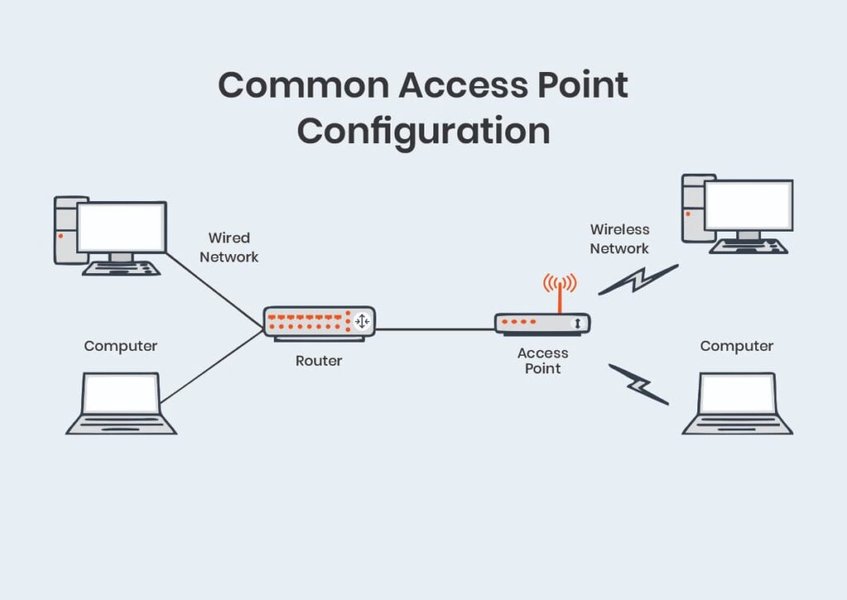
Verify that your network's DHCP server (usually on your router) is providing a sufficient pool of IP addresses for all connected devices. IP address exhaustion can prevent new devices from connecting or cause existing connections to drop. Also, ensure your AP is configured in the correct mode (Access Point mode) if it's operating alongside a main router to avoid issues like Double NAT, which can significantly slow down your network.
4. Client Device Diagnosis and Optimization
Sometimes, the issue isn't with the AP itself but with the client devices connecting to it.
Client-Side Issues
Check if the problem is isolated to a specific device. Ensure the wireless adapter on the client device is enabled and not in airplane mode. Power-saving modes on laptops or mobile devices can sometimes throttle Wi-Fi performance; consider setting the wireless adapter to "Maximum Performance" when plugged in.
"Forget and Reconnect" Network
For persistent issues on a particular device, try "forgetting" the Wi-Fi network from the device's settings and then reconnecting. This can resolve cached network settings or minor glitches.
Device Limitations and Compatibility
Older client devices might not support the latest Wi-Fi standards (e.g., Wi-Fi 6, Wi-Fi 6E, Wi-Fi 7), limiting the overall network speed. Ensure your AP and client devices support compatible Wi-Fi standards for optimal performance. Hardware limitations, such as an AP with 100Mbps wired ports on a gigabit internet connection, can also create bottlenecks.
Common Wireless Access Point Performance Issues and Solutions
Here's a summary of frequently encountered problems and their targeted solutions:
| Performance Issue | Common Causes | Solutions |
|---|---|---|
| Slow Wi-Fi Speeds | Signal interference, outdated firmware/drivers, overcrowded channels, network congestion, older Wi-Fi standards, insufficient bandwidth. | Optimize AP placement, change Wi-Fi channels, update firmware and drivers, upgrade to newer Wi-Fi standards (e.g., Wi-Fi 6), implement QoS, consider mesh networks. |
| Weak Wi-Fi Signal / Limited Range | Physical obstructions (walls, metal), AP misplacement, non-Wi-Fi interference, insufficient AP transmit power. | Relocate AP centrally and elevated, minimize barriers, adjust antenna orientation, identify and mitigate interference sources (e.g., microwaves), increase transmit power. |
| Frequent Disconnections / Connectivity Drops | IP address conflicts, faulty cables, power-saving modes on client devices, network overload, firmware bugs, rogue APs. | Use static IPs if necessary, verify cable integrity, disable client power-saving modes, update AP firmware, detect and manage rogue APs, reduce connected devices if overloaded. |
| High Latency / Ping Spikes | Network congestion, interference, QoS misconfiguration, AP processing bottlenecks. | Analyze channel utilization, ensure adequate bandwidth, verify QoS settings, conduct ping tests to identify bottlenecks, consider AP upgrade for higher capacity. |
| Inconsistent Performance in AP Mode | Hardware limitations (e.g., 100Mbps wired ports), AP configured as router instead of AP, double NAT. | Check AP specifications for wired port speeds, ensure correct AP mode configuration, disable routing functions if necessary. |
Advanced Diagnostic Tools and Techniques
For more complex or persistent issues, leveraging advanced diagnostic tools and techniques can provide deeper insights.
Windows and macOS Built-in Tools
- Windows Network Troubleshooter: This automated tool (found in Settings > Network & Internet > Advanced network settings > Network Reset) can often diagnose and fix common Wi-Fi issues.
- Wireless Network Report (Windows): Generate a detailed report by typing
netsh wlan show wlanreportin Command Prompt. This report provides extensive information about your Wi-Fi environment, connection history, and potential problems. - macOS Wireless Diagnostics: Hold the Option key and click the Wi-Fi icon in the menu bar to access this powerful tool, which offers real-time analysis, network insights, and troubleshooting suggestions.
Third-Party Wi-Fi Analyzers and Monitoring Tools
Dedicated Wi-Fi analyzer applications (available for Windows, macOS, and mobile devices) provide a visual representation of nearby Wi-Fi networks, signal strengths, channel usage, and interference levels. Examples include "WiFi Analyzer by Matt Hafner" for Windows or various apps on mobile app stores. Network monitoring applications can also provide real-time alerts for performance drops or unauthorized devices.
This video provides a high-level overview of basic Wi-Fi network troubleshooting using the open-source WiFiAnalyzer app, illustrating how these tools can visualize signal strength and channel usage.
Mermaid Mindmap of Troubleshooting Steps
This mindmap visually outlines the systematic approach to troubleshooting wireless access point performance issues, categorizing the various checks and solutions into logical branches for easy understanding.
When to Seek Professional Help or Upgrade Hardware
If, after systematically going through all the troubleshooting steps, the performance issues persist, it might be time to consider escalating the problem. This could involve contacting your Internet Service Provider (ISP), the AP manufacturer, or an IT professional.
Additionally, if your existing hardware is old, lacks support for modern Wi-Fi standards (like Wi-Fi 6 or 7), or cannot handle the number of connected devices or bandwidth demands of your network, an upgrade may be necessary. Newer APs offer improved efficiency, security, and speed, potentially resolving persistent performance bottlenecks.
Frequently Asked Questions (FAQ)
What is RSSI and why is it important for Wi-Fi?
Should I use 2.4 GHz or 5 GHz for my Wi-Fi?
What are the common sources of Wi-Fi interference?
How often should I update my AP's firmware?
Conclusion
Diagnosing and resolving performance issues with wireless access points can seem daunting, but by adopting a systematic and comprehensive approach, most problems can be identified and corrected. Starting with fundamental checks like physical connections and AP placement, then progressing to signal analysis, configuration reviews, and client-side diagnostics, provides a clear roadmap. Leveraging built-in OS tools and third-party Wi-Fi analyzers can offer invaluable insights, helping to pinpoint issues related to interference, congestion, or hardware limitations. Regular firmware updates and informed adjustments to AP settings are also vital for maintaining optimal performance. By following these guidelines, you can ensure your wireless network operates efficiently, providing the reliable connectivity essential for modern digital life.
Recommended Further Exploration
- How to optimize Wi-Fi channels and frequencies for better performance?
- Understanding and mitigating Wi-Fi interference from other devices.
- Advanced Wi-Fi security protocols and their impact on network speed.
- Benefits of upgrading to Wi-Fi 6 or Wi-Fi 7 access points.
Referenced Search Results
 media.techtarget.com