
Unlock Ubuntu 25.04's Full Potential: Your Essential Post-Installation App Guide
Elevate your "Plucky Puffin" experience by installing these top-tier applications for productivity, multimedia, customization, and more.
Congratulations on installing Ubuntu 25.04 "Plucky Puffin"! While this release brings many improvements, including GNOME 48 and the latest Linux kernel, tailoring your application suite is key to a truly personalized and efficient computing experience. This guide will walk you through the most recommended applications to install, transforming your fresh Ubuntu setup into a powerhouse ready for any task.
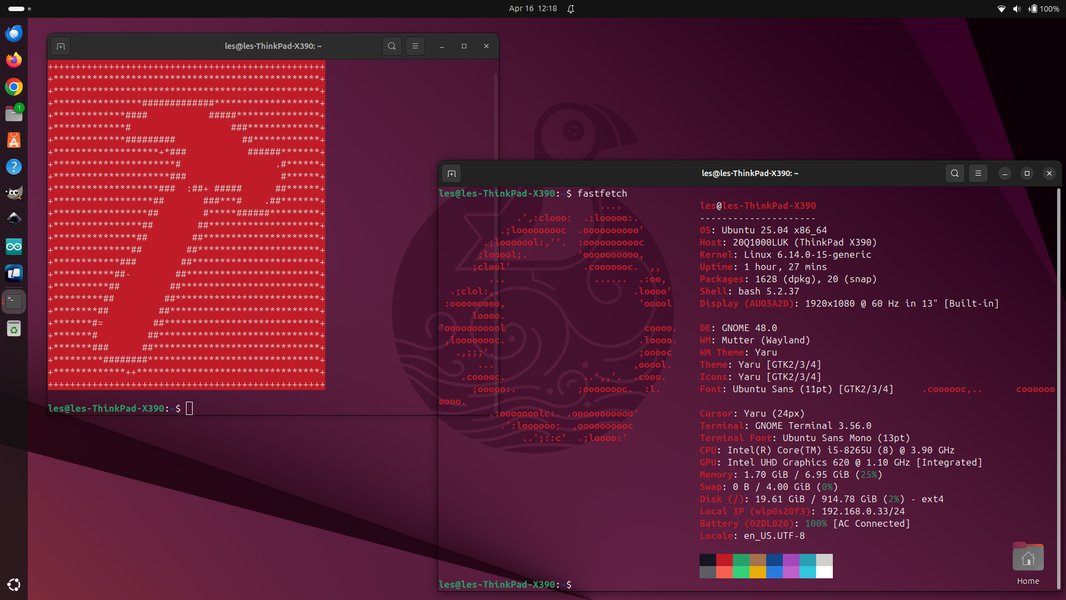
The default Ubuntu 25.04 desktop, a clean slate for your personalized app collection.
Key Highlights: Supercharge Your Ubuntu
Essential insights for a top-tier Ubuntu 25.04 experience:
- Boost Productivity Instantly: Equip your system with powerful office suites like LibreOffice and efficient communication tools such as Thunderbird or Geary.
- Unleash Multimedia Capabilities: Install versatile players like VLC, advanced image editors like GIMP, and video editing software such as Kdenlive or OpenShot.
- Customize and Optimize: Take control of your desktop with GNOME Tweaks for personalization and utilities like Stacer for system monitoring and optimization.
First Steps: System Readiness
Before diving into apps, ensure your system is primed.
Update Your System
The very first step after installation should always be to update your system. This ensures all your existing software is up-to-date with the latest security patches and bug fixes.
sudo apt update && sudo apt upgradeInstall Multimedia Codecs
Due to legal and licensing reasons, Ubuntu doesn't include all multimedia codecs by default. To play various media formats like MP3, MP4, and encrypted DVDs, install the `ubuntu-restricted-extras` package. You'll need to agree to the EULA for Microsoft fonts during installation (use Tab to navigate and Enter to select).
sudo apt install ubuntu-restricted-extrasInstall Additional Drivers
For optimal performance, especially with graphics cards (like NVIDIA) or Wi-Fi adapters, it's crucial to install proprietary drivers if available. Ubuntu provides a tool for this:
- Open "Software & Updates".
- Navigate to the "Additional Drivers" tab.
- The system will search for available drivers. Select the recommended proprietary driver and click "Apply Changes".
Ubuntu 25.04 includes improved support for NVIDIA Dynamic Boost, which can further enhance performance on compatible hardware.
Essential Applications by Category
Curated recommendations to enhance your Ubuntu 25.04 experience.
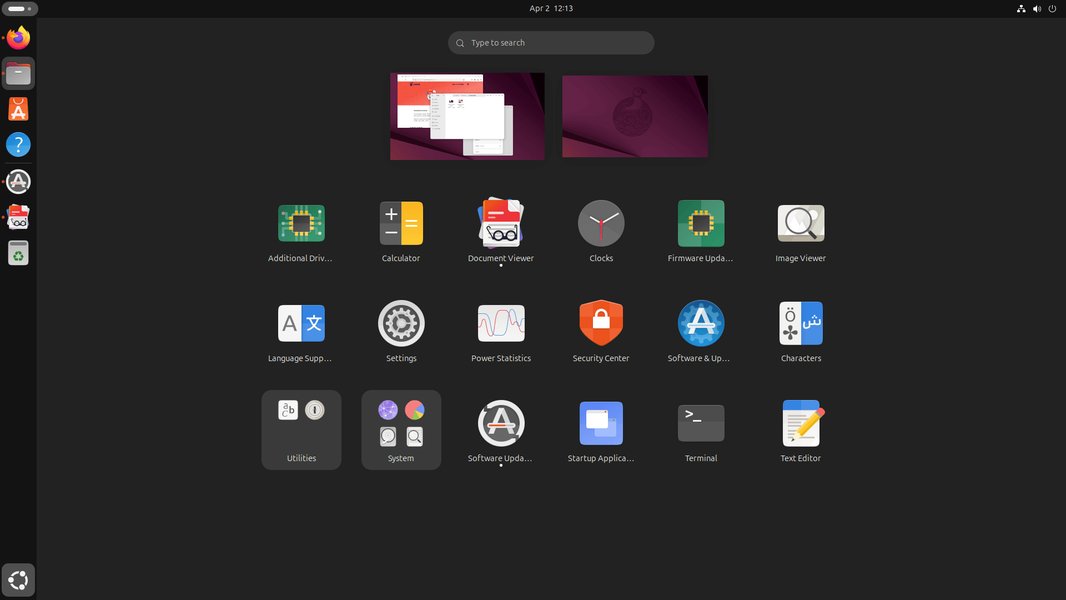
An overview of applications available in Ubuntu.
System Utilities and Customization
These tools help you manage, customize, and optimize your Ubuntu system.
-
GNOME Tweaks
A vital tool for customizing the GNOME desktop environment. Adjust themes, fonts, icons, startup applications, top bar behavior (like showing battery percentage), and manage GNOME Shell extensions.
-
Synaptic Package Manager
A powerful graphical package manager offering more fine-grained control over software packages than the default App Center. Excellent for advanced users or those who want to explore a wider range of available software.
-
Extension Manager
Simplifies browsing, installing, and managing GNOME Shell extensions directly from your desktop, allowing you to easily add new functionalities and personalize your user experience.
-
Stacer
An open-source system optimizer and monitoring tool. It features a dashboard for system resources, a system cleaner, startup app manager, service manager, and more, all within a user-friendly interface.
-
Caffeine
A simple utility that prevents your screen from dimming or locking when specific applications are running or when activated manually. Useful for presentations or watching videos.
Productivity and Office
Handle your documents, emails, and creative projects with these applications.
-
LibreOffice
The go-to free and open-source office suite. It includes Writer (word processor), Calc (spreadsheets), Impress (presentations), Draw (vector graphics), Math (formula editor), and Base (database management). Ubuntu 25.04 may not include it by default, making it a key installation for many users.
-
Thunderbird or Geary (Email Clients)
Thunderbird is a feature-rich, cross-platform email client, calendar, news feed reader, and chat client. Geary offers a simpler, more modern GNOME-integrated email experience. Ubuntu 25.04 defaults to Thunderbird as a Snap, but you can choose based on your preference.
-
Visual Studio Code (VS Code)
A highly popular, free source code editor developed by Microsoft. It supports debugging, embedded Git control, syntax highlighting, intelligent code completion, snippets, and code refactoring. Available as a Snap or .deb package.
Multimedia and Graphics
For enjoying and creating media content.
-
VLC Media Player
A true workhorse. This free, open-source, cross-platform multimedia player plays most multimedia files as well as DVDs, Audio CDs, VCDs, and various streaming protocols. It rarely fails to play a file.
-
GIMP (GNU Image Manipulation Program)
A powerful and free open-source raster graphics editor used for image retouching and editing, free-form drawing, converting between different image formats, and more specialized tasks. A great alternative to Adobe Photoshop.
-
Kdenlive or OpenShot (Video Editors)
Kdenlive is a versatile, open-source video editing software packed with features suitable for both basic and semi-professional work. OpenShot is another user-friendly option, known for its simple interface and ease of use, making it great for beginners.
-
Audacity
A free, open-source, cross-platform digital audio editor and recording application. Ideal for podcasting, music editing, and general sound manipulation.
-
HandBrake
An open-source video transcoder. Useful for converting video from nearly any format to a selection of modern, widely supported codecs.
-
Lollypop Music Player
A modern, GNOME-centric music player designed to be intuitive and feature-rich, offering a pleasant experience for managing and listening to your music library.
-
digiKam
An advanced open-source digital photo management application that can handle large photo libraries, RAW files, metadata editing, and offers powerful organizing and editing tools.
Internet and Communication
Enhance your online experience with these tools.
-
Alternative Web Browsers (Google Chrome, Brave, Chromium)
While Firefox comes pre-installed and is excellent, you might prefer other browsers. Google Chrome offers seamless Google ecosystem integration. Brave Browser focuses on privacy and ad-blocking. Chromium is the open-source base for Chrome.
-
Telegram Desktop
A popular, fast, and secure messaging app with a native Linux client. It supports group chats, channels, end-to-end encrypted calls, and large file sharing.
-
qBittorrent or Transmission (Torrent Clients)
qBittorrent is a feature-rich, lightweight BitTorrent client with a built-in search engine. Transmission is known for its simplicity and efficiency, often pre-installed on some Linux distributions.
Development Tools
For coders and developers.
-
Git
The essential distributed version control system. Indispensable for software development and collaboration.
-
Docker
A platform for developing, shipping, and running applications in containers. Simplifies deployment and ensures consistency across environments.
-
VirtualBox
Allows you to run multiple operating systems (virtual machines) simultaneously on your Ubuntu system. Great for testing software or using applications exclusive to other OSes.
-
Blender
While also a multimedia tool, Blender is a powerful free and open-source 3D creation suite. It supports the entirety of the 3D pipeline—modeling, rigging, animation, simulation, rendering, compositing and motion tracking, even video editing and game creation.
Backup and Recovery
Protect your valuable data.
-
Déjà Dup Backups
A simple and user-friendly backup tool. It supports local, remote, or cloud storage (like Google Drive) and can schedule automatic backups. It uses Duplicity as its backend.
-
TestDisk & PhotoRec
TestDisk is a powerful free data recovery software primarily designed to help recover lost partitions and/or make non-booting disks bootable again. PhotoRec is a file data recovery software designed to recover lost files including video, documents and archives from hard disks, CD-ROMs, and lost pictures from digital camera memory.
Gaming
Ubuntu is increasingly becoming a viable platform for gaming.
-
Steam
The leading digital distribution platform for PC gaming. Offers a vast library of native Linux games and Windows games playable via its Proton compatibility layer.
-
Proton / Wine
Proton is a compatibility layer developed by Valve, integrated into Steam, that allows Windows games to run on Linux. Wine ("Wine Is Not an Emulator") is a compatibility layer capable of running Windows applications on POSIX-compliant operating systems, such as Linux.
Visualizing App Priorities: User Profile Focus
App Category Importance by User Type
Different users will prioritize different types of applications. The radar chart below illustrates hypothetical importance levels (on a scale of 3 to 10, where 10 is most important) for various app categories based on common user profiles. This can help you consider which areas to focus on for your own setup.
This chart provides a visual guide to how different types of users might value various software categories. For instance, a 'Developer' would likely place high importance on 'Development Tools' and 'System Customization', while a 'Content Creator' would prioritize 'Multimedia Editing'. A 'General User' or 'Student' might focus more on 'Productivity Suite' and 'Web Browsing'.
Mapping Your Ubuntu 25.04 Enhancement Journey
A Mindmap Overview of Post-Installation Steps and App Categories
To further organize your approach to setting up Ubuntu 25.04, the mindmap below outlines the key areas of focus, from initial system tweaks to popular application categories and specific software examples. This visual representation can help you navigate the process of customizing your new system.
Post-Installation Enhancements"] EssentialSystemTweaks["Essential System Tweaks"] SystemUpdates["System Updates
(apt update && upgrade)"] ProprietaryDrivers["Proprietary Drivers
(NVIDIA, Wi-Fi)"] MultimediaCodecs["Multimedia Codecs
(ubuntu-restricted-extras)"] CoreAppCategories["Core Application Categories"] ProductivityApps["Productivity"] LibreOffice["LibreOffice Suite"] EmailClient["Email Client
(Thunderbird/Geary)"] VSCode["VS Code (Text Editor)"] MultimediaApps["Multimedia"] VLC["VLC Media Player"] GIMP["GIMP (Image Editor)"] VideoEditor["Video Editor
(Kdenlive/OpenShot)"] Audacity["Audacity (Audio Editor)"] SystemUtilities["System Utilities"] GNOMETweaks["GNOME Tweaks"] Synaptic["Synaptic Package Mgr"] Stacer["Stacer (Optimizer)"] InternetComm["Internet & Communication"] Browsers["Web Browsers
(Chrome, Brave)"] Telegram["Telegram Desktop"] qBittorrent["qBittorrent"] DevelopmentTools["Development (Optional)"] Git["Git Version Control"] Docker["Docker Containers"] VirtualBox["VirtualBox"] GamingApps["Gaming (Optional)"] Steam["Steam Client"] ProtonWine["Proton / Wine"] BackupRecovery["Backup & Recovery"] DejaDup["Déjà Dup Backups"] TestDiskPhotoRec["TestDisk & PhotoRec"]
This mindmap serves as a quick reference, branching from the central goal of enhancing Ubuntu 25.04. It covers initial mandatory steps and then expands into various software categories, highlighting key applications within each. This helps visualize the scope of potential additions to make your Ubuntu installation truly yours.
How to Install Applications
Multiple ways to get your desired software.
Ubuntu offers several methods for installing applications:
- Ubuntu Software (App Center): The graphical storefront, primarily focusing on Snap packages in Ubuntu 25.04. It's user-friendly for discovering and installing apps.
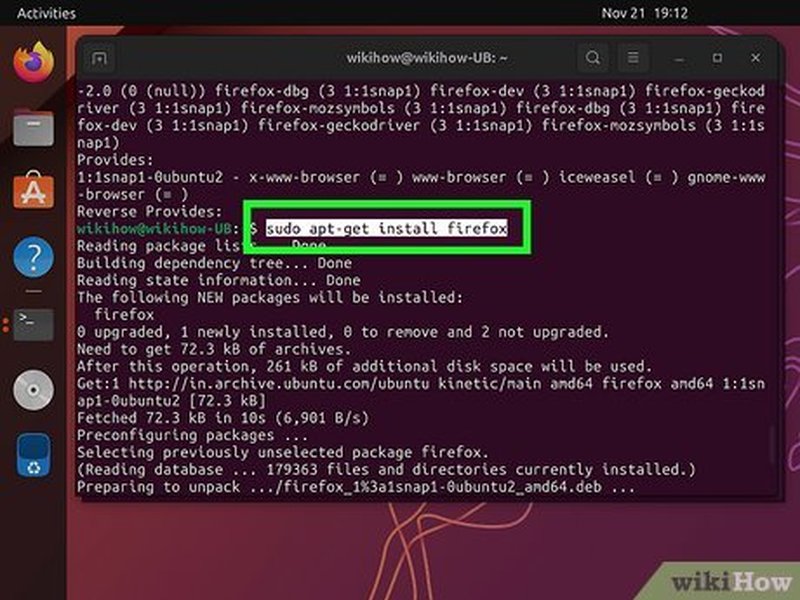
Using the Ubuntu Software Center to find and install applications.
- Terminal (APT): For installing software from Ubuntu's repositories using `apt` commands (e.g., `sudo apt install packagename`). This is often faster for users comfortable with the command line.
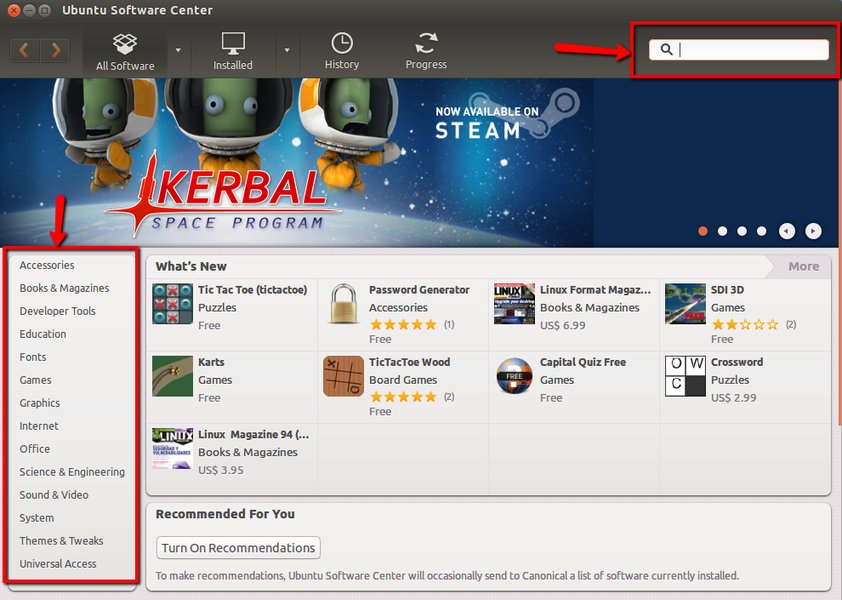
Installing an application using the `apt` command in the terminal.
- Snap Packages: Installable via the terminal (e.g., `sudo snap install packagename`) or Ubuntu Software. Snaps are containerized software packages that include all their dependencies.
- .deb Packages: Some software is distributed as `.deb` files (e.g., Google Chrome). Download the file and install it by double-clicking or using `sudo dpkg -i filename.deb` followed by `sudo apt install -f` to fix dependencies if needed.
- Flatpaks: Another universal packaging format. While Ubuntu focuses on Snaps, Flatpak support can be added if desired.
Summary of Recommended Apps and Installation Methods
Quick Overview Table
This table provides a concise summary of some highly recommended applications, their primary function, and common installation methods on Ubuntu 25.04.
| Application | Category | Primary Function | Common Installation Methods |
|---|---|---|---|
| GNOME Tweaks | System Utility | Desktop Customization | APT (`sudo apt install gnome-tweaks`) |
| LibreOffice | Productivity | Office Suite | APT (`sudo apt install libreoffice`), Ubuntu Software |
| VLC Media Player | Multimedia | Media Playback | APT (`sudo apt install vlc`), Snap, Ubuntu Software |
| GIMP | Graphics | Image Editing | APT (`sudo apt install gimp`), Snap, Ubuntu Software |
| Google Chrome | Internet | Web Browser | .deb package from official website |
| Telegram Desktop | Communication | Messaging | Snap (`sudo snap install telegram-desktop`), Ubuntu Software |
| Stacer | System Utility | System Optimizer & Monitor | Snap (`sudo snap install stacer`), .deb from website |
| Kdenlive | Multimedia | Video Editing | APT (`sudo apt install kdenlive`), Snap, Ubuntu Software |
| Visual Studio Code | Development | Code Editor | Snap (`sudo snap install code --classic`), .deb from official website |
| Déjà Dup Backups | Backup | Data Backup | APT (`sudo apt install deja-dup`), Ubuntu Software |
| Steam | Gaming | Gaming Platform | .deb package from official website, APT (older version) |
Further Insights: Post-Installation Tips for Ubuntu 25.04
Watch a Video Guide
For a visual walkthrough of essential steps and app installations after setting up Ubuntu 25.04, the following video offers practical advice and demonstrations. It covers many of the topics discussed, providing an alternative way to absorb the information and see the processes in action.
This video titled "13 Things You MUST DO After Installing Ubuntu 25.04" covers key tweaks, useful apps, and package installations to optimize your new system.
The video typically includes guidance on system updates, driver installations, enabling restricted extras, and installing a selection of popular and useful applications, offering a dynamic complement to this written guide.
Frequently Asked Questions (FAQ)
How do I install these recommended applications?
You have several options:
- Ubuntu Software Center: A graphical interface for browsing and installing apps, mainly Snaps.
- Terminal (APT): Use commands like
sudo apt updatethensudo apt install <packagename>. - Terminal (Snap): Use commands like
sudo snap install <snapname>. - .deb files: Download from the software vendor's website and install by double-clicking or using
sudo dpkg -i <filename.deb>followed bysudo apt -f installif there are dependency issues.
Why are multimedia codecs (ubuntu-restricted-extras) important?
Many common audio and video formats (like MP3, MP4 with H.264) and DVD playback require codecs that cannot be included in the default Ubuntu installation due to legal and licensing restrictions. Installing ubuntu-restricted-extras provides these proprietary codecs, enabling playback of a much wider range of media files and also includes Microsoft TrueType core fonts.
What if I prefer Flatpaks over Snaps?
While Ubuntu has a strong focus on Snap packages, you can easily enable Flatpak support. First, install the Flatpak package management utility:
sudo apt install flatpakThen, add the Flathub repository, which is the main source for Flatpak apps:
flatpak remote-add --if-not-exists flathub https://flathub.org/repo/flathub.flatpakrepoAfter this, you may need to restart your system for Flatpak apps to appear in the Software Center, or you can install them via the terminal using flatpak install flathub <app-id>.
Is it necessary to install all these applications?
Absolutely not. This list is a comprehensive set of recommendations covering various needs. You should pick and choose the applications that are most relevant to your specific workflow and interests. The goal is to tailor Ubuntu 25.04 to be the perfect tool for you.
Recommended Further Exploration
Dive deeper into related topics:
- Learn advanced techniques for personalizing your GNOME desktop environment on Ubuntu 25.04.
- Discover top Snap packages specifically for boosting productivity on your Ubuntu 25.04 system.
- Explore methods and tools to maximize gaming performance on Ubuntu 25.04.
- Understand the important security features and improvements introduced in Ubuntu 25.04.
References
Sources used to compile this guide:
Last updated May 17, 2025