
Unlocking the Ubuntu 2024 Boot Process
Demystifying Ubuntu's journey from power-on to login
Key Insights
- Firmware Initialization and GRUB Bootloader: Explains how BIOS/UEFI sets the stage, followed by GRUB taking charge.
- Kernel and Initramfs Dynamics: Details on loading the kernel, switching file systems, and starting systemd.
- User Session and Troubleshooting: Guides on how services, target units, and display managers lead to a functioning desktop and what to do when issues arise.
Understanding the Ubuntu 2024 Boot Process
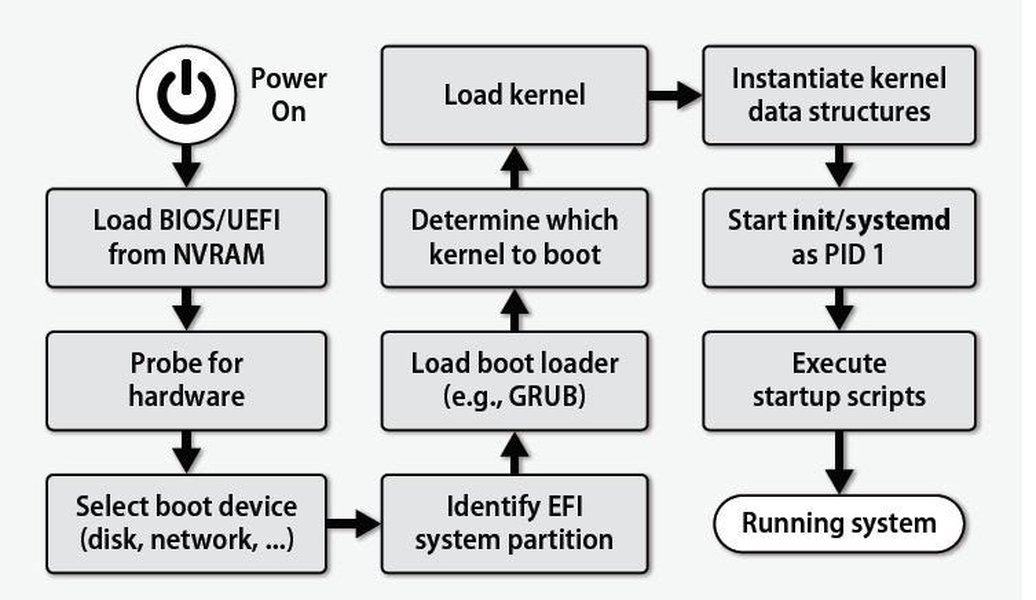
Ubuntu 2024’s boot process is a sophisticated multi-stage sequence that transitions a computer from power-on to a fully operational state. This journey begins with firmware initialization and ends fully with the login screen. The process is designed for efficiency, security, and scalability, ensuring that both hardware and software components are properly synchronized.
Stage 1: Firmware Initialization
BIOS/UEFI Startup
The process initiates when the computer is powered on. The BIOS (Basic Input/Output System) or UEFI (Unified Extensible Firmware Interface) firmware performs a Power-On Self-Test (POST), which verifies that essential hardware components like the CPU, memory, and peripherals are working correctly. The firmware then determines the boot order, selecting the appropriate bootable device. In modern systems, UEFI is preferred, offering advanced features such as Secure Boot to verify the integrity of system components using digital signatures.
Device Detection and POST
During POST, the firmware not only tests the hardware but also loads minimal software to identify connected devices. This ensures that the system can detect storage devices properly, setting the stage for subsequent loading of the bootloader.
Stage 2: The Bootloader Stage
Role of GRUB
After successful hardware initialization, the bootloader takes over. Typically, Ubuntu uses GRUB (GRand Unified Bootloader) which is located in the Master Boot Record (MBR) for BIOS systems or in a dedicated partition in UEFI systems. GRUB’s primary task is to present the boot menu, from which the user may select different kernel versions or operating systems if dual booting. By default, after a brief timeout, the first entry is chosen automatically.
Loading Configuration and Initial RAM Disk
GRUB reads its configuration file (often found at /boot/grub/grub.cfg or /boot/grub/menu.lst) to determine which kernel to load and what parameters should be passed to it. Additionally, GRUB loads a temporary filesystem known as the initramfs (initial RAM filesystem) that contains essential drivers and scripts required to access the real root filesystem.
Stage 3: Kernel Loading and Initramfs
Kernel Initialization
Once GRUB has executed its role, the Linux kernel is loaded into memory. The kernel is at the heart of Ubuntu, responsible for managing system resources, hardware interactions, and running key subsystems. During initialization, it configures devices, mounts the initramfs, and readies the system for the next phase of startup.
From Temporary to Real Root Filesystem
The initramfs serves as a staging environment, containing the necessary drivers (for storage, RAID, LVM, etc.) to locate and mount the real root filesystem. Once the actual system partition becomes available, the kernel performs a pivot operation—shifting from the temporary filesystem to the real one—and begins deeper system initialization.
Stage 4: The Init Process and Systemd
Launching the Init Process
After the kernel has prepared the system, it starts the first user-space process, generally known as init. In current Ubuntu versions, systemd has replaced the traditional init system. As process ID 1, systemd becomes responsible for orchestrating the startup of system services and setting up the operating environment.
Systemd and Target Units
Systemd works through an intricate network of unit files, categorizing services into targets. The default.target, which is often linked to either graphical.target or multi-user.target, determines whether the system boots into a graphical user interface (GUI) or a text-based system. Systemd’s parallelized approach allows multiple services to start simultaneously, greatly enhancing boot speed.
Stage 5: User Session Initialization
Starting Display Manager & User Login
Once systemd has initiated all essential system services, it triggers the display manager (commonly GDM or LightDM in Ubuntu). This manager starts the graphical interface, presenting users with a login screen. Once verified credentials are entered, the user's session begins, loading desktop environments and personal configurations.
Post Boot Operations
After login, background services continue to run, ensuring that network configurations, updates, and other user tasks function seamlessly. The entire boot process not only ensures correct initialization but also provides avenues for troubleshooting and recovery in case of failures.
Visual Representation: Boot Process Radar Chart
The following radar chart encapsulates various components of Ubuntu’s boot process based on their significance during initialization:
Comparative Table of Key Boot Stages
Below is a table summarizing the various stages of the Ubuntu boot process, highlighting main actions and responsible components:
| Stage | Main Actions | Responsible Component |
|---|---|---|
| Firmware Initialization | POST, Hardware Detection, Boot Order Setup | BIOS/UEFI |
| Bootloader Stage | Loading GRUB, Boot Menu, Initramfs Loading | GRUB |
| Kernel Stage | Kernel Loading, Hardware Initialization, Mounting Initramfs | Linux Kernel |
| Init Process | Starting Services, Running systemd Targets | systemd (PID 1) |
| User Session | Display Manager Loads, User Login, Desktop Setup | Display Manager (GDM/LightDM) |
Embedded Multimedia Resource
The video below complements our explanation by providing a practical demonstration on dual-boot configurations and an in-depth look at Ubuntu 24.04’s boot sequence. It is especially useful for users who wish to see the process in action.
FAQs
What is the role of BIOS/UEFI in the Ubuntu boot process?
BIOS/UEFI is responsible for the initial hardware checks (POST), detecting connected devices, and determining the boot order. It sets up the environment for the bootloader to take over.
How does GRUB work in the boot process?
GRUB is the bootloader that loads after the BIOS/UEFI stage. It presents a boot menu for the user to select an operating system or kernel version, then loads the chosen kernel and the initial ramdisk (initramfs) into memory.
What roles do the kernel and initramfs play?
The kernel is the core component that manages hardware and system resources. The initramfs provides a temporary root filesystem, loading necessary drivers and scripts to help transition to the real root filesystem before full system initialization.
How does systemd improve the boot process?
Systemd, acting as the init process (PID 1), streamlines and parallelizes system service initialization. This leads to faster booting by efficiently managing dependencies through target units such as graphical.target and multi-user.target.
References
- Exact Booting Process of Ubuntu - Ask Ubuntu
- Booting - Ubuntu Wiki
- Implementing Secure Boot on Ubuntu - Poe Spas
- Boot Repair Ubuntu - Nushoe
- Ubuntu Bootup Process - Ubuntu Manpages
Recommended Related Queries
Last updated April 3, 2025