
Exploring the Optimal Method to Install Ubuntu Server on macOS
A comprehensive guide that weighs dual boot and virtualization options for Mac users
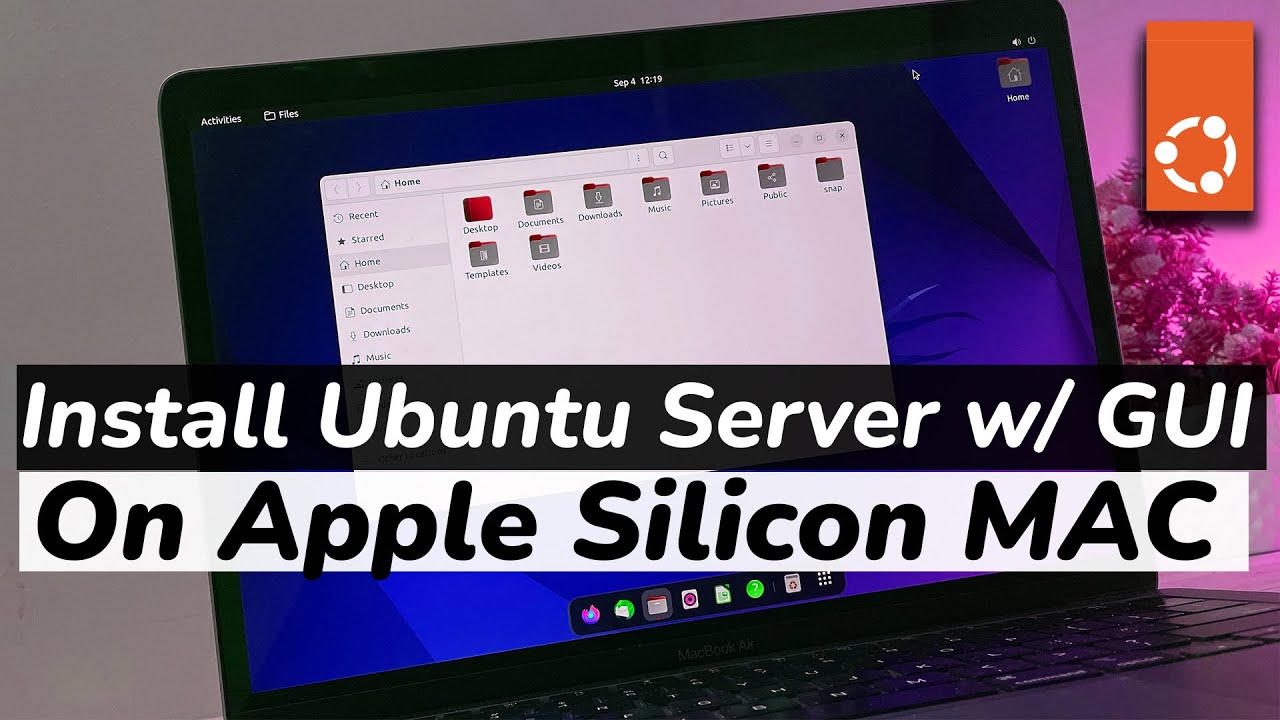
Key Highlights
- Dual Boot vs Virtualization: Evaluate the pros and cons of installing Ubuntu Server directly alongside macOS compared to running it in a virtual machine.
- Hardware Compatibility: Understand how Mac’s hardware (Intel vs Apple Silicon) influences the installation process and software support.
- Step-by-Step Setup: Detailed pre-installation preparations, bootable media creation, and installation through tools like rEFInd, UTM, or VirtualBox.
Comprehensive Overview
When considering installing Ubuntu Server on a Mac with macOS, it is essential to choose the best method that aligns with your system hardware, performance requirements, and your comfort level with system management. Two primary approaches exist: installing Ubuntu Server via dual booting or through virtualization. Both methods have distinct advantages and considerations.
Dual Boot Installation
Preparation and Partitioning
Dual booting allows you to maintain both macOS and Ubuntu Server on your device, enabling you to select the operating system at startup. This method requires careful planning and data backup to ensure that no important files are lost during the partitioning process. Begin by backing up your data and using macOS’s Disk Utility to resize your macOS partition. This will provide unallocated space – typically 20GB to 40GB depending on your needs – where Ubuntu Server will be installed.
Creating Bootable Media
Download the appropriate Ubuntu Server ISO for your Mac. Note that if your Mac employs Apple Silicon (M-series), you must source the ARM64 (ARMv8) version of Ubuntu Server, while older Intel-based Macs can use the standard x86 version. A reliable tool such as balenaEtcher is recommended for creating a bootable USB drive. After preparing the media, reboot your Mac while holding down the Option (Alt) key to access the boot menu. Select the USB drive, typically labeled as "EFI Boot" or similar, to start the installation.
Partitioning During Installation
With the bootable media active, follow the Ubuntu Server installation prompts. During the partitioning stage, opt for either the pre-defined “install alongside macOS” option or use the “Something else” option for manual partitioning. Allocate the free space: set up an ext4 partition to serve as your root directory ("/") and, optionally, configure a swap partition if required. Additionally, setting up a boot manager like rEFInd can simplify OS selection at each startup, offering improved flexibility if macOS’s native boot manager exhibits compatibility issues.
Virtualization Approach
Virtualization is often recommended as an alternative due to its simplicity and reduced risk of interfering with your macOS installation. By running Ubuntu Server as a virtual machine (VM), you create an isolated environment that runs concurrently with macOS. This approach avoids partitioning complications and makes it easier to manage and experiment with Ubuntu.
Virtualization Software Options
Several virtualization tools are available:
- UTM: Particularly effective for Apple Silicon Macs due to native support for ARM-based architecture. UTM provides a straightforward interface for setting up VMs and managing system resources.
- VirtualBox: Widely used for its stability and extensive community support, VirtualBox works well on Intel-based Macs. However, users of Apple Silicon should ensure that they download an ARM-compatible version if available.
- VMware Fusion or Parallels Desktop: These are commercial alternatives that often offer enhanced performance and easier integration with macOS, ideal for users prioritizing resource efficiency and seamless experience.
Virtual Machine Configuration
After selecting your visualization platform, download the Ubuntu Server ISO – again, ensuring that the correct version is used based on your Mac’s processor – and proceed to create a new VM. Allocate appropriate resources such as RAM and CPU cores, and attach the ISO file to the virtual CD/DVD drive of the VM. Once the configuration is complete, start the VM and follow the installation prompts.
Post-installation, if you desire a graphical interface rather than a purely command-line experience, you can optionally install a desktop environment (such as GNOME) by connecting to your server via SSH and running a sequence of updates and installations. For example, execute:
# Update the package list
sudo apt update

# Install GNOME Desktop
sudo apt install ubuntu-desktop
The virtualization approach is advantageous for testing purposes and for maintaining system stability by avoiding direct modifications to the host operating system.
Detailed Comparison: Dual Boot vs Virtualization
| Aspect | Dual Boot | Virtualization |
|---|---|---|
| Hardware Utilization | Direct use of hardware resources; better performance if set up properly. | Virtual environment may not fully leverage hardware capabilities; overhead may be present. |
| System Stability | Requires careful partitioning and backup; risk of modifying system configurations. | Runs as an isolated instance within macOS, reducing risk to the host system. |
| Ease of Use | More technically challenging; involves direct installation and boot manager configuration. | User-friendly setup with virtualization software; simultaneous access to both OS. |
| Flexibility | Ideal for dedicated use of Ubuntu Server when high performance is needed. | Best for testing, development, or temporary server setups without modifying disk partitions. |
| Processor Compatibility | For Intel-based Macs, traditional ISO images work well; for Apple Silicon, ensure you use the ARM64 version. | Virtualization platforms like UTM optimize for ARM on Apple Silicon, while VirtualBox is more traditionally configured for Intel. |
Step-by-Step Practical Guidance
Dual Boot Installation Process
Step 1: Back Up and Prepare
Prior to installation, create a complete backup of your macOS data using Time Machine or your preferred backup solution. Secure your data before partitioning your disk using macOS’s Disk Utility. Allocate sufficient space (20GB or more) for the Linux partitions.
Step 2: Create Bootable USB Media
Download the appropriate Ubuntu Server ISO from the official Ubuntu website. Utilize software like balenaEtcher to create a bootable USB drive. This media is your installer when booting from the USB.
Step 3: Booting and Windows Selection
Insert the USB drive and reboot your Mac. Hold the Option (Alt) key on startup to access the boot device selection. Choose the USB drive labeled as "EFI Boot" and start the Ubuntu Server installation process.
Step 4: Partitioning and Installation
When prompted for installation type, choose “Install alongside macOS” if available, or select “Something else” for manual partitioning. Create an ext4 partition designated as the root filesystem ("/") and configure an optional swap partition. Complete the installation by following on-screen instructions for timezone, username, and password configuration.
Step 5: Post-Installation Boot Management
After installation, reboot your system. To simplify the OS selection process, consider installing a third-party boot manager like rEFInd. This tool enhances the native boot menu and facilitates smoother switching between macOS and Ubuntu Server.
Virtualization Installation Process
Step 1: Installation of Virtualization Software
For virtualization, choose from UTM, VirtualBox, VMware Fusion, or Parallels Desktop. For Apple Silicon devices, UTM is highly recommended due to its native ARM support, whereas VirtualBox remains popular among Intel-based Macs.
Step 2: Download the Ubuntu Server ISO
Head over to the Ubuntu official download page and select the correct ISO version (ARM64 for Apple Silicon or x86 for Intel). This ensures compatibility with your Mac's processor architecture.
Step 3: Creating and Configuring the Virtual Machine
In your chosen virtualization software, create a new virtual machine with Linux as the system category. Assign sufficient resources such as memory (RAM) and CPU cores. Mount the downloaded ISO as the virtual CD/DVD drive image within the new machine’s settings.
Step 4: Installation and Optional Desktop Environment
Start the VM and run through the Ubuntu Server installation steps as prompted. After deploying the base system, if you require a graphical user interface for improved accessibility, you can install a desktop environment like GNOME by connecting to the server and executing the necessary commands:
# Update package repository
sudo apt update

# Install the desktop environment (example: GNOME)
sudo apt install ubuntu-desktop
This step is entirely optional, depending on whether you want a graphical interface or prefer a standard server command-line environment.
Advanced Considerations and Best Practices
Regardless of your chosen installation method, several advanced considerations and best practices will help ensure a smooth experience:
Backup and Recovery Plans
Always create backups before modifying disk partitions or installing operating systems. Tools like Clonezilla or Time Machine (for macOS) are vital for safeguarding important data. Maintaining recovery media for both macOS and Ubuntu is a robust practice, allowing you to restore systems in case of issues.
Driver and Hardware Compatibility
Mac hardware, such as wireless modules and graphics interfaces, poses unique challenges when run under Ubuntu. Post-installation, perform thorough driver updates and search for any additional drivers that might be required to fully utilize the hardware. Community forums and Ubuntu’s official hardware database can offer guidance if you encounter driver incompatibility issues.
Optimizations and Performance
For dual boot installations, the direct access to hardware can provide optimal performance in use-case scenarios such as hosting production servers or environments requiring high resource allocation. Comparatively, virtualization, while convenient, may not deliver the same level of performance – though improvements in modern virtualization platforms have significantly minimized this gap. Meanwhile, configuring memory and CPU allocation correctly in your VM’s settings can greatly influence performance outcomes.
Security Considerations
Whether dual booting or virtualizing, ensure your system remains secure by following standard security practices. Regularly update both macOS and Ubuntu Server, use encrypted partitions where possible, and employ strong, unique passwords. Keeping your system secured is crucial in environments where sensitive data or critical services are hosted.
Useful Resources and Further Reading
For a deeper dive into detailed instructions and personalized configurations, refer to several well-maintained online resources. These references include step-by-step guides, community forums, and professional blogs that offer practical insights into the installation process.
- Ubuntu Installation Guide - ItsLinuxFoss
-
Installing Ubuntu on Apple Silicon - Lakshmikanth
- Create a USB Stick on macOS - Ubuntu Official
- Dual Booting macOS and Linux - MakeUseOf
- Ubuntu on Mac Dual Boot Guide - LinuxSimply
Recommended Explorations for Deeper Insights
Last updated March 24, 2025