
Understanding Your YouTube Playlist
A Comprehensive Guide to Managing and Utilizing YouTube Playlists
Key Takeaways
- Effective Playlist Management Enhances User Experience
- Understanding YouTube Link Structures Facilitates Better Navigation
- Advanced Features of YouTube Playlists Offer Greater Flexibility
Introduction to YouTube Playlists
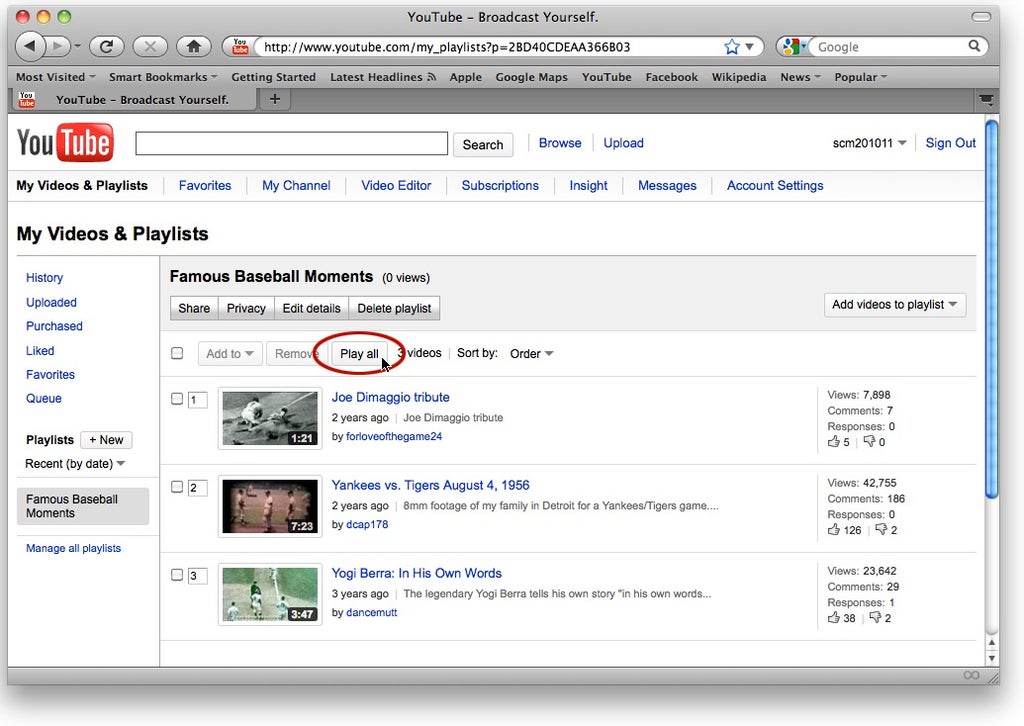
YouTube playlists are a powerful tool that allows users to organize videos in a structured and accessible manner. Whether you're a content creator looking to categorize your videos or a viewer seeking to compile your favorite clips, playlists serve as an essential feature for enhancing the overall YouTube experience. Playlists can be customized to fit various needs, from educational series to entertainment compilations, making them versatile for different types of content and audiences.
Understanding YouTube Link Structures
The YouTube link shared by the user: https://m.youtube.com/watch?v=kc5-u4c9u74&list=PLA3tRQRDlx0RL4IPz-kABR9UzLGLS7Oio&pp=iAQB contains vital information about the video and the playlist it belongs to. Understanding the components of a YouTube URL can help users navigate and manage their playlists more effectively.
Breaking Down the URL:
?v=kc5-u4c9u74: Represents the unique video identifier. This parameter specifies the particular video you want to watch.list=PLA3tRQRDlx0RL4IPz-kABR9UzLGLS7Oio: Signifies the playlist identifier. This parameter links the video to a specific playlist, enabling sequential playback of videos within that playlist.pp=iAQB: Pertains to playlist playback parameters, such as autoplay settings. It may control aspects like the starting point of the playlist or specific playback behaviors.
Accessing and Managing Your Playlists
To access the content of a playlist, navigate to the YouTube URL and view the list of videos included. YouTube provides various features to manage your playlists effectively, ensuring that your content is organized and easily accessible.
Creating Playlists
Creating a new playlist is straightforward. Follow these steps:
- Find a video you want to add to a playlist.
- Click on the "Save" button beneath the video.
- Select an existing playlist or create a new one by clicking on "+ Create new playlist".
- Set the privacy level for the playlist: Public, Unlisted, or Private.
- Click "Create" or "Save" to add the video to the chosen playlist.
Organizing Videos
Once you have a playlist, you can organize the videos to ensure a logical flow:
- Rearranging Order: Navigate to your playlist, click on "Edit Playlist", and drag the videos to reorder them as desired.
- Removing Videos: In the "Edit Playlist" mode, click the three dots next to a video and select "Remove from Playlist".
- Adding Descriptions: Provide detailed descriptions for your playlists to inform viewers about the content and purpose.
Private and Public Playlists
YouTube allows you to control the visibility of your playlists:
- Public: Anyone can view, like, and share your playlist.
- Unlisted: Only people with the link can view the playlist. It won't appear in search results.
- Private: Only you can view the playlist. It won't be accessible to others.
Sharing Playlists
To share your playlist with others:
-
Go to your playlist page.
-
Click on the "Share" button.
-
Copy the provided link or use the embed code to share it on websites and social media platforms.
Enhancing User Experience with Playlists
Playlists not only aid in organization but also enhance user engagement by offering a curated viewing experience. Implementing strategic playlist practices can significantly improve how viewers interact with your content.
Thematic Organization
Grouping videos based on themes, topics, or series helps viewers navigate content effortlessly. For example, a cooking channel might organize playlists by meal types such as "Breakfast Recipes," "Lunch Specials," and "Dinner Delights."
Sequential Viewing
Arranging videos in a logical order facilitates sequential viewing, especially for tutorial or educational content. This ensures that viewers can follow along without missing crucial information.
Personalization
Customizing playlists to cater to specific interests or audiences increases relevance and appeal. Personalized playlists can be tailored for different demographics, skill levels, or preferences, enhancing viewer satisfaction.
Advanced Features and Settings
YouTube offers several advanced settings and features to customize how your playlists function, providing greater flexibility and control over the viewing experience.
Autoplay Settings
Control whether videos in a playlist play automatically or require manual initiation. Autoplay can keep viewers engaged by seamlessly transitioning to the next video, while manual initiation allows for more deliberate viewing choices.
Embedding Playlists
Integrate playlists into websites or blogs using embed codes. This allows visitors to view a curated selection of videos without leaving your site, enhancing the multimedia experience.
Analytics and Insights
Track the performance of your playlists through YouTube Analytics. Gain insights into viewer behavior, such as watch time, drop-off points, and popular videos within the playlist, to make informed content decisions.
Best Practices for Creating Effective Playlists
To ensure that your playlists are effective and engaging, consider implementing the following best practices:
Clear Titling
Use clear and descriptive titles for your playlists to accurately reflect the content and attract viewers. Avoid vague titles and instead opt for specificity that communicates the playlist's purpose.
Consistent Updates
Regularly update your playlists by adding new relevant content and removing outdated material. Consistent updates keep the playlist fresh and maintain viewer interest.
Engaging Descriptions
Provide detailed descriptions for your playlists to inform viewers about the content and purpose. A well-crafted description can entice viewers to explore the playlist further.
Thumbnail Customization
Customize playlist thumbnails to create a visually appealing and recognizable interface. Eye-catching thumbnails can improve click-through rates and overall engagement.
Common Issues and Troubleshooting
Users may encounter various issues while managing YouTube playlists. Here are some common problems and their solutions:
| Issue | Possible Cause | Solution |
|---|---|---|
| Playlist Not Loading | Internet connectivity issues or browser compatibility | Check your internet connection, try refreshing the page, or use a different browser. |
| Cannot Add Videos to Playlist | Restrictions on the video or playlist settings | Ensure that the video allows adding to playlists and that you have the necessary permissions for the playlist. |
| Playlist Visibility Issues | Incorrect privacy settings | Adjust the privacy settings to public, unlisted, or private as desired. |
| Duplicate Videos in Playlist | Unintentional repeated additions | Manually remove duplicate entries to streamline the playlist. |
| Playback Order Issues | Incorrect video sequencing | Reorder the videos in the playlist to ensure the desired playback sequence. |
Enhancing Playlists with Embedded Content
Embedding playlists into websites or blogs can significantly enhance user engagement. Below is a sample code snippet for embedding a YouTube playlist:
<iframe width="560" height="315" src="https://www.youtube.com/embed/videoseries?list=PLA3tRQRDlx0RL4IPz-kABR9UzLGLS7Oio" frameborder="0" allow="autoplay; encrypted-media" allowfullscreen></iframe>This iframe can be integrated into your website's HTML to display the playlist directly on your page, allowing visitors to watch the videos without navigating away.
Frequently Asked Questions
Can I make a playlist private?
Yes, YouTube allows users to set playlists as public, unlisted, or private based on their preference. To change the privacy settings, go to your playlist, click on "Edit Playlist," and adjust the privacy under the "Visibility" option.
How do I reorder videos in a playlist?
To reorder videos, navigate to your playlist, click on "Edit Playlist," and drag the videos to your desired positions. Once arranged, the new order will be reflected in the playlist playback sequence.
Can I share my playlist with others?
Absolutely, you can share your playlist by providing the playlist link or embedding it into other platforms. Sharing enables others to view and enjoy the curated selection of videos you have compiled.
How do I add a video to multiple playlists?
You can add a single video to multiple playlists by selecting each desired playlist when saving the video. This allows for greater flexibility in organizing content across different themes or categories.
Can I delete a playlist?
Yes, to delete a playlist, go to your YouTube Studio, navigate to the "Playlists" section, select the playlist you wish to delete, click on the three dots next to it, and choose "Delete playlist."
Conclusion
YouTube playlists are an invaluable tool for organizing and enhancing the viewing experience. By understanding the structure, management features, and best practices associated with playlists, users can maximize their engagement and streamline their content consumption. Whether you're a creator looking to categorize your videos or a viewer seeking a curated selection of content, mastering YouTube playlists can significantly improve your overall YouTube experience.
References
Last updated January 28, 2025