

Key Insights into VBA Cell Address Variables
- String vs. Range: A cell address itself is inherently a String in VBA (e.g., "$A$1"), while a Range object refers to the actual cell or collection of cells.
- The
SetKeyword: When working with Range objects, always use theSetkeyword for assignment, asRangeis an object type. - Flexibility and Manipulation: Declaring a variable as a Range object offers greater flexibility for direct cell manipulation (e.g., changing values, formatting), whereas a String is best for storing and referencing the textual address.
When automating tasks in Excel using VBA (Visual Basic for Applications), efficiently managing cell references is fundamental. While you might intuitively think of a "cell address" as a distinct data type, VBA handles it in a specific manner. The core distinction lies in whether you need to store the textual representation of an address (like "A1" or "$C$5") or if you need to work directly with the cell or group of cells themselves. Understanding this nuance is key to writing robust and effective VBA code.
Understanding VBA Variable Declaration for Cell Addresses
In Excel VBA, you don't "dim" a variable specifically "as an address" because there isn't a dedicated data type for addresses. Instead, you primarily use two main approaches, each serving a distinct purpose:
When to Use a String for Addresses
The most direct way to store a cell address is as a String data type. This is suitable when you need the literal text of the address. For instance, if you're constructing a formula that requires a cell reference, or if you're logging addresses, a String variable is the appropriate choice. The .Address property of a Range object will always return a String representation of its address.
Sub StoreAddressAsStringExample()
    Dim cellAddress As String
    ' Assign the address of cell A1 to the string variable
    cellAddress = Range("A1").Address ' This will store "$A$1" by default

    ' Display the stored address
    MsgBox "The address as a string is: " & cellAddress

    ' You can then use this string to refer back to a range
    Range(cellAddress).Value = "Hello from String"
End Sub
The .Address property offers flexibility, allowing you to specify absolute or relative referencing. For example, Range("A1").Address(RowAbsolute:=False, ColumnAbsolute:=False) would return "A1" instead of "$A$1".
When to Use a Range Object for Cells
When you want to manipulate the cell or range directly—such as changing its value, formatting, or selecting it—you should declare a variable of type Range. This allows you to access all the properties and methods associated with an Excel range.
Sub StoreCellAsRangeObjectExample()
    Dim myCell As Range
    ' Assign cell B2 to the Range object variable
    Set myCell = Range("B2") ' Note the use of 'Set' for object assignment

    ' Now you can directly manipulate the cell referred to by myCell
    myCell.Value = "Hello from Range Object"
    myCell.Interior.Color = vbYellow ' Change background color
    myCell.Font.Bold = True

    ' You can also get its address as a string from the Range object
    Dim myAddressString As String
    myAddressString = myCell.Address
    MsgBox "The Range object refers to: " & myAddressString & " and its value is: " & myCell.Value
End Sub
It's crucial to remember the Set keyword when assigning an object to a Range variable. Failing to use Set for object assignments is a common mistake that leads to errors in VBA.
The Interplay Between String Addresses and Range Objects
While String and Range variables serve different primary functions, they can interact. You can extract the address (as a String) from a Range object, and conversely, you can use a String address to define a Range object.
Sub CombineAddressTypesExample()
    Dim myDynamicRange As Range
    Dim addressFromInput As String

    ' Assume cell C1 contains the text "D5"
    addressFromInput = Range("C1").Value
    MsgBox "Address obtained from C1: " & addressFromInput

    ' Use the string address to define a Range object
    Set myDynamicRange = Range(addressFromInput)
    myDynamicRange.Value = "Dynamic Cell"
    myDynamicRange.Interior.Color = RGB(173, 216, 230) ' Light Blue

    ' Get the address back from the Range object
    Dim finalAddressString As String
    finalAddressString = myDynamicRange.Address
    MsgBox "The Range object " & myDynamicRange.Value & " is at address: " & finalAddressString
End Sub
This dynamic interaction highlights the flexibility VBA offers in handling cell references, allowing for advanced automation scenarios where addresses might be determined at runtime or retrieved from external sources.
Exploring Key Properties and Methods
Both Range objects and String addresses are integral to various VBA operations. Here's a look at common scenarios:
Syntax and Importance of Dim
The Dim statement is fundamental in VBA for declaring variables. It specifies the variable's name and its data type, which helps VBA allocate memory efficiently and prevents unexpected behavior. While VBA can often infer data types (using Variant), explicitly declaring them is a best practice for clarity, performance, and error prevention.
Sub DeclareVariables()
    Dim i As Integer          ' Declares an integer variable
    Dim ws As Worksheet       ' Declares a Worksheet object variable
    Dim myValue As String     ' Declares a string variable
    Dim targetRange As Range  ' Declares a Range object variable

    ' Assign values
    i = 10
    Set ws = ThisWorkbook.Sheets("Sheet1")
    myValue = "Example Text"
    Set targetRange = ws.Range("A1")
End Sub
Absolute vs. Relative Addressing
The .Address property allows you to control whether the returned address string is absolute (e.g., "$A$1") or relative (e.g., "A1"). This is important for tasks where formulas might need to adapt when copied or moved.
Sub AddressFormats()
    Dim absAddress As String
    Dim relAddress As String

    ' Absolute address (default)
    absAddress = Range("A1").Address ' Returns "$A$1"
    MsgBox "Absolute address: " & absAddress

    ' Relative address
    relAddress = Range("A1").Address(RowAbsolute:=False, ColumnAbsolute:=False) ' Returns "A1"
    MsgBox "Relative address: " & relAddress
End Sub
Common Pitfalls and Best Practices
Understanding the distinction between a String address and a Range object helps avoid common errors:
- Mismatching Types: Do not attempt to assign a string address to a
Rangevariable without theSetkeyword and without converting it back to aRangeobject. For example,Dim rng As Range: rng = Range("A1").Addresswill cause a type mismatch error. - Scope of References: If you store an address as a
String, it typically refers to the active sheet unless you explicitly include the worksheet name (e.g.,"Sheet1!A1"). When working withRangeobjects, it's best practice to fully qualify them (e.g.,Worksheets("Sheet1").Range("A1")). - Error Handling: If you're constructing addresses dynamically, consider implementing error handling to validate if the resulting string is a legitimate Excel address before attempting to convert it to a
Rangeobject.
The Power of Range Objects: A Deeper Dive
The Range object in VBA is incredibly versatile. It allows you to perform numerous operations directly on cells, such as reading and writing values, applying formatting, merging cells, and much more. This makes it a central component for most Excel automation tasks.
Beyond Single Cells: Working with Multiple Ranges
The Range object isn't limited to a single cell. It can refer to a group of cells, entire rows or columns, or even non-contiguous selections.
Sub WorkingWithMultipleRanges()
    Dim myMultiCellRange As Range
    Dim entireColumn As Range

    ' Referring to a contiguous range
    Set myMultiCellRange = Range("A1:B5")
    myMultiCellRange.Value = "Group Data"
    myMultiCellRange.Borders.Weight = xlThick ' Add borders

    ' Referring to an entire column
    Set entireColumn = Columns("C")
    entireColumn.ColumnWidth = 20

    ' Referring to non-contiguous ranges
    Dim nonContiguous As Range
    Set nonContiguous = Union(Range("E1"), Range("G3"), Range("I5"))
    nonContiguous.Interior.Color = RGB(255, 255, 200) ' Light Yellow
End Sub
Visualizing Cell Reference Concepts
This mindmap summarizes the key concepts related to declaring variables for cell addresses in Excel VBA:
This mindmap illustrates the various aspects of declaring variables for cell addresses in Excel VBA, highlighting the distinctions between String and Range types.
Practical Examples and Code Snippets
Let's consider a practical application where you might want to identify and store addresses of empty cells within a specific range. This often involves a loop and a decision-making process.
Sub FindEmptyCellsAndStoreAddresses()
    Dim searchRange As Range
    Dim cell As Range
    Dim emptyCellAddresses As String
    Dim countEmpty As Integer

    ' Define the range to search
    Set searchRange = Worksheets("Sheet1").Range("A1:C10")
    emptyCellAddresses = ""
    countEmpty = 0

    For Each cell In searchRange
        If IsEmpty(cell.Value) Then
            ' Store the address as a string
            If emptyCellAddresses = "" Then
                emptyCellAddresses = cell.Address(External:=True) ' Include sheet name
            Else
                emptyCellAddresses = emptyCellAddresses & ", " & cell.Address(External:=True)
            End If
            countEmpty = countEmpty + 1
            ' Optionally, you could also store the Range object itself in a collection
            ' Dim colEmptyCells As New Collection
            ' colEmptyCells.Add cell
        End If
    Next cell

    If countEmpty > 0 Then
        MsgBox "Found " & countEmpty & " empty cells at: " & emptyCellAddresses
        ' You could then use the stored string to select the empty cells
        Worksheets("Sheet1").Range(emptyCellAddresses).Select
    Else
        MsgBox "No empty cells found in the specified range."
    End If
End Sub
This example demonstrates how String variables can be useful for accumulating and displaying multiple addresses, and how Range objects enable iteration and direct examination of each cell's properties.
Understanding VBA Data Types: A Quick Reference
This table provides a concise overview of relevant VBA data types for handling cell information, emphasizing String and Range:
| Data Type | Description | When to Use | Example Declaration |
|---|---|---|---|
| String | Stores textual data. For cell addresses, it holds the address as text (e.g., "A1", "$C$5"). | When you need the literal text of a cell address, for constructing formulas, logging, or displaying. | Dim myAddress As String |
| Range | An object type that refers to an actual cell or collection of cells on a worksheet. | When you need to directly interact with a cell (read/write value, format, select, iterate). Requires Set for assignment. |
Dim myCell As Range |
| Variant | A flexible data type that can store almost any type of data, including numbers, strings, dates, and objects. | When the data type is uncertain or can change. Generally less efficient than explicit types. | Dim mixedVar As Variant |
| Long | Stores whole numbers (integers) in a larger range than Integer. | For row or column numbers, or counts of cells. | Dim rowNum As Long |
A summary of key VBA data types relevant to handling cell addresses and properties.
Visual Demonstration of Range and Address Usage
To see these concepts in action, here's a highly relevant YouTube video that demonstrates how to work with ranges in Excel VBA.
This video provides a practical walkthrough on referring to ranges and writing to cells in Excel VBA, reinforcing the concepts of direct cell interaction discussed above. It shows different methods to manipulate cells, which is directly applicable to the use of Range objects.
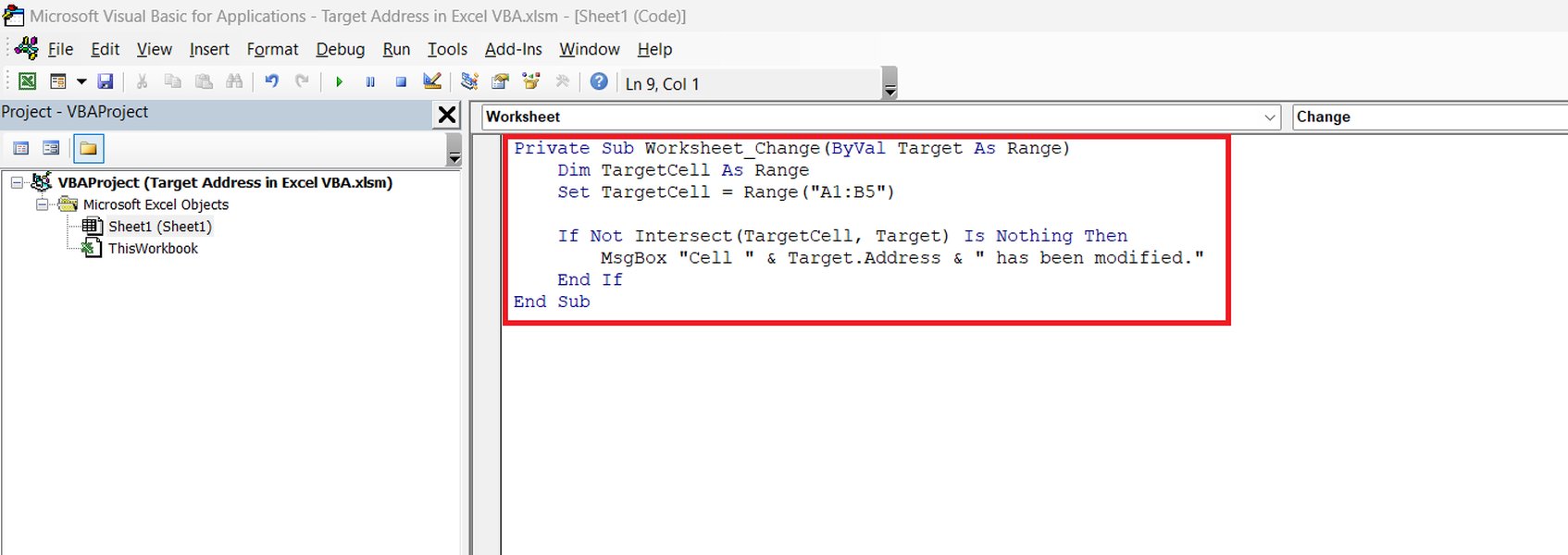
An illustrative image showcasing a target address in Excel VBA, indicating how code can interact with specific cell locations.
FAQ: Your Questions Answered
What is the difference between Dim myAddress As String and Dim myCell As Range?
Dim myAddress As String declares a variable that holds the textual representation of a cell's address (e.g., "A1"). Dim myCell As Range declares a variable that holds a reference to the actual cell or group of cells themselves, allowing you to manipulate their properties (like value, color, font).Why do I need to use Set for Range variables but not for String variables?
Range is an object data type in VBA. When you assign an object to a variable, you must use the Set keyword to assign the object reference. Primitive data types like String, Integer, or Long store values directly, so Set is not used for them.Can I convert a string address back into a Range object?
Range() function with a string address to get a Range object. For example, if myAddressString = "A1", you can write Set myCell = Range(myAddressString).How can I get a relative address (e.g., "A1") instead of an absolute address (e.g., "$A$1")?
.Address property with parameters: Range("A1").Address(RowAbsolute:=False, ColumnAbsolute:=False) will return "A1".What happens if I try to assign Range("A1").Address directly to a Range variable without Set?
String value (which .Address returns) to an object variable without using the Set keyword, and without converting the string into an actual Range object first.Conclusion
Effectively managing cell addresses in Excel VBA hinges on a clear understanding of two distinct approaches: using a String variable to store the textual representation of an address and using a Range object variable to refer to the actual cell(s). The Dim statement is used for declaration, and critically, the Set keyword is indispensable for assigning Range objects. By leveraging these concepts correctly, you can write powerful, flexible, and error-resistant VBA code that interacts seamlessly with your Excel worksheets.
Recommended Further Exploration
- Explore advanced properties and methods of the VBA Range object.
- Learn how to pass Range objects as arguments to custom VBA functions.
- Understand best practices for error handling when working with dynamic cell references.
- Discover how to use collections to manage multiple Range objects efficiently.