
Unlock Your Amazfit GTR Mini: Master Every Way to Wake Your Smartwatch
Discover the multiple methods to instantly access your Amazfit GTR Mini, from simple gestures to button presses, and customize them to fit your lifestyle.
Essential Insights: Waking Your GTR Mini
- Multiple Wake Methods: Your Amazfit GTR Mini can be awakened by lifting your wrist, pressing the side button, or sometimes by tapping the screen.
- Customizable Experience: Adjust sensitivity, schedule features like "Lift Wrist to Wake" via the Zepp app, and understand how settings like Always-On Display impact usability and battery.
- Troubleshooting Tips: Simple steps like checking battery, restarting the watch, or ensuring correct fit can resolve most wake-related issues.
The Amazfit GTR Mini is a stylish and feature-packed smartwatch designed for seamless integration into your daily life. Knowing how to quickly and reliably wake its vibrant AMOLED display is key to accessing its myriad functions, from checking the time and notifications to tracking your health and fitness data. This guide will walk you through all the available methods, how to configure them, and what to do if things aren't working as expected.
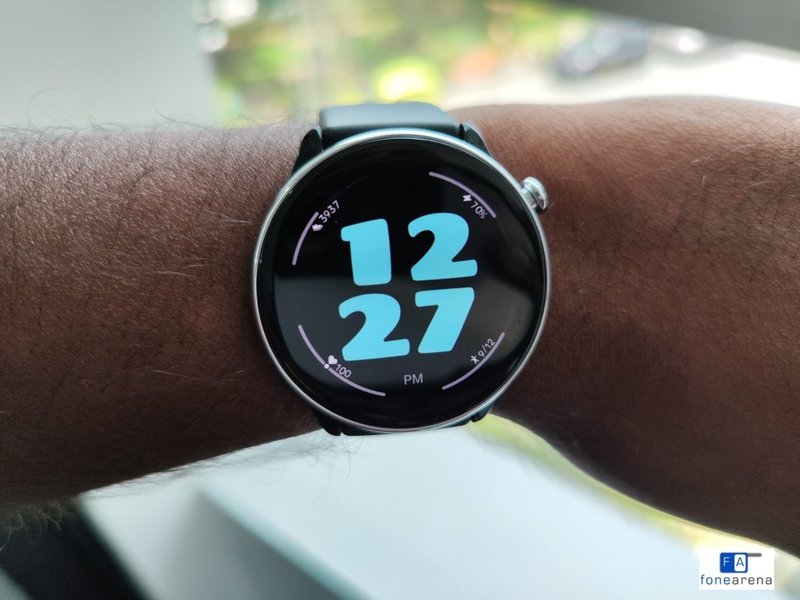
The Amazfit GTR Mini's bright AMOLED display, ready to be awakened.
Primary Methods to Wake Your Amazfit GTR Mini
Your Amazfit GTR Mini offers several intuitive ways to wake its screen, catering to different situations and preferences.
1. Lift Wrist to Wake: The Intuitive Gesture
This is often the most convenient and commonly used method. The watch is equipped with sensors that detect the motion of you raising your wrist to look at the screen.
How it Works
Simply raise your wrist as if you were checking a traditional timepiece. The screen should illuminate automatically, displaying your current watch face. This feature is usually enabled by default.
Customization and Considerations
- Sensitivity: You can often adjust the sensitivity of this feature (e.g., "Sensitive" or "Standard") in the watch settings under "Display > Wake on Wrist Raise" or via the Zepp app. This helps if the watch wakes too easily or not easily enough.
- Scheduling: The Zepp app typically allows you to schedule when "Lift Wrist to Wake" is active. This is useful for disabling it during sleep hours to prevent accidental screen activation and save battery.
- Response Time: Some users note a slight delay compared to other smartwatches. If this is an issue, the physical button might be a quicker alternative.
- Sleep Mode: When Sleep Mode is active, "Lift Wrist to Wake" is usually disabled to avoid disturbances.
2. Press the Side Button: The Reliable Classic
The Amazfit GTR Mini features a physical button on its side (often referred to as the crown or power button), providing a surefire way to wake the device.
How it Works
A single, brief press of the side button will immediately wake the screen and display the watch face or the last active screen. Pressing and holding the button typically accesses power options (like power off or restart) or can be configured to launch a specific app.
Advantages
- Instantaneous: This method is generally the fastest and most reliable way to wake the screen.
- Works Always: Unlike gesture-based waking, which can be affected by settings or modes, the button press is a direct command.
3. Touch the Screen (Tap to Wake): Contextual Activation
While not always the primary wake method for the GTR Mini, tapping the screen can sometimes activate it.
How it Works and Reliability
If the screen has recently dimmed (e.g., after a "Lift Wrist to Wake" activation that timed out), a tap on the screen might re-awaken it. However, its effectiveness for waking the watch from a completely blank or powered-down screen state is less consistent compared to the button press or wrist lift. Some Amazfit models have a dedicated "Tap to Wake" feature, but the GTR Mini leans more on the other methods for initial wake-up. Screen sensitivity and the presence of screen protectors can also influence this.
4. Always-On Display (AOD): Keeping Essentials Visible
The Amazfit GTR Mini supports an Always-On Display feature. While not a "wake" method in the traditional sense, it keeps basic information like the time constantly visible in a low-power state.
Functionality and Impact
- Constant Info: When AOD is enabled, you don't need to perform an action to see the time or other selected data points.
- Battery Consumption: Be aware that enabling AOD significantly increases battery drain. The GTR Mini boasts excellent battery life, but AOD will reduce it noticeably.
- Activation: You can typically enable and customize the AOD style through the watch settings or the Zepp app.
5. Incoming Notifications: Automatic Screen Wake
If your Amazfit GTR Mini is connected to your smartphone via Bluetooth and the Zepp app, the screen will automatically wake up when you receive notifications (like calls, text messages, or app alerts), provided this feature is enabled.
How it Works
When a notification arrives, the watch vibrates and the screen illuminates to display the alert. You can manage which app notifications trigger this in the Zepp app settings.
Configuring Your Wake Settings
Tailoring how your Amazfit GTR Mini wakes up can enhance your user experience and optimize battery life. Most configurations are managed through the Zepp app or directly on the watch.
Using the Zepp App
The Zepp app (available for iOS and Android) is your central hub for customizing watch features.
- Connect your GTR Mini to the Zepp app.
- Navigate to the device settings, often found under "Profile" > [Your Amazfit GTR Mini] > "Watch settings" or "Display & brightness".
- Look for options like "Lift wrist to view info," "Screen-on duration," "Always On Display," and "Notification settings."
- Here, you can enable/disable features, set schedules (e.g., for "Lift Wrist to Wake" to be off during sleep), and adjust sensitivity.
Directly on the Watch
Some settings can be adjusted on the GTR Mini itself:
- Swipe down from the main watch face to access the control center or swipe left/right to find the settings app.
- Navigate to "Settings" > "Display & Brightness" or "Preferences."
- Here you might find options for "Wake on Wrist Raise," "Screen On Duration," "Always On Display," and "Sleep Mode."
Understanding Wake Method Effectiveness: A Comparative Look
Different wake methods offer varying levels of reliability, speed, convenience, battery impact, and configurability. The radar chart below provides a visual comparison based on typical user experiences. A higher score generally indicates better performance in that category (except for Battery Impact, where a higher score means it's more battery-friendly/has less impact).
Visualizing Your Wake Options: A Mindmap Overview
To help you grasp the various ways to wake your Amazfit GTR Mini and the related settings, here’s a mindmap summarizing the key concepts:
Comparing Wake Methods at a Glance
This table provides a quick summary of the different ways to wake your Amazfit GTR Mini, along with their characteristics:
| Feature | Lift Wrist to Wake | Press Side Button | Tap Screen | Always-On Display (AOD) | Notifications |
|---|---|---|---|---|---|
| Description | Screen activates automatically when you raise your wrist. | Physical button press instantly wakes the screen. | Touching the screen may wake it, especially from a dimmed state. | Screen remains partially lit, continuously displaying basic information. | Screen wakes up when an incoming call, message, or app alert is received. |
| How to Activate | Raise your wrist in a natural motion to look at the watch. | Perform a single, brief press of the side button. | Gently tap the watch display. | Enable and configure through watch settings or the Zepp app. | Ensure notifications are enabled for desired apps in the Zepp app settings. |
| Reliability | Generally good; sensitivity can be adjusted. Can sometimes have slight delays. | Very high; direct physical input. | Moderate; more reliable for waking from a recently dimmed screen than a fully off screen. | Always active and visible when enabled. | High, provided the watch is connected and settings are correctly configured. |
| Customization | Adjust sensitivity (e.g., Standard/Sensitive), schedule active times (via Zepp app). | Screen-on duration after button press can usually be set in watch settings. | Generally limited or no direct customization for this wake method. | Choose AOD style, schedule its active times (via Zepp app or watch). | Select which apps can send notifications to wake the screen (via Zepp app). |
| Pros | Hands-free operation, very intuitive. | Instantaneous, highly reliable, works in any mode. | Can be quick if already interacting with a dimmed screen. | Time and key information always visible at a glance. | Stay informed of alerts without needing to manually wake the watch. |
| Cons | Can lead to accidental wakes, may have a minor delay, disabled during Sleep Mode. | Requires a physical action (pressing the button). | Not consistently effective from a completely blank screen; can be finicky. | Significantly impacts battery life; can cause screen burn-in over long periods (less common on modern AMOLEDs). | Can be disruptive if many notifications arrive; contributes to battery drain. |
This video, "Amazfit GTR Mini | Operation Instructions," provides a general overview of how to get started with your watch, which includes basic interactions like waking the screen.
Troubleshooting Common Wake Issues
If your Amazfit GTR Mini isn't waking as expected, try these troubleshooting steps:
- Check Battery Level: A very low battery can cause the watch to become unresponsive or delay wake functions. Ensure your watch is adequately charged.
- Restart the Device: A simple restart can often resolve minor glitches. Press and hold the side button until power options appear, then select "Restart." If unresponsive, holding the button for about 10-15 seconds might force a restart.
- Verify "Lift Wrist to Wake" Settings: Ensure the feature is enabled in the watch settings and/or the Zepp app. Check if it's scheduled to be off or if Sleep Mode is active, as Sleep Mode often disables this feature.
- Check for Sleep Mode: If Sleep Mode is active (often indicated by a moon icon), it will typically reduce screen brightness and disable "Lift Wrist to Wake." Exit Sleep Mode to restore normal wake functions. You can usually toggle this from the quick settings menu (swipe down on watch face).
- Ensure Correct Watch Fit: For "Lift Wrist to Wake" to work reliably, the watch needs to be snug enough on your wrist for the sensors to detect movement accurately. A loose fit can lead to inconsistent performance.
- Keep Screen and Sensors Clean: Dirt or moisture on the screen or sensors might interfere with responsiveness.
- Update Firmware and Zepp App: Make sure both your watch's firmware and the Zepp app on your phone are updated to the latest versions. Updates often include bug fixes and performance improvements.
- App Synchronization: If settings changed in the Zepp app aren't reflecting on the watch, ensure a stable Bluetooth connection and try syncing the devices again.
Frequently Asked Questions (FAQ)
Why isn't "Lift Wrist to Wake" working on my Amazfit GTR Mini?
Can I schedule when "Lift Wrist to Wake" is active on the GTR Mini?
Does tapping the screen always wake the Amazfit GTR Mini?
How does the Always-On Display (AOD) feature affect waking the watch?
Will incoming notifications wake my Amazfit GTR Mini's screen?
Conclusion
Your Amazfit GTR Mini provides a flexible and user-friendly experience when it comes to waking the display. By understanding the different methods – lifting your wrist, pressing the side button, the contextual tap, Always-On Display, and notification alerts – and how to configure them through the Zepp app or directly on the watch, you can ensure quick access to your smartwatch's features whenever you need them. Remember to balance convenience with battery life considerations to get the most out of your device.
Recommended For You
- How can I customize the watch faces on my Amazfit GTR Mini?
- What are the best ways to maximize battery life on the Amazfit GTR Mini?
- How accurate is sleep tracking on the Amazfit GTR Mini and what features does it offer?
- What should I do if my Amazfit GTR Mini has trouble connecting to the Zepp app via Bluetooth?
References


Last updated May 21, 2025