
Unlock Secure Testing: What Exactly is Windows Sandbox?
Discover the built-in, disposable virtual environment designed for safely running untrusted applications on your Windows PC.
Windows Sandbox is a powerful yet often overlooked feature integrated directly into certain editions of Windows 10 and Windows 11. It provides a temporary, isolated desktop environment where you can run software or browse the web without any risk to your main operating system. Think of it as a secure, self-contained digital "sandbox" for experimentation.
Key Takeaways
- Complete Isolation: Windows Sandbox uses hardware-based virtualization to run a separate environment, ensuring applications inside cannot affect your host system.
- Disposable Nature: Every time you close the Sandbox, the entire environment, including any installed software or downloaded files, is permanently deleted.
- Built-in Efficiency: As an integrated Windows feature, it's lightweight, starts quickly, and utilizes resources efficiently compared to traditional virtual machines.
Understanding the Core Concept: A Temporary Digital Playground
What Makes Windows Sandbox Unique?
At its heart, Windows Sandbox functions as a lightweight, disposable virtual machine (VM) built directly into Windows. When launched, it creates a pristine, temporary instance of your current Windows operating system. This instance runs in complete isolation, leveraging Microsoft's hypervisor technology to create a barrier between the Sandbox environment and your primary ("host") system.
Unlike setting up a full virtual machine using software like Hyper-V or VMware, Windows Sandbox is designed for simplicity and speed. It dynamically uses a clean copy of the necessary Windows files already present on your host, making it resource-efficient and quick to start. The key defining characteristic is its impermanence: once you close the Windows Sandbox application, the entire virtual environment vanishes, along with any changes, installations, or files created within it.
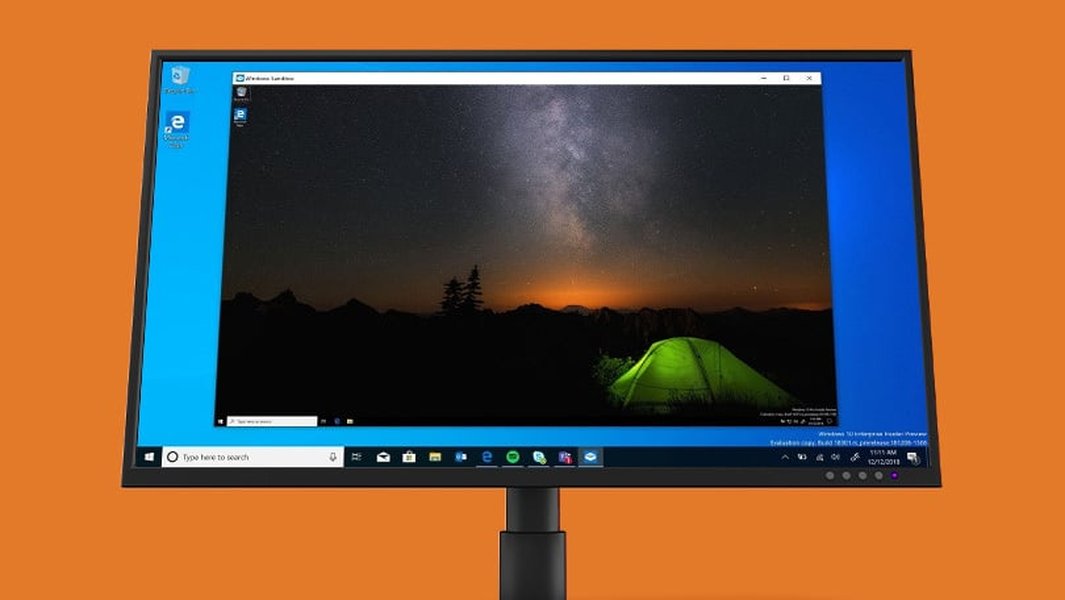
The Windows Sandbox provides a familiar desktop experience within a secure, isolated container.
Dissecting the Features of Windows Sandbox
What Can It Do?
Windows Sandbox offers several features that make it a valuable tool:
-
Robust Isolation
Utilizing hardware virtualization and the Microsoft Hypervisor, Sandbox runs a separate kernel, effectively isolating its processes and memory from the host OS. This ensures that malware or unstable software run inside the Sandbox cannot escape to compromise your main system.
-
Pristine Environment on Demand
Every time you start Windows Sandbox, it boots up a completely clean, default Windows environment based on your host OS image. It's like having a fresh Windows installation ready in seconds, free from any clutter or previous modifications.
-
Designed for Disposal
The temporary nature is central to Sandbox. All software installations, file downloads, settings changes, and activities performed within the Sandbox are permanently wiped away the moment you close the application window. No trace is left behind.
-
Lightweight and Efficient
Compared to traditional VMs, Sandbox is optimized for performance. It uses intelligent memory management and shares immutable copies of Windows files from the host, reducing disk space and RAM usage. It typically starts much faster than a full VM.
-
Seamless Integration
It integrates smoothly with the host system. Clipboard sharing (copy/paste) between the host and Sandbox is enabled by default, allowing easy transfer of text or files. Printer sharing can also be enabled.
-
Basic Configuration Options
While designed for simplicity, Sandbox supports basic customization through simple XML-based configuration files (.wsb extension). These files allow you to control settings like enabling/disabling the virtual GPU (vGPU), configuring networking, mapping host folders into the Sandbox (with read/write permissions), or running a script upon startup.
-
Included Applications
A standard Sandbox instance includes core Windows applications like Microsoft Edge, File Explorer, Notepad, etc. Note: Starting with Windows 11 version 24H2, some inbox Store apps (like Calculator, Photos, Terminal) may not be included by default within the Sandbox.
-
Persistence Through Internal Restarts
Starting with Windows 11 version 22H2, if you restart the operating system *from within* the Sandbox environment (e.g., after installing software that requires a reboot), the state will persist through that internal restart. However, closing the main Sandbox window still discards everything.
How Windows Sandbox Achieves Isolation
A Glimpse Under the Hood
Windows Sandbox relies on core Windows virtualization technologies. It uses the same Microsoft Hypervisor that powers Hyper-V. This allows it to create a hardware-enforced boundary between the Sandbox environment and the host operating system. It effectively runs a separate, minimal copy of the Windows kernel and operating system components in a highly controlled virtualized space. By leveraging dynamic base image technology, it efficiently uses components from the host OS without needing a full separate virtual hard disk (VHD) initially, contributing to its speed and low overhead.
Getting Started: Enabling and Using Windows Sandbox
Prerequisites and Activation Steps
System Requirements
Before you can use Windows Sandbox, ensure your system meets these requirements:
- Windows Edition: Windows 10 Pro, Enterprise, or Education (version 1903 or later) or Windows 11 Pro, Enterprise, or Education. Windows Home editions do not support Sandbox.
- Hardware Virtualization: Your computer's processor must support virtualization capabilities (Intel VT-x or AMD-V), and this feature must be enabled in your system's BIOS or UEFI settings. Most modern processors support this, but it might be disabled by default.
- Sufficient Resources: While lightweight, ensure you have adequate RAM (Microsoft recommends at least 4GB, 8GB preferred) and CPU cores (at least 2 cores recommended) available.
Enabling the Feature
If your system meets the requirements, enabling Windows Sandbox is straightforward:
- Press the Windows key, type "Turn Windows features on or off", and press Enter.
- In the dialog box that appears, scroll down and find "Windows Sandbox".
- Check the box next to "Windows Sandbox".
- Click "OK". Windows will install the necessary files.
- You will likely be prompted to restart your computer. Do so to complete the installation.
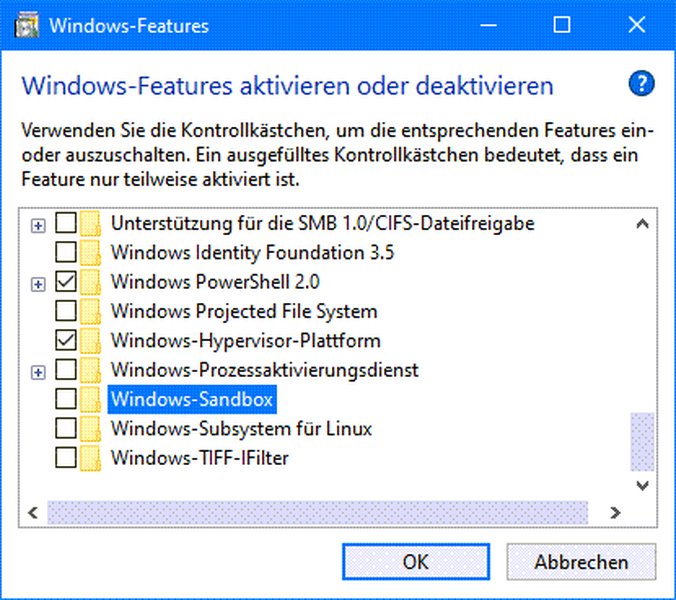
Enabling Windows Sandbox via the "Turn Windows features on or off" control panel.
Launching and Using Sandbox
- Once enabled and your PC has restarted, press the Windows key and type "Windows Sandbox".
- Click the "Windows Sandbox" application to launch it.
- A new window will open, presenting a clean Windows desktop environment.
- You can now copy executable files from your host machine and paste them into the Sandbox window to install and run them. You can also use the Edge browser within the Sandbox to download files directly.
- Perform your tests or experiments.
- When finished, simply close the Windows Sandbox window. A prompt will remind you that all content will be discarded. Confirm to close and erase the environment.
Common Use Cases for Windows Sandbox
Why Would You Use It?
Windows Sandbox is incredibly versatile. Here are some typical scenarios where it proves invaluable:
- Testing Untrusted Software: Safely run downloaded programs, utilities from unknown sources, or suspicious email attachments without risking infection or unwanted changes to your main system.
- Malware Analysis: Security researchers or curious users can detonate potentially malicious files within the Sandbox to observe their behavior in a contained environment.
- Software Evaluation: Quickly install and try out new applications or beta software to see if you like them, without cluttering your primary installation.
- Web Browsing Isolation: Visit potentially unsafe websites or click dubious links in a sandboxed browser, preventing drive-by downloads or browser exploits from affecting your host.
- Development and Debugging: Developers can test application installers or debug code in a clean environment that mimics a standard user setup.
- Experimenting with Settings: Try out system tweaks or registry changes within the Sandbox without the fear of destabilizing your main Windows installation.
Windows Sandbox vs. Traditional Virtual Machines
A Comparative Overview
While both Windows Sandbox and traditional Virtual Machines (like Hyper-V, VMware Workstation, VirtualBox) provide isolated environments, they serve different purposes and have distinct characteristics. The radar chart below visualizes a comparison based on key factors. Higher scores generally indicate "more" or "better" for that attribute, except for Resource Use where a lower score is typically better (represented here as higher efficiency).
As the chart illustrates, Windows Sandbox excels in resource efficiency, startup speed, and ease of use for temporary tasks. Traditional VMs offer superior persistence and customization options, making them better suited for long-term use or complex setups, but they typically require more resources and setup time.
Visualizing Windows Sandbox Concepts
A Mindmap Overview
This mindmap provides a structured overview of the essential aspects of Windows Sandbox, covering its definition, core features, requirements, usage flow, benefits, and limitations.
The mindmap highlights the interconnected nature of Sandbox's features, emphasizing its role as a secure, temporary workspace integrated within the Windows ecosystem.
Feature Comparison: Sandbox vs. Traditional VM
Key Differences at a Glance
The following table provides a side-by-side comparison of Windows Sandbox and traditional virtual machine solutions (like Hyper-V or VMware Workstation) across several important dimensions:
| Feature | Windows Sandbox | Traditional Virtual Machine (e.g., Hyper-V, VMware) |
|---|---|---|
| Primary Purpose | Quick, temporary, isolated testing of single applications or tasks. | Running full operating systems for extended periods, complex development, server hosting. |
| Persistence | None by default (all changes discarded on close). State persists only through internal reboots (Win11 22H2+). | Fully persistent. State is saved between sessions. Supports snapshots. |
| OS Image Source | Uses a dynamic copy of the host Windows OS image. | Requires a separate OS installation (ISO file, VHD). Independent OS license often needed. |
| Resource Usage | Lightweight, optimized memory usage, shares host OS files. | Higher resource consumption (dedicated RAM, disk space for VHD). |
| Startup Time | Very fast (seconds). | Slower (minutes, like booting a physical PC). |
| Isolation Technology | Hardware virtualization (Microsoft Hypervisor), separate kernel. | Hardware virtualization (Hypervisor), separate kernel. Strong isolation. |
| Configuration | Simple XML (.wsb) files for basic settings (networking, folders, GPU). | Extensive configuration options (virtual hardware, networking, storage, security). |
| Host OS Requirement | Windows 10/11 Pro, Enterprise, Education. | Varies by VM software (Windows Pro for Hyper-V, various OS for VMware/VirtualBox). |
| Ease of Use | Very simple: Enable feature, launch, use, close. | More complex setup: Create VM, install OS, configure settings. |
Watch It in Action: Using Windows Sandbox
A Visual Guide
Sometimes, seeing is believing. This video provides a clear, step-by-step tutorial on how to enable and use Windows Sandbox. It demonstrates the process of launching the Sandbox, running applications within it, and highlights its disposable nature, offering a practical look at how you can leverage this feature for safe software testing.
Limitations and Considerations
What You Should Know
While powerful, Windows Sandbox has limitations:
- No Built-in Persistence: Its primary strength (disposability) is also its main limitation. You cannot save your session state or installed applications between uses unless using specific configuration files for folder redirection, which requires careful setup.
- Edition Requirements: It's unavailable on Windows Home editions, limiting its accessibility for some users.
- Hardware Dependency: Requires virtualization support in the CPU and BIOS/UEFI, which might be absent or disabled on older or lower-end hardware.
- Resource Constraints: Performance depends on the host system's resources (CPU, RAM, Disk I/O). Running demanding applications inside the Sandbox can strain the host.
- Limited Customization: While .wsb files offer some control, it's far less configurable than a full VM environment.
- App Availability Changes: Be aware that the set of included applications might change with Windows updates (e.g., removal of some Store apps in Win11 24H2).
Frequently Asked Questions (FAQ)
What's the difference between Windows Sandbox and a regular Virtual Machine (VM)?
Windows Sandbox is designed as a lightweight, disposable environment primarily for temporary, quick testing. It uses parts of the host OS, starts quickly, consumes fewer resources, and is automatically deleted upon closing. Traditional VMs (like Hyper-V, VMware) are persistent, require a full separate OS installation, offer extensive customization, consume more resources, and are suited for running different operating systems or complex, long-term tasks.
Is Windows Sandbox truly safe to use?
Yes, Windows Sandbox is designed with security as a primary goal. It uses hardware-based virtualization to create strong isolation between the Sandbox environment and your host operating system. Malware or unstable software run inside the Sandbox should not be able to affect your main system files or data. Because the entire environment is deleted when closed, any potential threats are removed automatically.
Can I save files or installations in Windows Sandbox?
By default, no. The defining feature of Windows Sandbox is that it's disposable; everything is deleted when you close it. However, you can use configuration files (.wsb) to map folders from your host system into the Sandbox. Files saved to these mapped folders will persist on the host after the Sandbox is closed. Be cautious when mapping folders, especially with write access, as this could potentially bypass some isolation benefits if malware inside the Sandbox targets those specific folders.
Which versions of Windows include Windows Sandbox?
Windows Sandbox is available on Windows 10 Pro, Enterprise, and Education editions (version 1903 and later) and on Windows 11 Pro, Enterprise, and Education editions. It is not included in Windows Home editions.
Do I need special hardware to run Windows Sandbox?
You need a CPU with virtualization capabilities (like Intel VT-x or AMD-V) and this feature must be enabled in your computer's BIOS or UEFI settings. Most modern computers have this capability. Microsoft also recommends at least 4GB of RAM (8GB preferred) and sufficient free disk space.
How do I transfer files into and out of the Sandbox?
The easiest way is using standard copy and paste. You can copy files or text on your host machine and paste them directly into the Windows Sandbox window, and vice versa. For more advanced scenarios or larger files, you can use a .wsb configuration file to map specific host folders into the Sandbox environment.
Recommended
- How can I enable Windows Sandbox on my computer?
- What are the main differences between Windows Sandbox and Hyper-V?
- How do I configure Windows Sandbox using WSB files for specific settings?
- What are some advanced use cases for Windows Sandbox beyond basic software testing?
References
Last updated May 5, 2025