
Mastering Window Focus: Take Control of Rapid Switching in Windows 10
Unintended window activations can disrupt your workflow, but precise adjustments can fine-tune your desktop experience.
Key Insights into Mouse Hover Focus
- "Focus follows mouse" behavior: Windows 10 includes a feature often called "Xmouse" where a window automatically gains focus when the mouse cursor hovers over it, eliminating the need for a click.
- Registry adjustments for delay: The primary method to slow down this rapid focus switching is by modifying specific values in the Windows Registry, particularly
ActiveWndTrkTimeoutandMouseHoverTime. - Ease of Access settings: Before adjusting the delay, ensure that the "Activate a window by hovering over it with the mouse" feature is enabled in the Ease of Access settings.
In Windows 10, the "focus follows mouse" feature allows windows to become active simply by hovering your mouse cursor over them. While this can streamline interactions, an overly quick activation can lead to accidental window switches and a jarring user experience. Fortunately, you can precisely control the delay before a window gains focus, transforming this rapid behavior into a more controlled and comfortable desktop environment.
Understanding "Focus Follows Mouse" in Windows 10
The functionality you're describing, where windows gain focus by merely hovering the mouse cursor over them, is formally known as "focus follows mouse" or "Xmouse" behavior. This feature is designed to enhance productivity by reducing the need for explicit clicks to switch between active windows. However, its default instantaneous activation can often be too aggressive, causing unintentional window switches, especially in multi-window or multi-monitor setups.
Windows 10 doesn't offer a simple graphical user interface slider to adjust this specific hover delay directly within the standard Mouse settings. Instead, the control over this delay is primarily managed through more advanced system configurations, specifically within the Windows Registry. The goal is to introduce a customizable pause, measured in milliseconds, before a window beneath your cursor becomes active.
Assessment of Windows 10 Focus Control Capabilities
The radar chart above illustrates various aspects of Windows 10's built-in capabilities and the effectiveness of common solutions for managing window focus. "Direct GUI Control" represents the ease of adjusting settings via graphical interfaces, which is relatively low for hover delays. "Registry Flexibility" highlights the power of registry edits to fine-tune system behavior. "Impact on Workflow" indicates how well these adjustments can improve the user's daily operations. "Stability and Reliability" refers to how consistently and safely these methods function. "Third-Party Tool Necessity" shows the degree to which external applications might be needed for more advanced or user-friendly control. As you can see, while direct GUI control is limited, registry flexibility offers significant power to tailor focus behavior to your preferences, leading to improved workflow stability.
Step-by-Step Guide to Adjusting Hover Delay
To effectively slow down the window focus switching, you'll need to work with both the Ease of Access settings and the Windows Registry.
Phase 1: Verify or Enable "Activate a window by hovering"
Before you can adjust the delay, ensure that the "Activate a window by hovering over it with the mouse" feature is enabled. If it's not active, the registry changes for the delay will not have any effect.
Accessing Ease of Access Settings:
- Open the classic Control Panel.
- Navigate to Ease of Access, then click on Ease of Access Center.
- Select Make the mouse easier to use.
- Locate the option: Activate a window by hovering over it with the mouse.
- Ensure this checkbox is checked to enable the feature. If it's unchecked, check it.
- Click OK or Apply to save your changes.
While some newer builds of Windows 10 and 11 might show more mouse-related settings directly in the Settings app (Windows Key + I > Accessibility > Mouse), the Control Panel path is a reliable method for all Windows 10 versions.
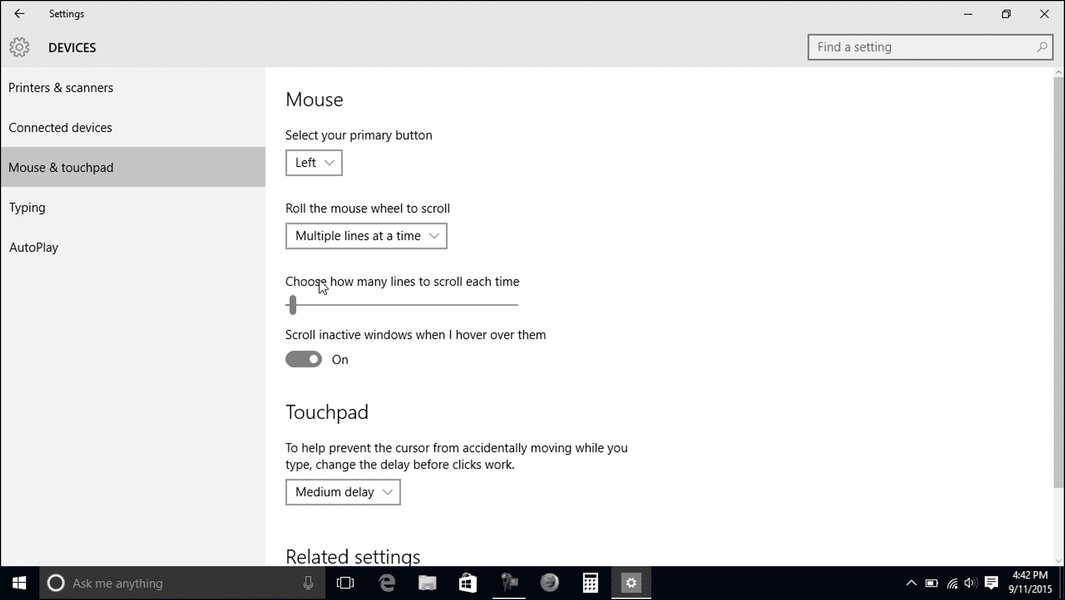
Mouse and Touchpad Settings in Windows 10 Control Panel
Phase 2: Adjusting Hover Delay via Registry Editor
The precise control over the hover delay is achieved by modifying specific values within the Windows Registry. This method allows you to set the exact delay in milliseconds.
Important Precaution: Back up your Registry!
Editing the Windows Registry incorrectly can lead to system instability. Before proceeding, it is strongly recommended to back up your registry:
- Press Win + R, type
regedit, and press Enter to open the Registry Editor. - In the Registry Editor, go to File > Export.
- Choose a location and filename for your backup, ensure "Export range" is set to "All," and click Save.
Modifying ActiveWndTrkTimeout:
This is the primary registry key that controls the delay for activating a window by hovering.
- Open the Registry Editor (
regedit). - Navigate to the following path in the left pane:
HKEY_CURRENT_USER\Control Panel\Desktop - In the right pane, look for a DWORD (32-bit) Value named
ActiveWndTrkTimeout.- If this value does not exist, you'll need to create it:
- Right-click on an empty space in the right pane.
- Select New > DWORD (32-bit) Value.
- Name the new value exactly:
ActiveWndTrkTimeout
- If this value does not exist, you'll need to create it:
- Double-click on
ActiveWndTrkTimeoutto modify its value. - In the "Edit DWORD (32-bit) Value" dialog box:
- Select the Decimal base.
- Enter your desired delay time in milliseconds (ms).
- For example:
500for a half-second delay.1000for a one-second delay.2000for a two-second delay.
- A value of
0would mean instant focus. The default is often around 200-400 milliseconds.
- For example:
- Click OK to save the changes.
Modifying MouseHoverTime (Secondary Adjustment):
While ActiveWndTrkTimeout specifically affects window activation, MouseHoverTime influences general hover delays for UI elements like taskbar thumbnail previews. Adjusting this might also contribute to a smoother overall experience.
- In the Registry Editor, navigate to:
HKEY_CURRENT_USER\Control Panel\Mouse - In the right pane, locate the String Value (REG_SZ) named
MouseHoverTime. - Double-click on
MouseHoverTime. - Enter a numerical value in milliseconds for your desired hover time (e.g.,
500or1000). - Click OK.
Applying the Changes:
For the registry changes to take effect, you must either:
- Sign out and sign back in to your Windows account.
- Restart your PC.
After applying the changes, test the new delay by moving your mouse cursor over different open windows. You should notice a more controlled delay before the window gains focus.
Registry Editor showing ActiveWndTrkTimeout setting
Factors Influencing Window Focus Behavior
While adjusting registry values is the most direct way to control the hover delay, several other factors can influence window focus behavior in Windows 10. Understanding these can help you troubleshoot or optimize your system further:
| Factor | Description | Impact on Focus Switching |
|---|---|---|
| Conflicting Applications/Services | Certain background applications or services (e.g., CloudCaptureService, resource-intensive software) can interfere with normal window focus behavior, causing erratic or rapid switches. | Can lead to unexpected and rapid focus changes, even overriding system settings. |
| Multi-Monitor Setup Features | Features related to multiple monitors, such as extended taskbars or specific display configurations, can sometimes introduce focus issues. | May cause focus "jumps" between screens or unintended window activations on adjacent monitors. |
| Background Application Resource Consumption | Applications running in the background and consuming significant CPU, memory, or disk resources can lead to system slowdowns, which might manifest as delayed or erratic focus changes. | Can make the system feel unresponsive, potentially affecting smooth window transitions. |
| Windows Updates | Keeping your Windows 10 operating system up-to-date is crucial, as Microsoft frequently releases patches and improvements that can address system stability, including focus-related bugs. | Outdated systems might have unpatched issues that affect focus behavior; updates can resolve these. |
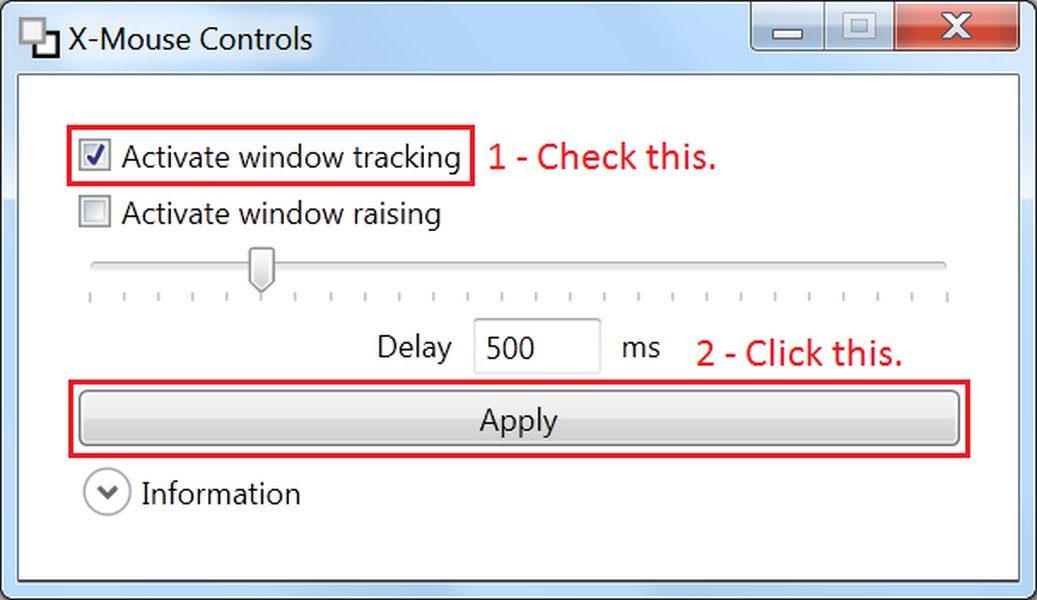
| Third-Party Utilities | Tools like X-Mouse Controls or Microsoft PowerToys (e.g., Mouse Utilities) offer more granular control over mouse behavior and can sometimes override or enhance default Windows settings. | Can provide additional customization options beyond what the standard registry or Ease of Access settings offer. |
Visualizing Focus Control: A Mindmap of Key Concepts
This mindmap provides a structured overview of the essential concepts and methods involved in managing window focus and hover delay in Windows 10. It categorizes the approaches, from system settings to registry modifications and general troubleshooting tips, offering a quick reference for controlling your desktop environment.
Ease of Access
Make the Mouse Easier to Use"] id8["Enable/Disable 'Activate a window by hovering...'"] id9["No direct GUI delay slider"] id10["Registry Editor (regedit)"] id11["Access Path: HKEY_CURRENT_USER
Control Panel
Desktop"] id12["ActiveWndTrkTimeout
(DWORD 32-bit)
Controls window activation delay"] id13["Access Path: HKEY_CURRENT_USER
Control Panel
Mouse"] id14["MouseHoverTime
(REG_SZ)
Affects general UI hover delay"] id15["Value in Milliseconds
(e.g., 500ms, 1000ms)"] id16["Backup Registry First!"] id17["Applying Changes"] id18["Sign Out & Sign In"] id19["Restart PC"] id20["Troubleshooting & Tips"] id21["Check for Conflicting Apps
(e.g., CloudCaptureService)"] id22["Task Manager: Identify Resource Hogs"] id23["Keep Windows Updated"] id24["Consider Safe Mode for Diagnostics"] id25["Third-Party Tools (e.g., X-Mouse Controls)"]
Further Optimization and Troubleshooting
Beyond the direct registry edits, some general system hygiene and troubleshooting steps can contribute to a more stable and responsive window focus experience.
Maintaining System Health:
- Update Windows Regularly: Ensure your Windows 10 is always up to date. Microsoft frequently releases patches that fix bugs and improve system stability, which can include issues related to focus behavior.
- Disable Unnecessary Background Applications: Applications running in the background and consuming significant system resources can lead to overall system sluggishness, which might indirectly affect how quickly windows respond to focus changes. Use Task Manager (Ctrl+Shift+Esc) to identify and close any unnecessary processes.
- Check for Interfering Services: Some users have reported specific services, like "CloudCaptureService," causing focus issues. While less common, monitoring your active services via Task Manager can help identify potential culprits if the registry edits don't fully resolve the problem.
Visual Aid: How To Activate A Window By Hovering Over It With Your Mouse Cursor Windows 10 PC Tutorial
This video provides a clear, step-by-step tutorial on how to activate a window by hovering over it with your mouse cursor in Windows 10. It visually demonstrates the "Activate a window by hovering over it with the mouse" setting, which is the foundational step before adjusting any hover delays. While the video focuses on enabling the feature, it's highly relevant because it covers the exact setting that dictates whether the focus-follows-mouse behavior is active, thereby setting the stage for the registry modifications discussed earlier to fine-tune the delay. It’s an excellent visual aid for understanding the initial configuration required.
Frequently Asked Questions (FAQ)
Why does Windows 10 switch window focus so quickly by default?
Is it safe to edit the Windows Registry?
What is a good value for the hover delay in milliseconds?
Will these changes affect all applications?
My changes don't seem to apply, what should I do?
Conclusion
Regaining control over Windows 10's "focus follows mouse" behavior is entirely achievable through strategic adjustments to system settings and, most importantly, the Windows Registry. By increasing the ActiveWndTrkTimeout value, you can transform an often-frustrating rapid focus switch into a measured and comfortable experience. This allows for a more intentional workflow, preventing accidental window activations as you navigate your desktop. Remember to always back up your registry before making changes and to restart your system for the modifications to take effect. With these adjustments, your Windows 10 environment can become significantly more responsive to your specific interaction preferences, leading to a smoother and more efficient user experience.
Recommended Further Queries
- How to optimize Windows 10 for better performance?
- Understanding and using Windows 10 Ease of Access settings?
- Advanced Windows Registry tweaks for desktop customization?
- Best practices for multi-monitor setups in Windows 10?