
Mastering Windows 10 Updates: Gaining Control Over Automatic Installations
Learn how to receive notifications for available updates without automatic downloads, ensuring your system updates on your terms.
Key Insights into Managing Windows Updates
- Tailored Update Control: Windows 10 offers methods to receive notifications for updates rather than automatically downloading and installing them, providing users with more control over the update process.
- Edition-Specific Approaches: The available methods for managing updates vary depending on your Windows 10 edition. Professional, Enterprise, and Education editions have access to the Group Policy Editor, while Home users primarily rely on Registry Editor tweaks or temporary measures.
- Balancing Security and Convenience: While disabling automatic updates offers convenience, it's crucial to understand the security implications. Regularly checking for and manually installing updates, especially security patches, is vital to keep your system protected from vulnerabilities.
Windows 10, by default, is designed to keep your system up-to-date with the latest security patches and feature improvements through automatic updates. While this approach aims to enhance security and stability, many users prefer more control over when updates are downloaded and installed to avoid interruptions or potential compatibility issues. This guide will walk you through the various methods to configure Windows 10 to notify you when updates are available, allowing you to initiate the download and installation process manually.
Understanding Windows Update Behavior
Windows Update's automatic nature is often a point of contention for users. By default, Windows 10 checks for updates, downloads them in the background, and then installs them, sometimes requiring a restart at inconvenient times. The goal for many users is to shift this behavior from fully automatic to a "notify and then install" model, giving them the power to decide when their system is ready for an update.
Why Users Seek More Control Over Updates
There are several compelling reasons why users might want to change Windows 10's automatic update behavior:
- Preventing Disruptions: Automatic updates can interrupt ongoing work, especially during critical tasks, online meetings, or gaming sessions, due to unexpected reboots.
- Managing Bandwidth: Large updates can consume significant internet bandwidth, which is a concern for users with metered connections or limited data plans.
- Avoiding Buggy Updates: Occasionally, a Windows update might introduce bugs or compatibility issues with existing hardware or software. Having control allows users to wait and observe community feedback before applying an update.
- Scheduling Convenience: Users may prefer to install updates during off-peak hours or when they know they won't be using their computer for an extended period.
Methods to Configure Update Notifications
The approach to setting Windows 10 to notify you before downloading updates largely depends on your specific edition of Windows: Windows 10 Pro, Enterprise, and Education editions offer more direct control through the Group Policy Editor, while Windows 10 Home users typically need to employ Registry Editor modifications.
Method 1: Using the Local Group Policy Editor (Windows 10 Pro, Enterprise, Education)
The Group Policy Editor provides granular control over many Windows settings, including update behavior. This is often the preferred method for users with compatible Windows 10 editions.
Navigating to the Configure Automatic Updates Policy
To access and modify the relevant setting:
- Press
Win + Rto open the Run dialog. - Type
gpedit.mscand press Enter to open the Local Group Policy Editor. - Navigate to the following path:
Computer Configuration > Administrative Templates > Windows Components > Windows Update - On the right-hand side, double-click on "Configure Automatic Updates" to open its settings.
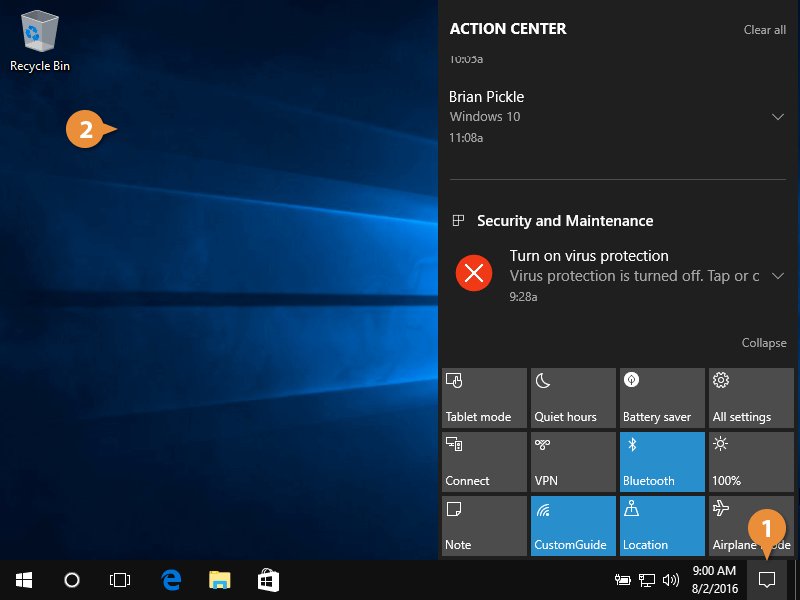
The Windows 10 Action Center, where notifications, including update prompts, are displayed.
Configuring the Policy to Notify
Within the "Configure Automatic Updates" window:
- Select the "Enabled" option.
- Under the "Options" section, choose "2 - Notify for download and notify for install" from the drop-down menu. This setting ensures that Windows will notify you when updates are ready to be downloaded and again when they are ready to be installed.
- Click "Apply" and then "OK" to save the changes.
After applying this policy, Windows Update will no longer automatically download and install updates. Instead, you will receive notifications, and you will need to manually initiate the download and installation from the Windows Update settings page.
Method 2: Using the Registry Editor (Windows 10 Home and Pro)
For Windows 10 Home users, or if you prefer a Registry-based approach, you can achieve similar control by modifying a specific Registry key. Be cautious when editing the Registry, as incorrect changes can lead to system instability.
Accessing the Registry Editor
To open the Registry Editor:
- Press
Win + Rto open the Run dialog. - Type
regeditand press Enter. - If prompted by User Account Control, click "Yes."
Modifying the Registry Key for Update Control
Navigate to the following path in the Registry Editor:
HKEY_LOCAL_MACHINE\SOFTWARE\Policies\Microsoft\Windows\WindowsUpdate\AU
If the WindowsUpdate or AU keys do not exist, you will need to create them manually by right-clicking on the preceding folder, selecting "New" > "Key," and naming it appropriately.
Once you are in the AU key:
- Right-click in the empty space on the right pane, select "New" > "DWORD (32-bit) Value."
- Name the new DWORD value
NoAutoUpdate. - Double-click
NoAutoUpdateand set its "Value data" to1to disable automatic updates and enable notification. - Click "OK" and close the Registry Editor.
This setting prevents Windows from automatically downloading and installing updates, prompting notifications instead. You will still need to manually check for and install updates.
Method 3: Temporarily Pausing Updates via Settings (All Editions)
While not a permanent solution for "notify before download," Windows 10 allows you to pause updates for a limited period, which can be useful if you need to defer updates temporarily.
- Go to
Start > Settings > Update & Security > Windows Update. - Click on
Advanced options. - Under "Pause updates," you can select a date to pause updates for up to 35 days.
This method simply delays updates, and they will resume automatically after the specified period, potentially reverting to automatic download behavior if other settings aren't configured.
Other Related Notification Settings
Beyond controlling the download and installation, you can also manage other update-related notifications:
- Restart Notifications: You can turn on or off notifications that prompt you when your PC requires a restart to finish installing updates. This is found under
Start > Settings > Update & security > Windows Updates > Advanced Options. - Action Center Notifications: Windows 10 consolidates notifications in the Action Center. Even if update banners are disabled, updates will still be visible here. You can manage overall notification settings for various apps and features under
Settings > System > Notifications & actions.
A comparative radar chart illustrating the effectiveness and control levels of different Windows Update management methods.
The radar chart above visualizes the strengths and weaknesses of different methods for managing Windows updates. The Group Policy Editor offers high granular control and permanence, but its applicability is limited to Pro/Enterprise/Education editions and it requires some technical understanding. The Registry Editor provides similar permanence and control, making it a viable option for Home users, but it carries a higher risk if not handled carefully. Temporarily pausing updates via settings is the easiest to implement and causes minimal immediate interruption, but it lacks permanence and full control, and can lead to increased security risk if not managed proactively.
Considerations and Best Practices
While gaining control over Windows updates is beneficial, it's crucial to balance this control with maintaining system security and stability. Disabling automatic updates permanently without a plan for manual updates can leave your system vulnerable to security threats.
The Importance of Regular Updates
Windows updates often include critical security patches that protect your system from newly discovered vulnerabilities. They also bring performance improvements, bug fixes, and new features. Therefore, even if you set your system to notify you, make it a habit to regularly check for and install updates.
Setting a Schedule for Manual Checks
Consider setting a recurring reminder to check for updates manually. Microsoft typically releases major updates on "Patch Tuesday" (the second Tuesday of each month), but cumulative and optional updates can arrive at other times. Regularly visiting Settings > Update & Security > Windows Update and clicking "Check for updates" will ensure you stay protected.
Understanding Different Update Types
Windows updates come in various forms:
- Security Updates: Critical for protecting your system from malware and vulnerabilities.
- Cumulative Updates: These include all previously released security and non-security fixes.
- Feature Updates: Larger updates that introduce new features and significant changes to the operating system.
- Driver Updates: Updates for hardware components, sometimes delivered via Windows Update.
Understanding these types can help you prioritize which updates to install promptly.
Summary of Update Control Methods
Here's a concise overview of the methods discussed for controlling Windows 10 updates:
| Method | Windows Edition Compatibility | Control Level | Permanence | Complexity |
|---|---|---|---|---|
| Group Policy Editor | Pro, Enterprise, Education | High (Notify for download/install) | Permanent until changed | Moderate |
| Registry Editor | Home, Pro, Enterprise, Education | High (Notify for download/install) | Permanent until changed | Moderate to High (requires caution) |
| Pause Updates (Settings) | All Editions | Low (Temporary delay) | Temporary (max 35 days) | Low |
This table provides a quick reference to help you choose the most suitable method for your Windows 10 setup and desired level of control.
Video Guide: Making Windows Notify Before Downloading Updates
For a visual step-by-step walkthrough of how to configure Windows 10 to notify you before downloading updates, the following video provides clear instructions, especially helpful for users who prefer guided demonstrations.
This video demonstrates how to configure Windows 10 to notify you before downloading or installing updates. It's particularly useful for users who want to regain control over their update schedule and avoid unexpected interruptions.
The video covers the key settings and procedures, often focusing on the Group Policy Editor method or similar registry adjustments, which are the most effective ways to achieve the "notify before download" behavior. Watching this can clarify any ambiguities in the text-based instructions and provide practical insight into the process.
Frequently Asked Questions
What is the safest way to manage Windows updates?
Will disabling automatic updates affect my Windows Defender or security software?
What happens if I don't update Windows for a long time?
Can I use a third-party tool to manage Windows updates?
Conclusion
Taking control of Windows 10 updates, specifically by setting it to notify you before downloading, is a practical way to prevent unexpected interruptions and manage your system's resources more effectively. Whether you utilize the robust capabilities of the Group Policy Editor for Pro and Enterprise editions or carefully navigate the Registry for Home versions, the objective is to empower you with the decision-making authority over when updates occur. Remember that while control is desirable, maintaining a consistent update schedule is paramount for your system's security and optimal performance.
Recommended Further Exploration
- How to configure active hours for Windows 10 updates?
- What are the different types of Windows 10 updates and their importance?
- What are common troubleshooting steps for Windows Update issues?
- What are the best practices for maintaining Windows 10 security?
References
Last updated May 21, 2025