
Navigating Windows 11 Licensing in Your Ubuntu VM Environment
Seamlessly Transitioning Your Windows Experience to a Virtual Machine on Linux
It's great to hear you're enjoying Ubuntu Linux and have found a robust solution with VMware Workstation for your essential Windows application! Transferring a Windows license, particularly one initially tied to a physical machine, to a virtual environment can sometimes be complex due to the nuances of Microsoft's licensing terms. However, with the right approach and understanding of license types, it's often achievable. This guide will walk you through the process of activating your Windows 11 virtual machine (VM) using your existing license, addressing common scenarios and offering practical advice.
Key Insights for License Transfer
- License Type Matters: The success of transferring your Windows 11 license heavily depends on whether it's a Retail, OEM, or Digital license. Retail licenses offer the most flexibility for transfer, while OEM licenses are generally tied to the original hardware.
- VM as a "New" Machine: From a licensing perspective, a virtual machine is treated as a separate computer with its own unique hardware ID. This means it won't automatically inherit the host machine's license.
- Microsoft Account and Troubleshooter: For digital licenses, linking your Windows 11 activation to your Microsoft account is crucial. The Activation Troubleshooter, particularly the "I changed hardware on this device recently" option, is a key tool for resolving activation issues in the VM.
Understanding Windows License Types and Their Transferability
Before attempting to transfer your license, it's vital to understand the different types of Windows licenses and their respective transferability rules. This will inform your strategy and manage your expectations.
Retail Licenses: The Most Flexible Option
If you purchased your Windows 11 license separately from a computer (e.g., a boxed copy or a digital download from Microsoft's store), you likely have a retail license. These licenses are generally transferable to a new computer, including a virtual machine. The key is to deactivate the license on the old physical machine before activating it on the VM. In your case, since you've replaced Windows 11 with Ubuntu, the physical machine is effectively "deactivated" in terms of Windows usage. Retail licenses offer the most straightforward path for activation in a virtual environment.
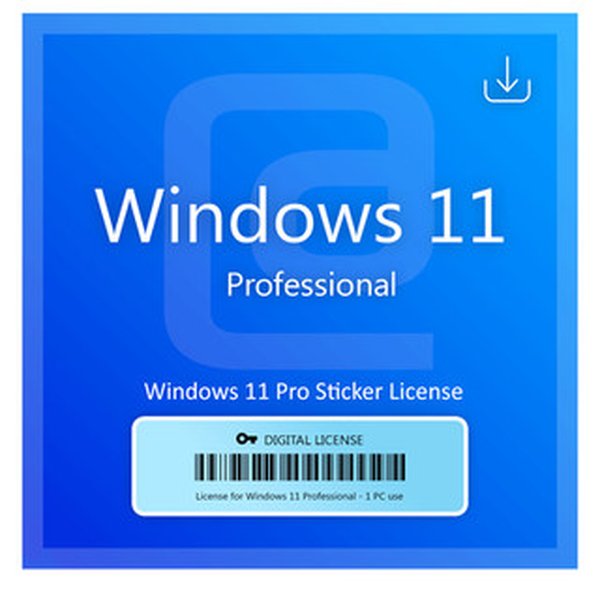
A typical Windows 11 Pro retail license sticker, often included with physical purchases.
OEM Licenses: The Hardware Bind
If your Windows 11 laptop came with Windows pre-installed, you almost certainly have an OEM (Original Equipment Manufacturer) license. These licenses are legally tied to the specific hardware on which they were initially installed. Generally, OEM licenses are not transferable to a "new machine," and a VM is considered a new machine for licensing purposes. While technical aspects might not always prevent activation, using an OEM license on a different machine (physical or virtual) can violate Microsoft's End User License Agreement (EULA). Some sources suggest that if you are running the VM on the *same* physical computer that held the OEM license, and the license terms do not explicitly forbid installation under a VM (other than the single instance rule), it might be permissible. However, this is a gray area and depends on the specific EULA terms.

An example of an OEM Windows 11 license sticker, typically found on pre-built computers.
Digital Licenses: Linked to Your Microsoft Account
Many modern Windows 11 installations utilize a "digital license," which is tied to your Microsoft account. If your original Windows 11 installation was linked to your Microsoft account, this can be a powerful tool for transferring the license. Even if you've changed hardware (which a VM effectively is), the digital license might be recoverable. This method often involves using the Activation Troubleshooter within the VM and selecting the "I changed hardware on this device recently" option.
The Process of Activating Your Windows 11 VM
Step-by-Step Activation
Regardless of your license type, the primary method for activating your Windows 11 VM will involve attempting to activate it within the VM itself. Here's the general procedure:
- Install VMware Tools: Before attempting activation, ensure VMware Tools are installed within your Windows 11 VM. VMware Tools can assist with tracking activation keys and overall VM performance.
- Open Activation Settings: In your Windows 11 VM, go to Start > Settings > System > Activation.
- Troubleshoot Activation: If Windows isn't activated, you should see an option to "Troubleshoot" activation. Click this.
- "I changed hardware on this device recently": When the troubleshooter appears, select the option that says "I changed hardware on this device recently." This is crucial as the VM is seen as new hardware.
- Sign in to Your Microsoft Account: You will be prompted to sign in with your Microsoft account (if you haven't already). This account should be the one previously linked to your original Windows 11 license on your physical laptop.
- Select the Device: A list of devices associated with your Microsoft account will appear. Select the entry corresponding to your old physical laptop (the one that had the Windows 11 license you wish to transfer).
- Activate: Confirm that "This is the device I'm using right now" is selected for your VM and proceed with activation.
If this automated process fails, especially for retail licenses, you might need to try activating with your product key directly. If that also fails, contacting Microsoft Support via chat or phone might be necessary for manual activation, explaining your situation (transferring to a VM on the same host).
Considerations for OEM Licenses
If your original Windows 11 license was an OEM license, direct transfer to a VM can be problematic due to licensing restrictions. However, some users report success in certain scenarios:
- P2V (Physical to Virtual) Conversion: While not a direct license transfer, converting your physical Windows 11 installation to a VM image (P2V) might sometimes retain activation, especially if the underlying hardware fingerprint doesn't change drastically, or if you can use chat support for reactivation. Tools like Disk2VHD can assist with this.
- BIOS Key Extraction: On some systems, the Windows product key might be embedded in the BIOS/UEFI firmware. Tools run from a Linux terminal (like
sudo strings /sys/firmware/acpi/tables/MSDM) can sometimes extract this key. If found, you could attempt to use this key to activate your Windows 11 VM. However, even if you can activate it this way, it might still technically violate the OEM EULA.
Why a VM Needs its Own License (Generally)
It's important to grasp why a virtual machine typically requires its own license. Microsoft's licensing model considers each instance of Windows, whether physical or virtual, as a separate "device" for activation purposes. When you create a VM, it generates a unique hardware ID, distinct from your host machine. This is why even if your host Ubuntu machine is running on hardware that originally came with a Windows license, the VM still needs its own activation. The license is tied to the "device," and the VM is essentially a new device.
This radar chart illustrates the relative ease and legality of Windows license transfer across different scenarios. Higher scores indicate greater ease/legality.
Common Scenarios and Solutions
Transferring a Windows 10/11 Digital License from a VM to another VM or Physical Machine
If you have a digital license that was originally activated on a VM, you can generally transfer it to another VM or even a new physical machine. This typically involves the same "I changed hardware" troubleshooter process within Windows settings. The key is that the digital license is linked to your Microsoft account, making it more portable than an OEM license, even if it's currently on a VM. You would deactivate the old VM (or delete it from your Microsoft account's linked devices list) and then activate the new machine using the troubleshooter.
Activating Windows Server VMs on Hyper-V Datacenter
It's worth noting that Windows Server Datacenter edition has a special licensing feature called Automatic Virtual Machine Activation (AVMA). This allows Windows Server VMs running on a properly activated Hyper-V Datacenter host to activate automatically without requiring individual product keys for each VM. However, this applies to Windows Server operating systems, not Windows 10 or 11 client VMs. For Windows 10/11 client VMs on Hyper-V, you'd still need a separate client license.
What Happens When a VM is Deleted?
If you delete a VM, it's akin to destroying a physical computer's motherboard for licensing purposes. If you used a retail license to activate that VM, the license should become available again for reuse. For digital licenses, once the VM is deleted or removed from your Microsoft account, the digital license is typically freed up for a new activation. There might be a short grace period or a limit on how frequently you can reactivate, but generally, deleting a VM frees up the license for reuse on a new instance (VM or physical).
Practical Steps and Troubleshooting Tips
Prepare for Transfer:
- Record Your Product Key: If you have a physical product key (from a retail purchase or a sticker on your old laptop), make sure you have it written down.
- Link to Microsoft Account: Ensure your original Windows 11 installation on the laptop was linked to your Microsoft account. This is the easiest way to manage digital licenses.
Troubleshooting Activation Issues:
If you encounter activation issues after following the steps, here are some common solutions:
- Check Internet Connection: Ensure your VM has a stable internet connection for online activation.
- Wait and Retry: Sometimes, activation servers can be busy. Wait a few hours and try the troubleshooter again.
- Contact Microsoft Support: If all else fails, directly contact Microsoft Support. Explain that you've moved your Windows 11 from a physical laptop to a VM on the same machine. Be honest about your situation. Retail licenses are designed for such transfers, and they can often assist with activation over the phone or chat, especially for legitimate transfers. If asked how many PCs you've used the key on, the correct answer is 1 (as you are moving it, not using it concurrently).
- Install VMware Tools: Reiterate that VMware Tools are essential for the VM to properly report its hardware ID and interact with the host, which can be crucial for activation.
Video Resource: Activating Windows 11 on a Virtual Machine
To further illustrate the process, here's a relevant video that demonstrates activating Windows 11 on a virtual machine. While the specific VM software might vary, the principles of navigating Windows activation settings remain consistent.
This video provides a visual guide on how to activate Windows 11 within a virtual machine environment, which can be particularly helpful after migrating from a physical installation.
Comparing License Transfer Scenarios
The table below summarizes the typical transferability of different Windows license types to a virtual machine, highlighting the general ease and legality.
| License Type | Transferability to VM (Same Host) | Transferability to VM (New Host) | Legality of Transfer | Recommended Activation Method |
|---|---|---|---|---|
| Retail License | Generally Yes, after deactivating old physical installation. | Generally Yes, after deactivating old physical installation. | High (Designed for transfer) | Product Key or Microsoft Account Troubleshooter |
| OEM License | Technically possible but often violates EULA. | Not allowed; legally tied to original hardware. | Low (Generally restricted) | Highly problematic; new license often required. |
| Digital License (Linked to MS Account) | Generally Yes, via "Changed hardware" troubleshooter. | Generally Yes, via "Changed hardware" troubleshooter. | High (If associated with user's MS account) | Microsoft Account Troubleshooter |
| Volume License (e.g., Enterprise) | Yes (managed by KMS/MAK servers) | Yes (managed by KMS/MAK servers) | High (Designed for enterprise environments) | Organization's activation server |
Frequently Asked Questions
Can I use my Windows 11 OEM license on a VM on the same physical machine?
What is a "digital license" for Windows 11?
Do I need a new Windows license for every VM I create?
What if the activation troubleshooter doesn't work for my digital license?
Is it legal to convert my physical Windows 11 PC to a VM using P2V and keep the license?
Conclusion
Transferring your Windows 11 license from your physical laptop to a VMware Workstation VM is typically feasible, especially if you have a retail or digital license linked to your Microsoft account. The key is to leverage the Activation Troubleshooter in Windows 11 and, if necessary, contact Microsoft Support. While OEM licenses pose more challenges due to their hardware binding, retail and digital licenses offer more flexibility for use in virtualized environments. Enjoy your Ubuntu Linux setup and the seamless functionality of your Windows 11 VM!
Recommended Further Exploration
- How to manage Windows digital licenses with a Microsoft account for hardware changes?
- What are the key differences between OEM and Retail Windows licenses concerning virtualization?
- What are the common troubleshooting steps for Windows virtual machine activation problems?
- What are the best practices for optimizing Windows 11 performance in VMware Workstation?
References
Last updated May 21, 2025