
Clean Install of Windows 11 on an IdeaPad with Limited Storage
A detailed guide on performing a complete clean installation of Windows 11 to overcome storage constraints
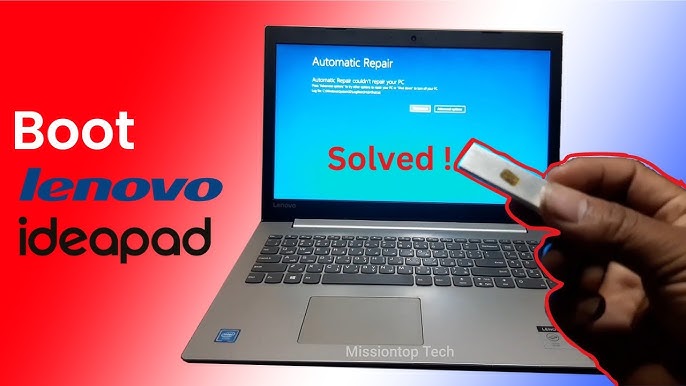
Key Highlights
- Free Upgrade Eligibility: Even with a clean installation, a valid Windows 10 digital license enables a free upgrade to Windows 11.
- Storage Considerations: A clean install removes previous data and partitions, which can be advantageous in systems with limited storage.
- Preparation is Crucial: Back up your data, create bootable installation media, and verify your device’s compatibility before the installation.
Understanding the Process of a Clean Install
A clean installation of Windows 11 involves wiping all existing files, partitions, and programs from your system drive and installing a fresh copy of the operating system. This process is particularly helpful when facing storage limitations because it eliminates unnecessary data and clears existing partitions. Since your IdeaPad has passed the Windows 11 compatibility test, you are eligible to upgrade—even though you only have 64GB of storage. A clean installation is not the typical in-place or automatic upgrade, but if done correctly, it will allow you to enjoy Windows 11 without the storage issues often encountered during a conventional upgrade.
Step-by-Step Guide for a Clean Installation
1. Pre-Installation Preparations
Data Backup
Before initiating the installation, it is essential to back up all important files, documents, photos, and other personal data. A clean installation erases everything on your system drive. Consider using external storage devices like an external hard drive, USB flash drive, or cloud-based services (OneDrive, Google Drive, etc.) to secure your data.
Assessing Storage Constraints
With only 64GB of internal storage, ensuring that unnecessary files, applications, and system clutter are removed is critical. A clean install streamlines this by wiping the drive. However, consider upgrading your storage (if possible) or using additional external storage to safeguard your backups and temporary files created during installation.
Verifying Device Eligibility
Confirm that your IdeaPad meets the official Windows 11 requirements. Microsoft’s PC Health Check tool is a useful resource to ensure that your hardware is compatible. Passing this test is the first step in confirming that, despite limited storage, your device qualifies for the upgrade.
2. Creating a Bootable Windows 11 Installation Media
Downloading the Installation Media
Visit the official Microsoft Windows 11 download page and download the Media Creation Tool or the ISO file directly. The Media Creation Tool simplifies the process by guiding you through creating a bootable USB drive.
Preparing a USB Drive
Ensure you have a USB flash drive with at least 8GB of free space. The bootable media will be created on this USB drive; it will contain all necessary files needed for the installation process. Follow the instructions provided by the Media Creation Tool to complete the process.
3. Performing the Clean Installation
Boot from the USB Drive
Insert the bootable USB drive into your IdeaPad and restart the device. Access the BIOS or UEFI settings (usually by pressing F2, F10, F12, or Del during boot-up) to alter the boot priority so that the USB drive is the first boot device.
Initiating the Windows 11 Setup
Once you boot from the USB drive, the Windows 11 setup will launch. Follow the on-screen instructions, which include language preferences, keyboard layout selections, and connectivity requirements.
Selecting “Custom: Install Windows Only (Advanced)”
When prompted for the type of installation, choose the "Custom: Install Windows only (advanced)" option. This option allows you to delete existing partitions, effectively clearing the storage and starting fresh.
Deleting and Recreating Partitions
In the partition management screen, delete the existing partitions on your system drive (usually labeled as Disk 0). This action will convert the drive into unallocated space. Select this unallocated space and proceed with the installation process. Windows 11’s setup will automatically create the necessary partitions needed for optimal performance.
4. Handling the Activation Process
Digital Licensing and Free Upgrade
Since your device previously ran Windows 10 with a valid digital license, Windows 11 should activate automatically once the clean installation is complete. During the installation process, you will be given an option to enter your product key. If you do not have or do not enter a product key, choose “I don’t have a product key.” Windows will then recognize your digital license online when connected to the Internet.
Post-Installation Verification
After the installation, once you’ve reached the Windows 11 desktop, verify the activation status by navigating to Settings > Update & Security > Activation. The system should indicate that Windows is activated based on your previous Windows 10 digital license.
Additional Considerations and Tips
Driver Installation and Software Reinstallation
A clean install will remove all previously installed applications and drivers. It is important to ensure that you have the necessary drivers available for your IdeaPad. Visit the manufacturer’s website (e.g., Lenovo or ASUS, depending on your model) to download and install drivers for critical components such as graphics, audio, and network.
Storage Management Post-Installation
Given the limited 64GB storage space, post-installation management is key. Consider the following:
- Regularly remove temporary files and system updates that are no longer necessary.
- Utilize cloud storage services for your document and photo backups.
- Consider using an external drive for media storage or additional applications.
Using External Storage Options
Due to storage constraints, an external USB drive or SSD might be required to facilitate future upgrades or to save important files. Although the clean install clears up unnecessary data, external storage ensures you have the flexibility and additional space if required.
Potential Hurdles and Solutions
Users with limited storage often encounter challenges when upgrading their operating systems. Some potential issues include:
| Issue | Solution |
|---|---|
| Insufficient disk space for traditional upgrade | Perform a clean install to remove unnecessary partitions and data. |
| Driver incompatibility post-installation | Download and install the latest drivers from the manufacturer’s website. |
| Activation issues | Ensure that your device is connected to the Internet and linked to a valid Windows 10 license. |
| Data loss concerns | Always back up important data before beginning the installation. |
Frequently Asked Questions (FAQs)
Do I lose my free upgrade eligibility with a clean install?
No, your free upgrade eligibility remains valid if your device has a Windows 10 digital license. When you connect to the Internet after the clean installation, Windows 11 should automatically activate using the previously validated Windows 10 license.
Will a clean install fix my storage issues?
A clean install removes all previous data and partitions on the hard drive, effectively freeing up space and ensuring that only necessary system data is stored. However, given the limited storage volume of 64GB, you may still have to manage storage carefully post-installation.
How do I create a backup before a clean install?
Backing up your data is straightforward. Use external drives, cloud storage solutions, or even local network storage to copy your important data. Ensure you verify that all critical files are safely stored before initiating the installation process.
What if Windows 11 doesn’t activate after the clean install?
If Windows 11 does not activate automatically, check that your device is connected to the Internet and go to Settings > Update & Security > Activation. You can also use troubleshooting tools available on Microsoft’s support site. The activation process leverages the digital license linked with your previous Windows 10 installation.
Is it possible to revert back to Windows 10 after a clean install?
Once you perform a clean install, returning to Windows 10 would require another clean installation if you wish to revert. Therefore, it is important to be certain about upgrading. However, ensuring you have backups will help if you decide to roll back.
Post-Installation Actions
Driver and Software Reinstallation
After Windows 11 is installed, you should reinstall essential software and drivers. Visit your manufacturer’s website for the most current drivers for your IdeaPad’s hardware components. This ensures stability and optimal performance.
System Optimization for Limited Storage
With limited storage, optimizing your system is critical. Here are some tips:
- Regularly run Disk Cleanup to remove temporary and system files.
- Use Storage Sense in Windows 11 to automatically manage unused files.
- Explore cloud storage options to offload media and non-essential applications.
Security and Updates
Don’t forget to install Windows updates and security patches after the clean install. A stable, updated system ensures better performance and security. Navigate to Settings > Update & Security to check for and install any pending updates.
Comparative Overview
| Criteria | Traditional Upgrade | Clean Install |
|---|---|---|
| Storage Requirement | Requires more space to download and update OS files | Clears drive for fresh installation; ideal for low-storage scenarios |
| Data Persistence | Preserves existing files and applications | Removes all previous data; necessitates backup |
| Activation Process | Automatic if digital license is intact | Automatic online activation via Windows 10 digital license |
| Customization & Optimization | Limited to existing configuration | Allows creation of new partitions and fresh start |
References
- How Do a Clean Install of Windows 11 - Windows Central
- Windows 11 Clean Installation - Microsoft
- Reinstall Windows with the Installation Media - Microsoft Support
- Get Windows 11 - Microsoft
- Upgrade to Windows 11 FAQ - Microsoft Support
Additional Recommended Queries
Last updated March 22, 2025