
Unlock the Classic Print Experience: Restoring Windows 11's Legacy Print Dialog
Tired of the new print interface? Learn how to bring back the familiar and feature-rich legacy print dialog in Windows 11.
Many Windows 11 users, particularly after the 22H2 update, noticed a significant change in their printing workflow: the classic print dialog, familiar from previous Windows versions, was replaced with a new, modern-style interface for Win32 applications (like Notepad, WordPad, and many third-party desktop programs). While intended as an update, this new dialog has met with mixed reactions, with many users preferring the functionality and layout of the older version. Fortunately, Windows 11 retains the legacy print dialog, and it can be re-enabled with a simple adjustment.
Key Takeaways: Why You Might Want to Switch Back
Highlights of Restoring the Legacy Print Dialog
- Restore Familiarity & Functionality: Re-enable the classic Windows print dialog that many users find more intuitive and feature-complete for their Win32 applications.
- Regain Comprehensive Control: Access a wider range of printer settings directly, enjoy more reliable print previews, and ensure application-specific print configurations (like page orientation) are respected.
- A Straightforward Registry Modification: A simple, reversible change in the Windows Registry is all it takes to bring back the legacy print dialog.
Understanding the Shift: The New vs. Legacy Print Dialog
What Changed in Windows 11's Printing Experience?
Starting with Windows 11 version 22H2, Microsoft began rolling out a new, redesigned print dialog for traditional desktop (Win32) applications. This modern dialog, previously seen primarily with Universal Windows Platform (UWP) apps, aimed to offer a more consistent look and feel across the operating system. However, this transition brought several changes that users found disruptive:
- Missing Print Preview: The new dialog often displays "No preview available," regardless of the file type, removing a crucial step for many users to verify their print job.
- Limited Direct Settings: Accessing advanced printer properties or specific settings can be less direct compared to the legacy interface.
- Programmatic Setting Issues: Some applications that programmatically set print configurations (e.g., page orientation, specific paper trays) found that the new dialog sometimes ignored these settings.
- Generic Title Bar: The title bar of the new print window might display a generic "Printing from Win32 application" instead of the name of the application initiating the print job.
- User Interface Differences: Long-time Windows users often prefer the familiar layout and controls of the classic dialog.
The legacy print dialog, on the other hand, is known for its reliability, comprehensive options, and familiar interface, making it a preferred choice for many who rely on precise and consistent printing.
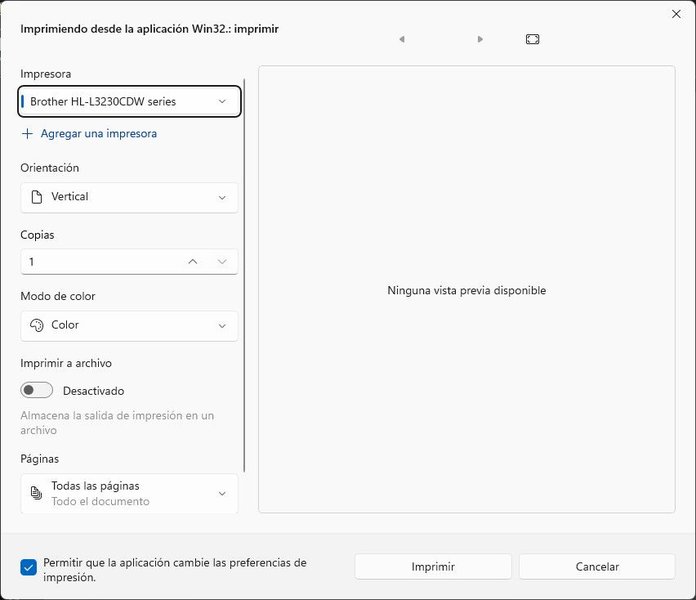
The new Windows 11 print dialog, sometimes lacking a preview.
Step-by-Step: Enabling the Legacy Print Dialog
Method 1: Using the Registry Editor
The most common and effective way to restore the legacy print dialog is by making a small modification to the Windows Registry. Caution: Editing the registry can have serious consequences if done incorrectly. It's advisable to back up your registry before proceeding.
- Open Registry Editor:
- Press the
Windows key + Rto open the Run dialog. - Type
regeditand press Enter or click OK. - If prompted by User Account Control (UAC), click Yes.
- Press the
- Navigate to the Correct Registry Key:
- In the Registry Editor's address bar, copy and paste the following path and press Enter:
HKEY_CURRENT_USER\Software\Microsoft\Print\UnifiedPrintDialog- If the
UnifiedPrintDialogkey does not exist under thePrintkey, you'll need to create it. To do so:- Right-click on the
Printkey in the left-hand pane. - Select
New > Key. - Name the new key
UnifiedPrintDialog.
- Right-click on the
- Create or Modify the DWORD Value:
- With the
UnifiedPrintDialogkey selected in the left pane, right-click on an empty space in the right pane. - Select
New > DWORD (32-bit) Value. - Name this new value
PreferLegacyPrintDialog. Ensure the spelling and capitalization are exact. - If
PreferLegacyPrintDialogalready exists, proceed to the next step.

The familiar legacy Windows print dialog.
- With the
- Set the Value Data:
- Double-click on the
PreferLegacyPrintDialogvalue you just created or found. - In the "Value data" field, change the number from
0to1. - Ensure the "Base" is set to Hexadecimal (though for 0 or 1, Decimal will also work).
- Click OK.
- Double-click on the
- Apply Changes:
- Close the Registry Editor.
- For the changes to take full effect, it's recommended to either sign out and sign back into your Windows account or restart your computer.
After these steps, when you attempt to print from a Win32 application (e.g., Notepad), you should see the classic legacy print dialog instead of the new modern one.
Method 2: Using Command Prompt
Alternatively, you can achieve the same result using a single command in the Command Prompt.
- Open Command Prompt as Administrator:
- Search for "cmd" in the Start menu.
- Right-click on "Command Prompt" and select "Run as administrator."
- Execute the Command:
- Copy and paste the following command into the Command Prompt window and press Enter:
-
reg add "HKCU\Software\Microsoft\Print\UnifiedPrintDialog" /v "PreferLegacyPrintDialog" /d 1 /t REG_DWORD /f - If the command is successful, you'll see a message "The operation completed successfully."
- Apply Changes:
- As with the Registry Editor method, sign out and sign back in, or restart your computer.
Visualizing the Print Dialog Dilemma
A Mindmap of the Situation and Solution
This mindmap illustrates the transition from the legacy print dialog to the new modern dialog in Windows 11, the common issues faced by users, and the registry-based solution to revert to the classic experience.
(Default in 22H2+ for Win32)"] id1a["Characteristics"] id1a1["UWP Style Interface"] id1a2["Simplified Options"] id1a3["Intended for Consistency"] id1b["Common Issues"] id1b1["'No preview available'"] id1b2["Limited Advanced Settings Access"] id1b3["Ignores Programmatic Settings (e.g., orientation)"] id1b4["Generic Title Bar"] id2["Legacy (Classic) Print Dialog"] id2a["Characteristics"] id2a1["Traditional Win32 Interface"] id2a2["Comprehensive Settings"] id2a3["Familiar to Long-time Users"] id2b["User Preferences"] id2b1["Reliable Print Preview"] id2b2["Direct Access to Printer Properties"] id2b3["Better Compatibility with App Settings"] id3["Solution: Restore Legacy Dialog"] id3a["Method: Registry Edit"] id3a1["Key: HKEY_CURRENT_USER\Software\Microsoft\Print\UnifiedPrintDialog"] id3a2["DWORD (32-bit) Value: PreferLegacyPrintDialog"] id3a3["Value Data: 1"] id3b["Method: Command Prompt"] id3b1["Command: reg add ..."] id3c["Outcome"] id3c1["Legacy Dialog Restored for Win32 Apps"] id3c2["Restart/Sign-out Required"]
Comparing the Contenders: New vs. Legacy Dialog Features
Feature Showdown
The following radar chart offers a visual comparison of the new (modern) Windows 11 print dialog and the classic (legacy) print dialog across several key aspects. The scoring is based on general user experience and reported functionalities, where a higher score indicates better performance or user satisfaction in that category.
As illustrated, the legacy print dialog generally scores higher in areas critical for many users, such as print preview availability, access to detailed settings, and overall reliability, especially when specific print configurations are needed.
Side-by-Side: A Tabular Comparison
Key Differences at a Glance
This table provides a direct comparison of features and characteristics between the new modern print dialog and the classic legacy print dialog in Windows 11 for Win32 applications.
| Feature | New (Modern) Print Dialog | Legacy (Classic) Print Dialog |
|---|---|---|
| Default For | Win32 apps in Windows 11 22H2 and later (by default) | Win32 apps (after registry modification or in older Windows versions) |
| User Interface Style | Modern, UWP-inspired, simplified | Traditional, detailed, familiar Windows API style |
| Print Preview | Often shows "No preview available" or lacks one | Generally provides a functional print preview |
| Access to Advanced Printer Settings | May require navigating through a "More settings" link or similar | Printer properties and advanced settings are usually directly accessible |
| Respect for Programmatic Settings (e.g., orientation, paper source) | Can sometimes ignore settings defined by the application | Generally respects and applies application-defined print settings |
| Application Name in Title Bar | May show a generic "Printing from Win32 application" | Typically displays the name of the application initiating the print |
| Setting Default Printer | Not typically an option within the dialog itself | Some versions allowed easier confirmation or selection of the default |
| Customization and Control | More limited, streamlined options | More granular control over various print aspects |
Visual Guide: Reverting to the Legacy Print Dialog
Watch How It's Done
For a visual walkthrough of how to enable the legacy print dialog in Windows 11 using the Registry Editor, the following video provides clear, step-by-step instructions. This can be particularly helpful if you prefer seeing the process in action.
Video demonstrating how to switch back to the old print dialog in Windows 11.
This video tutorial covers the necessary registry modifications to restore the classic print interface, aligning with the steps detailed earlier in this guide.
Frequently Asked Questions (FAQ)
What exactly is the "legacy print dialog"?
The legacy print dialog is the classic print interface that Windows users were accustomed to in versions prior to certain Windows 11 updates (specifically post-22H2 for Win32 apps). It's known for its comprehensive set of options, direct access to printer properties, and a generally reliable print preview feature.
Why did Microsoft change the print dialog in Windows 11?
Microsoft aimed to modernize and unify the user experience across Windows 11. The new print dialog aligns more closely with the design language of UWP (Universal Windows Platform) apps, intending to provide a consistent interface whether you're printing from a modern app or a traditional desktop (Win32) application.
Which applications are affected by this print dialog change?
The change primarily affects classic desktop (Win32) applications. Examples include built-in Windows tools like Notepad and WordPad, as well as many third-party programs like Notepad++, some PDF viewers, and older software. UWP apps typically used a modern-style print dialog already and are less affected by this specific registry tweak.
Is editing the Windows Registry safe?
Editing the Windows Registry can be safe if you follow instructions carefully and only change the specified values. However, incorrect modifications can lead to system instability. It's always recommended to back up your registry before making any changes. The specific edit described for restoring the legacy print dialog is widely documented and generally considered safe.
How do I revert to the new (modern) print dialog if I change my mind?
To revert to the new print dialog, you would follow the same steps using the Registry Editor to navigate to HKEY_CURRENT_USER\Software\Microsoft\Print\UnifiedPrintDialog. Then, either change the Value data of PreferLegacyPrintDialog from 1 back to 0, or simply delete the PreferLegacyPrintDialog DWORD value. Afterwards, sign out and sign back in or restart your computer.
Recommended Further Exploration
Dive Deeper into Windows Printing and Customization
- Learn how to customize advanced printer settings in Windows 11 for specific paper types and quality.
- Explore methods for troubleshooting common printing problems and error codes encountered in Windows 11.
- Understand the key differences between Universal Windows Platform (UWP) and Win32 applications in the Windows 11 architecture.
- Discover other useful Windows Registry tweaks for personalizing your Windows 11 user experience.
References
Sources and Further Reading
Last updated May 16, 2025