
Creating a Child Theme in WordPress
A Comprehensive Guide to Safely Customize Your WordPress Site
Key Takeaways
- Preserve Customizations: Child themes ensure that your modifications remain intact even after updating the parent theme.
- Easy Maintenance: By separating custom code from the parent theme, maintenance and updates become more manageable.
- Flexible Customization: Child themes allow for extensive customization without altering the original theme files.
Introduction to Child Themes
A child theme in WordPress is a powerful tool that allows developers and site owners to modify or enhance the functionality and appearance of an existing parent theme without altering its core files. This ensures that updates to the parent theme do not overwrite your customizations, providing a safe and efficient way to tailor your website to your specific needs.
Why Use a Child Theme?
Advantages of Child Themes
Using a child theme offers several benefits:
- Safe Updates: Since customizations are kept separate, updating the parent theme won't erase your changes.
- Organized Codebase: Separating custom code helps maintain a clean and manageable codebase.
- Enhanced Customization: Child themes allow for extensive modifications, including adding new templates, styles, and functions.
Creating a Child Theme Manually
Step-by-Step Guide
Step 1: Prepare Your Environment
Before creating a child theme, it's essential to:
- Backup Your Website: Ensure you have a recent backup of your site to prevent data loss.
- Choose a Parent Theme: Decide which parent theme you want to customize.
- Basic Knowledge: Familiarize yourself with HTML, CSS, and PHP to effectively work with themes.
Step 2: Create a Child Theme Folder
Navigate to the wp-content/themes directory in your WordPress installation and create a new folder for your child theme. It's common practice to name this folder by appending "-child" to the parent theme's name. For example, if your parent theme is "twentytwentyone," name the folder "twentytwentyone-child".
Step 3: Create the style.css File
Inside your child theme folder, create a file named style.css and add the following header information:
/*
Theme Name:   Twenty Twenty-One Child
Theme URI:    https://example.com/twenty-twenty-one-child/
Description:  Child theme for the Twenty Twenty-One theme
Author:       Your Name
Author URI:   https://example.com
Template:     twentytwentyone
Version:      1.0.0
*/
Important: Ensure that the Template field matches the exact folder name of the parent theme.
Step 4: Create the functions.php File
In the same child theme folder, create a functions.php file to enqueue the parent and child theme styles:
<?php
add_action( 'wp_enqueue_scripts', 'twentytwentyone_child_enqueue_styles' );
function twentytwentyone_child_enqueue_styles() {
    $parent_style = 'twentytwentyone-style'; // This is the parent theme's style handle

    wp_enqueue_style( $parent_style, get_template_directory_uri() . '/style.css' );
    wp_enqueue_style( 'twentytwentyone-child-style',
        get_stylesheet_directory_uri() . '/style.css',
        array( $parent_style ),
        wp_get_theme()->get('Version')
    );
}
?>
This code ensures that the parent theme's stylesheet is loaded before the child theme's stylesheet, allowing your custom styles to override the parent styles.
Step 5: Activate Your Child Theme
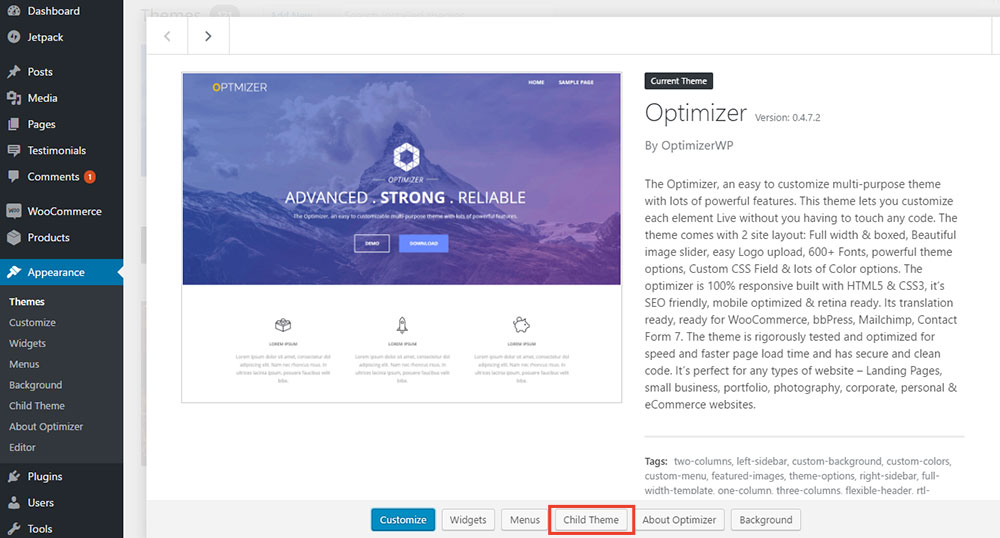
Once you've created the necessary files, log in to your WordPress dashboard. Navigate to Appearance » Themes, and you should see your new child theme listed. Click on it and then click Activate.
Step 6: Customize Your Child Theme
You can now add custom CSS rules to your style.css file to modify the appearance of your site. Additionally, you can add or override PHP functions in the functions.php file to change the site's functionality.
Using Plugins to Create a Child Theme
Simplifying the Process
If you're not comfortable with manual coding, several plugins can automate the creation of child themes. These tools simplify the process, making it accessible to users with limited technical knowledge.
Method 1: Child Theme Configurator
This plugin provides a user-friendly interface to create and customize child themes:
- Install and Activate: Go to Plugins » Add New, search for "Child Theme Configurator," install, and activate it.
- Navigate to the Plugin: After activation, go to Tools » Child Themes.
- Select Parent Theme: Choose the parent theme you wish to create a child for.
- Configure Settings: Customize the child theme settings as desired.
- Analyze and Create: Click the Analyze button to check for potential issues, then click Create New Child Theme.
- Activate: Once created, activate the child theme from Appearance » Themes.
Method 2: Create Block Theme Plugin
For block-based themes, the "Create Block Theme" plugin offers an efficient way to generate child themes:
- Install and Activate: From Plugins » Add New, search for "Create Block Theme," install, and activate it.
- Access the Plugin: Navigate to Appearance » Create Block Theme.
- Select Parent Theme: Choose the current theme you want to base your child theme on.
- Fill in Details: Provide the necessary details like theme name, description, and version.
- Create the Child Theme: Click on Create Child Theme to generate the theme.
- Activate: Activate the new child theme from Appearance » Themes.
Other Child Theme Plugins
Several other plugins can aid in creating child themes without manual coding:
- Child Theme Wizard: Offers a straightforward interface for generating child themes.
- WP Child Theme Generator: Provides tools to create child themes seamlessly.
Advanced Customizations
Enhancing Your Child Theme
Adding Custom Templates
You can override specific template files from the parent theme by adding new files with the same name in the child theme folder. For example, to customize the header, create a header.php file in the child theme directory.
Custom Functions and Hooks
Extend or modify functionalities by adding custom functions in the functions.php file. Utilize WordPress hooks to inject or alter behaviors without directly modifying parent theme files.
Styling Enhancements
Leverage the child theme's style.css to add new styles or override existing ones. This allows for extensive design customizations while maintaining the parent theme's foundational styles.
Including Additional Assets
Incorporate additional assets like JavaScript files, images, or fonts by enqueuing them in the functions.php file. This ensures that your child theme remains modular and organized.
Best Practices
Ensuring a Robust Child Theme
-
Use Version Control: Implement version control systems like Git to track changes and manage your child theme's development effectively.
-
Keep It Updated: Regularly update your child theme to incorporate improvements and maintain compatibility with the parent theme.
-
Test Thoroughly: Always test your child theme on a staging environment before deploying it to your live site to identify and rectify potential issues.
-
Document Changes: Maintain clear documentation of the customizations and modifications made within the child theme for future reference.
-
Avoid Overcomplicating: Keep customizations as simple as possible to maintain performance and ease of maintenance.
Comparing Manual and Plugin Methods
Which Approach Suits You?
| Aspect | Manual Method | Plugin Method |
|---|---|---|
| Ease of Use | Requires knowledge of HTML, CSS, and PHP. | User-friendly interface; suitable for beginners. |
| Customization Flexibility | High – full control over files and code. | Depends on the plugin; some limitations may apply. |
| Maintenance | Requires manual updates and management. | Plugins may handle some updates automatically. |
| Potential for Errors | Higher risk if not coded correctly. | Lower risk due to guided setup. |
| Learning Opportunity | Provides deeper understanding of theme structures. | Less opportunity to learn underlying processes. |
Conclusion
Creating a child theme in WordPress is an essential practice for anyone looking to customize their website safely and efficiently. Whether you choose to create one manually or utilize plugins, child themes provide a robust framework for tailoring your site's appearance and functionality without compromising the integrity of the parent theme. By following best practices and leveraging the flexibility of child themes, you can ensure that your WordPress site remains both unique and maintainable.
References
 wordpress.com
Last updated February 17, 2025