
Understanding Default Gallery Types: The Foundation of Visual Presentation
A comprehensive exploration of gallery types across WordPress and other platforms
Default gallery types form the backbone of how images are displayed on websites and digital platforms. Whether you're a WordPress user, a photographer, or a digital content creator, understanding the various gallery types available to you can significantly enhance your visual storytelling capabilities.
Key Insights About Default Gallery Types
- WordPress's native gallery is a basic grid layout that serves as the foundation for most image displays
- Gallery plugins extend functionality with specialized layouts like masonry, mosaic, and slideshow formats
- Different platforms offer unique default gallery types optimized for specific content presentation needs
Default Gallery Type in WordPress Core
The default gallery type in WordPress refers to the basic image gallery functionality built into the WordPress core. When creating a gallery without additional plugins, WordPress provides a standard grid-based layout with some basic customization options.
Characteristics of WordPress's Native Gallery
WordPress's built-in gallery feature offers a straightforward way to display multiple images in a post or page. The default gallery presents images in a simple grid format with these key properties:
- Images arranged in a grid pattern based on the number of columns specified
- Basic thumbnail display with uniform sizing
- Simple navigation with image linking options (attachment page or media file)
- Minimal styling dependent on your active theme
- Implementation through the WordPress media uploader
- Generated using the [gallery] shortcode in classic editor or Gallery block in Gutenberg
Creating a Default WordPress Gallery
To create a gallery using WordPress's default functionality:
- While editing a post or page, click the "+" button to add a block
- Search for and select the "Gallery" block
- Upload new images or select existing ones from your media library
- Arrange the images in your preferred order by dragging and dropping
- Use the block settings panel to adjust columns, image size, and linking options
Default Gallery Settings
The default WordPress gallery offers these basic customization options:
- Columns: Control how many images appear in each row (typically 1-8)
- Image Size: Select from thumbnail, medium, large, or full-size
- Cropping: Choose whether images maintain original dimensions or are cropped to uniform size
- Link To: Set where clicks lead (media file, attachment page, or none)
- Ordering: Arrange by upload date, random order, or custom arrangement
| Gallery Feature | WordPress Default Gallery | Gallery Plugin Extensions |
|---|---|---|
| Layout Options | Basic grid only | Grid, masonry, mosaic, carousel, etc. |
| Lightbox Integration | None (depends on theme) | Advanced lightbox with zoom, navigation, captions |
| Filtering/Sorting | Basic ordering only | Advanced filtering by tags, categories, dates |
| Responsive Design | Basic (theme dependent) | Fully responsive with mobile optimization |
| Animation Effects | None | Hover effects, transitions, loading animations |
| Social Sharing | None | Integrated social sharing options |
| Image Protection | None | Watermarking, right-click protection |
Default Gallery Types in Popular Plugins
WordPress gallery plugins significantly expand upon the native gallery functionality, offering various default gallery types that cater to different visual presentation needs.
NextGEN Gallery Default Types
NextGEN Gallery, one of the most popular gallery plugins, offers four primary default gallery types:
- Thumbnail Galleries: Enhanced grid layouts with customizable thumbnails
- Slideshow Galleries: Full-screen presentation of images with transition effects
- Imagebrowser Galleries: Sequential navigation through images one at a time
- Single Pics: Individual image display with enhanced features
Photo Gallery by 10Web Default Types
This plugin offers multiple default gallery types including:
- Thumbnails View: Responsive grid with lightbox integration
- Masonry Gallery: Pinterest-style layout with variable height images
- Mosaic Gallery: Tiled layout that maintains image aspect ratios
- Blog Style Gallery: Vertical scrolling gallery with descriptive text
- Slideshow View: Full-screen image presentation with navigation controls
FooGallery Default Types
FooGallery provides several gallery templates as default options:
- Responsive Image Gallery: Adaptive grid layout
- Masonry Gallery: Variable height columns with no gaps
- Simple Portfolio: Filterable gallery with project categorization
- Justified Gallery: Images sized proportionally to fit rows perfectly
- Single Thumbnail Gallery: One image at a time with navigation
Modula Gallery Default Types
Modula features these default gallery configurations:
- Creative Gallery: Customizable grid with variable image sizes
- Custom Grid: Drag-and-drop positioning and sizing
- Masonry Gallery: Cascading grid with uniform width
- Slider Gallery: Horizontal image navigation
The radar chart above compares the capabilities of the WordPress default gallery against popular gallery plugins across various performance metrics. While the default WordPress gallery excels in ease of use and performance, gallery plugins offer superior customization options and visual appeal.
Understanding Gallery Types Through Visual Mapping
The following mindmap illustrates the ecosystem of gallery types available in WordPress, showing how default galleries serve as the foundation for more advanced implementations.
Default Gallery Types in Popular WordPress Plugins
Let's examine how popular WordPress gallery plugins implement their default gallery types with a visual comparison:

The image above shows NextGEN Gallery's default interface, showcasing its thumbnail gallery type. NextGEN Gallery is one of the most comprehensive gallery plugins available, offering multiple gallery types out of the box.
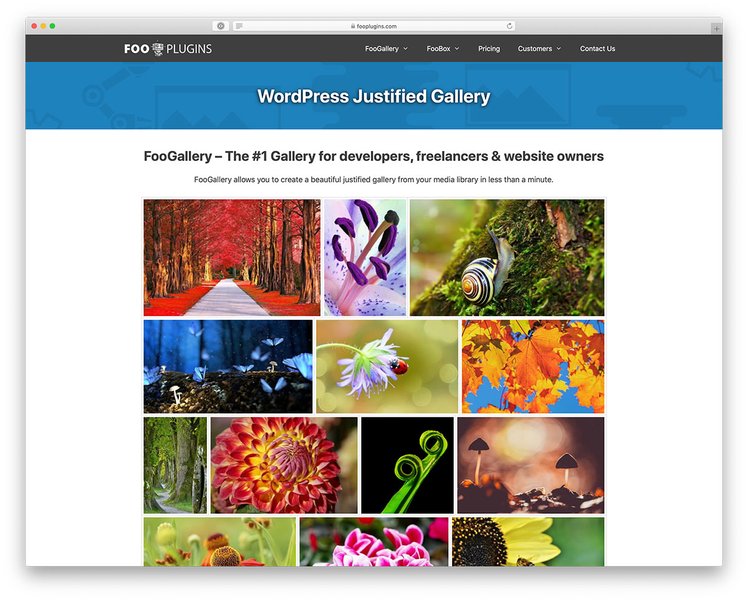
FooGallery's justified gallery type creates a clean, uniform appearance while maintaining image aspect ratios. This layout is particularly effective for photography portfolios where preserving image proportions is important.
Default Gallery Types Beyond WordPress
The concept of default gallery types extends beyond WordPress to other platforms and applications.
Photo Management Platforms
In photo management platforms like Instaproofs, gallery types function as containers that organize galleries and apply default settings. These settings can include layout preferences, visibility options, availability duration, and e-commerce functionality.
Mobile Devices
On Android devices, users can set a default photo gallery app to manage their images. This designated app becomes the system's primary tool for viewing and organizing photos, with each gallery app offering its own unique layout and organization system.
Power Apps
In Microsoft Power Apps, a gallery control is used to display multiple records from a data source. The default setup involves selecting a data source and configuring the template for each item in the gallery, with predefined templates available for different data types.
CMS Platforms
Different content management systems implement their own default gallery types:
- Drupal: Offers views-based galleries with configurable grid layouts
- Joomla: Provides category-based image organization with various display options
- Shopify: Features product-focused galleries with zoom and slider capabilities
- Wix: Includes drag-and-drop gallery widgets with preset layouts
Video Tutorial: Understanding WordPress Gallery Types
This comprehensive video tutorial demonstrates how to create different types of galleries in WordPress, comparing the default gallery with plugin options.
The video showcases the best photo gallery WordPress plugins in 2025, including their default gallery types and how they compare to WordPress's native gallery functionality.
Frequently Asked Questions
References
- 8 Best WordPress Gallery Plugins in 2025 - Elegant Themes
- Displaying Galleries Overview - Imagely
- Best WordPress Photo Gallery Plugins - WPBeginner
- 15 Best WordPress Gallery Plugins for Free 2025 - Colorlib
- What is a gallery type - Instaproofs Help Center
- Setting Default Gallery - FooPlugins Documentation
- Jetpack Default Gallery Type - Jetpack Developer Resources
Recommended Searches
 codecraftwp.com
 wordpress.com
wordpress.com
wordpress.com
Last updated April 6, 2025