
WordPress Maintenance Mode Without a Plugin
A Comprehensive Guide to Customizing and Implementing Maintenance Mode
Key Highlights
- Hands-On Methods: Learn multiple code-based techniques like the .maintenance file, modifying functions.php, and .htaccess redirection.
- Customization & Security: Methods provide extensive customization options while reducing plugin-based vulnerabilities.
- Step-by-Step Procedures: Detailed instructions ensure safe implementation and easy deactivation post-maintenance.
Introduction
Maintaining an updated and error-free WordPress website is essential. However, site updates or major revisions may temporarily require the site to be inaccessible to visitors. Fortunately, WordPress offers ways to enable maintenance mode without having to install extra plugins. This guide explains various manual methods to implement a maintenance mode, ensuring that your website remains professional, secure, and fully customizable during downtime.
Methods to Enable WordPress Maintenance Mode
1. Using the .maintenance File
WordPress inherently supports a maintenance mode via the .maintenance file located in the site's root directory. This method utilizes built-in functionality.
Steps for .maintenance File Method
To utilize this method, follow these steps:
- Access the root directory of your WordPress installation using an FTP client or your hosting file manager.
- Create a new file named .maintenance.
-
Open the .maintenance file in your text editor and insert:
<?php $upgrading = time(); ?> - Save and upload the file to your server. WordPress will now automatically display a default maintenance message to visitors.
- To disable maintenance mode, simply remove the .maintenance file from the directory.
Advantages: This method is extremely simple and leverages WordPress' internal maintenance behavior. It is useful for quick updates when a custom design is not required.
Disadvantages: The default maintenance message is basic and may not fit the design aesthetics of your site. Customization options are minimal.
2. Modifying the functions.php File
Customizing the functions.php file within your theme (ideally a child theme) is one of the most flexible methods to control maintenance mode behavior. This method allows you to define a custom message and restrict access to administrators.
Steps to Implement Maintenance Mode via functions.php
- Navigate to your WordPress dashboard and then to Appearance > Theme Editor. Open your child theme’s functions.php file.
-
Insert the following PHP code at the end of the file:
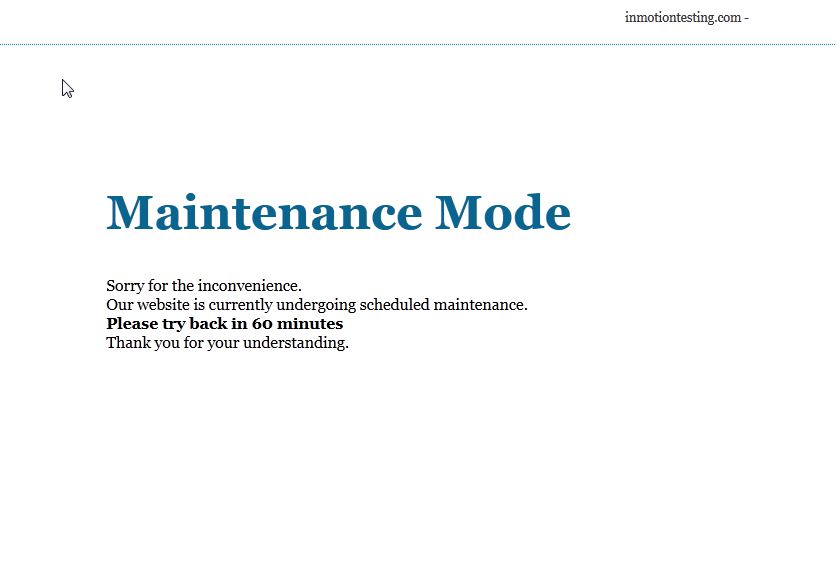
<?php function wp_maintenance_mode() { // Allow administrators to bypass maintenance mode if ( !current_user_can('administrator') ) { // Custom maintenance message layout; feel free to adjust HTML & CSS wp_die( '<h1>Maintenance Mode</h1><p>Our website is currently undergoing scheduled maintenance. Please check back soon.</p>', 'Maintenance Mode' ); } } add_action('get_header', 'wp_maintenance_mode'); ?> - Save the changes to functions.php.
- The above code ensures that only administrators can access the site while all other visitors see the defined maintenance message.
- Remember to remove or comment out this code once maintenance is complete.
Advantages: Provides a custom maintenance message and restricts site access based on user rights, ensuring only authorized personnel can bypass the maintenance mode.
Disadvantages: Changes made to functions.php can be overwritten if not using a child theme, and incorrect implementation might cause issues with site accessibility.
3. Utilizing .htaccess Redirection
Another effective method is to redirect visitors from your website to a custom maintenance page using .htaccess rules. This method is particularly useful if you want to display a fully customized HTML page.
Steps to Set Up .htaccess Redirection
- Create a custom HTML page (e.g., maintenance.html) containing your maintenance message and any additional styling.
- Upload this maintenance.html file to the root directory of your WordPress installation.
- Locate your .htaccess file in the WordPress root directory and open it with a text editor.
-
Add the following rewrite rules at the top of the .htaccess file:
# Enable URL rewriting RewriteEngine On # Exclude the maintenance page itself from the redirection RewriteCond %{REQUEST_URI} !^/maintenance.html$ # Optionally, if you want to allow specific IP addresses (such as yours), add: # RewriteCond %{REMOTE_ADDR} !^your\.ip\.address\.here$ RewriteRule ^(.*)$ /maintenance.html [R=307,L] - Save and upload the updated .htaccess file.
- Test the redirection by accessing your site from a browser in incognito mode.
- When maintenance is complete, remove or comment out the added rewrite rules.
Advantages: This method offers a professional, customized look for your maintenance page and allows more control over allowed IP addresses or specific file requests.
Disadvantages: Requires a good understanding of Apache’s .htaccess file syntax, and any mistakes can potentially disrupt site functionality.
4. Creating a Custom maintenance.php File
You may also opt to create an entirely custom maintenance.php file. This file can include bespoke styling, JavaScript, CSS, and more elaborate messaging. It is a flexible method that allows for a highly personalized maintenance experience.
Steps to Use a Custom maintenance.php File
- Create a file named maintenance.php in the WordPress root directory.
-
Embed your custom HTML structure, CSS styles, and any JavaScript necessary for your design in this file. For example:
<?php
// Check if user is not logged in
if ( !is_user_logged_in() ) {
    // Output custom maintenance message
    include 'maintenance.php';
    exit;
}
?>
You can also include a complete custom HTML layout in this file to represent your site's branding.
- Ensure that only non-logged-in users are redirected to this page. If administrators are logged in, the regular site should display.
- To revert back to normal functionality, remove or rename the maintenance.php file.
Advantages: It provides the highest degree of customization and can integrate modern web design practices, including animations, countdowns, and interactive elements.
Disadvantages: It requires proficiency in PHP and HTML, and misconfigurations might lead to an inaccessible site if not tested properly.
Comparative Analysis of Methods
To better understand the different methods, consider the following comparison table:
| Method | Ease of Implementation | Customization Level | Security Considerations |
|---|---|---|---|
| .maintenance File | High | Low (Default Message) | Minimal risk; built-in functionality |
| functions.php Method | Moderate | High (Custom Message) | Secure for administrators; requires careful editing |
| .htaccess Redirection | Moderate | High (Custom HTML Page) | Depends on proper configuration; misunderstanding may block access |
| Custom maintenance.php | Low (Requires coding skills) | Very High | Secure but needs careful testing |
This table highlights that while each method offers unique advantages, you should select the one that aligns best with your technical expertise, desired appearance, and security requirements.
Additional Considerations
SEO and User Experience
When your site is in maintenance mode, it is important to minimize any negative impact on SEO standings. Here are several aspects to consider:
SEO Impact
Short Duration: Limit the time your site is in maintenance mode. Extended downtime can lead to search engine indexing issues.
Caching Headers: When using a custom page, consider implementing proper meta tags and HTTP headers so that search engines understand the temporary nature of the maintenance mode.
Custom Design and Branding
A custom maintenance page is an excellent opportunity to reinforce your brand identity. Incorporate your brand colors, logos, and a friendly message to inform visitors of the maintenance period. Including a countdown timer, contact form, or links to your social media pages can enhance user experience.
Testing and Backup
Before enabling any of these methods on your live site, it is crucial to test the functionality in a staging environment whenever possible. This precaution helps prevent unintentional downtime for visitors and ensures that your chosen method works seamlessly with your theme and plugins.
Backup Procedures
Always create a complete backup of your site's files and database before making any changes to core files like functions.php or .htaccess. By doing this, you ensure a quick recovery if any issues occur during implementation.
Verification
Use multiple browsers and devices, or an incognito window, to verify that your maintenance page displays correctly to users and that authorized users retain access to the administration backend.
Best Practices and Security Recommendations
While enabling maintenance mode, observe these best practices to uphold security standards and ensure a smooth transition back to regular site operations:
Keep It Temporary
Maintenance mode should be active only for the necessary time period. Keeping it active for too long might negatively affect your site's SEO ranking, so plan your updates in manageable intervals.
Use Child Themes
If you modify functions.php, always use a child theme. This strategy prevents your changes from being overwritten by updates to the parent theme.
Document Changes
Maintain a changelog or documentation for any modifications made during the maintenance period. This practice helps in troubleshooting and reverts back to your original state if necessary.
Security Check
Since any unauthorized access during maintenance mode is a potential security risk, confirm that your modifications allow only trusted IP addresses or verified administrators to interact with your site during the maintenance period.
Real-World Implementation Tips
In real-world scenarios, website administrators often combine methods for added flexibility. For example, you might use the functions.php method for a quick toggle during a minor update and the .htaccess redirection for a full site overhaul where a fully branded custom page is desired. Here are further insights:
Combining Methods
In some cases, experienced developers may blend methods such as using a custom maintenance.php file (to design a sophisticated message) along with a redirection rule set in .htaccess that ensures all non-administrator traffic is funneled correctly. This layered approach adds functionality while maximizing user experience.
Fallback Strategies
If you opt for methods that require file modifications, always prepare a fallback solution. For instance, create an emergency backup page that can be quickly activated via the .maintenance file if an error in the functions.php code prevents normal site access.
Summary Table of Maintenance Mode Methods
Below is a detailed table summarizing key aspects of each method:
| Method | Key Feature | Customization Capability | Ease of Rollback |
|---|---|---|---|
| .maintenance File | Built-in WordPress feature | Minimal; uses default message | High (simply delete file) |
| functions.php Modification | Custom PHP function for access control | High (custom HTML/CSS) | Moderate (requires code removal) |
| .htaccess Redirection | Server-level redirect | Very High (custom HTML page) | Moderate (requires .htaccess editing) |
| Custom maintenance.php | Fully customizable design | Very High (complete flexibility) | Moderate (rename or remove file) |
Conclusion
In summary, there are multiple effective methods to implement maintenance mode on your WordPress site without using a plugin. Whether you choose to employ the built-in functionality using a .maintenance file, customize your functions.php, employ a server-level redirection via .htaccess, or create a bespoke maintenance.php file, each approach offers a unique balance between ease of implementation, customization, and security.
For users and web administrators, the decision largely depends on your technical proficiency, the desired level of customization, and the specific requirements during your website update process. Utilizing a child theme for functions.php modifications, combining a redirection with custom design, and safeguarding administrator access are all vital strategies in ensuring that your visitors experience a professional and coherent maintenance mode.
By following the detailed steps and best practices discussed, you can confidently enable maintenance mode during updates or revisions, ensuring your website remains safe and polished while changes are being made. The various methods demonstrated provide flexible solutions to meet both simpler and more intricate needs during maintenance periods.
References
-
How to Set up WordPress Maintenance Mode without Plugin - PrimeInspire
- WordPress Maintenance Mode (with and without plugin) - Pontikis
- How To Put Your WordPress Website in Maintenance Mode Without a Plugin - Bac Software Consulting
- How to put wordpress into maintenance mode without plugin - Gaonkar
- How To Put WordPress In Maintenance Mode: With & Without Plugin - WP Web Infotech
- WordPress Maintenance Mode Without a Plugin (5 Visual Ways) - One Smart Sheep
- WordPress Maintenance Mode Without a Plugin - Sivel.net
- Using Maintenance Mode in WordPress - ICDSoft
Recommended Queries

 wordpress.com
Last updated February 26, 2025