
Unlocking X-Plane 12's Visual Potential: In-Simulator vs. NVIDIA Control Panel Anti-Aliasing
Navigating the intricate balance between performance and pristine visuals in X-Plane 12 requires a strategic approach to Anti-Aliasing, especially when leveraging the NVIDIA Control Panel.
Key Insights into X-Plane 12 Anti-Aliasing Management
- Performance vs. Quality Trade-off: Disabling in-sim AA and utilizing the NVIDIA Control Panel can lead to significant frame rate improvements, but might introduce visual artifacts like jagged edges or blurriness if not carefully configured.
- Granular Control and Optimization: The NVIDIA Control Panel offers advanced settings for fine-tuning anti-aliasing, power management, and texture filtering, which can specifically benefit X-Plane 12's Vulkan rendering engine and address observed in-sim AA shortcomings.
- Complexity and Compatibility: While external control provides flexibility, it introduces potential conflicts with X-Plane 12's native rendering pipeline and can complicate troubleshooting. Prioritizing in-sim settings for core graphics is often recommended unless specific issues arise.
Anti-aliasing (AA) is a fundamental graphics technique in modern simulators like X-Plane 12, designed to smooth out the jagged, "stair-step" edges that appear on rendered objects, thereby significantly enhancing visual fidelity. In X-Plane 12, managing AA settings presents a dichotomy: whether to rely on the simulator's internal controls or to offload this crucial function to the NVIDIA Control Panel. This decision carries profound implications for both performance and visual quality, especially given X-Plane 12's transition to the Vulkan rendering engine from the older OpenGL.
X-Plane 12 now natively supports Multisample Anti-Aliasing (MSAA), a more efficient method than the 4x SSAA used in its predecessor, aiming for better frame rates. Additionally, it integrates AMD's FidelityFX Super Resolution (FSR) for resolution scaling, which further optimizes performance for higher resolutions like 4K. However, despite these advancements, some users still report issues with shimmering and jagged edges, prompting exploration into external AA solutions.
The Case for NVIDIA Control Panel: Pros of External AA Management
Shifting the responsibility of anti-aliasing from X-Plane 12 to the NVIDIA Control Panel offers several compelling advantages, particularly for users seeking highly customized graphics configurations and performance boosts.
Enhanced Customization and Granular Control
The NVIDIA Control Panel provides a level of control over graphics settings that often surpasses what's available within the simulator itself. Users can access advanced parameters for xplane.exe, including setting higher levels of anti-aliasing (e.g., up to 16x MSAA), adjusting anisotropic filtering, and fine-tuning texture quality. This granular control allows for a truly personalized optimization, potentially leading to a more refined visual experience tailored to specific hardware capabilities.
Potential Performance Improvements and Stability
Disabling in-sim AA and leveraging the NVIDIA Control Panel can be a strategic move to improve and stabilize frame rates. By setting the "Power management mode" to "Prefer maximum performance" and "Texture Filtering - Quality" to "High Performance" within the NVIDIA Control Panel for xplane.exe, users can mitigate performance dips and reduce stutters. This external management can circumvent the overhead of X-Plane 12's built-in AA algorithms, which can be particularly demanding on the GPU, especially in complex scenarios or VR setups.
Conflict Resolution and Hardware-Specific Tweaks
NVIDIA's driver-level optimizations can sometimes resolve visual inconsistencies that X-Plane 12's internal AA struggles with, such as persistent jagged edges on distant objects. Forcing specific AA combinations (e.g., combining FXAA and MSAA) through the NVIDIA Control Panel might yield superior results. This approach can also prevent the simulator from overriding preferred settings, offering a cleaner graphics pipeline. For systems with limited resources, selectively disabling certain in-game features like HDR anti-aliasing and replacing them with lighter NVIDIA alternatives can significantly reduce GPU load while maintaining visual fidelity.
The Challenges of External AA Management: Cons and Considerations
While the NVIDIA Control Panel offers enticing benefits, relying solely on it for X-Plane 12's anti-aliasing comes with its own set of challenges and potential drawbacks.
Risk of Incompatibility and Instability
One of the most significant downsides is the potential for conflicts between X-Plane 12's internal rendering pipeline and externally forced settings. Improperly configured NVIDIA settings can lead to visual glitches, unexpected crashes, or suboptimal performance. Forcing very high AA levels might cause the simulator to underperform or even fail to launch, emphasizing the need for meticulous adjustment and testing.
Potential for Performance Degradation
Despite the promise of performance gains, enabling high AA through external tools can sometimes introduce additional overhead, paradoxically leading to worse FPS in GPU-limited scenarios. This is particularly true for very demanding settings like 8x MSAA. Furthermore, the effectiveness of external AA in VR modes can be inconsistent, potentially leading to discomfort or reduced immersion.
Increased Complexity and User Variability
Managing graphics settings through both the simulator and the NVIDIA Control Panel adds a layer of complexity that can be daunting for novice users. The optimal settings can vary significantly based on individual hardware configurations, leading to a trial-and-error process. Moreover, if NVIDIA drivers are not kept up to date, users might miss out on crucial optimizations, making this external management less reliable compared to X-Plane 12's built-in options, which are designed for broader compatibility.
Vulkan Engine Interactions and Outdated Recommendations
X-Plane 12's shift to the Vulkan rendering engine means that many NVIDIA Control Panel overrides designed for older APIs (like OpenGL used in X-Plane 11) might not interact as expected or be as effective. The simulator is now designed to offload more graphics processing to the GPU, and its internal optimizations are tailored for Vulkan, potentially making external overrides redundant or even detrimental.
Visualizing the Impact: A Comparative Analysis of AA Approaches
To better understand the trade-offs, let's visualize the impact of these two anti-aliasing strategies on various aspects of X-Plane 12's performance and visual quality.
Comparative Radar Chart: In-Sim AA vs. NVIDIA Control Panel AA in X-Plane 12
The radar chart above illustrates a comparative analysis between relying on X-Plane 12's internal anti-aliasing settings and overriding them via the NVIDIA Control Panel. Each spoke represents a critical aspect of graphics management in a flight simulator, such as Visual Fidelity, Frame Rate Stability, and Ease of Configuration. A higher score indicates a stronger performance or benefit in that specific area. As depicted, in-sim AA generally offers better compatibility and simpler troubleshooting due to its direct integration with X-Plane 12's Vulkan engine. Conversely, the NVIDIA Control Panel often excels in providing superior frame rate stability and advanced customization, albeit at the cost of increased complexity and potential compatibility issues. This visual representation underscores the need for users to weigh their priorities—be it raw performance or hassle-free setup—when deciding on their AA strategy.
Deep Dive into Specific NVIDIA Control Panel Settings for X-Plane 12
For those who opt to fine-tune X-Plane 12 through the NVIDIA Control Panel, certain settings are frequently highlighted by the community for their significant impact.
Optimizing Power Management Mode
Setting the "Power management mode" to "Prefer maximum performance" for xplane.exe can prevent the GPU from downclocking during less intensive moments, ensuring consistent frame rates and reducing micro-stutters, particularly in demanding flight scenarios or during VR usage.
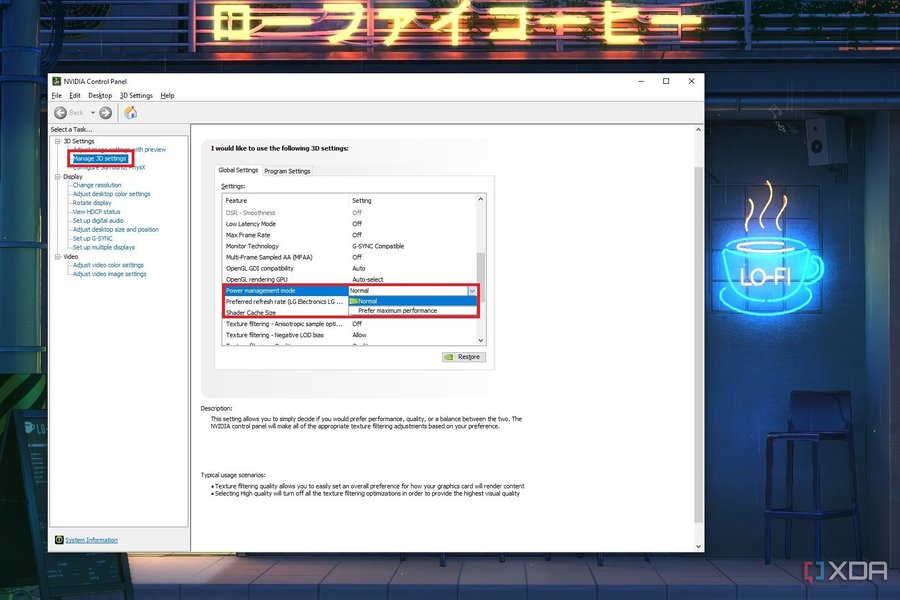
Screenshot illustrating the "Power management mode" setting in the NVIDIA Control Panel.
Adjusting Texture Filtering Quality
Changing "Texture Filtering - Quality" to "High Performance" can subtly improve frame rates and reduce rendering overhead, which is beneficial for overall fluidity without a noticeable drop in visual quality for most users. This tweak can be particularly effective in PC VR setups.
Consideration for Shader Cache Size
Some users recommend disabling "Shader Cache Size" in the NVIDIA Control Panel, believing it can reduce stutters and improve loading times. However, this setting's impact can be debated, and its effectiveness might vary across different system configurations.
The following table summarizes the key aspects to consider when deciding on an AA management strategy for X-Plane 12:
| Aspect | Using AA Inside X-Plane 12 | Disabling AA In-Sim + Using NVIDIA Control Panel |
|---|---|---|
| Primary Goal | Balanced Visuals & Compatibility | Maximized Performance & Customization |
| Visual Quality | Optimized for X-Plane's pipeline, generally good AA quality, less prone to artifacts. | Can achieve higher AA levels and potentially sharper details, but may introduce blurriness or artifacts. |
| Performance Impact | Can be GPU-intensive, potentially leading to lower FPS if not optimized. | Potential for significant FPS gains and reduced stutters by leveraging driver optimizations. |
| Flexibility | Limited to simulator's provided AA levels (e.g., MSAA levels) and internal optimizations. | More granular control over quality/performance trade-offs via driver settings, including power and texture filtering. |
| Compatibility | Fully compatible with Vulkan and simulator rendering pipeline. | Possible conflicts or suboptimal AA due to driver overrides; might not fully integrate with Vulkan. |
| Ease of Setup | Simple—just adjust settings within the simulator. | Requires careful tuning, testing, and understanding of driver settings; can be complex. |
| VR Usage | Some limitations or reduced effectiveness for AA in VR modes. | Driver AA may offer improvements in some VR scenarios but can be inconsistent and requires specific tweaking. |
Ultimately, the optimal approach often involves a combination of both. For general use, it is often recommended to let X-Plane 12 handle anti-aliasing internally, as its settings are specifically tailored for the simulator's rendering pipeline and Vulkan integration. However, if performance issues or specific visual artifacts persist, then experimenting with NVIDIA Control Panel settings for power management and texture filtering can yield significant improvements. The key is to avoid redundant AA processing (i.e., enabling AA in both the simulator and the control panel) and to prioritize consistent testing to find the best balance for your unique system configuration.
Visualizing the Workflow: A Mindmap of X-Plane 12 AA Management
To provide a clear overview of the decision-making process for managing anti-aliasing in X-Plane 12, the following mindmap outlines the interconnected factors and choices involved. This visual aid helps in understanding the hierarchical relationships between in-sim settings, NVIDIA Control Panel adjustments, and their overall impact on your simulation experience.
(Prefer Maximum Performance)"] texture_filtering["Texture Filtering - Quality
(High Performance)"] shader_cache["Shader Cache Size
(Optional: Disable)"] aa_override["Anti-Aliasing - Mode
(Override Application Settings)"] pros_cp_aa["Pros of NVIDIA CP AA"] granular_control["Granular Control"] performance_boost_cp["Potential Performance Boost"] conflict_resolution_cp["Conflict Resolution"] consistent_experience["Consistent Experience"] cons_cp_aa["Cons of NVIDIA CP AA"] compatibility_issues["Compatibility Issues"] complexity_cp["Increased Complexity"] vulkan_interactions_cp["Vulkan Interactions"] vr_inconsistencies_cp["VR Inconsistencies"] decision_factors["Decision Factors"] hardware_specs["Hardware Specifications"] priority["Performance vs. Visuals Priority"] troubleshooting_willingness["Troubleshooting Willingness"] best_practices["Best Practices"] default_sim_first["Prioritize In-Sim AA First"] test_and_tweak["Test and Tweak Iteratively"] avoid_redundancy["Avoid Redundant AA (Sim & CP)"] keep_drivers_updated["Keep GPU Drivers Updated"]
Mindmap: Key Considerations for X-Plane 12 Anti-Aliasing Management
This mindmap visually breaks down the multifaceted decision-making process for managing anti-aliasing in X-Plane 12. It highlights that users typically choose between relying on X-Plane's native settings, which benefit from direct Vulkan integration and simpler setup, or employing the NVIDIA Control Panel for more granular control over aspects like power management and texture filtering, which can lead to performance boosts. However, the external approach introduces complexities such as potential compatibility issues and increased troubleshooting efforts. The "Decision Factors" and "Best Practices" branches underscore that the optimal solution is often a dynamic balance tailored to individual hardware capabilities and performance priorities, emphasizing iterative testing and driver updates.
Enhancing Your Experience: A Comprehensive Guide to X-Plane 12 Graphics Settings
Understanding how to optimize X-Plane 12 for both visual quality and performance is crucial for an immersive flight simulation experience. This video delves into a comprehensive guide covering various settings, including those within X-Plane 12 itself and the NVIDIA Control Panel. It provides practical insights and recommendations to help users achieve the best possible balance on their systems.
X-Plane 12 Graphics Settings | Complete Settings Guide
This video is highly relevant as it offers a holistic view of optimizing X-Plane 12's graphics, specifically addressing the interaction between in-game settings and NVIDIA Control Panel configurations. It covers anti-aliasing in detail, explaining how different options affect visual quality and performance. The guide also provides recommended settings for various hardware tiers, which is invaluable for users looking to fine-tune their simulator. By demonstrating how to navigate both X-Plane 12's rendering options and NVIDIA's 3D settings, the video directly supports the discussion on the pros and cons of disabling in-sim AA in favor of external controls, making it an essential resource for those seeking to maximize their X-Plane 12 experience.
Frequently Asked Questions (FAQ)
What is Anti-Aliasing (AA) in X-Plane 12?
Why would I disable AA in X-Plane 12 and use the NVIDIA Control Panel?
What are the main risks of using NVIDIA Control Panel for AA in X-Plane 12?
Should I enable AA in both X-Plane 12 and the NVIDIA Control Panel simultaneously?
Does X-Plane 12's shift to Vulkan affect NVIDIA Control Panel settings?
Conclusion
The decision to manage Anti-Aliasing directly within X-Plane 12 or via the NVIDIA Control Panel is a nuanced one, heavily dependent on individual hardware, performance priorities, and tolerance for complexity. While X-Plane 12's native MSAA and FSR integrations offer a robust baseline for visual quality and performance within its Vulkan-based engine, the NVIDIA Control Panel provides an avenue for deeper customization and potential frame rate optimization, especially for advanced users. The trade-offs involve balancing pristine visual fidelity against consistent frame rates and the intricacies of configuration. For most users, prioritizing X-Plane 12's internal settings for core graphics, coupled with strategic NVIDIA Control Panel tweaks for power management and texture filtering if needed, offers the most stable and optimized experience. Continuous testing and up-to-date GPU drivers remain crucial for achieving the desired balance in this highly demanding flight simulator.
Recommended Further Queries
- How to optimize X-Plane 12 settings for VR performance?
- What are the best X-Plane 12 graphics add-ons for visual fidelity?
- How does Vulkan API impact X-Plane 12 performance compared to OpenGL?
- NVIDIA Control Panel advanced settings explained for flight simulators?