
Unlocking Advanced Drive Security: How YubiKey Elevates BitLocker Protection
Discover the synergy between hardware security keys and full-disk encryption for robust data defense.
Integrating YubiKey, a powerful hardware authentication device, with BitLocker, Microsoft's full-disk encryption feature, significantly enhances the security of your data. This combination introduces a hardware-backed layer of two-factor authentication (2FA) to your encrypted drives, making it substantially more difficult for unauthorized users to access your sensitive information. This guide explores the methods, benefits, and considerations for using YubiKey with BitLocker, drawing on current knowledge as of May 18, 2025.
Key Highlights of YubiKey and BitLocker Integration
- Hardware-Backed 2FA: Using a YubiKey means that even if your password or PIN is compromised, attackers cannot unlock your BitLocker-encrypted drive without physical possession of the YubiKey.
- Multiple Integration Paths: YubiKey can be used as a smart card for non-system drives, to store a static password/PIN for system or data drives, or via third-party tools for pre-boot authentication on system drives.
- Enhanced Protection: This setup offers stronger defense against sophisticated attacks like cold boot attacks or unauthorized physical access compared to TPM-only or PIN-only configurations.
Understanding the Synergy: YubiKey and BitLocker
BitLocker provides robust full-disk encryption for Windows operating systems, typically relying on a Trusted Platform Module (TPM), a PIN, a password, or a startup key on a USB drive. While effective, these methods can be further fortified. A YubiKey introduces a physical token into the authentication process, adhering to strong security principles.
YubiKeys support various protocols, including PIV (Personal Identity Verification), which allows them to function as smart cards. This capability is central to one of the primary methods of integrating with BitLocker. Additionally, YubiKeys can be configured to output static passwords, offering another avenue for integration.
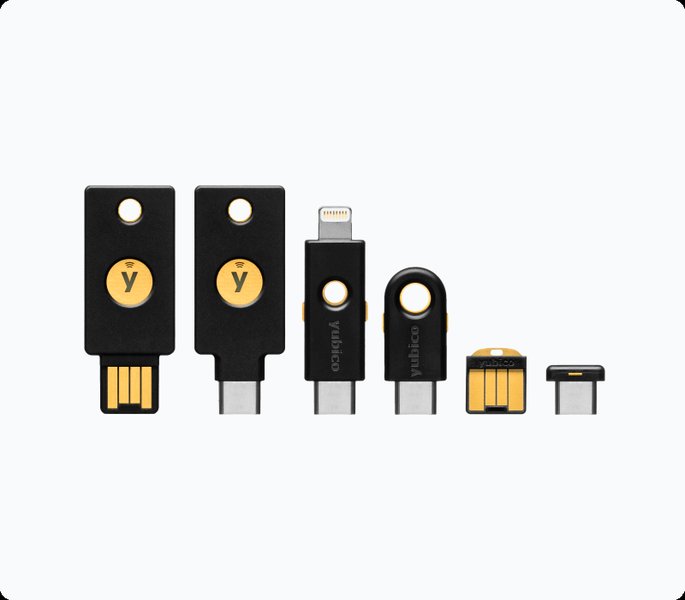
A selection of YubiKey 5 series devices, versatile for various authentication needs.
Methods for Integrating YubiKey with BitLocker
There are several ways to combine YubiKey with BitLocker, each suited to different scenarios and security requirements:
1. Using YubiKey as a Smart Card (PIV) for Non-System Drives
This is a robust method for protecting data drives (e.g., secondary internal drives, external USB drives).
How It Works
The YubiKey is configured with a digital certificate that acts as a smart card. BitLocker for non-system drives can be set up to require this smart card for unlocking. When you access the drive, Windows prompts you to insert the YubiKey and, typically, enter the YubiKey's PIV PIN.
Setup Steps Overview
- Prepare YubiKey: Ensure you have a YubiKey that supports PIV (most YubiKey 5 series devices do). Install the YubiKey Manager software.
- Generate Certificate: Create or obtain a PIV certificate suitable for BitLocker. This often involves generating a self-signed certificate or obtaining one from a Certificate Authority. The certificate typically needs to have an Encrypting File System (EFS) purpose and a specific Object Identifier (OID) for BitLocker compatibility.
- Import Certificate to YubiKey: Use YubiKey Manager to import the certificate (usually a .pfx file) into one of the PIV slots on the YubiKey (e.g., slot 9a for Authentication, 9c for Digital Signature, or 9e for Key Management). Slot 9e is often recommended if PIN usage is desired for every operation. Configure PIN and touch policies as needed.
- Configure BitLocker: For the target non-system drive, turn on BitLocker. When prompted for unlock methods, choose "Use a smart card." Windows will then associate the certificate on the inserted YubiKey with that drive.
Limitation: Microsoft BitLocker does not natively support smart card authentication for pre-boot unlocking of the system (OS) drive. This method is primarily for data drives.
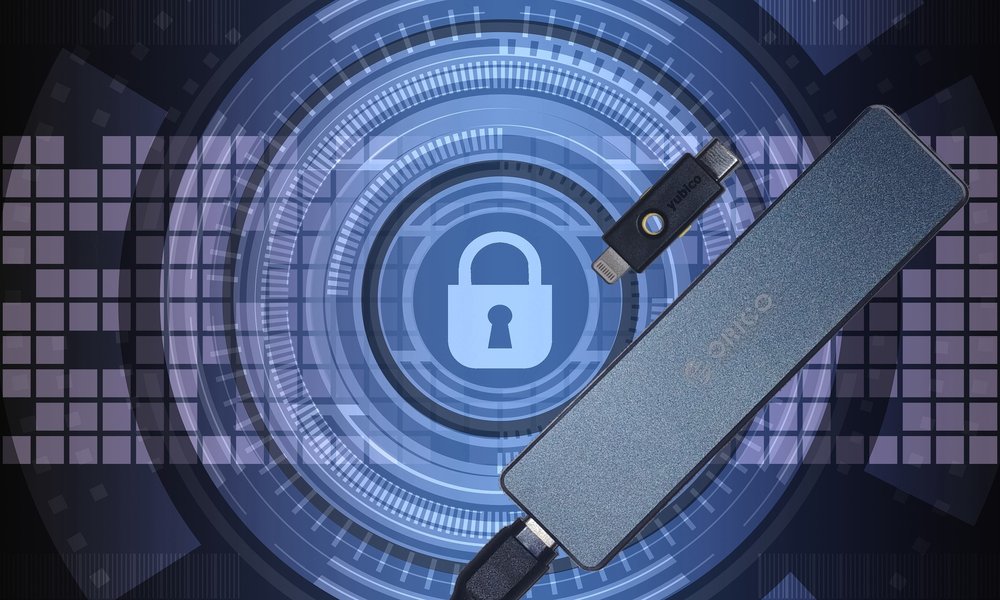
Conceptual setup for using YubiKey as a smart card with BitLocker.
2. Using YubiKey to Store a BitLocker PIN or Static Password
This method can be applied to both system and non-system drives and offers a way to use the YubiKey as a "key" to input the BitLocker PIN or password.
How It Works
The YubiKey can be configured to store a long, complex static password in one of its programmable slots (e.g., a long-press slot). When BitLocker prompts for a PIN (for TPM+PIN on a system drive) or a password, you insert the YubiKey and touch its sensor. The YubiKey then types out the stored static password via its virtual USB keyboard functionality. This password acts as your BitLocker PIN or unlock password.
Setup Considerations
- YubiKey Configuration: Use the YubiKey Manager to program a static password into a slot. This password should be very strong and unique.
- BitLocker Setup:
- For a system drive with TPM, you would enable "TPM + PIN" in Group Policy (
Computer Configuration > Administrative Templates > Windows Components > BitLocker Drive Encryption > Operating System Drives > Require additional authentication at startup). The static password from the YubiKey would then serve as this PIN. - For data drives, you can set a password for BitLocker and use the YubiKey's static password feature to enter it.
- For a system drive with TPM, you would enable "TPM + PIN" in Group Policy (
- Security: While convenient, ensure the static password stored on the YubiKey is treated with care. If the YubiKey is lost and unprotected by its own PIN (if applicable to the slot configuration), the stored password could be retrieved. Some users combine this with a manually typed prefix or suffix to the YubiKey's output for true two-factor authentication at the PIN entry stage.
3. Utilizing Third-Party Solutions for Pre-Boot Authentication
For organizations or users requiring robust YubiKey-based pre-boot authentication for system drives, third-party software solutions extend BitLocker's capabilities.
When to Use
These solutions are ideal when native BitLocker limitations (like no smart card pre-boot for OS drives) are a concern, and enterprise-grade features like multi-user support, compliance, and centralized management are needed.
Example: Secure Disk for BitLocker by Yubico
Products like "Secure Disk for BitLocker" (often developed by partners and endorsed by Yubico) provide a custom pre-boot authentication environment that integrates with BitLocker. This allows for the use of YubiKey (often requiring both the key and a PIN) to unlock the system drive before Windows loads.

Third-party solutions like Secure Disk for BitLocker enable YubiKey 2FA for pre-boot system drive authentication.
Advantages of YubiKey-BitLocker Integration
- Strong Hardware-Backed Authentication: Moves beyond knowledge-based factors (passwords/PINs) to possession-based factors.
- Enhanced Protection Against Physical Attacks: Makes it harder for attackers with physical access to the device to bypass drive encryption.
- Resistance to Phishing and Malware: The physical presence requirement of YubiKey for certain configurations helps mitigate remote attacks.
- Convenience with Security: A single YubiKey can often be used for multiple services, streamlining authentication.
- Backup Capability: Multiple YubiKeys can sometimes be configured (e.g., by cloning certificates for PIV) to prevent lockout if one key is lost, though managing multiple keys securely is crucial.
Important Considerations and Best Practices
- The Role of TPM: For system drives, BitLocker's integration with the TPM is fundamental. YubiKey often acts as an additional factor alongside the TPM, not a replacement.
- Backup Your Recovery Key: Crucially important! Always save your BitLocker recovery key in a secure, separate location. If you lose your YubiKey or it malfunctions, and you don't have other unlock methods configured, the recovery key is your only way to access your data.
- Windows Version Compatibility: Smart card functionality for BitLocker is generally available in Windows Professional, Enterprise, and Education editions (e.g., Windows 10 Pro/Enterprise, Windows 11 Pro/Enterprise). Compatibility issues can arise with specific Windows updates (e.g., some users reported issues with Windows 11 23H2 and certificate recognition, potentially requiring reconfiguration or driver updates).
- YubiKey Manager: This is the primary tool from Yubico for managing YubiKey applications, including PIV certificates and static password configurations. The older YubiKey Personalization Tool is largely deprecated for these functions.
- Firmware Updates: Keep your YubiKey firmware updated (e.g., to v5.4.x or later for YubiKey 5 series) to access the latest features and security policies for PIV slots, such as PIN and touch requirements.
- Private Key Export: When generating and importing certificates for PIV use, ensure the private key is marked as non-exportable from the YubiKey to maintain the security integrity of the hardware token.
- Test Thoroughly: Before relying on a new YubiKey-BitLocker setup for critical data, test it extensively on a non-critical drive or system to ensure it works as expected and that you understand the recovery process.
Visualizing YubiKey-BitLocker Security Layers
The following radar chart offers a comparative perspective on different BitLocker authentication methods, including those enhanced by YubiKey. The scores (from 1 to 10, with 10 being most favorable/strongest) are illustrative and reflect a general assessment of each aspect. Note that the "Cost Impact" axis is inverted in interpretation: a higher score means lower additional cost (e.g., 10 means no extra cost beyond the OS/hardware).
Understanding the YubiKey-BitLocker Ecosystem
This mindmap illustrates the key components and relationships involved when integrating YubiKey with BitLocker for enhanced disk encryption security.
Certificate-based authentication"] id1b["Static Password
Keyboard emulation"] id1c["YubiKey Manager
Configuration tool"] id2["BitLocker Encryption"] id2a["Full Disk Encryption"] id2b["System (OS) Drive"] id2c["Non-System (Data) Drives"] id2d["TPM (Trusted Platform Module)
Hardware-based key storage"] id3["Integration Methods"] id3a["Smart Card (PIV)
For Non-System Drives"] id3b["Static Password/PIN Storage
For System/Non-System Drives"] id3c["Third-Party Solutions
(e.g., Secure Disk for BitLocker)
Pre-Boot Authentication for System Drives"] id4["Key Benefits"] id4a["Enhanced Security (2FA/MFA)"] id4b["Hardware-Backed Protection"] id4c["Resistance to Physical & Remote Attacks"] id5["Important Considerations"] id5a["System Drive Native Limitations
(No pre-boot PIV)"] id5b["BitLocker Recovery Key
Essential backup!"] id5c["Windows Version & Edition"] id5d["YubiKey Firmware & Software"]
Comparative Overview of Integration Methods
The table below summarizes the main approaches to using YubiKey with BitLocker, highlighting their characteristics, strengths, and weaknesses.
| Feature | YubiKey as Smart Card (PIV) | YubiKey for Static Password/PIN | Third-Party Solution (e.g., Secure Disk) |
|---|---|---|---|
| Primary Use Case | Unlock Non-System (Data) Drives | Unlock System Drives (as PIN) or Non-System Drives (as password) | Pre-Boot Authentication for System Drives |
| How it Works | Certificate stored on YubiKey PIV applet, accessed via smart card reader functionality. | YubiKey outputs a pre-programmed static password when touched, emulating a keyboard. | Custom pre-boot environment that interfaces with YubiKey and then unlocks BitLocker. |
| System Drive Pre-Boot Auth (Native) | No (Microsoft limitation) | Yes (as the PIN for TPM+PIN) | Yes (core feature of the solution) |
| Security Level | High (for data drives, strong cryptography) | Moderate to High (depends on password complexity and usage context) | Very High (robust 2FA for pre-boot) |
| Setup Complexity | Moderate to High (certificate generation, PIV configuration) | Moderate (YubiKey Manager for static password, Group Policy for TPM+PIN) | High (software installation, configuration, potential licensing) |
| Additional Cost | YubiKey cost | YubiKey cost | YubiKey cost + Software license cost |
| Pros | Strong cryptographic authentication for data drives; leverages PIV standard. | Relatively simpler PIV alternative for some; can enhance TPM+PIN for system drives. | Provides true 2FA for system drive pre-boot; often includes management features. |
| Cons | Not natively supported for system drive pre-boot; configuration can be complex. | Security of the static password if YubiKey is unpinned/unprotected and lost; password management. | Higher cost; complexity; potential vendor lock-in; reliance on third-party software. |
Demonstrating YubiKey with BitLocker Smart Card Functionality
The following video provides a step-by-step demonstration of how a smart card, which can be a YubiKey configured for PIV, is used in conjunction with Microsoft's BitLocker for data encryption on a non-system drive. It illustrates the user experience of unlocking a drive protected in this manner, showcasing the prompt for the smart card and PIN.
This demonstration highlights the practical application of using a YubiKey's PIV capabilities to secure data drives. While the video may show a generic smart card, the principles and Windows interface interactions are directly applicable when a YubiKey is configured as a PIV smart card for BitLocker.
Frequently Asked Questions (FAQ)
Can I use a YubiKey to unlock my Windows boot (system) drive with BitLocker?
Natively, Microsoft BitLocker does not support using a YubiKey as a smart card (PIV) for pre-boot authentication of the system drive. However, you can:
- Use the YubiKey to store a static password, which then acts as the BitLocker PIN when used with TPM+PIN authentication. This requires configuring the YubiKey to output this password and setting up Group Policy for TPM+PIN.
- Employ third-party software solutions (like Secure Disk for BitLocker) that are specifically designed to enable YubiKey-based pre-boot authentication for system drives.
What happens if I lose my YubiKey that's configured for BitLocker?
This is why it is absolutely critical to securely back up your BitLocker Recovery Key for every encrypted drive. The recovery key is a 48-digit numerical password that allows you to unlock the drive if other unlock methods (like your YubiKey or PIN) are unavailable. Without the YubiKey and without the recovery key (or other configured protectors like a password), your data will be inaccessible. Store the recovery key in a safe place, separate from the computer and YubiKey.
If you have a backup YubiKey configured with the same PIV certificate (if applicable and feasible for your setup), you might be able to use that. Otherwise, you'll need the recovery key to regain access, after which you should reconfigure BitLocker with a new YubiKey or security setup.
Do I need a specific YubiKey model for BitLocker integration?
For smart card (PIV) functionality with BitLocker, you'll need a YubiKey that supports PIV. Most YubiKey 5 Series devices (e.g., YubiKey 5 NFC, YubiKey 5C NFC, YubiKey 5Ci, YubiKey 5 Nano, etc.) and YubiKey Bio Series support PIV. Older YubiKey 4 series also supported PIV.
For storing a static password, most YubiKey models with programmable slots can be used, including the Security Key by Yubico if configured appropriately, although models with more advanced configuration options via YubiKey Manager are generally preferred for flexibility.
Always check the specifications of your YubiKey model and ensure its firmware is up to date.
Is using YubiKey with BitLocker significantly more secure than just a TPM and PIN?
Yes, it generally offers a higher level of security. A TPM + PIN combination is already quite strong, as it requires both something the system has (TPM-held keys) and something the user knows (PIN). Adding a YubiKey introduces a "something you have" physical factor.
- For data drives (using YubiKey as PIV smart card): This is very secure as it requires the physical key and its PIN.
- For system drives (using YubiKey for static password as PIN): This enhances the PIN's strength by allowing for a much longer, more complex PIN that's difficult to brute-force or shoulder-surf, and ties it to the physical presence of the YubiKey. If the YubiKey itself is also PIN-protected for its static password slot (an advanced configuration), it adds another layer.
The primary benefit is increased resistance to attacks where the PIN might be compromised (e.g., keyloggers, observation) because the physical YubiKey is still required.
Which Windows versions support YubiKey with BitLocker?
BitLocker itself is available in Windows Professional, Enterprise, and Education editions. The ability to use smart cards (which is how a YubiKey PIV integrates) for BitLocker is generally supported in these editions, typically from Windows 10 Pro/Enterprise and Windows 11 Pro/Enterprise onwards. Using a YubiKey to output a static password as a PIN for TPM+PIN configurations is also broadly compatible with these versions where BitLocker and TPM+PIN are supported.
It's always a good idea to ensure your Windows version is up to date, as well as your YubiKey drivers (like the YubiKey Smart Card Minidriver) and YubiKey Manager software. Keep an eye on release notes for Windows updates, as compatibility can occasionally be affected.
Recommended Further Exploration
- Learn how to generate a PIV certificate specifically for YubiKey and BitLocker integration.
- Explore common troubleshooting steps if your YubiKey smart card isn't recognized by BitLocker.
- Compare different third-party pre-boot authentication tools that support BitLocker and YubiKey.
- Discover the best practices for securely managing your BitLocker recovery keys, especially when using a YubiKey.
References
Last updated May 18, 2025