
Activity Closure Reminder Email Automation
Implementing a Daily Flow for Overdue Activity Closures
Key Highlights
- Daily Scheduled Flow: Automate the process to run every day and check for overdue activities.
- Dynamic Query & Filtering: Identify activities that are yet to be closed more than 7 days after their end date.
- Targeted Reminders: Send customized reminder emails to both the Organizer and their Manager.
Overview
In today's dynamic business environment, ensuring that activities are closed in a timely manner is crucial for maintaining accurate records and smooth operations. By implementing an automated scheduled flow, businesses can efficiently track activities that have exceeded their expected completion timeline and trigger reminder emails to the relevant stakeholders. This system primarily targets activities that remain "open" even after the end date has lapsed by 7 days.
Step-by-Step Implementation
Step 1: Designing the Automated Flow
The first step involves setting up a scheduled flow that runs daily. Platforms like Microsoft Power Automate or ServiceNow Flow Designer can be used to create an automated process that periodically checks for overdue activities.
a) Define the Trigger
Set the flow to trigger on a daily schedule. This involves specifying a start time and frequency. The trigger ensures that the system queries the database every day for activities whose end dates are more than 7 days past and that have not been closed.
b) Activity Query and Filtering
Connect to your data source (e.g., SharePoint list, SQL database, or other repositories) and execute a query to find all activities that satisfy the following condition:
Current Date > End Date + 7 days AND Status = "Open"
This filter ensures that only those activities that are overdue are captured.
Step 2: Retrieving Stakeholder Information
Once the system identifies an overdue activity, it must extract the relevant contact details. This includes:
- Organizer's email address
- Manager's email address (associated with the Organizer)
The flow should be designed to handle these details, which may involve joining multiple data sources if the emails are stored in different systems.
Step 3: Crafting the Reminder Email
The content of the reminder email is crucial. It should be informative, concise, and actionable. Below is a template that you can customize:
Email Template
// Email Subject: Reminder: Activity Closure Overdue
Subject: Reminder: Closure of Activity "[Activity Name]" Overdue

// Email Body:
Dear [Organizer's Name] and [Manager's Name],

This is a reminder that the activity "[Activity Name]" has not been closed even though its scheduled end date, [End Date], passed more than 7 days ago. Please take the necessary action to close this activity at your earliest convenience.

Activity Details:
- Activity Name: [Activity Name]
- End Date: [End Date]
- Days Overdue: [Days Overdue]

If you require any support or have any questions, please do not hesitate to reach out.

Best regards,
[Your Name or Department]
This template includes all vital information such as the activity name, the end date, the number of days overdue, and a clear call to action.
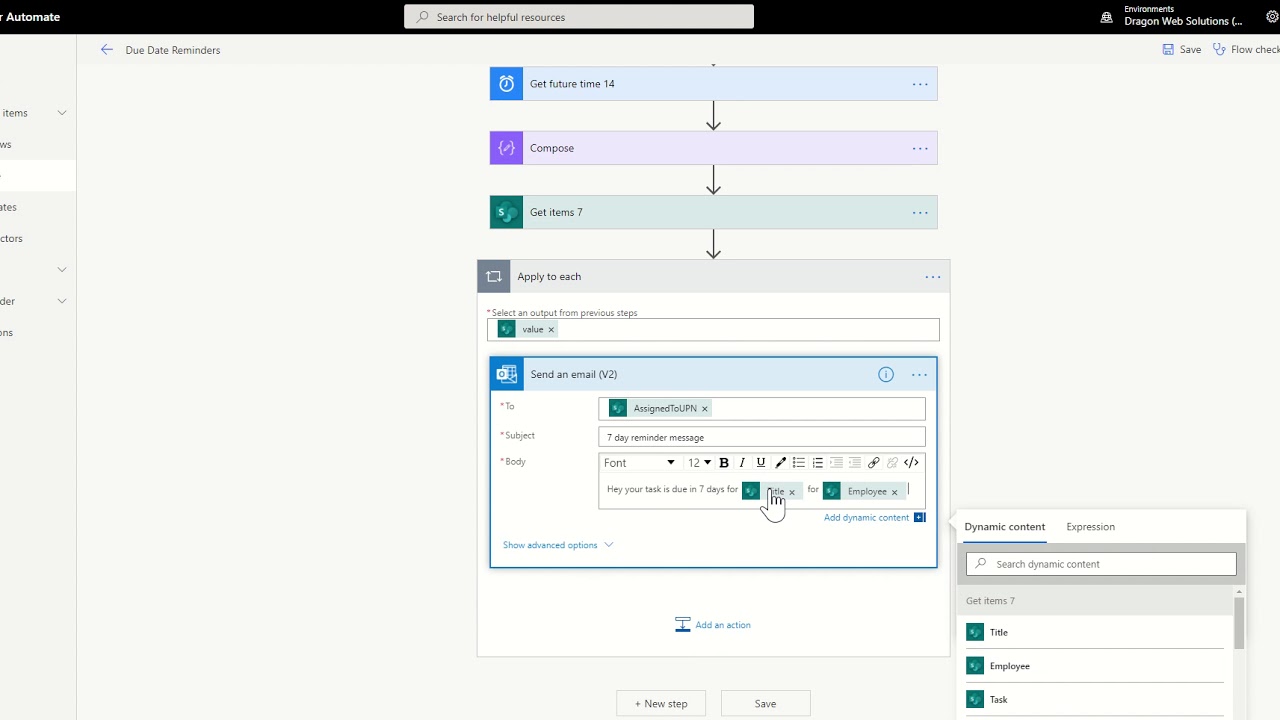
Step 4: Configuring the Email Sending Action
Within your automated flow, use the "Send an Email" action (for example, the "Send an email (V2)" action in Power Automate) to dispatch the reminder:
- Set the recipient fields to the Organizer's email and the Manager's email.
- Include an attention-grabbing subject line and a well-structured body message.
- Optional: Incorporate links or a call-to-action (CTA) that direct the recipient to the activity closure portal.
Step 5: Testing and Deployment
Before deploying the flow, thoroughly test it to ensure:
- The query accurately captures all eligible activities.
- Emails are triggered only when the criteria (i.e., the overdue period of 7 days) are met.
- Personalization tokens like [Activity Name], [End Date], and email addresses are correctly replaced.
Once validated, the flow can be officially deployed to run daily, providing an automated and consistent reminder system.
Technical Implementation Details
Flow Overview Table
| Step | Action | Description |
|---|---|---|
| 1 | Trigger Setup | Schedule flow to run daily, e.g., at midnight or a planned time. |
| 2 | Data Retrieval | Query the data source for activities with end dates older than 7 days and status as "Open". |
| 3 | Retrieve Contacts | Fetch email addresses for the Organizer and their Manager from the respective data sources. |
| 4 | Email Composition | Use a pre-defined email template with dynamic content placeholders. |
| 5 | Email Dispatch | Invoke the email sending action to notify the stakeholders. |
| 6 | Testing & Deployment | Test the entire flow and deploy for daily automatic execution. |
Best Practices for Effective Email Reminders
Clear Communication
Ensure the email content is clear and specific. The purpose and call-to-action must be immediately visible so that recipients understand the urgency and required action.
Personalization
Personalize the email by including the recipient's name and specific details about the activity. This not only makes the message more engaging but also increases the likelihood of prompt action.
Conciseness
Keep the email concise. Overloading the message with excessive details may lead to important information being missed. Focus on the key points like the activity name, end date, days overdue, and the next steps.
Actionable Content
Include a specific call-to-action (CTA), such as a direct link to close the activity. Clear CTAs help streamline the response process for the Organizer and provide a better support experience.
Testing, Monitoring, and Iteration
Testing the Flow
Initially test the automated flow using sample data to ensure the following:
- Correct activities are identified based on the configured query.
- Recipient details are correctly extracted.
- Emails are sent as expected when criteria are met.
Monitoring and Maintenance
Regularly monitor the performance of the automated system. Check logs and delivery reports to ensure that no reminders are missed or sent in error. Update the flow as necessary to adjust filtering criteria or email templates.
Handling Exceptions
Incorporate conditional checks to cancel or modify the email dispatch if the activity status changes before the email is sent. For instance, if an activity is closed manually in the meantime, the flow should automatically skip that entry.
Additional Considerations
Data Source Integration
Integrating with reliable data sources is critical. Whether you're using a SharePoint list, SQL database, or another system, ensure that data integrity is maintained and that the automation tool has proper access credentials.
Security and Compliance
When sending automated emails, pay attention to security best practices. Ensure that only authorized personnel have access to sensitive data. Additionally, comply with organizational policies and data protection regulations.
Scalability
As the volume of activities increases, ensure that your automated flow is scalable to handle higher loads. Optimize your queries and workflow to prevent any delays or performance issues.
References
- Run Scheduled Tasks - Microsoft Learn
- How to Create a Scheduled Flow - SoftChief
- Email Scenarios in Power Automate - Microsoft Learn
- Automated Session Reminders - Activity Messenger
- Gentle Reminder Email Template - TextExpander
Recommended Related Queries
Last updated March 17, 2025