
Unlock Document Transformation: How I Can Assist with Remodeling and Modifying Your Files
Discover how AI can streamline your document editing process, from text refinement to choosing the perfect tools.
Key Insights at a Glance
- Direct File Editing vs. AI Assistance: While I cannot directly open or modify your document files, I can process and help you refine any text you provide, offering suggestions for improvement and restructuring.
- Your Guide to Powerful Tools: I can guide you through a wide array of digital tools designed for document editing, whether you're working with text documents, PDFs, visual presentations, or require specialized AI features.
- AI-Enhanced Productivity: Leverage AI capabilities to enhance your writing, brainstorm ideas, check for errors, and even generate drafts, making your document modification process significantly more efficient.
- Versatile Support: From simple text corrections to complex restructuring or incorporating visual elements, learn how to combine AI insights with robust software for optimal results.
Understanding My Role in Your Document Modification Journey
You're looking to remodel and modify a document, and you're wondering if I can directly assist. As an AI assistant, I don't have the ability to directly access, open, or alter files stored on your computer or in cloud services. Think of me not as a direct editor, but as an intelligent collaborator and guide. My strength lies in processing and understanding the textual content you share with me, then providing comprehensive suggestions, and guiding you on how to achieve your desired modifications using a variety of available digital tools.
How I Can Actively Assist You:
When you provide the text from your document, I can help in several ways:
- Text Refinement and Rewriting: I can help you paraphrase complex sentences, summarize lengthy paragraphs, or expand on ideas. If you're aiming for a different tone (e.g., more formal, persuasive, or concise), I can rewrite sections accordingly. This includes improving clarity, flow, grammar, vocabulary, and overall style.
- Content Structuring and Organization: I can analyze the text and suggest more effective ways to organize your information. This might involve proposing new headings, subheadings, bullet points, or numbered lists to enhance readability and logical progression.
- Formatting Guidance and Suggestions: While I cannot apply formatting directly to a file, I can offer advice on how to achieve specific layouts, font choices, or visual styles using common document editing software. For instance, I can explain how to create a table of contents or apply consistent styling.
- Comprehensive Tool Recommendations: Based on your document's format (e.g., .docx, .pdf, .pptx) and the specific modifications you need, I can recommend the most suitable software and online platforms. I can detail their key features, compare free versus paid options, and explain how to use them effectively for your task.
- Error Identification: I can meticulously check the text you provide for potential spelling mistakes, grammatical errors, and punctuation issues, helping you polish your document to a professional standard.
- Brainstorming and Content Ideas: If you're stuck or need to add new content, I can help brainstorm ideas, generate outlines, or even draft initial text based on your requirements.
Limitations to Be Aware Of:
- No Direct File Manipulation: I cannot upload, download, save, or directly edit files such as Word documents, PDFs, spreadsheets, or images. You would need to interact with the files using appropriate software.
- No Physical Document Services: Services related to physical documents, such as the restoration of old or damaged papers, or secure shredding of confidential files, are outside my digital capabilities.
- No Software Operation: I cannot operate software on your computer for you. My role is to empower you with knowledge and suggestions, which you can then implement using the chosen tools.
By understanding these capabilities and limitations, we can work together effectively to transform your document.
Navigating the Landscape of Document Editing Tools
The digital market offers a plethora of tools designed to help you modify and remodel your documents. Choosing the right one depends on your specific needs, the document type, and the complexity of the changes required. I can help you understand these options.
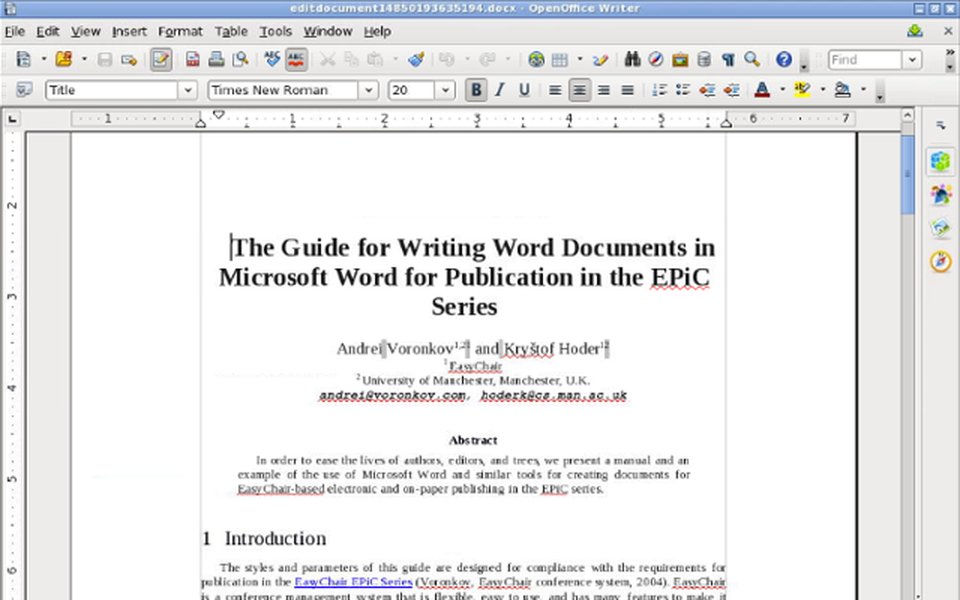
An example of a document editing interface, showcasing typical features like text formatting and menus.
Key Categories of Document Editing Software:
1. General-Purpose Document Editors (Cloud-Based and Desktop)
These are versatile tools for creating and editing text-heavy documents like reports, essays, letters, and manuscripts.
- Examples: Google Docs, Microsoft Word Online, Microsoft Word (Desktop), LibreOffice Writer.
- Core Strengths: Comprehensive text formatting, spell/grammar checking, template libraries, version history, and robust collaboration features (especially in cloud versions).
- Modification Capabilities: Adding, deleting, and rephrasing text; adjusting fonts, colors, and paragraph styles; inserting tables, images, headers, and footers; tracking changes and managing comments.
- AI Integration: Many modern editors, like Google Docs and Microsoft Word, are increasingly incorporating AI for features like smart compose, grammar suggestions, summarization, and even drafting assistance.
2. PDF Editors
Portable Document Format (PDF) files are designed for consistent viewing across devices but can be tricky to edit. Dedicated PDF editors provide the necessary tools.
- Examples: Adobe Acrobat Pro/Online, PDF Candy, Sejda, Smallpdf, PDF24 Creator, Canva PDF Editor.
- Core Strengths: Maintaining document fidelity, form filling, digital signatures, and security features.
- Modification Capabilities: Editing existing text and images within a PDF (often with limitations compared to source documents), adding new text boxes, annotating (highlighting, underlining, comments), rearranging or deleting pages, merging multiple PDFs, splitting large PDFs, and converting PDFs to/from other formats. Many also offer Optical Character Recognition (OCR) to make scanned PDFs editable.
- Considerations: Free versions often have limitations like watermarks, page limits, or restricted access to advanced features like OCR or extensive text editing.
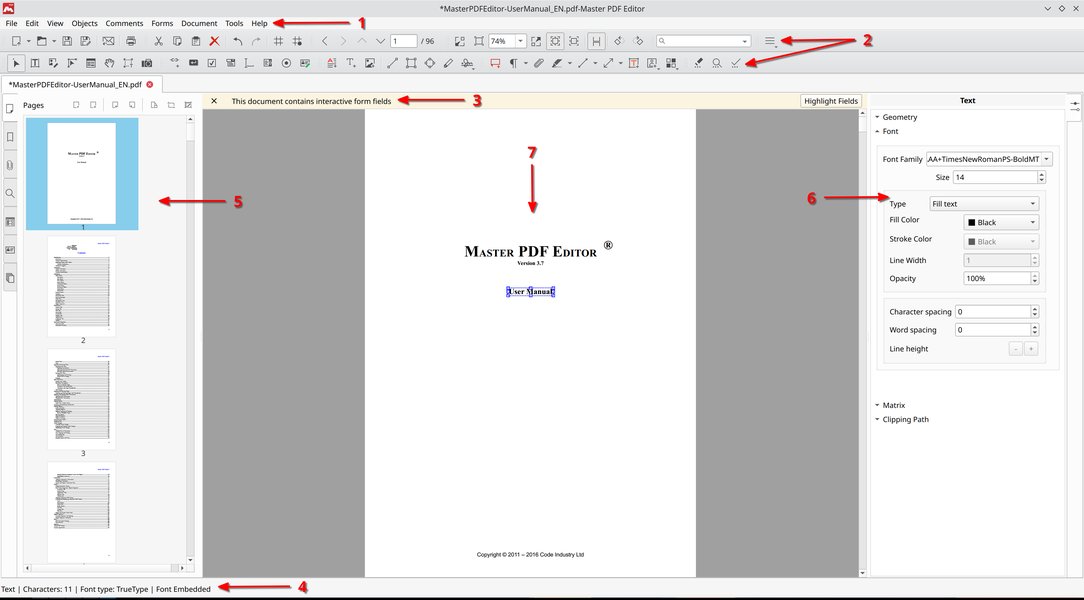
Illustrative workspace of a PDF editor, highlighting tools for document manipulation.
3. AI-Powered Writing Assistants and Specialized Editors
These tools leverage artificial intelligence to go beyond basic editing, focusing on enhancing content quality, generating text, or automating document creation.
- Examples: Type.ai, Aidocmaker, Templafy, AI features within Canva Docs or Notion.
- Core Strengths: Automated content generation, advanced style and tone adjustments, plagiarism checking, and document structuring based on predefined templates or AI analysis.
- Modification Capabilities: Rephrasing sentences or entire paragraphs for clarity or conciseness, generating summaries, expanding on bullet points, ensuring consistent terminology, and customizing documents based on specific audiences or purposes. Aidocmaker, for instance, focuses on automatically structuring documents.
- Use Cases: Ideal for professionals needing to produce high-quality written content quickly, marketing materials, legal documents, or academic papers.
4. Collaborative and Visual Document Platforms
Some platforms combine traditional editing with strong visual capabilities and real-time collaboration, making them suitable for dynamic, media-rich documents.
- Examples: Canva Docs, Notion, ClickUp Docs.
- Core Strengths: Seamless integration of text, images, videos, and interactive elements. Strong emphasis on teamwork and project management.
- Modification Capabilities: Visually designing documents, embedding multimedia, real-time co-editing, task assignment, and version control. Canva Docs, for example, allows transforming text documents into engaging visual designs.
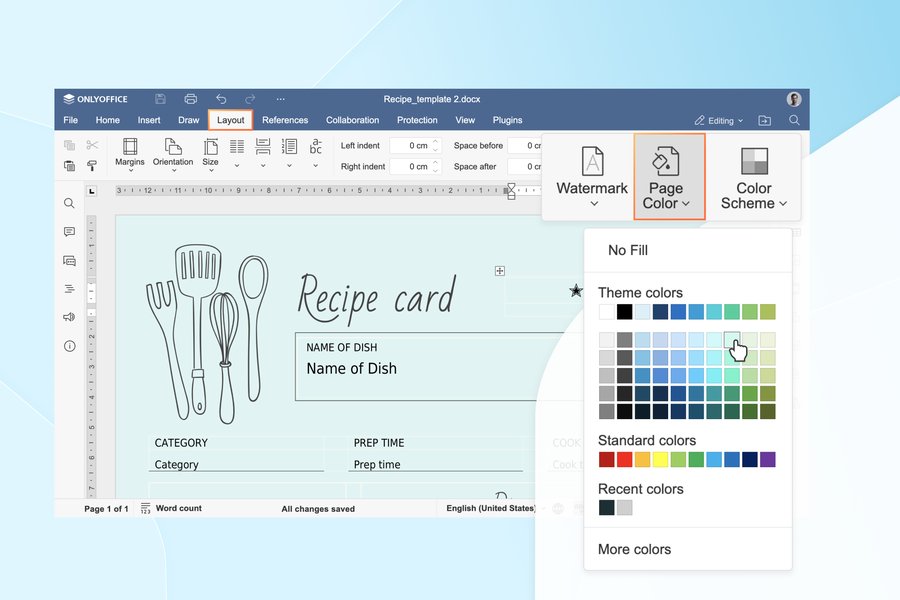
Example of a collaborative document editor, emphasizing features for teamwork.
Visualizing Tool Strengths: A Comparative Radar Chart
To help you better understand the diverse capabilities of document editing tools, the radar chart below offers a visual comparison across key attributes. It contrasts General Document Editors (like Google Docs), Dedicated PDF Editors (like Adobe Acrobat Online), and AI Writing Platforms (like Type.ai). Each axis represents a crucial feature, with scores from 1 to 10 (higher is better). This can guide your choice based on what aspects are most important for your specific document remodeling task.
As the chart illustrates, General Editors excel in collaboration and ease of use for standard text tasks. PDF Editors are unparalleled for their specific format handling. AI Writing Platforms lead in generating and refining textual content with advanced suggestions, though they might offer fewer direct PDF or collaborative features compared to specialized tools.
Your Document Modification Journey: A Step-by-Step Approach
Modifying a document effectively involves a few key steps. Here’s a structured approach, incorporating how my assistance can be integrated:
- Define Your Objectives: Clearly identify what you want to change. Are you aiming for better clarity, a different tone, structural reorganization, correcting errors, or adding new information? The more specific you are, the better I can assist.
- Share Relevant Text with Me: Paste the sections of your document you wish to work on. If it's a large document, focus on key areas or provide a summary.
- Specify Your Needs: Tell me what kind of help you're looking for (e.g., "Can you make this paragraph more concise?" or "Suggest a more professional tone for this section," or "Help me structure this argument.").
- Receive AI-Powered Suggestions: I will process your text and provide suggestions, rewrites, structural advice, or error corrections as requested.
- Choose the Right Tool(s): Based on my recommendations and your document type (Word, PDF, etc.), select an appropriate editing tool from the categories discussed earlier. Consider whether you need advanced PDF features, strong collaborative capabilities, or AI writing enhancements.
- Implement Changes: Open your document in the chosen software. Use my suggestions as a guide to make your edits. You can copy-paste refined text from our conversation or manually apply the structural and formatting advice.
- Iterate and Refine: You might go through a few cycles of editing and review. Feel free to share revised text with me for further feedback.
- Final Review and Export: Once you're satisfied, perform a final proofread. Check for consistency in formatting and style. Then, save or export your remodeled document in the desired format.
Visualizing the Process: Document Modification Mindmap
The mindmap below outlines the typical journey of remodeling a document with AI assistance, from initial planning to the final, polished version. It highlights the key stages and decisions involved in transforming your document effectively.
(Rewrite, Grammar, Structure, Ideas)"] id2c["Receive AI Suggestions & Insights"] id2d["Get Tool Recommendations"] id3["3. Selecting the Right Tools"] id3a["General Document Editors
(e.g., Google Docs, MS Word)"] id3b["Specialized PDF Editors
(e.g., Adobe Acrobat, Sejda, Canva)"] id3c["AI-Enhanced Platforms
(e.g., Type.ai, Aidocmaker)"] id3d["Visual/Collaborative Platforms
(e.g., Canva Docs, Notion)"] id4["4. The Active Modification Process"] id4a["Upload/Open Document in Chosen Tool"] id4b["Apply AI-Suggested Edits & Own Revisions"] id4c["Adjust Formatting & Layout"] id4d["Incorporate Visual Elements (if needed)"] id4e["Collaborate with Others (if applicable)"] id5["5. Review, Iterate, and Finalize"] id5a["Proofread Meticulously"] id5b["Check Formatting Consistency"] id5c["Seek Feedback (from AI or peers if needed)"] id5d["Save/Export in Desired Format"]
This structured approach, combining your critical input with AI suggestions and capable tools, can significantly enhance the quality of your final document.
Comparative Overview of Popular Document Editing Tools
To further assist you in selecting the best software for your needs, the following table provides a comparative overview of some popular document editing tools, highlighting their primary functions, key features, ideal use cases, and pricing models. Remember that "Freemium" often means basic features are free, while advanced ones require a subscription.
| Tool Name | Primary Function | Key Features | Ideal Use Case | Pricing Model |
|---|---|---|---|---|
| Google Docs | Online Document Creation & Editing | Real-time collaboration, version history, extensive formatting options, AI writing assistance (smart compose, grammar), import/export various formats including PDF. | General documents, collaborative projects, academic papers, reports. Accessible from any device. | Free |
| Microsoft Word Online | Online Document Creation & Editing | Robust formatting tools, wide range of templates, advanced spell-check and grammar, real-time collaboration, image and table insertion, integrates with OneDrive. | Professional documents, users familiar with the Microsoft Office suite, collaborative work. | Freemium (Free with Microsoft account, more features with Microsoft 365 subscription) |
| Canva Docs & PDF Editor | Visual-First Document & PDF Editor | Drag-and-drop interface, rich template library, multimedia embedding (images, videos, charts), AI writing tools ('Magic Write'), PDF editing (text, annotations, conversion), real-time collaboration. | Visually rich documents, marketing materials, presentations, resumes, quick PDF edits and designs. | Freemium (Many features free, Pro version for advanced assets and tools) |
| Adobe Acrobat Online Editor | Comprehensive PDF Editing & Management | Edit text and images in PDFs, add comments and annotations, fill and sign forms, e-signatures, organize pages, convert PDFs. Paid versions offer OCR, batch processing. | Detailed PDF modifications, professional document workflows, ensuring PDF security and compliance. | Freemium (Basic tools free, Pro subscription for full feature set) |
| Sejda PDF Editor | Online & Desktop PDF Editing | Edit PDF text directly, add images/shapes, annotate, fill forms, merge/split/compress PDFs. OCR available. Simple interface. | Quick PDF edits, occasional heavy lifting for PDF tasks without complex software. Good for users needing straightforward tools. | Freemium (Free service with daily limits; paid plans for unlimited access) |
| Smallpdf | Suite of Online PDF Tools | Edit, convert (to/from Word, Excel, PPT, JPG), compress, merge, split, e-sign PDFs. User-friendly interface. | A wide array of common PDF tasks, particularly conversion and basic editing. Popular for its ease of use. | Freemium (Limited free tasks per day; paid plans for unlimited access) |
| Type.ai | AI Writing Assistant & Editor | Advanced content generation, rephrasing for tone/clarity, style enhancement, grammar and spelling correction, idea generation. Integrates into workflows. | Improving writing quality, overcoming writer's block, generating marketing copy, blog posts, or professional communications. | Paid (Usually offers a trial period) |
| Aidocmaker | AI Document Generation & Editing | Automated document structuring, customization of tone and style, generation of various document types based on input. | Rapidly generating structured documents like reports, proposals, or legal drafts from prompts or existing content. | Paid (Often trial-based access) |
When selecting a tool, consider factors like the frequency of use, the specific features you need (e.g., OCR for scanned PDFs, advanced collaboration), your budget, and your comfort level with different interfaces.
Helpful Video Tutorial: Editing PDF Documents
Editing PDF documents is a common requirement when remodeling files. The video below provides a helpful step-by-step tutorial on how to perform various edits on PDF documents for free, such as writing or typing on them, editing existing text, adding signatures, and inserting shapes. While specific tools may vary, the general principles and techniques shown can be applied across many free PDF editors, giving you a practical understanding of what's possible.
This video demonstrates common techniques for editing PDF files using free tools.
Watching tutorials like this can demystify the process and empower you to make the modifications you need with confidence, especially when dealing with PDF files which can sometimes be less intuitive to alter than standard text documents.
Frequently Asked Questions (FAQ)
Can you directly open and edit my Word or PDF file if I send it to you? ▼
No, as an AI, I cannot directly open, access, or modify files on your computer or cloud storage. You would need to copy and paste the text from your document into our chat if you want me to help analyze, rewrite, or provide suggestions on it. I can then provide you with the modified text or guidance on how to use specific software to make the changes yourself.
What are some good free tools for editing PDF documents? ▼
Several excellent free PDF editors are available, each with slightly different strengths:
- Canva PDF Editor: Great for visually editing PDFs, adding design elements, and making text changes. User-friendly interface.
- Sejda PDF Editor: Offers a good range of tools for editing text, adding images, annotating, merging, and splitting PDFs online or via desktop app. Free version has daily limits.
- Smallpdf: Provides a suite of easy-to-use online tools for various PDF tasks including basic editing, conversion, and compression. Free usage is limited.
- PDF Candy: Another versatile online option with numerous tools for editing, converting, and managing PDF files.
- Google Docs: While not a dedicated PDF editor, Google Docs can open PDFs (converting them to editable Google Docs format), allow edits, and then export back to PDF. Best for text-heavy PDFs.
The "best" tool depends on your specific needs; for simple annotations or form filling, most free options suffice. For more complex text editing within the PDF structure, results can vary.
How exactly can you help me rewrite or improve a section of my document? ▼
You can paste the specific section of text you want to improve into our chat. Then, tell me your goal. For example, you could ask me to:
- "Make this paragraph more concise."
- "Rewrite this section in a more formal/persuasive/engaging tone."
- "Improve the clarity and flow of these sentences."
- "Check this text for grammar and spelling errors."
- "Suggest alternative phrasing for specific sentences."
- "Help me expand on this idea with more detail."
I will then analyze the text based on your instructions and provide you with revised versions or specific suggestions. You can then review these and decide which changes to implement in your actual document.
Are online document editors safe to use for confidential information? ▼
The safety of online document editors for confidential information depends on the provider and the specific tool. Reputable services like Google Docs, Microsoft Word Online, and Adobe Acrobat Online employ strong security measures, including encryption, to protect your data. However, it's always wise to exercise caution:
- Read Privacy Policies: Understand how the service handles your data.
- Use Strong Passwords & Two-Factor Authentication (2FA): Protect your account access.
- Be Wary of Lesser-Known Free Tools: If a service seems obscure or its security practices are unclear, it might be riskier for sensitive documents.
- Consider Desktop Alternatives for Highly Sensitive Data: For extremely confidential information, you might prefer offline desktop software where the file doesn't leave your local machine unless you explicitly share it.
- Check for Secure Connections: Ensure your browser shows "https://" when using online editors.
Most major online editors are generally secure for everyday use, but diligence is key when handling sensitive content.
Recommended Next Steps & Further Exploration
To deepen your understanding and explore related topics, consider these queries:
- What are the best AI-powered tools for summarizing long documents?
- How can I effectively collaborate on a document with multiple people in real-time?
- Can you explain the benefits of using Optical Character Recognition (OCR) for scanned PDFs?
- What are the key differences between online document editors and desktop software for professional use?
References
The information presented is synthesized from various expert sources and tool providers. For further reading, you may find these resources helpful:
Last updated May 13, 2025