
Listing Approved Applications in Microsoft Intune
Comprehensive guide to retrieving approved apps using admin tools and APIs
Highlights
- Multiple Methods: Use the Intune Admin Center, Microsoft Graph PowerShell, and Conditional Access policies to view approved apps.
- Detailed Data Insights: Explore detailed app attributes and statuses via dashboards, troubleshooting, and the Enterprise App Catalog.
- Customization Options: Tailor your method depending on user assignments and supported app protection policies.
Introduction
Microsoft Intune provides a robust management environment that allows administrators to control and monitor the deployment of applications across corporate devices. Managing and accessing a list of approved applications—those apps that have been vetted and sanctioned for corporate use—is crucial for ensuring security and compliance within an organization. This document presents a comprehensive overview of the methods available for retrieving a list of approved applications in Microsoft Intune.
In a modern workplace, various scenarios require administrators to quickly review which apps are approved, either for device management, for enforcing Conditional Access policies, or to confirm that the correct Enterprise App Catalog entries are in use. Each method provided by Intune offers distinct benefits, from graphical dashboards in the Intune Admin Center to programmatically retrieving data via Microsoft Graph PowerShell. The information herein will guide you in selecting the method that best suits your operational needs.
Methods for Retrieving Approved Applications
1. Using the Microsoft Intune Admin Center
Overview of the Intune Admin Center Interface
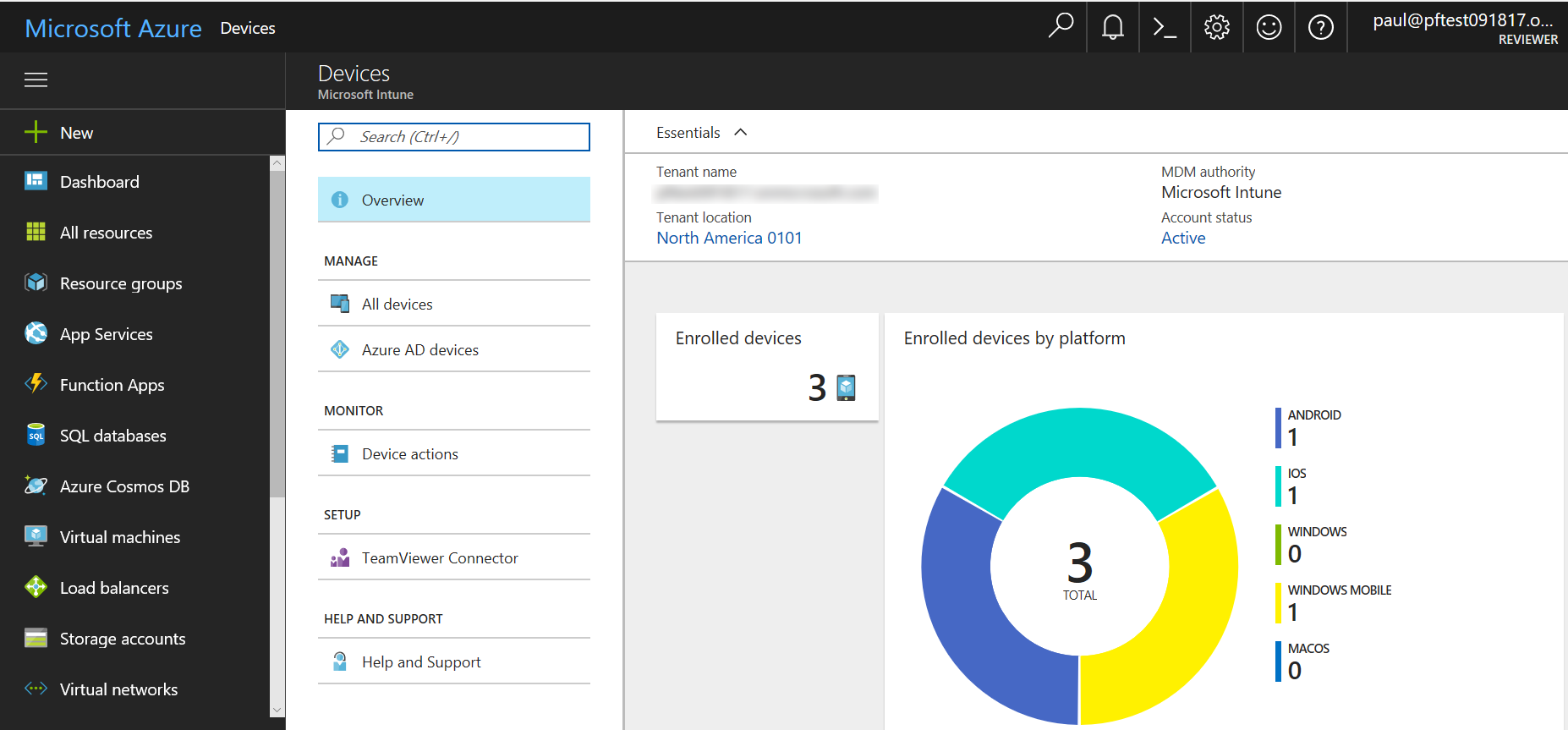
The Microsoft Intune Admin Center serves as the primary graphical interface for device and application management. It allows administrators to navigate and review vast arrays of app data easily. To check for approved applications:
- Sign into the Admin Center: Start by signing in using your administrative credentials. The landing page gives a broad view of the device management area, including notifications and key performance indicators.
- Select "Apps": From the left-hand navigation pane, click on the "Apps" workload. This section contains various details about installed, assigned, and discovered apps.
- Review App Dashboards: Dive into specific sections like "App installation status", "App licenses", and "Discovered apps" to see which applications are currently approved for installation and use across your managed devices. Note that while the list might mix both approved and discovered apps, filters and search options make it easier to identify approved applications.
Additional Details from the Admin Center
When navigating through the Intune Admin Center, administrators can select individual app entries to assess further details such as installation count, configuration policies, and security statuses. Importantly, if there is a need to troubleshoot issues pertaining to specific users, commands allow one to select a user’s profile to see the full list of apps and policies that have been applied to that user including those marked as approved.
2. Utilizing Microsoft Graph PowerShell
Overview of Microsoft Graph PowerShell
Microsoft Graph PowerShell offers a powerful programmatic mechanism to interact with Microsoft Intune data. By connecting to Microsoft Graph with appropriate permissions, administrators can retrieve comprehensive lists of approved applications from the Enterprise App Catalog or specific assigned apps. This method is particularly valuable for integrations with custom dashboards or automated compliance scripts.
A typical scenario involves querying the Enterprise App Catalog using endpoints provided by Microsoft Graph. The following PowerShell script snippet illustrates the process:
# Connect to Microsoft Graph with the necessary scopes
Connect-MgGraph -Scopes DeviceManagementApps.Read.All

# Define the request URI to fetch apps grouped by key attributes
$uri = "https://graph.microsoft.com/beta/deviceAppManagement/mobileAppCatalogPackages?`$apply=groupby((productId,productDisplayName,publisherDisplayName))&`$top=10000&`$orderBy=productDisplayName%20asc"

# Retrieve applications and display them in a grid view
$Apps = Invoke-MgGraphRequest -Method GET -Uri $uri -OutputType PSObject | Select-Object -ExpandProperty Value | Sort-Object ProductName
$Apps | Out-GridView
This script connects using the appropriate permissions granted via the Intune Suite license. It then queries for all entries in the Enterprise App Catalog and sorts the results by product name. The output, when displayed, allows administrators to confirm which applications are approved for deployment.
Benefits of Programmatic Retrieval
The automated retrieval method using Microsoft Graph PowerShell is highly scalable and adaptable:
- Automation: Scripts can be scheduled to run at regular intervals, ensuring that administrators have an up-to-date view of the approved application inventory.
- Integration: Data can easily be integrated into custom dashboards or compliance monitoring solutions.
- Filtering: Advanced querying allows administrators to filter results based on specific application attributes such as publisher and version details.
3. Leveraging Conditional Access and App Protection Policies
Understanding Conditional Access Policies
Conditional Access policies in Microsoft Intune enforce security by checking that only approved applications can access specific corporate resources. Administrators can define which client apps are allowed to access cloud services:
- Predefined List: The list usually includes commonly used Microsoft apps like Outlook, Teams, and OneDrive, which are pre-approved and integral to business operations.
- Custom Extensions: Although this list is generally fixed, advanced usage involving the Intune MAM SDK can enable administrators to extend support to custom apps.
Application of App Protection Policies
App Protection Policies add an extra layer of control by ensuring that only applications configured with these policies are used to access corporate data. By reviewing the settings within the Intune Admin Center under "Apps > App protection policies", administrators can verify whether specific applications have been approved according to the enterprise's security standards.
Together with Conditional Access, this method doesn’t just list approved apps but actively mandates that users operate within a controlled ecosystem, thereby minimizing risk and ensuring compliance with internal IT policies.
4. Retrieving Approved Applications for Specific Users
User-Specific Application Views
In many modern enterprise environments, individual users may have different sets of approved applications based on their roles or departments. The Intune Admin Center provides functionality for obtaining a list of applications assigned to or deployed for a specific user:
- Navigation: Use the troubleshooting or user-specific view in the Admin Center.
- Details: The user profile displays not only the approved applications but also the policies and configurations assigned to them. This breakdown can be particularly helpful when diagnosing issues related to app compatibility or user access.
Benefits of User-Specific Retrieval
Viewing the approved applications for individual users allows an administrator to:
- Ensure Compliance: Confirm that each user is only using applications that have been explicitly approved.
- Troubleshoot Issues: Identify inconsistencies or misconfigurations within a user’s assignment.
- Evaluate Coverage: Monitor that all necessary applications are available to users based on departmental or role-specific requirements.
Comparative Overview of Methods
The following table provides a comparative overview of the different methods and their core characteristics, aiding you in selecting the right approach to list approved applications in Microsoft Intune.
| Method | Key Features | Best for |
|---|---|---|
| Intune Admin Center | Graphical interface; detailed dashboards; direct app management | Quick reviews, ad-hoc troubleshooting, user-specific details |
| Microsoft Graph PowerShell | Script-based, automated queries; sorting and filtering capabilities | Large-scale automation; integration into custom dashboards |
| Conditional Access & App Protection Policies | Predefined and customizable policy lists; enforced security controls | Access control, compliance monitoring, secure app environment |
| User-Specific Retrieval | Detailed user profiles; granular view of assigned apps and policies | Troubleshooting individual user issues; verifying custom assignments |
Advanced Considerations and Best Practices
Ensuring Data Integrity and Security
When retrieving and managing approved application lists, it is imperative to maintain appropriate levels of security and data integrity. Administrative credentials should be guarded, and access to Microsoft Graph should be controlled using least privilege principles. In environments where automated scripts are utilized, the following precautions are recommended:
- Use Role-Based Access Control (RBAC): Limit permissions granted to scripts or service accounts to only what is necessary.
- Monitor Access: Regularly audit access logs to verify that only authorized accounts are querying sensitive data.
- Secure Storage: Store any retrieved logs or outputs securely, following organizational data handling policies.
Script Maintenance and Customization
Customizing scripts for your organization’s requirements can greatly enhance the utility of programmatically retrieved data. When using Microsoft Graph PowerShell or similar scripting methods, consider the following:
- Version Control: Maintain your scripts under version control to track changes and ensure compatibility with future updates from Microsoft Graph.
- Error Handling: Incorporate robust error handling to manage potential changes to API endpoints or permission modifications.
- Regular Updates: Stay informed on updates from Microsoft regarding API changes or new functionalities in the Intune platform, ensuring that your scripts remain effective.
Combining Methods for Comprehensive Coverage
While individual methods provide a way to retrieve approved applications, combining several approaches can yield greater insights:
- Hybrid Approach: Use the Intune Admin Center for quick checks and user-specific insights, while relying on Microsoft Graph PowerShell for comprehensive, scalable data retrieval.
- Continuous Monitoring: Incorporate scheduled script executions combined with dashboard views to continuously monitor adherence to approved application policies.
- Integration with Compliance Tools: Merge these insights with compliance and security tools so that deviations from approved application lists are quickly identified and remediated.
Practical Implementation Steps
Step 1: Accessing the Admin Center
Start by logging into the Microsoft Intune Admin Center with your admin credentials. Navigate to the "Apps" workload and review each section such as “Assigned Apps,” “Discovered Apps,” and “App Installation Status.” Apply filters if necessary to highlight only those applications that are marked as approved.
Step 2: Running a Graph PowerShell Query
Utilize the provided Microsoft Graph PowerShell script to query the Enterprise App Catalog. Open a PowerShell environment, connect using the following command:
# Connect to Microsoft Graph
Connect-MgGraph -Scopes DeviceManagementApps.Read.All
Modify the query as needed to match your organizational parameters and output the results to formats that can be directly reviewed or exported to CSV.
Step 3: Evaluating Conditional Access Policies
Navigate to the Conditional Access section through the Azure portal or directly within the Intune admin interface. Verify that the list of approved client apps matches your enterprise policy. For organizations using app protection policies, determine the compatibility of each application by checking the “App Protection Policies” section.
Step 4: Verifying User-Specific Approvals
For detailed troubleshooting, select an individual user in the Intune console to view their assigned applications and related policies. Use this information to cross-check that each user is operating with the correct set of approved applications, ensuring regulatory compliance and security.
Conclusion
Retrieving a list of approved applications in Microsoft Intune is an essential process for maintaining a secure and compliant enterprise environment. By leveraging multiple methods—including the interactive and user-friendly Admin Center, powerful Microsoft Graph PowerShell queries, and policy-driven approaches such as Conditional Access and App Protection Policies—administrators can achieve a detailed, regulated view of the applications in use across their organization. Each method caters to different administrative needs; from ad-hoc reviews to fully automated compliance monitoring, a combined approach ensures that all facets of app management are covered.
The benefits of these varied approaches include ensuring data integrity, accommodating user-specific configurations, and enabling effective troubleshooting when discrepancies occur. With customized scripts and regular audits, administrators can not only retrieve but also continuously monitor approved applications, integrating the process into broader compliance and security strategies. By maintaining tight control over the application ecosystem using these tools, organizations can confidently enforce their application policies, thereby reducing potential security risks and ensuring that users only have access to approved and supported applications.
In summary, whether you are validating the list via the Intune Admin Center, automating retrieval with Microsoft Graph PowerShell, or enforcing policies through Conditional Access, the key is to choose the method that best fits your operational model while ensuring a reliable and secure process. This comprehensive approach is integral to modern IT management practices and will continue to evolve as new features and policies are introduced by Microsoft.
References
- App Management Documentation - Microsoft Docs
- List All Available Apps in the Intune Enterprise App Catalog - OurCloudNetwork
- Listing Apps Available for Users - Reddit Community
- Approved Apps with App Protection Policies - AnoopCnair
- App Control for Business - Microsoft Learn
- Prohibited Apps with Intune - Techoberoi
- Conditional Access and Approved Client Apps - PeterVanDerWoude
Recommended
Last updated February 26, 2025