
Unlock Excel's True Potential: Your Comprehensive Guide to VBA Basics & Applications
Discover how Visual Basic for Applications can automate tasks, customize functions, and supercharge your Excel workflow, one tool at a time.
Key Insights: Mastering VBA Fundamentals
- Master the Visual Basic Editor (VBE): Your central hub for writing, testing, and managing all your Excel automation scripts. Understanding its components is the first step to efficient coding.
- Understand Core VBA Objects: Learn to programmatically manipulate Workbooks, Worksheets, and Ranges—the building blocks of Excel—to control data and elements with precision.
- Automate Repetitive Tasks & Customize Functionality: Create powerful macros (Sub procedures) to eliminate tedious manual work and develop custom functions to extend Excel's calculation capabilities beyond its standard offerings.
What Exactly is VBA in Excel?
Visual Basic for Applications (VBA) is a powerful programming language developed by Microsoft, embedded within Microsoft Office applications, most notably Excel. It empowers users to go beyond standard spreadsheet functionalities by allowing them to write code that automates repetitive tasks, creates custom functions, designs interactive user interfaces, and controls various aspects of the Excel environment. You don't need to install anything separately; if you have Excel, you have VBA. Its primary application is to enhance productivity and efficiency by turning complex, multi-step processes into simple, one-click operations or automated routines.
Setting Up Your VBA Workspace
Before you can start writing VBA code, you need to access its development environment. This involves a couple of simple setup steps within Excel.
Enabling the Developer Tab
The Developer tab in the Excel ribbon is your primary gateway to VBA tools. By default, it might be hidden.
Application:
Enabling this tab provides quick access to the Visual Basic Editor, macro recording tools, form controls, and XML features, centralizing all development-related functionalities.
How to Enable:
- Go to File > Options.
- In the Excel Options dialog box, click on Customize Ribbon in the left pane.
- In the right pane, under "Customize the Ribbon" (Main Tabs), check the box next to Developer.
- Click OK. The Developer tab will now appear in your Excel ribbon.
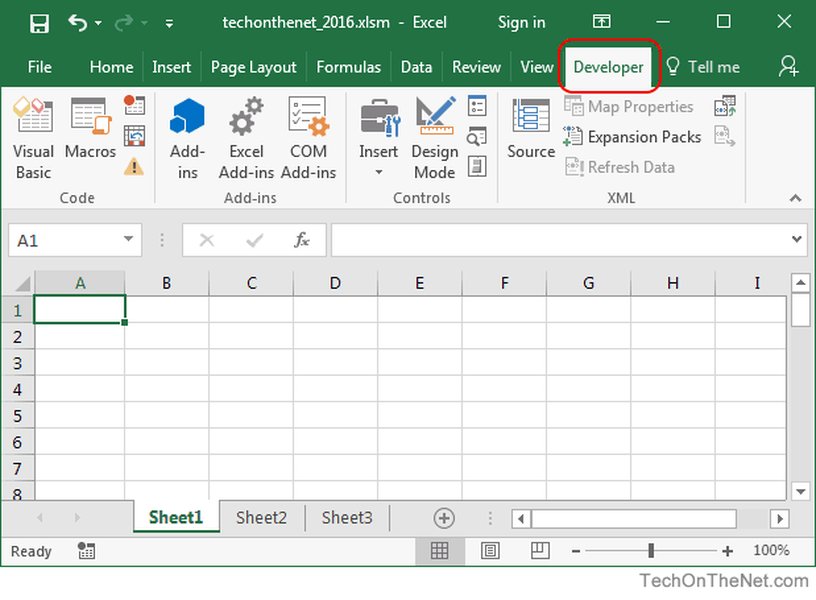
The Developer Tab provides access to VBA and other advanced tools.
The Visual Basic Editor (VBE)
The VBE is an Integrated Development Environment (IDE) where you write, edit, debug, and manage your VBA code. It opens in a separate window from Excel.
Application:
The VBE is your complete workshop for all VBA development, allowing you to create and modify code, manage project components, and troubleshoot errors.
How to Open:
- Click the Visual Basic button on the Developer tab.
- Alternatively, press the shortcut key Alt + F11.
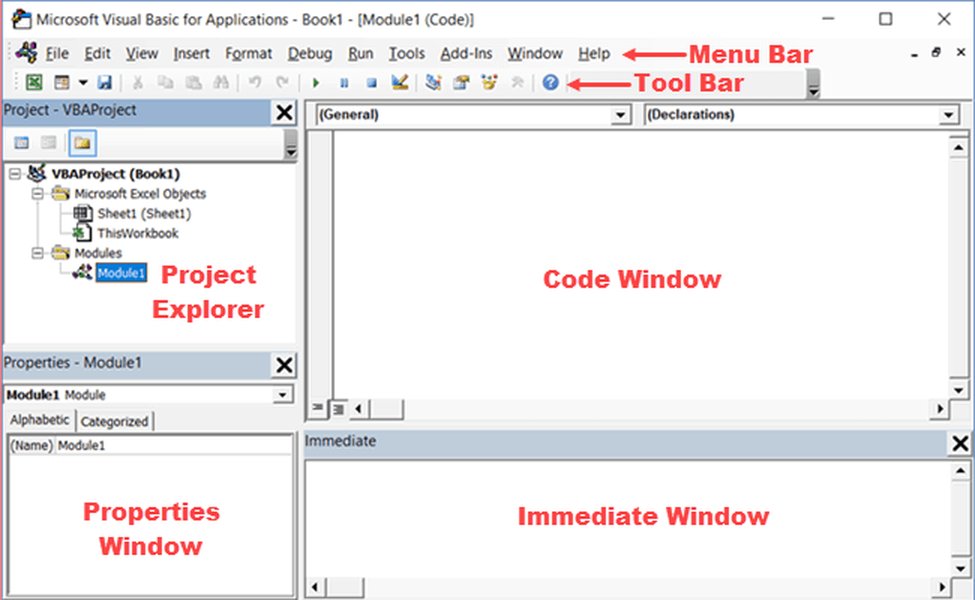
The Visual Basic Editor (VBE) with its key components.
Key VBE Components and Their Applications:
- Project Explorer: Displays a hierarchical list of all open workbooks and their components (sheets, modules, class modules, user forms). Its application is to help you navigate and organize your VBA projects.
- Properties Window (F4): Shows the properties of the currently selected object (e.g., a worksheet, a UserForm control, or a module). Its application is to allow you to view and modify the characteristics of these objects without writing code.
- Code Window: This is the main area where you write and edit your VBA code. Each module, sheet, or form has its own code window. Its application is as the primary workspace for script development.
- Immediate Window (Ctrl + G): Useful for debugging. You can type and execute single lines of VBA code, print variable values, or test functions here. Its application is for quick code testing and value inspection during debugging.
Fundamental Building Blocks of VBA
VBA programming relies on several core concepts and elements. Understanding these is crucial for writing effective code.
Modules: Organizing Your Code
Modules are containers within the VBE where you store your VBA code, particularly Sub and Function procedures.
Application:
Standard modules are used to organize your general-purpose macros and functions, keeping your code structured, manageable, and reusable, especially in larger projects.
Procedures: The Heart of Automation
Procedures are blocks of VBA code that perform specific tasks. There are two main types:
Sub Procedures (Macros)
A Sub procedure (often simply called a "macro") is a set of VBA instructions that performs actions but does not return a value directly to the calling code or worksheet cell.
Application:
Subs are used for automating sequences of Excel actions, such as formatting reports, filtering data, opening files, or displaying messages.
Example: A simple macro to display a welcome message.
Sub GreetUser()
    ' This Sub procedure displays a message box
    MsgBox "Welcome to the world of Excel VBA!"
End Sub
Function Procedures
A Function procedure performs calculations and returns a value. This value can be used in other VBA code or directly in Excel worksheet formulas (if it's a public function in a standard module).
Application:
Functions are used to create custom calculations that are not available as standard Excel functions, making complex formulas reusable and easier to manage.
Example: A custom function to calculate the area of a rectangle.
Function CalculateArea(Length As Double, Width As Double) As Double
    ' This Function calculates area and returns it
    CalculateArea = Length * Width
End Function
You could then use this in an Excel cell like: =CalculateArea(10, 5), which would return 50.
Variables and Data Types
Variables are named storage locations in memory used to hold data temporarily while your code is running. Each variable has a specific data type that determines what kind of data it can store (e.g., text, numbers, dates).
Application:
Variables make your code flexible and dynamic by allowing you to store and manipulate changing information, such as user inputs, calculation results, or object references.
Common Data Types: String (text), Integer (whole numbers), Long (large whole numbers), Double (decimal numbers), Boolean (True/False), Date, Object (for Excel objects like Ranges or Worksheets).
Example: Using variables to store user input and display a personalized message.
Sub UserInformation()
    Dim userName As String
    Dim userAge As Integer

    userName = InputBox("Please enter your name:")
    userAge = InputBox("Please enter your age:")

    MsgBox "Hello, " & userName & "! You are " & userAge & " years old.", vbInformation, "User Details"
End Sub
Understanding the Excel Object Model
Excel's structure is exposed to VBA as a hierarchy of objects. An object represents an element of Excel, like a workbook, a worksheet, a cell, or a chart. Learning to work with these objects is key to controlling Excel.
Application:
The object model allows your VBA code to interact with and manipulate every part of an Excel spreadsheet programmatically.
Key Objects and Their Applications:
- Application: Represents the Excel application itself. Application: Used to control global Excel settings (e.g.,
Application.ScreenUpdating = Falseto speed up macros). - Workbook: Represents an Excel file. Application: Used to open, save, close files, and manage the collection of worksheets within a workbook (e.g.,
Workbooks.Open("C:\MyFile.xlsx")orThisWorkbook.Save). - Worksheet: Represents a single sheet within a workbook. Application: Used to activate sheets, access cells on specific sheets, or add new sheets (e.g.,
Worksheets("Sheet1").ActivateorWorksheets.Add). - Range: Represents one or more cells. This is one of the most frequently used objects. Application: Used to read data from cells, write data or formulas to cells, and format cells (e.g.,
Range("A1").Value = "Hello"orRange("B1:B10").ClearContents). - Cells: A way to refer to cells using numerical row and column indices, e.g.,
Cells(1, 1)refers to cell A1. Application: Particularly useful for looping through cells.
Properties and Methods
Objects have properties (characteristics) and methods (actions they can perform).- Properties: Attributes of an object that you can read or change. Application: Used to get or set characteristics, like the value in a cell (
Range("A1").Value), the font color (Range("A1").Font.Color), or the name of a worksheet (ActiveSheet.Name). - Methods: Actions that an object can perform. Application: Used to make objects do things, like copying a range (
Range("A1").Copy), saving a workbook (ThisWorkbook.Save), or deleting a worksheet (Worksheets("Sheet2").Delete).
Controlling Your Code's Flow
Control structures allow you to dictate the order in which your VBA code statements are executed, enabling decision-making and repetition.
Conditional Logic: If...Then...Else Statements
These statements allow your code to make decisions and execute different blocks of code based on whether a specified condition is true or false.
Application:
Used for creating responsive code that can handle various scenarios, such as applying different formatting based on cell values, performing actions based on user input, or error checking.
Example: Checking a cell's value and coloring it accordingly.
Sub CheckCellValue()
    Dim cellValue As Double
    cellValue = Range("A1").Value

    If cellValue > 100 Then
        Range("A1").Interior.Color = vbGreen
        MsgBox "Value is greater than 100. Cell highlighted green."
    ElseIf cellValue > 50 Then
        Range("A1").Interior.Color = vbYellow
        MsgBox "Value is greater than 50 but not over 100. Cell highlighted yellow."
    Else
        Range("A1").Interior.Color = vbRed
        MsgBox "Value is 50 or less. Cell highlighted red."
    End If
End Sub
Loops: Repeating Actions Efficiently
Loops allow you to execute a block of code multiple times.
For...Next Loop
Repeats code a specific number of times. You define a counter variable and its start and end values.
Application:
Ideal when you know how many times you need to iterate, such as processing each row in a fixed-size table or performing an action for a set number of items.
Example: Numbering rows 1 to 10 in column A.
Sub NumberRows()
    Dim i As Integer
    For i = 1 To 10
        Cells(i, "A").Value = "Row " & i
    Next i
End Sub
Do...While / Do...Until Loops
These loops repeat code based on a condition. Do While continues as long as a condition is true. Do Until continues until a condition becomes true.
Application:
Useful when the number of iterations is not known beforehand, such as processing data until an empty cell is encountered or waiting for user input.
Example: Finding the first empty cell in column A and writing its address.
Sub FindFirstEmptyCell()
    Dim r As Long
    r = 1
    Do While Cells(r, "A").Value <> ""
        r = r + 1
    Loop
    MsgBox "The first empty cell in column A is: " & Cells(r, "A").Address
End Sub
Interacting with the User
VBA provides tools to communicate with the user, display information, and gather input.
MsgBox (Message Box)
The MsgBox function displays a dialog box with a message, and optionally, buttons (like OK, Cancel, Yes, No) and an icon.
Application:
Used for providing feedback to the user, displaying warnings, asking simple confirmation questions, or indicating the completion of a task.
Example: (Already shown in many previous examples, e.g., MsgBox "Task Completed!")
InputBox
The InputBox function displays a dialog box that prompts the user to enter information and provides a text box for their input.
Application:
Used for gathering simple text or numeric input from the user that your VBA code can then use, such as a file name, a quantity, or a search term.
Example: (Shown in the "UserInformation" Sub example earlier: userName = InputBox("Please enter your name:"))
UserForms (Advanced Topic)
UserForms are custom dialog boxes that you can design with various controls like text boxes, labels, buttons, combo boxes, list boxes, etc.
Application:
Used for creating sophisticated, user-friendly interfaces for data entry, guiding users through complex processes, or providing a customized way to control your macros. This is a more advanced feature but crucial for building polished Excel applications.
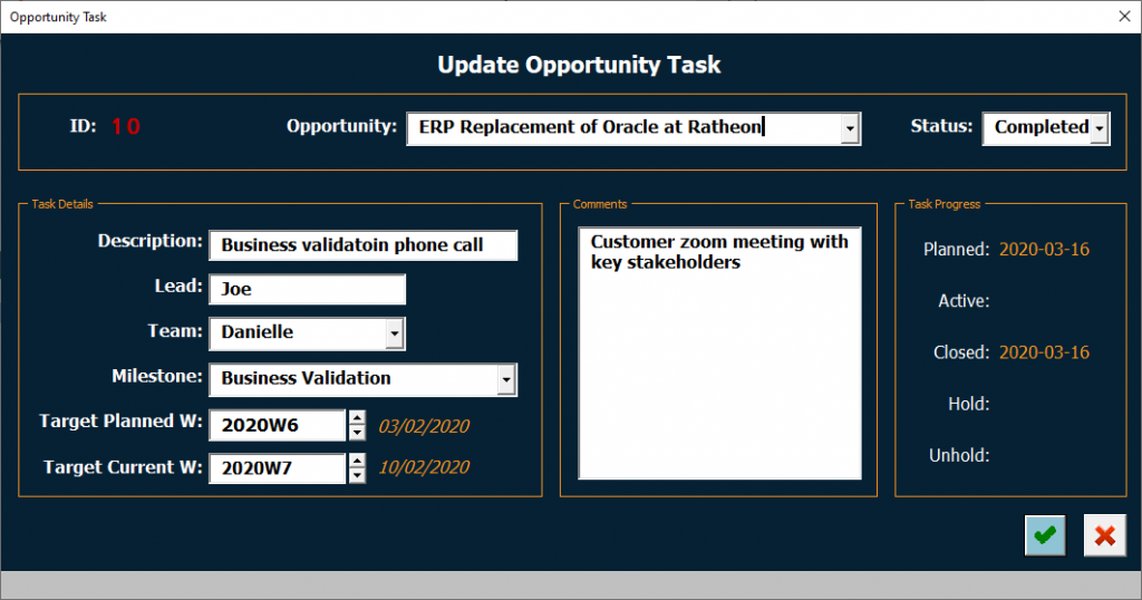
UserForms enable the creation of custom interfaces for enhanced user interaction.
Getting Started Easily: Recording Macros
Excel's Macro Recorder is an invaluable tool for beginners. It allows you to record a sequence of actions you perform in Excel (like formatting cells, typing text, clicking buttons) and automatically translates those actions into VBA code.
How to Record a Macro:
- Go to the Developer tab.
- Click Record Macro.
- Give your macro a name (no spaces or special characters), optionally assign a shortcut key, and click OK.
- Perform the actions in Excel that you want to automate.
- Click Stop Recording on the Developer tab.
Application:
This is an excellent way for beginners to learn VBA syntax. By examining the code Excel generates, you can understand how different actions translate into VBA statements. You can then modify and enhance this recorded code in the VBE to make it more powerful and flexible.
Relative Importance and Learning Curve of VBA Concepts
Understanding the interplay and relative importance of various VBA concepts is key to mastering Excel automation. The following chart visualizes aspects like their importance for typical automation tasks and their initial learning curve for beginners. Concepts like the 'Object Model' are highly important but can have a steeper learning curve, while 'VBE Navigation' is fundamental and relatively easier to grasp initially. 'Frequency of Use' indicates how often you might encounter or need a particular concept in day-to-day VBA development.
Visualizing the Excel VBA Ecosystem
To better grasp how different VBA elements connect, this mindmap illustrates the relationships within the Excel VBA ecosystem. It shows how the Visual Basic Editor (VBE) is your gateway to creating modules and procedures (Subs and Functions). These procedures, in turn, leverage the Excel Object Model (Application, Workbooks, Worksheets, Ranges) and core programming concepts (Variables, Control Flow, Error Handling) to automate tasks and interact with users via tools like MsgBox and UserForms. Practical starting points like enabling the Developer Tab and using the Macro Recorder help initiate this journey.
Automate Actions"] id1_1_2["Function Procedures
Custom Calculations"] id1_2["Project Explorer
Navigate Projects"] id1_3["Properties Window
Object Settings"] id1_4["Code Window
Write & Edit Code"] id1_5["Immediate Window
Debug & Test"] id2["Excel Object Model (Hierarchy)"] id2_1["Application Object
Excel Itself"] id2_2["Workbook Objects
Excel Files"] id2_2_1["Worksheet Objects
Individual Sheets"] id2_2_1_1["Range & Cell Objects
Data Areas"] id2_2_1_1_1["Properties (e.g. Value, Font, Color)"] id2_2_1_1_2["Methods (e.g. Copy, Clear, Select)"] id3["Core Programming Concepts"] id3_1["Variables & Data Types
Store Information"] id3_2["Control Flow Structures"] id3_2_1["Loops (For, Do While/Until)
Repeat Actions"] id3_2_2["Conditionals (If-Then-Else)
Make Decisions"] id3_3["Error Handling (e.g. On Error GoTo)
Manage Issues"] id3_4["Events (e.g. Workbook_Open)
Trigger Code"] id4["User Interaction Tools"] id4_1["MsgBox Function
Display Messages"] id4_2["InputBox Function
Get User Input"] id4_3["UserForms & Controls
Custom Interfaces"] id5["Practical Starting Points"] id5_1["Enable Developer Tab"] id5_2["Use Macro Recorder
Learn by Example"]
Key Excel VBA Objects: A Summary Table
Interacting with Excel elements is fundamental to VBA. The following table summarizes the most crucial objects you'll encounter, their purpose, and common ways you'll use them in your code. Understanding these objects and their hierarchy (how they relate to each other, e.g., a Workbook contains Worksheets, which contain Ranges/Cells) is key to effective automation.
| Object | Description | Common Properties/Methods | Primary Application |
|---|---|---|---|
Application |
Represents the entire Microsoft Excel application. It's the top-level object. | ActiveWorkbook, ActiveSheet, Workbooks (collection), StatusBar, DisplayAlerts, ScreenUpdating, WorksheetFunction (access Excel functions). |
Managing global Excel settings (like turning off screen updates for speed), accessing currently active elements, controlling application-level behaviors, using built-in Excel functions in VBA. |
Workbook |
Represents an Excel file (e.g., MyData.xlsx). Part of the Workbooks collection. |
Name, FullName (path & name), Path, Sheets (collection), ActiveSheet, Save(), Close(), Open() (method of Workbooks object), SaveAs(). |
Opening, creating, saving, and closing Excel files; accessing and managing the collection of worksheets within a specific file; referring to the workbook containing the running code (ThisWorkbook). |
Worksheet |
Represents a single sheet within a workbook. Part of the Sheets or Worksheets collection of a Workbook object. |
Name, Cells (all cells), Range(), UsedRange, Visible, Activate(), Select(), Delete(), Protect(), Unprotect(), Copy(), Move(). |
Navigating between sheets, selecting specific sheets to work on, accessing cells and ranges within that sheet, managing sheet properties (name, visibility), adding/deleting sheets. |
Range |
Represents a cell (e.g., "A1"), a row, a column, a selection of cells containing one or more contiguous blocks of cells (e.g., "A1:C5"), or a 3-D range. | Value, Formula, Text, Address, Font (object), Interior (object with Color property), NumberFormat, Select(), Copy(), PasteSpecial(), ClearContents(), ClearFormats(), Sort(), Find(), Offset(), Resize(). |
The most common object for data manipulation: reading values from cells, writing values or formulas to cells, formatting cells (font, color, number format), copying, moving, and clearing data. |
Cells |
Property of Worksheet or Range objects. Refers to all cells on a worksheet (Worksheet.Cells) or can specify a single cell by row and column index (e.g., Cells(1, 1) for A1, Range("C5").Cells(1,1) is still C5). |
Value, Formula, Row, Column, Address, Item() (default property). Similar properties to Range as it returns a Range object. |
Accessing individual cells programmatically using numeric indices, especially useful within loops when iterating through rows or columns. Can also refer to all cells on a worksheet for global operations like clearing all content. |
Watch and Learn: VBA Beginner Tutorial Video
Visual learning can be incredibly effective for grasping new programming concepts. This video provides a step-by-step introduction to Excel VBA, covering many of the basic concepts discussed in this article. It's an excellent resource to see VBA in action and reinforce your understanding of how to navigate the VBE, write simple macros, and begin automating tasks in Excel.
A beginner-friendly tutorial to help you get started with Excel VBA.
This tutorial typically covers fundamental aspects such as enabling the Developer tab, a tour of the VBE interface (Visual Basic Editor), how to write your first macro (Sub procedure), working with MsgBox for user interaction, and basic object manipulation like referring to cells and changing their values. Watching how an experienced user navigates these tools and writes code can quickly demystify the process and build your confidence. Pay particular attention to how macros are recorded and then examined or modified in the VBE, as this is a common and effective learning pathway for beginners.
Important Security Considerations
When working with VBA, it's crucial to be aware of macro security.
- Macro-Enabled Workbooks: To save VBA code, you must save your Excel file in a macro-enabled format, such as
.xlsm(Macro-Enabled Workbook) or.xlsb(Binary Workbook). Standard.xlsxfiles cannot store VBA code. - Trust Center Settings: Excel has security settings (File > Options > Trust Center > Trust Center Settings > Macro Settings) that control how macros are handled. By default, macros are often disabled with notification.
- Trusted Locations & Documents: You can designate specific folders as "Trusted Locations" where macros will run without prompts, or "Trust" individual documents.
Application:
Understanding these settings is vital for ensuring your macros can run when needed, while also protecting yourself from potentially malicious macros from untrusted sources. Always be cautious when enabling macros in files from unknown origins.
Frequently Asked Questions (FAQ)
Recommended Next Steps
To further deepen your understanding of Excel VBA, consider exploring these related topics:
- Learn how to debug VBA code in Excel effectively for troubleshooting.
- Discover more advanced Excel VBA object manipulation techniques.
- Find out how to create custom UserForms in Excel VBA for interactive applications.
- Understand error handling best practices to make your Excel VBA code more robust.
References
Last updated May 6, 2025