
Unlocking Advanced Web Form Automation: A Deep Dive into Selenium VBA
Master intricate web form interactions, data integration, and dynamic content handling using Selenium with Visual Basic for Applications.
Highlights of Selenium VBA Form Automation
- Seamless Excel Integration: Leverage Excel's data management capabilities to drive complex form-filling operations and store extracted results directly.
- Robust Element Interaction: Utilize powerful locators like XPath and CSS selectors, alongside explicit waits, to reliably interact with dynamic and complex web form elements.
- Advanced Control: Go beyond basic inputs by handling iframes, executing JavaScript, managing file uploads, and implementing sophisticated error handling for resilient automation.
The Powerhouse Duo: Selenium and VBA for Form Automation
What is Selenium VBA?
Selenium VBA refers to the integration of Selenium WebDriver, a powerful suite of tools for browser automation, with Visual Basic for Applications (VBA), the programming language embedded within Microsoft Office applications, most notably Excel. This combination allows developers and power users to control web browsers programmatically, automating tasks that involve interacting with web pages, such as filling out forms, clicking buttons, navigating through sites, and extracting data.
Essentially, Selenium provides the "engine" to drive browser actions, while VBA offers the environment to script these actions, often using data stored in Excel spreadsheets. This synergy is particularly effective for tasks that are repetitive, data-intensive, or require interaction between web applications and local data sources.
Why Choose Selenium VBA for Advanced Tasks?
While other languages like Python or Java are commonly used with Selenium, VBA offers distinct advantages for certain scenarios, especially within corporate environments heavily reliant on Microsoft Office:
- Excel Integration: The native ability to read data from Excel cells and write results back makes it exceptionally convenient for data-driven form automation. Business users can easily manage input data and review outputs within a familiar spreadsheet interface.
- Accessibility for VBA Users: For those already proficient in VBA, learning to use Selenium with it presents a gentler learning curve compared to mastering a new programming language and its environment.
- Automation of Office-Centric Workflows: Many business processes involve pulling data from or pushing data to web applications as part of a larger workflow managed within Excel. Selenium VBA can automate these web-facing steps seamlessly.
- Handling Complex Forms: Selenium's capabilities allow for interaction with virtually any web element, including dropdowns, checkboxes, date pickers, elements within iframes, and those loaded dynamically via JavaScript. This makes it suitable for automating even highly complex or legacy web forms.
Getting Started: Setting Up Your Selenium VBA Environment
To begin automating web forms with Selenium VBA, you need to set up your development environment correctly. This involves installing the necessary components and configuring Excel to recognize Selenium's objects.
Essential Installations: Selenium Basic
The primary component required is Selenium Basic. This is a COM (Component Object Model) library that makes Selenium WebDriver functionalities accessible from VBA and other COM-supporting languages. You can typically download Selenium Basic from its official repository or trusted sources (like its GitHub page).
Some developers also recommend using more comprehensive wrappers like the SeleniumVBA wrapper by GCuser99 on GitHub. These wrappers often provide additional functionalities, simplified syntax, and, crucially, automatic management of browser drivers, which can be a significant time-saver.
Integrating with VBA: Referencing the Type Library
Once Selenium Basic (or a similar wrapper) is installed, you need to enable it within your VBA project:
- Open Microsoft Excel and press
ALT + F11to open the VBA editor. - In the VBA editor, go to Tools → References.
- In the "References - VBAProject" dialog box, scroll down and find "Selenium Type Library" (or a similarly named library provided by your wrapper, e.g., "SeleniumVBA").
- Check the box next to it and click "OK".
This step enables IntelliSense (auto-completion) for Selenium objects in your VBA code and allows VBA to understand and interact with Selenium's classes and methods.
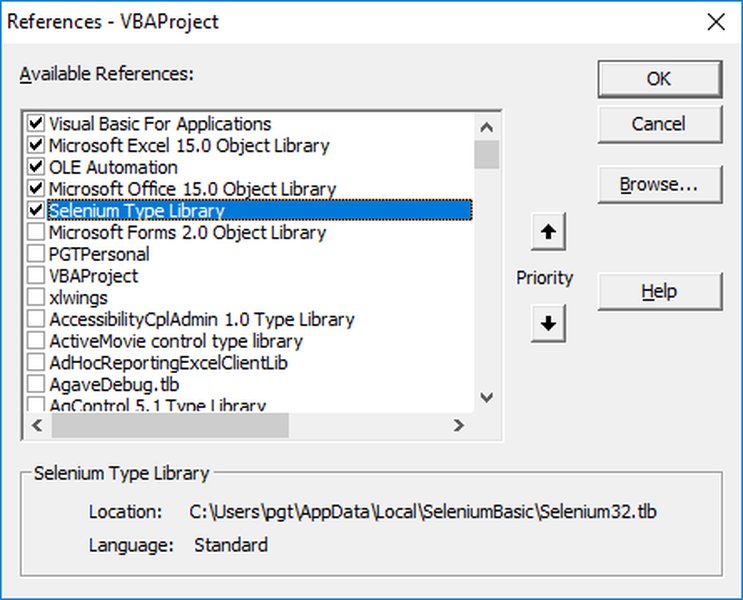
Adding the Selenium Type Library reference in the VBA editor.
Browser Drivers: Ensuring Compatibility
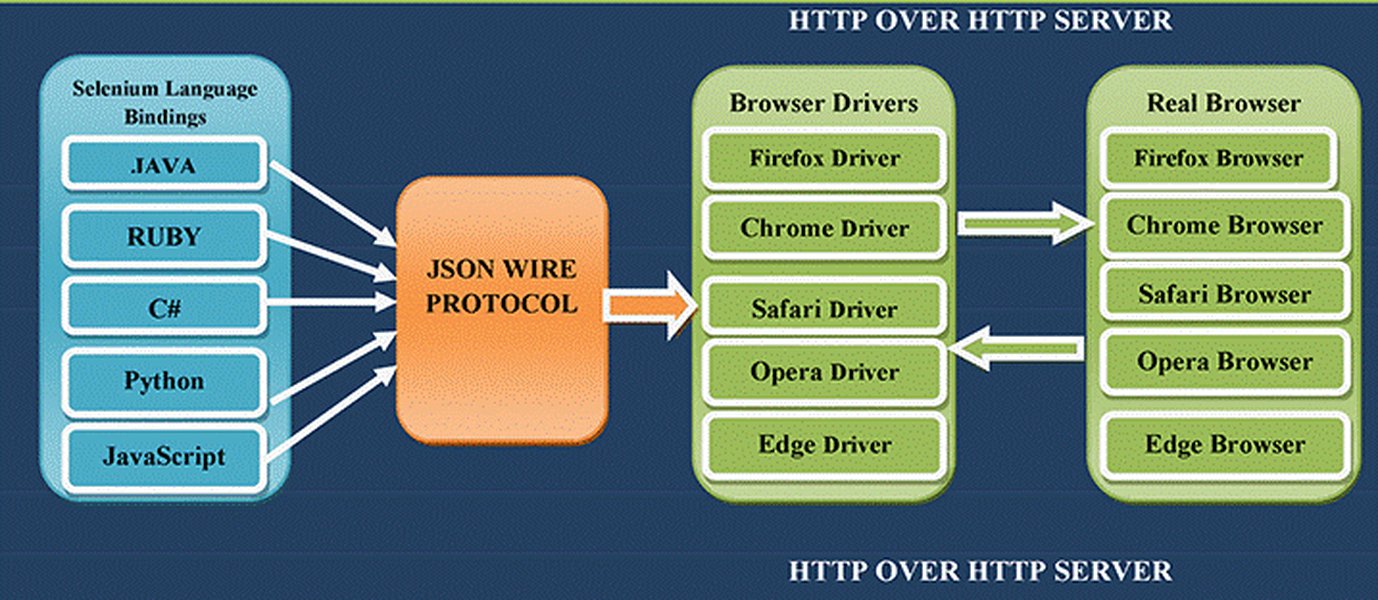
Selenium WebDriver communicates with web browsers (like Chrome, Firefox, Edge) through specific executable files called browser drivers (e.g., ChromeDriver for Chrome, GeckoDriver for Firefox). For Selenium to control a browser, the version of the browser driver must be compatible with the version of the installed browser.
- Manual Management: You would traditionally download the correct driver version and place it in a known system path or specify its location in your code.
- Automatic Management: Modern Selenium VBA wrappers (like GCuser99/SeleniumVBA) often include functionality to automatically detect your browser version and download/update the corresponding driver. This significantly simplifies setup and maintenance.
Ensuring driver compatibility is crucial for your automation scripts to run smoothly.
Launching and Controlling Web Browsers
With the setup complete, you can start writing VBA code to launch and control a web browser.
Initiating a Browser Session
The first step in any Selenium script is to create an instance of the WebDriver. This object represents the browser you will be controlling.
' Declare a WebDriver object
Dim driver As New Selenium.WebDriver ' Or use the specific driver: New Selenium.ChromeDriver

Sub StartBrowserSession()
    ' Start a new Chrome browser session
    driver.Start "chrome" ' You can also use "firefox", "edge", etc.

    ' Maximize the browser window (optional)
    driver.Window.Maximize
End Sub
Navigating and Basic Browser Configuration
Once the browser is launched, you can navigate to a specific URL. Selenium also allows for basic configurations, such as setting page load timeouts or adding capabilities.
Sample: Starting Chrome and Opening a URL
Sub NavigateToWebsite()
    Dim driver As New Selenium.ChromeDriver
    Dim caps As New Selenium.WebCapabilities

    ' Example of setting capabilities (e.g., for headless browsing or download preferences)
    ' caps.SetCapability "goog:chromeOptions", "{""args"": [""--headless""]}"
    ' driver.Start "chrome", caps ' Start with capabilities

    driver.Start "chrome" ' Starts a visible Chrome browser

    ' Navigate to a specific web page
    driver.Get "https://example.com/form"

    ' Wait for a few seconds for the page to load (simple wait)
    driver.Wait 5000 ' Waits 5 seconds

    ' Further actions...

    ' Close the browser at the end
    ' driver.Quit
End Sub
The driver.Get "URL" command directs the browser to the specified web address. The driver.Wait milliseconds is a simple pause; more advanced waiting strategies are discussed later.
Mastering Advanced Form Element Interactions
Successfully automating forms, especially complex ones, hinges on your ability to accurately locate and interact with various web elements. Selenium VBA provides a rich set of tools for this purpose.
Robust Element Location Strategies
Web elements can be identified using several locators. For dynamic or complex pages, choosing the right strategy is key.
XPath and CSS Selectors
- ID and Name:
driver.FindElementById("elementId")anddriver.FindElementByName("elementName")are the simplest and often fastest, but IDs may not always be unique or static. - XPath:
driver.FindElementByXPath("//tag[@attribute='value']")is a very powerful language for navigating the HTML structure. It can find elements based on complex relationships, text content, or attributes that are not unique IDs. Essential for elements with dynamic IDs or those deep within nested structures. - CSS Selectors:
driver.FindElementByCss("tag#id.class[attribute='value']")provide another concise and powerful way to locate elements, often preferred by web developers for their speed and readability. - Other locators include
ByTagName,ByClassName, andByLinkText/ByPartialLinkText.
Synchronizing with Web Page Elements
Modern web pages often load content dynamically (using AJAX, JavaScript). Scripts can fail if they try to interact with an element before it's fully loaded and interactive. Selenium provides waiting mechanisms to handle this.
Implicit and Explicit Waits
- Implicit Wait:
driver.Timeouts.ImplicitWait = 5000(milliseconds). Tells WebDriver to poll the DOM for a certain amount of time when trying to find an element if it's not immediately available. This is a global setting. - Explicit Wait: More precise. You instruct Selenium to wait for a certain condition to be met (e.g., element to be visible, clickable) before proceeding.
' Example of an explicit wait for an element to be present Dim element As Selenium.WebElement Set element = driver.WaitForElementById("myDynamicElement", 10000) ' Waits up to 10 seconds ' Or using a loop with a timeout (custom explicit wait) Dim startTime As Double startTime = Timer Do On Error Resume Next ' Ignore error if element not found yet Set element = driver.FindElementById("myDynamicElement") On Error GoTo 0 ' Resume normal error handling If Not element Is Nothing Then Exit Do ' Element found If Timer - startTime > 10 Then Exit Do ' Timeout after 10 seconds DoEvents ' Allow other processes to run Loop - The
driver.Wait millisecondsmethod is a "hard pause" and generally discouraged for dynamic content, as it can make scripts unnecessarily slow or unreliable.
Interacting with Common Form Controls
Once an element is located, you can interact with it using various methods. The table below summarizes common interactions:
| Method/Property | Description | Example Usage (VBA) |
|---|---|---|
element.SendKeys "text" |
Inputs text into a text field or a file input element. | driver.FindElementById("username").SendKeys "JohnDoe" |
element.Click |
Clicks a button, link, checkbox, radio button, or other clickable elements. | driver.FindElementByName("submitButton").Click |
element.Clear |
Clears the existing text from an input field or textarea. | driver.FindElementById("searchBox").Clear |
element.Text |
Gets the visible text content of an element (e.g., a paragraph, span, or div). | Dim message As String: message = driver.FindElementById("statusMessage").Text |
element.Attribute("attrName") |
Gets the value of a specified attribute of an element (e.g., "value", "href"). | Dim linkUrl As String: linkUrl = driver.FindElementByTag("a").Attribute("href") |
element.Selected |
Checks if an option in a select list, a checkbox, or a radio button is currently selected (returns Boolean). | If Not driver.FindElementById("agreeCheckbox").Selected Then ... |
selectElement.SelectByVisibleText "text" |
Selects an option from a dropdown (<select> element) based on its visible text. |
driver.FindElementById("countryDropdown").SelectByVisibleText "United States" |
selectElement.SelectByValue "value" |
Selects an option from a dropdown based on its 'value' attribute. | driver.FindElementById("countryDropdown").SelectByValue "US" |
selectElement.SelectByIndex index |
Selects an option from a dropdown based on its zero-based index. | driver.FindElementById("monthDropdown").SelectByIndex 2 ' Selects the third option |
Text Fields, Buttons, and Links
These are the most common interactions. Use SendKeys for text input and Click for buttons and links.
driver.FindElementById("firstName").SendKeys "Jane"
driver.FindElementByXPath("//button[text()='Submit Form']").Click
Dropdown Menus (Select Lists)
For <select> elements, Selenium provides convenient methods to interact with their <option> tags.
Dim countryDropdown As Selenium.WebElement
Set countryDropdown = driver.FindElementById("countrySelector")
countryDropdown.SelectByVisibleText "Canada"
' Or: countryDropdown.SelectByValue "CA"
Checkboxes and Radio Buttons
Use the Click method to select or deselect. It's good practice to check the current state using the Selected property if needed.
Dim termsCheckbox As Selenium.WebElement
Set termsCheckbox = driver.FindElementById("agreeTerms")
If Not termsCheckbox.Selected Then
    termsCheckbox.Click
End If
Handling Complex Scenarios
Working with IFrames
If form elements are embedded within an <iframe> or <frame>, you must first switch Selenium's context to that iframe before you can interact with elements inside it.
' Switch to an iframe by its ID, name, index, or as a WebElement
Dim iframeElement As Selenium.WebElement
Set iframeElement = driver.FindElementById("formIframe")
driver.SwitchToFrame iframeElement

' Now interact with elements inside the iframe
driver.FindElementById("iframeInput").SendKeys "Text inside iframe"

' Switch back to the main document context
driver.SwitchToDefaultContent
File Uploads
For file input elements (<input type="file">), you can typically use the SendKeys method to provide the full path to the file you want to upload. The element does not need to be visible for this to work in most cases.
driver.FindElementById("fileUploadInput").SendKeys "C:\path\to\your\file.pdf"
Executing Custom JavaScript
Sometimes, standard Selenium commands might not be sufficient, or you might need to interact with elements in a way that's easier with JavaScript (e.g., triggering certain events, scrolling, or interacting with hidden elements). The ExecuteScript method allows you to run JavaScript code directly in the browser's context.
' Example: Click a button using JavaScript
Dim submitButton As Selenium.WebElement
Set submitButton = driver.FindElementById("jsSubmitBtn")
driver.ExecuteScript "arguments[0].click();", submitButton

' Example: Scroll an element into view
driver.ExecuteScript "arguments[0].scrollIntoView(true);", driver.FindElementById("bottomElement")

' Example: Set value of a hidden input field
driver.ExecuteScript "document.getElementById('hiddenField').value = 'SomeValue';"
Data-Driven Form Automation with Excel Integration
One of Selenium VBA's biggest strengths is its seamless integration with Excel. This allows you to read data from spreadsheets, use it to fill out web forms, and then write results back to Excel, enabling powerful data-driven automation.
Reading Data from Excel
VBA provides direct access to Excel's object model. You can easily reference worksheets, cells, and ranges to retrieve data for your automation tasks.
Looping Through Data to Populate Forms
A common pattern is to have input data in rows on an Excel sheet. Your VBA script can then loop through these rows, using the data from each row to fill and submit a web form.
Example: Populating a Form from an Excel Sheet
Sub FillFormFromExcel()
    Dim driver As New Selenium.ChromeDriver
    Dim ws As Worksheet
    Dim lastRow As Long
    Dim i As Long

    ' Set the worksheet containing the data
    Set ws = ThisWorkbook.Sheets("FormData") ' Assuming data is in a sheet named "FormData"

    ' Find the last row with data in column A
    lastRow = ws.Cells(ws.Rows.Count, "A").End(xlUp).Row

    driver.Start "chrome"

    ' Loop through each row of data (assuming headers are in row 1, data starts from row 2)
    For i = 2 To lastRow
        driver.Get "https://example.com/data-entry-form" ' Navigate to the form
        driver.Wait 3000 ' Wait for page to load

        ' Read data from Excel cells and fill form fields
        ' Assuming Column A has First Name, B has Last Name, C has Email
        Dim firstName As String, lastName As String, email As String
        firstName = ws.Cells(i, "A").Value
        lastName = ws.Cells(i, "B").Value
        email = ws.Cells(i, "C").Value

        driver.FindElementById("firstNameField").SendKeys firstName
        driver.FindElementById("lastNameField").SendKeys lastName
        driver.FindElementById("emailField").SendKeys email

        ' Click the submit button
        driver.FindElementById("submitButton").Click

        ' Wait for submission processing or next page load
        driver.Wait 5000

        ' Optional: Extract a result from the page and write it back to Excel
        ' Dim result As String
        ' On Error Resume Next ' In case result element isn't found
        ' result = driver.FindElementById("confirmationNumber").Text
        ' On Error GoTo 0
        ' ws.Cells(i, "D").Value = result ' Write result to Column D
    Next i

    MsgBox "Form processing complete for all rows."
    driver.Quit
End Sub
This example demonstrates reading names and emails from an Excel sheet, filling a web form for each entry, and optionally writing back a confirmation.
Building Resilient Automation: Error Handling and Conditional Logic
Web automation can be fragile due to network issues, changes in website structure, or unexpected pop-ups. Robust error handling and conditional logic are essential for creating reliable scripts.
Implementing Error Traps
VBA's On Error statement can be used to manage runtime errors that might occur, such as an element not being found or a page timeout.
Sub RobustInteraction()
    Dim driver As New Selenium.ChromeDriver
    Dim emailField As Selenium.WebElement

    driver.Start "chrome"
    driver.Get "https://example.com/login"

    On Error GoTo ErrorHandler ' Define an error handling routine

    ' Attempt to find and interact with an element
    Set emailField = driver.FindElementById("userEmail")
    emailField.SendKeys "test@example.com"

    ' ... more actions ...

    driver.Quit
    Exit Sub ' Exit sub if no errors

ErrorHandler:
    MsgBox "An error occurred: " & Err.Description, vbCritical, "Automation Error"
    ' Optional: Log error, attempt recovery, or clean up
    If Not driver Is Nothing Then
        driver.Quit
    End If
End Sub
Using On Error Resume Next should be done judiciously and locally, as it can hide problems if not managed carefully. It's often better to use specific checks (e.g., IsElementPresent functions) or explicit waits.
Validating Inputs and Page States
Before proceeding with an action, it's often wise to check if the application is in the expected state. This can involve:
- Checking if an element exists or is visible/enabled before interacting with it.
- Verifying text on the page to confirm navigation or successful operations.
- Checking the value of an input field after sending keys to ensure it was set correctly.
- Handling alerts or pop-up dialogs:
If driver.IsAlertPresent Then
    MsgBox "Alert detected: " & driver.Alert.Text
    driver.Alert.Accept ' Or driver.Alert.Dismiss
End If
Conditional logic (If...Then...Else statements) based on these checks can make your automation scripts much more adaptable to variations in web page behavior.
Advanced Selenium VBA Capabilities
Selenium VBA, especially when using comprehensive wrappers, offers a range of features that enhance its power and flexibility for complex automation tasks. The effectiveness of these capabilities can vary based on the specific Selenium VBA library or wrapper being used and the complexity of the target web application.
Exploring Selenium VBA's Strengths
The radar chart below provides an opinionated analysis of Selenium VBA's strengths across several key aspects of web automation. "Core Selenium Basic" refers to using the fundamental Selenium Basic library, while "Advanced Wrapper" refers to using enhanced libraries like GCuser99/SeleniumVBA, which often provide more built-in functionalities and ease-of-use improvements.
This chart highlights that while core Selenium Basic provides strong Excel integration and good element location capabilities, advanced wrappers can enhance ease of setup, error management, and access to more sophisticated browser control features.
Visualizing the Automation Workflow
Understanding the overall process flow of an advanced form automation task using Selenium VBA can be helpful. The mindmap below outlines the key stages and components involved, from initial setup to execution and handling of advanced scenarios.
Understanding the Selenium VBA Process
This mindmap illustrates the interconnected steps: setting up the environment, controlling the browser, locating and interacting with web elements (including simple and complex ones), integrating with Excel for data, managing errors, and leveraging advanced features for more complex automation challenges.
Best Practices for Effective Selenium VBA Automation
Developing robust and maintainable Selenium VBA scripts requires adherence to certain best practices. These can save significant time in debugging and updating your automation projects.
Conceptualizing an organized automation framework aids in maintainability.
Code Structure and Maintenance
- Modular Design: Break down your code into smaller, reusable functions or subroutines. For example, have separate functions for logging in, filling a specific form section, or extracting data.
- Use Variables for Locators: Instead of hardcoding element locators (like IDs or XPaths) directly where they are used, store them in variables or constants at the beginning of your script or in a dedicated module. This makes updates easier if the website structure changes.
- Comment Your Code: Clearly explain the purpose of different code sections, complex logic, or any assumptions made.
- Consistent Naming Conventions: Use clear and consistent names for variables, procedures, and modules.
Ensuring Script Stability
- Prefer Explicit Waits: Rely on explicit waits (waiting for specific conditions) over implicit waits or fixed `driver.Wait` pauses, especially for elements that load dynamically. This makes scripts more reliable and efficient.
- Robust Error Handling: Implement comprehensive error handling to catch and manage unexpected situations gracefully (e.g., element not found, page not loaded, network errors). Log errors with details for easier debugging.
- Test Thoroughly: Test your scripts across different scenarios, with various data inputs, and on different browsers if cross-browser compatibility is required.
- Regularly Update Drivers: Keep your browser drivers (ChromeDriver, GeckoDriver, etc.) and Selenium libraries/wrappers up to date to ensure compatibility with the latest browser versions and benefit from bug fixes and new features. Using a wrapper with automatic driver management helps greatly.
Security Considerations
- Avoid Hardcoding Credentials: Do not store usernames, passwords, or other sensitive information directly in your VBA code. Instead, read them from a secure configuration file, a protected Excel sheet, or prompt the user at runtime.
- Be Mindful of Data Handling: When automating forms that handle sensitive data, ensure your scripts and the environment they run in are secure.
See It in Action: Automating Web Tasks
To get a practical sense of how Selenium VBA can be used to automate websites, including form filling, the following video provides a demonstration. It showcases how Excel VBA can be combined with Selenium to control web browsers and interact with web page elements, giving life to the concepts discussed.
This video demonstrates automating website interactions, including form filling, using Excel VBA and Selenium.
Watching such examples can provide valuable insights into structuring your own automation scripts and tackling common challenges encountered during web automation.
Frequently Asked Questions (FAQ)
What is Selenium VBA primarily used for?
Selenium VBA is primarily used for automating interactions with web browsers directly from Microsoft Excel or other VBA-enabled applications. Common use cases include:
- Automated Form Filling: Populating web forms with data from Excel spreadsheets.
- Web Scraping: Extracting data from websites and storing it in Excel.
- Data Entry Automation: Transferring data between web applications and Excel.
- Automated Testing: Performing regression or functional tests on web applications, especially when test data or results management is Excel-based.
- Repetitive Web Tasks: Automating routine online tasks like logging into websites, navigating through pages, and downloading files.
How do I handle elements that are slow to load on a web page?
Handling slow-loading elements is crucial for stable automation. Selenium VBA provides several mechanisms:
- Implicit Waits: Set a global timeout (e.g.,
driver.Timeouts.ImplicitWait = 10000for 10 seconds). WebDriver will wait up to this duration for an element to appear before throwing an error. - Explicit Waits: These are more precise. You can wait for a specific condition to be met for a particular element. For example, using
driver.WaitForElementById("elementID", timeoutInMilliseconds)(if available in your Selenium VBA wrapper) or implementing a custom loop that repeatedly checks for the element's presence or visibility until a timeout is reached. - Fluent Waits: (May require custom implementation or be part of advanced wrappers) Allow for more flexible waiting conditions, such as polling frequency and ignoring specific exceptions during the wait.
- Avoid static pauses like
driver.Wait 5000whenever possible, as they make scripts brittle and inefficient. Instead, wait for specific conditions related to the element's state (e.g., present, visible, clickable).
Can Selenium VBA interact with JavaScript-heavy websites?
Yes, Selenium VBA can interact with JavaScript-heavy websites, but it often requires more advanced techniques:
- Waiting Strategies: As JavaScript often loads content asynchronously (AJAX), robust explicit waiting mechanisms are essential to ensure elements are present and interactive before attempting to manipulate them.
ExecuteScriptMethod: You can usedriver.ExecuteScript("yourJavaScriptCodeHere")to directly execute JavaScript commands in the browser's context. This can be useful for triggering JavaScript events, interacting with elements that are difficult to access with standard Selenium commands, or retrieving data generated by JavaScript.- Locating Dynamic Elements: Elements created or modified by JavaScript might require more complex XPath or CSS selectors. Browser developer tools are invaluable for inspecting these elements and crafting appropriate locators.
- Handling Single Page Applications (SPAs): In SPAs (like those built with React, Angular, Vue), page content changes without full page reloads. Automation scripts need to be designed to wait for these dynamic updates and correctly identify elements within the changing views.
Is it necessary to update browser drivers manually with Selenium VBA?
Traditionally, yes, you would need to manually download the correct browser driver (e.g., ChromeDriver for Chrome) that matches your browser version and ensure it's accessible to Selenium. This can be a tedious process, especially as browsers update frequently.
However, modern Selenium VBA wrappers, such as the popular SeleniumVBA by GCuser99, often include automatic driver management. This feature can detect your browser version and automatically download or update the compatible driver if needed. Using such a wrapper significantly simplifies setup and maintenance, reducing the chances of driver-browser incompatibility issues.
If you are using the basic SeleniumBasic library without an advanced wrapper, you will likely need to manage driver updates manually.
Recommended Further Exploration
- How can I approach CAPTCHAs or advanced security measures when automating forms with Selenium VBA?
- What are the best techniques for debugging Selenium VBA scripts when encountering issues with web form elements?
- Can Selenium VBA be integrated with other Microsoft Office applications beyond Excel, like Access or Outlook, for more complex automation workflows?
- Are there specific performance optimization strategies for Selenium VBA scripts that handle large-scale data entry or web scraping tasks?
References
 matthewkastor.blogspot.com
Last updated May 15, 2025