
Unlock Web Form Mastery: Advanced Automation with Selenium and VBA
Dive deep into sophisticated techniques for automating complex web forms using the combined power of Selenium WebDriver and Excel VBA.
Key Insights: Mastering Selenium VBA Form Automation
- Seamless Excel Integration: Leverage Excel's data handling capabilities to drive form submissions, read inputs, and log results, making data-driven automation highly efficient.
- Modern Browser Control: Automate contemporary browsers like Chrome and Firefox, moving beyond legacy IE automation for faster, more reliable, and feature-rich web interactions.
- Advanced Element Handling: Tackle complex web elements including dynamic content, iframes, dropdowns, file uploads, and shadow DOM, ensuring robust automation for even the most intricate forms.
Introduction: The Power of Selenium and VBA for Form Automation
As of May 14, 2025, automating web form interactions remains a critical task for businesses seeking efficiency and accuracy. Combining Selenium, a powerful open-source framework for browser automation, with Visual Basic for Applications (VBA) within Microsoft Excel offers a potent solution. This synergy allows users to control modern web browsers programmatically, automating repetitive data entry, form submissions, and data extraction directly from the familiar Excel environment. This guide explores advanced techniques to harness Selenium VBA for complex form automation, transforming tedious manual processes into streamlined, automated workflows.
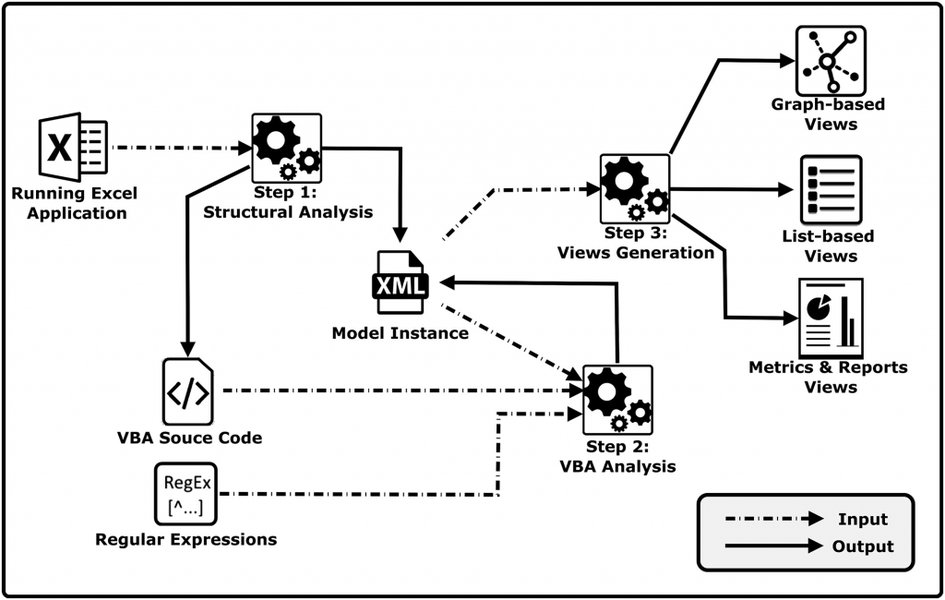
Visualizing the integration of VBA for process automation.
Setting Up Your Selenium VBA Environment
Before embarking on advanced form automation, a proper setup is crucial. This involves installing the necessary components to enable VBA to communicate with web browsers via Selenium.
1. Installing SeleniumBasic
SeleniumBasic is a COM library that acts as a wrapper for Selenium WebDriver, making it accessible from VBA. It simplifies the process of controlling browsers like Chrome, Firefox, Edge, and others.
Key Steps:
- Download SeleniumBasic from a reliable source (often a GitHub repository, as community-maintained versions are common).
- Install the downloaded package. This typically registers the necessary DLLs on your system.
2. Configuring Browser Drivers
Selenium requires specific driver executables for each browser you intend to automate. For example, ChromeDriver is needed for Google Chrome, and GeckoDriver for Mozilla Firefox.
Driver Management:
- Download the appropriate WebDriver version that matches your installed browser version.
- Place the driver executable in a known location on your system. SeleniumBasic often includes common drivers, or you can specify the path to the driver in your VBA code if it's not in the system's PATH. Some Selenium VBA wrappers can also automatically manage driver downloads and updates.
3. Enabling Selenium in VBA Project
Once SeleniumBasic is installed, you need to reference its library in your Excel VBA project:
- Open Excel and press
ALT + F11to open the VBA editor. - In the VBA editor, go to
Tools > References. - Scroll through the list and check "Selenium Type Library" or a similar entry related to the Selenium wrapper you installed. Click OK.
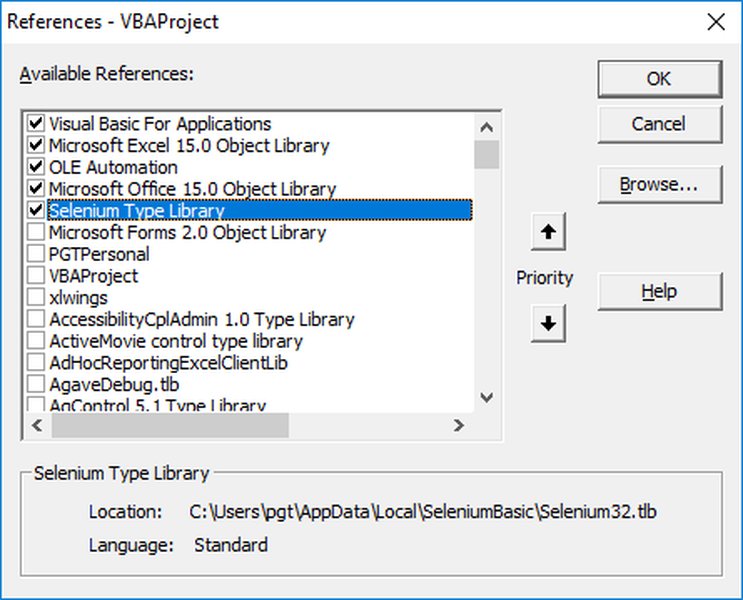
Enabling the Selenium Type Library in the VBA editor.
With these steps completed, you can start writing VBA code to automate web forms using Selenium.
Example: Basic WebDriver Initialization
' VBA Code to initialize a Chrome WebDriver
Dim driver As New Selenium.WebDriver ' Or Selenium.ChromeDriver if using specific driver class

Sub StartBrowser()
    Set driver = New Selenium.WebDriver ' Or New Selenium.ChromeDriver
    driver.Start "chrome" ' Starts a Chrome browser instance
    driver.Get "https://www.example.com" ' Navigates to a URL

    ' Your automation code will go here

    ' driver.Quit ' Close the browser when done (important)
End Sub
Core Selenium Concepts for Form Automation
Understanding fundamental Selenium concepts is key to building effective automation scripts in VBA.
WebDriver Instance
The WebDriver object is your primary interface for interacting with the browser. It allows you to open browsers, navigate to URLs, and manage browser windows.
Locating Web Elements
To interact with form fields, buttons, links, etc., you first need to locate them on the web page. Selenium provides various locator strategies:
- ID:
driver.FindElementById("elementId")- Usually the fastest and most reliable. - Name:
driver.FindElementByName("elementName") - Class Name:
driver.FindElementByClassName("className") - Tag Name:
driver.FindElementByTagName("tagName")(e.g., "input", "button") - Link Text:
driver.FindElementByLinkText("Exact Link Text") - Partial Link Text:
driver.FindElementByPartialLinkText("Partial Text") - CSS Selector:
driver.FindElementByCss("cssSelector")- Powerful and flexible. - XPath:
driver.FindElementByXPath("xpathExpression")- Very powerful for complex scenarios or when other locators are not unique.
Interacting with Elements
Once an element is located, you can perform actions on it:
.SendKeys "text to type": Enters text into input fields..Click: Clicks buttons, links, radio buttons, checkboxes..Clear: Clears text from an input field..Text: Retrieves the visible text content of an element..Attribute("attributeName"): Gets the value of a specified attribute (e.g., "href", "value")..Selected: Checks if an option in a dropdown or a radio/checkbox is selected (returns Boolean)..Displayed/.Enabled: Checks if an element is visible or enabled.
Synchronization: The Importance of Waits
Modern web pages load content dynamically (using AJAX, JavaScript). Scripts often run faster than pages load, leading to "Element Not Found" errors. Selenium provides wait mechanisms to handle this:
- Implicit Waits:
driver.Timeouts.ImplicitWait = 5000(milliseconds). Tells WebDriver to poll the DOM for a certain amount of time when trying to find an element if it's not immediately available. Applied globally. - Explicit Waits: More precise. You instruct the script to wait for a specific condition to be met before proceeding. In VBA Selenium, this often involves using
driver.Wait millisecondsor custom loops with timeouts checking for element presence or state.' Example of a simple explicit wait loop Dim startTime As Date startTime = Now Do Until driver.FindElementsById("myDynamicElement").Count > 0 Or DateDiff("s", startTime, Now) > 10 ' Wait up to 10 seconds Application.Wait Now + TimeValue("0:00:01") ' Pause for 1 second Loop If driver.FindElementsById("myDynamicElement").Count > 0 Then ' Element found, proceed Else ' Element not found within timeout End If
The following table summarizes common Selenium WebDriver methods used in VBA for form automation:
| Method/Property | Description | VBA Example |
|---|---|---|
driver.Start "browserName" |
Starts a new browser instance (e.g., "chrome", "firefox"). | driver.Start "chrome" |
driver.Get "URL" |
Navigates the browser to a specified URL. | driver.Get "https://myportal.com/login" |
driver.FindElementById("id") |
Locates an element by its ID attribute. | Set elem = driver.FindElementById("username") |
driver.FindElementByName("name") |
Locates an element by its name attribute. | Set elem = driver.FindElementByName("passwordField") |
driver.FindElementByXPath("xpath") |
Locates an element using an XPath expression. | Set elem = driver.FindElementByXPath("//input[@type='submit']") |
element.SendKeys "text" |
Types text into an input field. | elem.SendKeys "myusername" |
element.Click |
Simulates a mouse click on an element. | submitButton.Click |
element.Clear |
Clears the existing text from an input field. | elem.Clear |
driver.SwitchToFrame "frameNameOrId" |
Switches focus to an iframe or frame. | driver.SwitchToFrame "contentFrame" |
driver.SwitchToDefaultContent |
Switches focus back to the main document from a frame. | driver.SwitchToDefaultContent |
driver.Wait milliseconds |
Pauses execution for a specified number of milliseconds. Use judiciously; prefer conditional waits. | driver.Wait 2000 'Pauses for 2 seconds |
driver.Quit |
Closes all browser windows opened by WebDriver and ends the session. | driver.Quit |
Advanced Form Automation Techniques
Going beyond basic interactions, advanced form automation requires handling various complexities inherent in modern web applications.
Handling Dynamic Content and AJAX
Websites heavily rely on JavaScript to load or update content without full page reloads. This requires robust synchronization. Explicit waits become crucial here, waiting for elements to be visible, clickable, or for certain text to appear.
Interacting with Complex Form Elements
Dropdown Menus (Select Elements)
For <select> elements, you can iterate through <option> tags or use helper methods if available in your Selenium VBA wrapper. Often, clicking the dropdown and then clicking the desired option (identified by text or value) is a common approach.
' Assuming 'dropdown' is a WebElement representing the <select> tag
' This is a conceptual example; specific methods depend on the wrapper
' For basic select, you might need to click to expand, then click an option
driver.FindElementById("myDropdown").Click ' Open the dropdown
driver.Wait 500 ' Allow options to appear
driver.FindElementByXPath("//option[text()='Desired Option']").Click
Checkboxes and Radio Buttons
These are typically handled with the .Click method. You might need to check their current state (selected/not selected) before interacting.
Dim checkBox As Selenium.WebElement
Set checkBox = driver.FindElementById("agreeToTerms")
If Not checkBox.IsSelected Then
    checkBox.Click
End If
File Uploads
For <input type="file"> elements, you can usually use .SendKeys with the full local path to the file. The input field itself might be hidden, so you might need to interact with its non-hidden counterpart or use JavaScript.
driver.FindElementById("fileUploadInput").SendKeys "C:\path\to\your\file.pdf"
Iframes and Frames
If form elements are inside an <iframe> or <frame>, you must switch WebDriver's context to that frame before you can interact with elements within it. Remember to switch back to the default content when done.
driver.SwitchToFrame "iframeNameOrId" ' Can also use index or WebElement
' Interact with elements inside the iframe
driver.FindElementById("fieldInsideFrame").SendKeys "Data for iframe"
driver.SwitchToDefaultContent ' Switch back to the main page content
Pop-up Dialogs and Alerts
JavaScript alerts, prompts, and confirmation dialogs need special handling.
' Example: Handle a JavaScript alert
driver.FindElementById("buttonThatTriggersAlert").Click
driver.Wait 1000 ' Wait for alert to appear
Dim alert As Selenium.Alert
Set alert = driver.SwitchToAlert()
MsgBox "Alert text: " & alert.Text
alert.Accept ' To click "OK"
' alert.Dismiss ' To click "Cancel" or close
' alert.SendKeys "text for prompt" ' For prompt dialogs
Shadow DOM
Elements within a Shadow DOM require specific techniques to access, typically involving executing JavaScript to pierce the shadow boundary (e.g., element.shadowRoot.querySelector(...)). Some advanced Selenium VBA wrappers might offer direct support for Shadow DOM.
Data-Driven Automation with Excel
One of the primary strengths of using VBA with Selenium is its native integration with Excel. You can easily read data from Excel sheets to populate forms and write results back.
Sub FillFormFromExcel()
    Dim driver As New Selenium.WebDriver
    Dim ws As Worksheet
    Dim i As Long, lastRow As Long

    Set ws = ThisWorkbook.Sheets("FormData") ' Assuming data is in a sheet named "FormData"
    driver.Start "chrome"
    driver.Get "https://example.com/form"

    lastRow = ws.Cells(Rows.Count, "A").End(xlUp).Row ' Find last row in column A

    For i = 2 To lastRow ' Assuming row 1 has headers
        Dim username As String, password As String
        username = ws.Cells(i, "A").Value ' Read username from column A
        password = ws.Cells(i, "B").Value ' Read password from column B

        driver.FindElementById("usernameField").Clear
        driver.FindElementById("usernameField").SendKeys username

        driver.FindElementById("passwordField").Clear
        driver.FindElementById("passwordField").SendKeys password

        driver.FindElementById("submitButton").Click

        ' Add logic to wait for submission and verify result
        ' Example: driver.Wait 3000
        ' Dim result As String
        ' If driver.FindElementsByXPath("//div[@class='success-message']").Count > 0 Then
        '     result = "Success"
        ' Else
        '     result = "Failed"
        ' End If
        ' ws.Cells(i, "C").Value = result ' Write result to column C

        ' driver.Get "https://example.com/form" ' Navigate back if needed for next entry
    Next i

    driver.Quit
End Sub
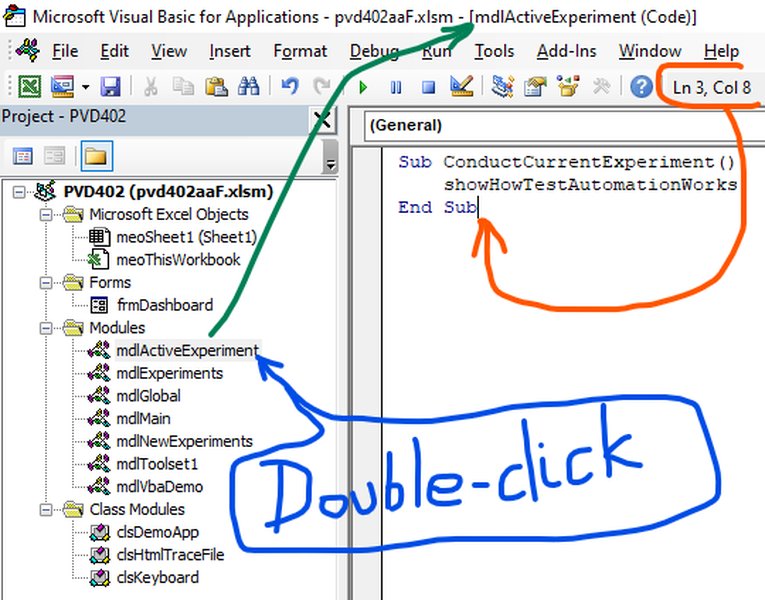
Illustrative example of VBA code for automating web interactions.
Executing JavaScript for Enhanced Control
Sometimes, direct Selenium commands might not be sufficient. You can execute arbitrary JavaScript code within the browser context.
' Example: Click an element using JavaScript
Dim elementToClick As Selenium.WebElement
Set elementToClick = driver.FindElementById("myButton")
driver.ExecuteScript "arguments[0].click();", Array(elementToClick)

' Example: Scroll an element into view
driver.ExecuteScript "arguments[0].scrollIntoView(true);", Array(elementToClick)
Headless Browser Automation
For faster execution and running scripts in the background without a visible browser window, you can configure browsers like Chrome or Firefox to run in headless mode. This is done by setting browser-specific options before starting the WebDriver.
Dim driver As New Selenium.WebDriver ' Or ChromeDriver
Dim options As New Selenium.ChromeOptions

options.AddArgument "--headless"
options.AddArgument "--disable-gpu" ' Often recommended for headless
' Set other options as needed

Set driver = New Selenium.WebDriver ' Or New Selenium.ChromeDriver
driver.SetCapability "goog:chromeOptions", options ' For modern ChromeDriver
driver.Start "chrome" ' Driver will now use these options
driver.Get "https://example.com"
' ... automation logic ...
driver.Quit
Advanced Error Handling and Logging
Robust scripts anticipate and gracefully handle errors. VBA's `On Error GoTo` statements can be used to catch runtime errors. Logging actions, inputs, and outcomes (e.g., to an Excel sheet or a text file) is crucial for debugging and auditing.
Taking Screenshots on Error
Selenium can capture screenshots of the browser window, which is invaluable for diagnosing failures.
Sub MyAutomationTask()
    On Error GoTo ErrorHandler
    Dim driver As New Selenium.WebDriver
    ' ... your automation code ...
    Exit Sub

ErrorHandler:
    MsgBox "An error occurred: " & Err.Description
    If Not driver Is Nothing Then
        driver.TakeScreenshot().SaveAs "C:\path\to\error_screenshot_" & Format(Now, "yyyy-mm-dd_hhmmss") & ".png"
    End If
    ' Add further cleanup or logging
End Sub
Implementing the Page Object Model (POM)
For larger, more complex automation projects, the Page Object Model (POM) is a design pattern that enhances code maintainability and readability. It involves creating separate VBA Class Modules for each web page or significant component of the application. Each class encapsulates the elements and interaction methods for that page.
Example: LoginPage Class (Conceptual)
' In a Class Module named "LoginPage"
Private pDriver As Selenium.WebDriver

Public Sub Initialize(driverInstance As Selenium.WebDriver)
    Set pDriver = driverInstance
End Sub

Private Property Get UsernameField() As Selenium.WebElement
    Set UsernameField = pDriver.FindElementById("username")
End Property

Private Property Get PasswordField() As Selenium.WebElement
    Set PasswordField = pDriver.FindElementById("password")
End Property

Private Property Get LoginButton() As Selenium.WebElement
    Set LoginButton = pDriver.FindElementById("loginBtn")
End Property

Public Sub Login(username As String, password As String)
    UsernameField.SendKeys username
    PasswordField.SendKeys password
    LoginButton.Click
End Sub
This approach centralizes element locators and interactions, making scripts easier to update if the UI changes.
Utilizing Action Chains and Chrome DevTools Protocol (CDP)
For complex user interactions like mouse hovers, drag-and-drop, or right-clicks, Selenium provides Action Chains (though direct support in some VBA wrappers might vary; JavaScript execution can be an alternative). For even deeper browser control, some advanced Selenium VBA wrappers (like the one by GCuser99 on GitHub) offer access to the Chrome DevTools Protocol (CDP), allowing interaction with aspects like network requests, performance monitoring, and more.
Visualizing Selenium VBA Capabilities for Form Automation
To better understand the strengths and considerations of using Selenium VBA for advanced form automation, the following radar chart provides a comparative overview of key aspects. This is a subjective assessment based on common experiences with the technology.
This chart highlights Excel Data Integration as a major strength, while areas like Raw Execution Speed (compared to compiled languages) and Scalability (within a single VBA instance context) are more moderate. Complex Element Handling and Error Handling are quite capable with careful implementation.
Mindmap: Key Aspects of Selenium VBA Form Automation
The mindmap below illustrates the interconnected components involved in advanced form automation using Selenium with VBA, from initial setup to best practices and common use cases.
Form Automation"] id1["Setup & Environment"] id1_1["Install SeleniumBasic (COM Wrapper)"] id1_2["Browser Drivers (ChromeDriver, GeckoDriver)"] id1_3["VBA: Add Selenium Type Library Reference"] id2["Core Selenium Operations"] id2_1["WebDriver Object Initialization"] id2_2["Navigation (.Get, .GoForward, .Back)"] id2_3["Element Locators (ID, Name, XPath, CSS)"] id2_4["Element Interactions (.SendKeys, .Click, .Clear, .Text)"] id2_5["Synchronization & Waits (Implicit, Explicit)"] id3["Advanced Automation Techniques"] id3_1["Handling Dynamic Content (AJAX)"] id3_2["Complex Elements
(Dropdowns, Iframes, Popups, File Uploads, Shadow DOM)"] id3_3["Data-Driven Automation with Excel Integration"] id3_4["Error Handling & Robust Logging"] id3_5["Headless Browser Execution"] id3_6["Executing JavaScript Code"] id3_7["Page Object Model (POM) Design Pattern"] id3_8["Action Chains for Complex Gestures"] id3_9["Chrome DevTools Protocol (CDP) Access"] id4["Best Practices & Considerations"] id4_1["Use Robust & Stable Locators"] id4_2["Implement Effective Wait Strategies"] id4_3["Modular Code Design (Functions, Classes)"] id4_4["Regular Updates of Drivers & Libraries"] id4_5["Comprehensive Error Management & Recovery"] id4_6["Security and Maintenance of Scripts"] id5["Common Use Cases"] id5_1["Automated Bulk Data Entry into Web Forms"] id5_2["Web Scraping Requiring Form Interaction"] id5_3["Automating Repetitive Web-Based Tasks"] id5_4["Data Validation (Web to Excel and vice-versa)"] id5_5["Automated Testing of Web Form Functionality"]
This mindmap provides a holistic view, showing how various elements contribute to a successful and advanced Selenium VBA automation strategy for web forms.
Video Tutorial: Selenium VBA for Web Automation
For a practical demonstration of automating web tasks, including form filling using Excel VBA and Selenium, the following video provides valuable insights and a step-by-step walkthrough. It showcases how to control websites, click buttons, and fill out forms directly from Excel.
Video: "Automate Any Website with Excel VBA" demonstrating practical Selenium VBA usage.
This video helps solidify the concepts discussed by showing them in action, offering a clearer understanding of how to implement these techniques in your own projects.
Best Practices for Robust Selenium VBA Scripts
- Prefer Explicit Waits: Avoid fixed pauses (
Application.Waitordriver.Sleep). Use conditional explicit waits for elements to become available or interactive. - Use Stable Locators: Prioritize IDs and Names. If using XPath or CSS Selectors, make them as robust and specific as possible to avoid breakage from minor UI changes. Avoid overly long or position-dependent XPaths.
- Modularize Your Code: Break down complex automation tasks into smaller, reusable VBA Subroutines and Functions. Implement the Page Object Model for larger projects.
- Comprehensive Error Handling: Use VBA's
On Errorstatements to catch and manage exceptions. Log errors descriptively and consider taking screenshots on failure. - Keep Drivers and Libraries Updated: Browser updates can break compatibility with older WebDriver versions. Regularly check for and update SeleniumBasic and browser drivers.
- Validate Data: Before submitting data to a form, validate it within your VBA code to prevent errors caused by incorrect or malformed input.
- Close Browser Sessions Properly: Always use
driver.Quitat the end of your script to close all browser windows and terminate the WebDriver session. Failure to do so can leave zombie processes. - Test Incrementally: Develop and test your scripts in small, manageable parts. This makes debugging easier.
- Provide Feedback: For long-running scripts, update the Excel status bar or write to a log sheet to provide feedback on progress.
- Handle Unexpected Alerts/Popups: Be prepared for unexpected JavaScript alerts or browser pop-ups that might interrupt your script.
Frequently Asked Questions (FAQ)
What is SeleniumBasic and why is it essential for VBA automation?
SeleniumBasic is a COM (Component Object Model) library that acts as a bridge between VBA (or other COM-supporting languages like VBScript) and the Selenium WebDriver. Selenium itself is primarily developed for languages like Java, Python, C#, etc. SeleniumBasic wraps the WebDriver functionality, exposing it as objects and methods that VBA can understand and use. Without it, VBA would not be able to directly instantiate and control Selenium WebDriver to automate browsers like Chrome or Firefox.
How do I handle web elements that load slowly or appear dynamically?
The best approach is to use "waits." Selenium provides two main types:
- Implicit Waits: A global setting that tells WebDriver to wait for a certain amount of time before throwing an exception if an element is not immediately found. (e.g.,
driver.Timeouts.ImplicitWait = 10000for 10 seconds). - Explicit Waits: More flexible and preferred. You instruct the script to wait for a specific condition to be true before proceeding. In VBA, this often involves a loop that periodically checks for the element's presence or state (e.g., visibility, clickability) up to a maximum timeout period. For example, using
driver.FindElementsBy...Count > 0within a loop with a timeout.
Avoid using fixed pauses like Application.Wait or driver.Sleep wherever possible, as they make scripts slower and less reliable.
Can I automate file uploads with Selenium VBA?
Yes, file uploads can typically be automated. If the file input element is a standard HTML <input type="file">, you can usually locate this element and use the .SendKeys "C:\path\to\your\file.ext" method to provide the full local path of the file you want to upload. The browser will then handle it as if you manually selected the file. Note that the input element might be styled or hidden, so you might need to find the actual input tag, which could be different from the visible "Upload" button.
Is Selenium VBA suitable for very large-scale or complex test automation frameworks?
Selenium VBA is excellent for task-specific automation, data-driven tasks integrated with Excel, and smaller to medium-sized automation projects. However, for very large-scale enterprise test automation frameworks requiring extensive parallel execution, integration with CI/CD pipelines, and advanced reporting, languages like Python, Java, or C# with dedicated testing frameworks (e.g., PyTest, TestNG, NUnit) and tools like Selenium Grid are generally more robust and scalable. VBA's single-threaded nature and its primary environment within Office applications can be limiting for such extensive needs, though it remains highly effective for its intended scope.
What are common challenges when automating forms with Selenium VBA?
Common challenges include:
- Dynamic Element IDs/Attributes: Websites frequently change element attributes, especially IDs generated dynamically. This requires using more robust locators like partial matches in XPath or CSS, or finding stable parent/sibling elements.
- Timing Issues: Scripts running faster than page loads cause "Element Not Found" errors. Proper use of explicit waits is crucial.
- Handling Iframes: Forgetting to switch into an iframe before interacting with elements inside it, or not switching back.
- CAPTCHAs and Security Measures: Selenium is generally not designed to bypass CAPTCHAs or strong anti-bot measures. These often require manual intervention or specialized services.
- Browser Updates: Browser updates can break compatibility with existing WebDriver versions, requiring driver updates.
- Complex JavaScript Interactions: Some UI interactions are heavily reliant on JavaScript events that might be tricky to trigger reliably with standard Selenium commands. Executing JavaScript directly can sometimes help.
Recommended Further Exploration
- How can I implement advanced error logging and reporting for Selenium VBA scripts in Excel?
- What are the best practices for using Page Object Model (POM) with Selenium in VBA?
- Techniques for handling CAPTCHAs and complex security measures in web automation with Selenium VBA.
- How to run Selenium VBA scripts in headless mode for multiple browsers and manage parallel tasks?
References
 matthewkastor.blogspot.com
Last updated May 14, 2025