
Unlocking Digital Inclusivity: A Deep Dive into Accessible Form Testing
Ensuring Seamless Interactions for Every User
Key Insights into Form Accessibility Testing
- Comprehensive Approach: Effective accessibility testing for forms requires a multi-faceted strategy, combining automated tools, rigorous manual checks, and invaluable user feedback from individuals with disabilities.
- Foundational Design: Prioritizing semantic HTML, clear programmatic labels, and logical structuring (e.g., using
<fieldset>and<legend>) is crucial before initiating any testing. - Beyond Compliance: While meeting standards like WCAG is vital, accessible forms transcend legal requirements, fostering a truly inclusive user experience, broadening audience reach, and enhancing overall usability for all.
In today's digital landscape, web forms are ubiquitous, serving as critical conduits for user interaction, from simple logins to complex transactions. Yet, for millions of users with disabilities, poorly designed forms can present insurmountable barriers, leading to frustration, exclusion, and missed opportunities. Accessibility testing of forms isn't merely a compliance checkbox; it's a fundamental commitment to creating truly inclusive digital experiences. This comprehensive guide delves into the essence of accessible forms, outlines robust testing methodologies, and highlights essential tools, ensuring that every user can seamlessly interact with your digital platforms.
The Imperative of Accessible Forms
Accessible forms are digital components designed so that individuals with diverse abilities—including those with visual impairments, hearing difficulties, motor limitations, or cognitive disabilities—can understand, navigate, and complete them effectively. This commitment extends beyond ethical considerations; it's a strategic imperative for businesses and organizations.
Why Prioritize Form Accessibility?
- Inclusive User Experience: At its core, accessibility ensures that your digital services are available to everyone. Forms are often the gateway to critical services like registrations, purchases, and information requests. If a form is inaccessible, a significant portion of your potential audience is excluded.
- Broader Audience Reach: By designing for accessibility, you naturally expand your user base. This inclusivity not only aligns with societal values but also translates into increased engagement and potentially higher conversion rates as more people can successfully interact with your content.
- Legal and Regulatory Compliance: Adherence to standards like the Web Content Accessibility Guidelines (WCAG) and national regulations such as Section 508 in the U.S. or the Americans with Disabilities Act (ADA) is a legal necessity. Non-compliance can lead to significant legal risks, including lawsuits and fines.
- Enhanced Usability and SEO: Surprisingly, accessible forms often lead to a better experience for all users. Clear instructions, logical layouts, and robust error handling benefit everyone, not just those with disabilities. Furthermore, search engines often favor accessible websites, which can lead to improved search engine optimization (SEO) and higher rankings.
Foundational Principles of Accessible Form Design
Before any testing begins, forms must be built upon a solid foundation of accessibility principles. These core concepts ensure that the structure and presentation of your forms are inherently inclusive.
Semantic HTML: The Building Blocks
The judicious use of semantic HTML elements is paramount. Native HTML tags like <form>, <input>, <label>, <select>, and <textarea> inherently provide structural meaning to assistive technologies. Avoiding reliance on non-semantic <div> or <span> elements for form controls helps screen readers and other assistive devices correctly interpret the purpose and function of each element.
Visible and Programmatic Labels
Every input field must have a clearly visible and programmatically associated label. This association is typically achieved using the for attribute on the <label> tag, linking it to the id of its corresponding input. This ensures that screen readers announce the purpose of the input field to users. Critically, placeholder text should never be used as a substitute for labels, as it can disappear on focus, leaving users with cognitive disabilities or memory impairments without context.
Logical Structure and Grouping
Long or complex forms can be overwhelming. Grouping related controls using <fieldset> and <legend> elements provides a clear semantic structure. The <legend> serves as a title for the group, which is invaluable for screen reader users to understand the context of a set of questions (e.g., "Contact Information" for a group of name, email, and phone fields). Additionally, a single-column layout for form fields generally enhances readability and simplifies navigation.
Clear Instructions and Cues
Users need clear guidance to successfully complete forms. Provide explicit instructions on how to fill out the form, indicate required fields (e.g., with an asterisk and explanatory text), and specify expected input formats (e.g., "MM/DD/YYYY" for dates). These cues should be visually prominent and programmatically accessible.
Keyboard Accessibility
All interactive elements within a form must be operable using only a keyboard. This means users should be able to navigate through fields, select options, and activate buttons using keys like Tab, Shift+Tab, Enter, and Spacebar. A logical tab order that mirrors the visual flow of the form is essential to prevent user disorientation.
Color and Contrast Considerations
Ensure that the color contrast between text, background, and other interactive elements meets WCAG guidelines (typically a minimum contrast ratio of 4.5:1 for normal text). Do not rely on color alone to convey information, such as indicating required fields or errors. Supplement color cues with text labels, icons, or other visual indicators.
Accessible Error Handling
When users make mistakes, error messages must be clear, descriptive, and accessible. Instead of merely turning a field border red, provide explicit text-based instructions on how to correct the error. Error messages should also be announced by screen readers, ideally by dynamically moving focus to the error or linking to the error details using ARIA attributes like aria-invalid="true" and aria-describedby.
Common Pitfalls in Form Accessibility
Understanding common accessibility issues can help preemptively address potential barriers during the design and development phases. Here are some frequent problems encountered in web forms:
- Missing or Incorrect Labels: As discussed, the absence of programmatically associated labels renders forms unusable for screen reader users.
- Poor Keyboard Navigation: Forms where elements cannot be reached by keyboard, or where the tab order is illogical, create significant hurdles for keyboard-only users.
- Inadequate Error Handling: Vague, hidden, or non-descriptive error messages leave users confused about how to correct their input. Relying solely on color to indicate errors is also a common mistake.
- Insufficient Color Contrast: Text and background colors that don't meet WCAG contrast ratios can make forms unreadable for users with low vision or color blindness.
- Cognitive Barriers: Overly complex layouts, excessive information, or a lack of clear instructions can overwhelm users with cognitive disabilities.
- Inaccessible CAPTCHA: CAPTCHA mechanisms that lack accessible alternatives (e.g., audio CAPTCHA or reCAPTCHA) can entirely block users with certain disabilities.
- Improper Use or Lack of ARIA Attributes: While ARIA can enhance accessibility for complex components, its misuse or absence when necessary can lead to accessibility failures.
- Disabled Buttons: Buttons that remain disabled until all fields are correctly filled can create a "keyboard trap" or simply confuse users who don't know why they can't proceed. It's often better to allow the click and provide immediate, accessible error feedback.
Comprehensive Accessibility Testing Methodologies
Effective accessibility testing of forms requires a multi-faceted approach, combining automated scans, diligent manual checks, and invaluable user feedback. Automated tools can catch a foundational set of issues, but the human element is crucial for capturing the nuances of user experience.
Automated Testing: The First Line of Defense
Automated accessibility checkers are invaluable for quickly identifying common, code-level issues. These tools can scan for missing labels, insufficient color contrast, incorrect ARIA attribute usage, and other structural problems. While efficient, automated tools typically only catch about 20-25% of all accessibility issues.
An array of digital tools for accessibility testing.
Key Automated Tools:
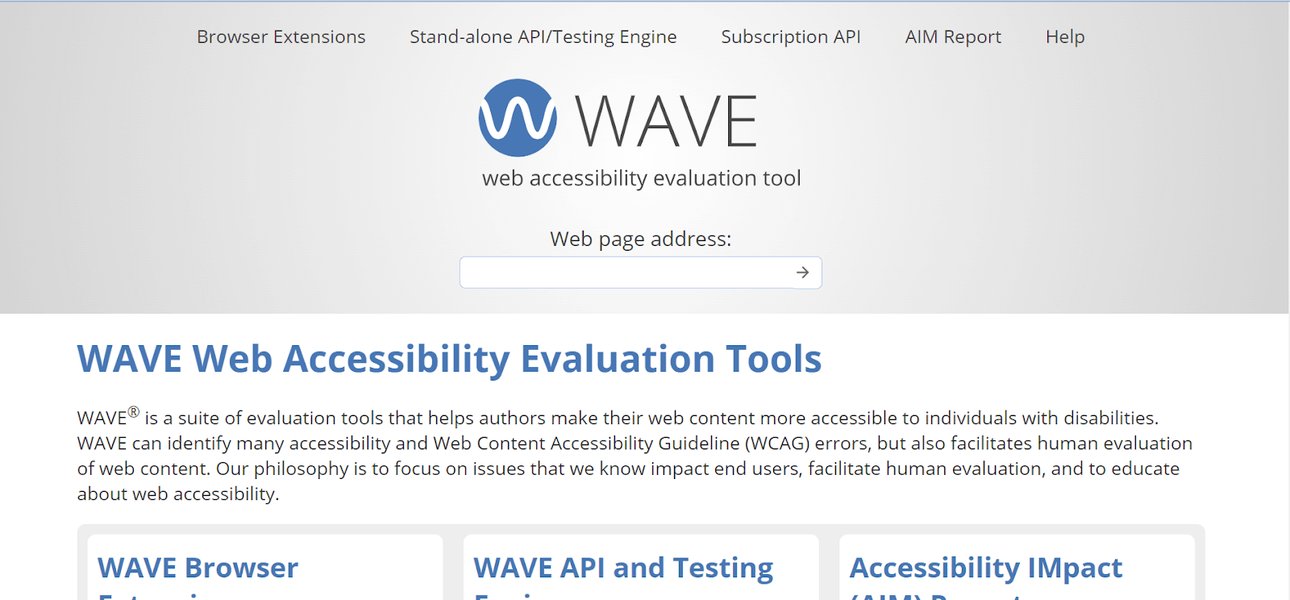
- Browser Extensions: Axe DevTools, WAVE, and Lighthouse are popular browser extensions that integrate into developer tools, providing immediate feedback on accessibility issues.
- Built-in Checkers: Some form builders and content management systems (CMS) offer integrated accessibility checkers, such as Jotform's built-in tool that notifies users of Section 508 and WCAG 2.1 compliance issues.
Manual Testing: Simulating User Experiences
Manual testing is indispensable for verifying how forms behave for real users. This involves human testers actively interacting with the form using various methods and assistive technologies.
Keyboard Navigation Testing:
Navigate through the entire form using only the keyboard (Tab, Shift+Tab, Enter, Spacebar, arrow keys). Ensure that:
- All interactive elements (input fields, buttons, checkboxes, radio buttons, links) can be reached and activated.
- The tab order is logical and intuitive, matching the visual reading order of the form.
- There are no "keyboard traps" where focus gets stuck in a particular element or section.
- Focus indicators are clearly visible, showing the user where their keyboard focus is currently located.
Screen Reader Testing:
Use screen readers to simulate the experience of users with visual impairments. Popular screen readers include NVDA (NonVisual Desktop Access) and JAWS (Job Access With Speech) for Windows, and VoiceOver for macOS and iOS. When testing, pay close attention to:
- How form elements, their associated labels, and instructions are announced.
- Whether error messages are read aloud clearly and descriptively when validation fails.
- If ARIA labels and roles are correctly applied and enhance the screen reader experience without creating unnecessary verbosity.
This video demonstrates how screen readers interact with accessible forms, providing a crucial perspective for understanding user experience.
This video titled "Accessible Forms with a Screen Reader" by Accessibly illustrates how screen readers like NVDA (NonVisual Desktop Access) interpret and convey form elements to users with visual impairments. It highlights the critical importance of proper labeling, logical structure, and accessible error messages. By observing how a screen reader announces form fields, instructions, and validation feedback, developers and testers can gain direct insight into the challenges faced by visually impaired users and identify areas for improvement. This practical demonstration underscores why manual testing with screen readers is an indispensable part of a comprehensive accessibility audit.
Semantic HTML Review:
Manually inspect the underlying code to ensure that appropriate HTML elements and attributes are being used. This often involves looking at the developer console in a browser to check for correct label associations (for/id), appropriate use of <fieldset> and <legend>, and correct ARIA attribute implementation.
Color Contrast Check:
While automated tools can flag some contrast issues, manual checks using dedicated color contrast checkers can provide more nuanced evaluations, especially for complex visual designs or graphics. Ensure all text, icons, and interactive elements meet WCAG contrast ratios.
User Testing with Diverse Abilities: The Ultimate Validation
The most authentic and invaluable feedback comes from involving actual users with disabilities in your testing process. This "real-world" testing provides insights that neither automated tools nor manual simulations can fully replicate. Observing how individuals with varying disabilities interact with your forms can uncover unforeseen barriers and lead to truly meaningful improvements. This step is crucial for understanding the personal experiences of users and ensuring forms are genuinely usable.
Essential Tools for Accessibility Testing
A variety of tools support the accessibility testing process, ranging from automated checkers to specialized assistive technologies. Using a combination of these tools ensures a thorough evaluation.
This radar chart visualizes the strengths of different accessibility testing approaches, highlighting that a balanced strategy leveraging automated, manual, and user testing provides the most comprehensive coverage. Each spoke represents a crucial aspect of accessibility, demonstrating where each method excels.
Step-by-Step Testing Process for Forms
A structured approach to accessibility testing ensures thoroughness and efficiency. Here's a recommended workflow:
This mindmap illustrates a comprehensive, iterative workflow for accessibility testing of forms. It emphasizes integrating accessibility from the design phase, moving through automated and manual testing, incorporating crucial user feedback, and finally, maintaining ongoing compliance.
Table of Common Form Accessibility Best Practices and Issues
This table provides a quick reference for best practices to implement and common issues to avoid when designing and testing accessible forms.
| Category | Best Practice | Common Issue to Avoid |
|---|---|---|
| Structure & Semantics | Use semantic HTML (<label>, <input>, <fieldset>, <legend>). |
Using <div> or <span> for form controls without proper ARIA roles. |
| Labeling | Provide visible and programmatically associated labels for all inputs (for/id). |
Relying on placeholder text as a substitute for explicit labels. |
| Instructions & Cues | Offer clear instructions, required field indicators, and format requirements. | Vague instructions or indicating required fields solely by color. |
| Keyboard Navigation | Ensure all elements are operable via keyboard; maintain logical tab order; visible focus. | Elements inaccessible by keyboard; illogical tab order; hidden focus indicators. |
| Error Handling | Provide descriptive, accessible error messages with guidance; don't rely on color alone. | Generic or invisible error messages; only changing border color to indicate errors. |
| Visual Design | Ensure sufficient color contrast (text/background); avoid color-only information. | Low contrast ratios; conveying meaning solely through color (e.g., green for success). |
| ARIA Use | Use ARIA attributes judiciously to enhance native semantics for complex components. | Overusing ARIA where native HTML suffices; incorrect ARIA role/property usage. |
| Responsiveness | Design forms to be usable and legible across various screen sizes and devices. | Forms breaking on mobile; horizontal scrolling; tiny text on small screens. |
Frequently Asked Questions (FAQ)
What is WCAG and why is it important for forms?
Can automated tools alone guarantee form accessibility?
What is a "keyboard trap" and how do I test for it?
Why shouldn't I use placeholder text as a label?
<label> element instead.How often should forms be tested for accessibility?
Conclusion
Accessibility testing of forms is an indispensable practice that ensures digital inclusion and enhances the user experience for everyone. By embracing semantic HTML, implementing clear labeling, prioritizing keyboard navigability, and providing accessible error handling, organizations can build forms that are robust and usable for all. A comprehensive testing strategy, blending automated tools with crucial manual and user-centered approaches, is the cornerstone of achieving and maintaining truly accessible digital services. Prioritizing accessibility is not just about compliance; it's about building a better, more equitable web for every individual.
Recommended Further Exploration
- Understanding WCAG Guidelines for Web Forms
- Advanced ARIA Techniques for Complex Form Components
- Integrating Accessibility Testing into CI/CD Pipelines
- Case Studies of Successful Accessible Form Implementations