
Unlock Effortless Banking: Which Tabs Belong on Your App's Frontline?
Designing the perfect mobile banking tab bar for seamless navigation and ultimate user satisfaction.
Crafting an intuitive and efficient mobile banking experience hinges significantly on the design of its tab bar. This crucial navigation element acts as the command center, providing instant access to the features users rely on most. Choosing the right links for this prime real estate can make the difference between a frustrating chore and a seamless financial management tool. Based on user behavior, industry best practices, and feature analysis, let's explore the optimal components for your banking app's tab bar.
Key Insights for Your Tab Bar Design
- Prioritize Core Actions: Users overwhelmingly want immediate access to view account balances, transfer funds, and manage payments. These frequent tasks should form the backbone of your tab bar.
- Simplicity is Key: A cluttered tab bar leads to confusion. Aim for 4-5 essential tabs, consolidating less frequent functions under a "More" or "Menu" option.
- Focus on Frequency & Need: Select tabs based on how often users perform tasks and the urgency associated with them (e.g., checking balances daily vs. applying for a loan occasionally).
The Must-Have Tabs for Every Banking App
Certain functionalities are non-negotiable for quick access in a mobile banking environment. These core features address the primary reasons users open their banking app.
1. Home / Dashboard
Your Financial Command Center
This is almost universally the most critical tab. Users expect to land here upon opening the app. The Home screen should provide an immediate, clear snapshot of their financial status, including:
- Account balances (Checking, Savings, Credit Cards)
- Recent transaction history
- Important alerts or notifications
- Quick links to common actions (like transfers or deposits)
A well-designed dashboard offers a sense of control and allows users to quickly assess their financial health without navigating deeper into the app. It serves as the central hub for daily check-ins.
2. Transfers / Send Money
Move Money with Ease
The ability to move funds quickly and easily is a top priority for mobile banking users. This tab should facilitate:
- Transfers between the user's own accounts (internal transfers)
- Transfers to other individuals (Peer-to-Peer or P2P payments, potentially integrating services like Zelle)
- Setting up and managing external account transfers
Given the frequency of these actions – from splitting bills with friends to managing funds across accounts – placing Transfers prominently on the tab bar significantly enhances usability.

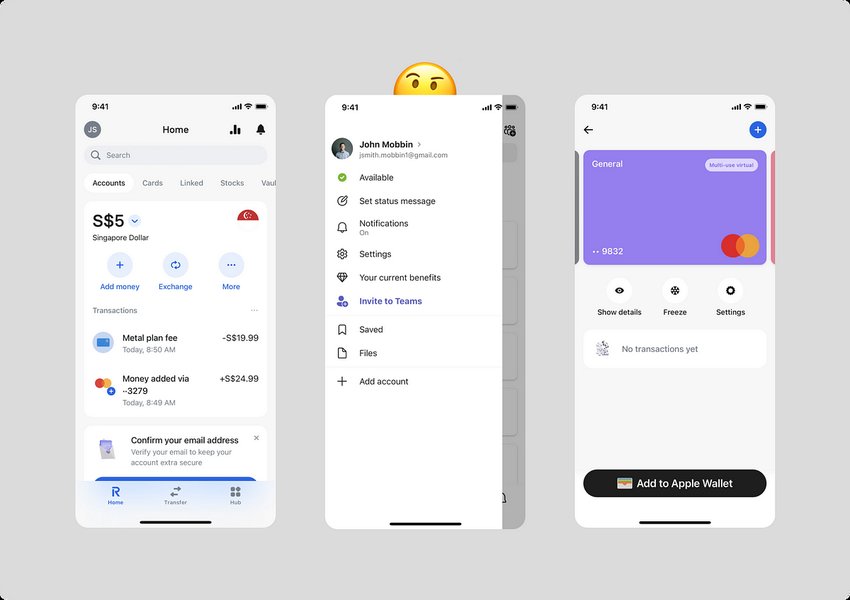
A visual concept for a banking app tab bar, emphasizing clarity and core functions.
3. Payments / Bill Pay
Manage Obligations Seamlessly
Paying bills is a fundamental banking task. A dedicated tab allows users to:
- View upcoming and past bills
- Schedule one-time or recurring payments
- Manage payees
- Receive payment reminders
Direct access streamlines bill management, helping users avoid late fees and stay organized. Some apps might combine general "Payments" (including P2P) and "Bill Pay" under one umbrella, while others separate them for clarity depending on user needs and feature depth.
4. Deposit
Mobile Check Deposit Convenience
Mobile check deposit remains a highly valued feature, saving users trips to the bank or ATM. Providing a dedicated tab for this function offers:
- Quick access to the camera function for capturing check images
- Clear instructions and deposit limits
- History of mobile deposits
While sometimes integrated within "Transfers" or "More," its popularity often justifies its own spot on the main tab bar for maximum convenience.
5. Accounts
Detailed Account Management
While the Home/Dashboard offers an overview, a dedicated "Accounts" tab allows users to dive deeper. This is especially useful for those managing multiple account types (checking, savings, loans, credit cards, investments). Features include:
- Detailed transaction histories for each account
- Access to account statements (viewing/downloading PDFs)
- Specific account details (routing/account numbers, interest rates)
- Management options like ordering checks or viewing spending analyses
Considering Secondary Tabs: Context Matters
Beyond the core functionalities, other features can be valuable additions to the tab bar, depending on the bank's focus and user base. However, these are often candidates for placement within a "More" menu to avoid clutter.
Card Management
Quick access to lock/unlock debit or credit cards, report lost/stolen cards, set travel notifications, or view card details is highly desirable for security and control.
Security / Settings
While crucial, settings related to login methods (biometrics), alerts, profile information, or contact details are often accessed less frequently and can typically reside within a "More" menu or profile section.
Notifications / Alerts
A central hub for all account alerts (low balance, large transaction, bill reminders) can be useful. Often, these are indicated with badges on the "Home" or "More" tab instead of occupying a dedicated space.
Budgeting / Financial Tools
As users become more interested in financial wellness, quick access to budgeting tools, spending analysis, or savings goals can be a value-add, though often secondary to core transactional needs.
ATM / Branch Locator
Essential for finding physical locations, but typically used less often than digital transactions. Often found within a "More" or "Help" section.
More / Menu
This ubiquitous tab is vital for housing less frequently accessed features without cluttering the primary navigation. It can include links to customer support, settings, tools, locators, loan applications, investment portals, and other secondary services.
Visualizing Feature Prioritization
To better understand the relative importance and frequency of use for potential tab bar items, consider the following visualization. This radar chart reflects synthesized user priorities based on common banking behaviors and app usage patterns. Higher scores indicate greater importance for quick tab bar access.
As the chart illustrates, core functions like viewing the 'Home' dashboard, making 'Transfers', and handling 'Payments' consistently rank highest in user priority for immediate access. Features like 'Mobile Deposit' and detailed 'Account' views follow closely. While valuable, 'Card Management', 'Budgeting Tools', and 'Locators' are generally considered less critical for prime tab bar placement by the average user.
Structuring Your Ideal Tab Bar
Effective tab bar design goes beyond just selecting the right features; it also involves thoughtful organization and adherence to established UX patterns.
Best Practices for Tab Bar Navigation
- Limit the Tabs: Stick to a maximum of 5 primary tabs. More than this becomes crowded and difficult to use, especially on smaller screens. Use a "More" tab for everything else.
- Clear Icons and Labels: Use universally understood icons paired with concise, clear text labels. Avoid jargon.
- Consistent Placement: Place the most important or frequently used tabs (like "Home") consistently, typically as the first item.
- Visual Feedback: Provide clear visual cues for the active tab. Consider using badges (notification dots) on tabs like "Notifications" or "Transfers" to indicate new activity.
- Platform Conventions: Follow standard design guidelines for iOS and Android to ensure a native feel.
- Consider Personalization: Some advanced apps allow users to customize their tab bar, which can enhance satisfaction for power users.
Common mobile navigation patterns, highlighting the prominence of the bottom tab bar.
Visualizing the Structure: A Mindmap
This mindmap illustrates a typical, effective structure for a banking app's tab bar, balancing core features with access to secondary functions via a "More" menu.
(Dashboard)"] id1a["Account Overview"] id1b["Recent Activity"] id1c["Alerts"] id2["Transfers"] id2a["Internal Transfer"] id2b["P2P / Send Money"] id2c["External Transfer"] id3["Payments"] id3a["Bill Pay"] id3b["Scheduled Payments"] id3c["Manage Payees"] id4["Deposit"] id4a["Mobile Check Deposit"] id4b["Deposit History"] id5["More"] id5a["Accounts
(Detailed View)"] id5b["Card Management"] id5c["Budgeting Tools"] id5d["ATM/Branch Locator"] id5e["Settings"] id5f["Customer Support"] id5g["Security Center"]
This structure places the most frequent actions directly on the tab bar while organizing less common, but still important, features logically under the "More" tab.
Tab Bar Recommendations Summary
Here's a table summarizing the most recommended tabs, their purpose, and why users value quick access:
| Suggested Tab | Core Function | Why Users Want Quick Access |
|---|---|---|
| Home / Dashboard | Overall financial snapshot, balances, recent activity. | Immediate overview of financial health; most frequent starting point. |
| Transfers / Send Money | Move funds between own accounts, pay others (P2P). | High-frequency task for managing funds and paying individuals quickly. |
| Payments / Bill Pay | Pay bills, manage scheduled payments and payees. | Core banking need; streamlines management of financial obligations. |
| Deposit | Deposit checks using the mobile camera. | Highly valued convenience feature, saves time and trips to the bank. |
| Accounts | Detailed view of all accounts, statements, transaction history. | Allows deeper dive into specific account details when needed. Often secondary to Home but essential for management. |
| More / Menu | Access less frequent features (Cards, Settings, Locator, Support, etc.). | Keeps the primary tab bar clean while providing access to the full suite of features. |
Building the Interface: A Visual Guide
Understanding the principles is one thing, seeing how they translate into actual app interfaces is another. Development tutorials often showcase best practices for building intuitive navigation, including tab bars. The video below demonstrates building a bank app UI in React Native, offering insights into component creation and layout that reflect user-centric design.
This tutorial, while technical, visually reinforces how components like tab bars are structured in modern app development to create a smooth user experience, aligning with the principles discussed.
Frequently Asked Questions (FAQ)
Why limit the number of tabs to 4 or 5?
Usability studies and mobile design best practices show that exceeding 5 tabs makes the touch targets too small and the interface cluttered, especially on smaller phone screens. It increases cognitive load and makes navigation harder. Prioritizing the absolute core functions and grouping others under a "More" tab provides a cleaner, more focused user experience.
Should "Security" or "Card Management" be a main tab?
While security is paramount, direct access to security *settings* is usually less frequent than core transactions. Quick actions like locking a card are highly valuable. Some apps successfully integrate card controls into the "Home" or "Accounts" tabs, or place a dedicated "Cards" tab if it's a primary user need (e.g., for credit-card focused apps). For most traditional banks, placing these under "More" or a Profile section is common practice to reserve tab bar space for daily transactional tasks.
What about features like Budgeting or Investments?
These are value-added features but typically not considered core, high-frequency *transactional* needs for the average user compared to checking balances or transferring funds. They are excellent candidates for inclusion within the "More" menu or potentially as widgets on the Home/Dashboard screen, rather than occupying a dedicated tab bar slot.
Isn't an ATM/Branch Locator essential for quick access?
While important, especially for users who frequently need cash or in-person services, the rise of digital banking and mobile deposits has reduced the frequency with which the average user needs to locate a physical branch or ATM compared to performing digital transactions. Therefore, it's commonly placed within the "More" or "Help/Support" sections to prioritize digital-first actions on the main tab bar.
Recommended
- What are the latest best practices for designing mobile banking app user interfaces?
- Explore strategies to significantly improve user engagement within financial technology applications.
- Discover the most crucial security features that modern mobile banking apps must implement in 2025.
- How do the features and navigation of leading mobile banking apps, such as Chase and Bank of America, compare?
References
Last updated May 5, 2025