
Unlock Design Superpowers: Your Blueprint for Creating AI-Powered Figma Plugins!
Dive into the world of Figma plugin development and learn how to infuse your design workflow with the magic of Artificial Intelligence.
Highlights of Your AI Plugin Journey
- Master the Basics: Understand that Figma plugins are built with web technologies (JavaScript, HTML) and interact with the Figma editor via its Plugin API.
- Harness External AI: Learn to integrate powerful third-party AI services (like OpenAI, Google AI) to bring intelligent features to your custom plugins, as Figma itself doesn't offer a framework for creating AI-specific plugins.
- Follow a Structured Path: From setup and coding to testing and publishing, discover the step-by-step process to develop and deploy your own AI-enhanced Figma tools.
Understanding the Figma Plugin Ecosystem & AI Integration
Figma plugins are essentially small applications or scripts that extend the functionality of the Figma design tool. They allow designers and developers to automate tasks, add new features, and streamline workflows. When we talk about "AI plugins" in Figma, it generally means creating a standard Figma plugin that then calls out to external Artificial Intelligence services or APIs to perform specific tasks. Figma's own AI features (like "First Draft") are separate from the process of you building a custom plugin that incorporates AI.
These AI-enhanced plugins can perform a variety of intelligent operations, such as:
- Generating design elements or layouts based on text prompts.
- Automating content creation (e.g., generating placeholder text, user personas, or icons).
- Analyzing designs for accessibility or consistency.
- Translating text layers automatically.
- Suggesting design improvements based on learned patterns.
Prerequisites & Setting Up Your Workshop
Before you embark on creating your AI-powered Figma plugin, you'll need a few things in place:
Essential Tools & Knowledge:
- Figma Desktop App: Plugin development and testing can only be done through the Figma desktop application (available for Mac and Windows). Ensure it's installed and up-to-date.
- Code Editor: A good code editor like Visual Studio Code (VS Code) is highly recommended for writing and managing your plugin's code.
- Basic Web Development Skills:
- JavaScript: This is the core language for your plugin's logic and for interacting with the Figma Plugin API.
- HTML: Used to create the user interface (UI) of your plugin if it requires one.
- CSS (Optional): For styling your plugin's UI.
- Understanding of APIs: Since you'll be integrating external AI services, a basic understanding of how APIs work (making HTTP requests, handling responses, API keys) is crucial.
- Familiarity with Figma Plugin Concepts: Spend some time with the official Figma plugin documentation to understand how plugins run, their capabilities, and the structure of the Plugin API.
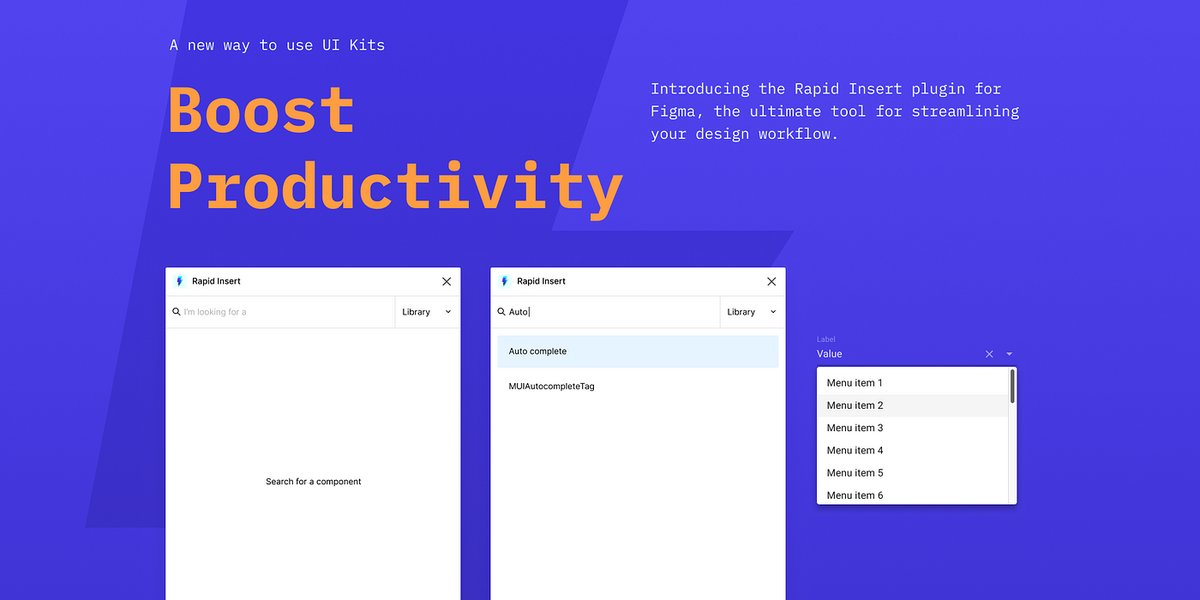
A visual metaphor for the tools and technologies involved in Figma plugin development.
The Development Journey: Crafting Your AI Plugin Step-by-Step
Building an AI plugin involves several distinct phases, from initial idea to a functional tool.
Step 1: Conceptualize Your AI Plugin
Define what your AI plugin will do. What problem will it solve, or what task will it automate? Consider:
- The AI Feature: Will it generate text, images, code, or suggest design changes?
- User Interaction: How will users interact with it? Will it need a UI with input fields, buttons, etc.?
- AI Service: Which external AI API(s) will you use? (e.g., OpenAI's GPT for text, DALL·E or Stable Diffusion for images, Google Cloud AI services).
Step 2: Set Up Your Development Environment
Ensure you have the Figma Desktop App and a code editor like VS Code installed. No complex setup beyond this is usually required to start.
Step 3: Create Your Plugin Structure in Figma
Figma provides a simple way to scaffold a new plugin:
- Open the Figma desktop app.
- Go to the main menu (Figma icon) → Plugins → Development → New Plugin...
- You'll be prompted to give your plugin a name and choose a template:
- Default: A blank slate, good for building from scratch or if you have a clear structure in mind.
- Run once: For plugins that perform a single action without needing a persistent UI (e.g., generate 5 placeholder images).
- Custom UI: For plugins that require an interactive interface (e.g., a panel with input fields for AI prompts and settings). This is common for AI plugins.
Figma will create a directory containing the basic files for your plugin, typically including a manifest.json file (plugin metadata), a code.js file (for the plugin's main logic that interacts with Figma), and an ui.html file (if you chose a template with UI).
Step 4: Develop Core Plugin Logic (JavaScript & Figma API)
This is where you'll write the JavaScript code in code.js (or a similar file, depending on your setup) that interacts with the Figma document.
Key Figma API Interactions:
- Reading from the canvas: Accessing selected layers, their properties (size, position, color, text content), and document structure.
figma.currentPage.selectionis a common starting point. - Writing to the canvas: Creating new layers (rectangles, text, frames), modifying existing ones, or adding content received from the AI API.
- Communicating with the UI: If your plugin has a UI (
ui.html), you'll usefigma.ui.postMessage()andfigma.ui.onmessage()to send data back and forth between your plugin's logic (code.js) and its interface.
Step 5: Build the User Interface (HTML & UI Libraries)
If your plugin needs to take user input (like a text prompt for an AI) or display information, you'll build this in your ui.html file using standard HTML, CSS, and JavaScript.
Tips for UI Development:
- Keep it simple and intuitive, mirroring Figma's own UI style where possible.
- For more complex UIs, consider using JavaScript frameworks like React or Vue, or UI component libraries tailored for Figma plugins. Thomas Lowry’s "Figma Plugin UI Library" or the "Create Figma Plugin" toolkit by Yuanqing Lim can be very helpful, offering pre-built components that match Figma's aesthetic.
- Your UI JavaScript will handle capturing user inputs and sending them to the main plugin logic (
code.js) usingparent.postMessage({ pluginMessage: { type: 'your-action', data: ... } }, '*').
Step 6: Integrate AI Capabilities (External APIs)
This is the "AI" core of your plugin. Your plugin's JavaScript (either in code.js or ui.html depending on where the call makes more sense) will make HTTP requests to an external AI service.
Process:
- Obtain API Key: Sign up for the AI service you want to use (e.g., OpenAI) and get an API key.
- Make API Calls: Use the
fetchAPI in JavaScript to send requests to the AI service's endpoint. You'll typically send user input (e.g., a text prompt) and receive a response (e.g., generated text, image URL, or data).// Example: Fetching data from an AI API (conceptual) // This would typically be in your ui.html's script or proxied through code.js async function callMyAiService(prompt) { const apiKey = 'YOUR_API_KEY'; // Handle securely! const response = await fetch('https://api.exampleai.com/generate', { method: 'POST', headers: { 'Content-Type': 'application/json', 'Authorization': <code>Bearer ${apiKey}}, body: JSON.stringify({ prompt: prompt, model: 'text-davinci-003' }) }); const data = await response.json(); return data.choices[0].text; // Or whatever the API returns } - Process AI Response: Once you get the data back from the AI, use the Figma Plugin API (in
code.js) to apply it to the Figma document. For example, if the AI generated text, create a new text node in Figma and populate it.
Security Note on API Keys:
Never embed API keys directly in client-side code that will be distributed. For plugins shared publicly, it's best to either:
- Require users to enter their own API key, which your plugin then uses.
- Proxy API calls through your own backend server, where the API key is stored securely. This is more complex but more secure for valuable keys.
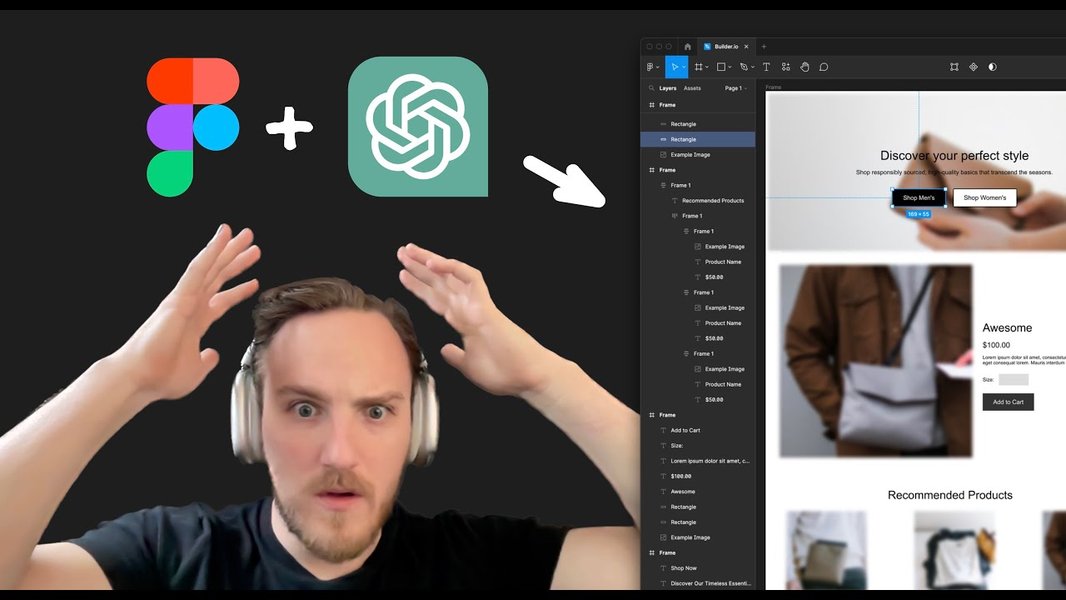
An example of how AI can be integrated to generate design elements within Figma.
Step 7: Testing and Debugging
Thorough testing is vital:
- Run your plugin directly in the Figma desktop app: Plugins → Development → [Your Plugin Name].
- Use browser developer tools for debugging your UI (
ui.html) by right-clicking in the plugin window and selecting "Inspect." - Use
console.log()statements in bothcode.jsand your UI JavaScript to trace execution and variable values. Figma will show logs fromcode.jsin its own console (Plugins → Development → Open Console). - Test with various inputs, edge cases, and on different Figma files.
Step 8: Publish to Figma Community (Optional)
Once your plugin is polished and working well, you can publish it to the Figma Community for others to use. Follow Figma's guidelines for plugin submission, which includes providing a clear description, icons, and ensuring your plugin adheres to their policies.
Visualizing the Plugin Development Lifecycle
The journey of creating an AI Figma plugin involves interconnected stages, from ideation to execution and refinement. The mindmap below outlines these key phases and their components, providing a clear overview of the development lifecycle.
(Text Gen, Image Gen, etc.)"] id1c["Choose External AI API(s)"] id1d["Sketch UI/UX (if applicable)"] id2["2. Setup & Environment"] id2a["Figma Desktop App"] id2b["Code Editor (VS Code)"] id2c["Familiarize with Figma Plugin API Docs"] id3["3. Core Development"] id3a["Create New Plugin in Figma (Templates)"] id3b["Develop Main Logic (code.js)
- Interact with Figma Canvas
- API Communication"] id3c["Build UI (ui.html)
- HTML, CSS, JS
- UI Libraries (Optional)"] id4["4. AI Integration"] id4a["API Key Management (Security!)"] id4b["Implement API Calls (fetch)"] id4c["Process AI Responses"] id4d["Update Figma Document with AI Output"] id5["5. Testing & Iteration"] id5a["Local Testing in Figma App"] id5b["Debugging (Console, Inspector)"] id5c["User Feedback & Refinement"] id5d["Handle Edge Cases & Errors"] id6["6. Deployment & Maintenance"] id6a["Publish to Figma Community (Optional)"] id6b["Documentation"] id6c["Updates & Bug Fixes"]
This mindmap helps visualize the structured approach needed, highlighting how different aspects like core Figma logic, UI development, and AI API integration come together.
Comparative Aspects of AI Plugin Development
Developing AI plugins involves balancing various factors. The radar chart below offers an opinionated comparison of different types of Figma plugins, considering aspects like technical skill, creative potential, and reliance on external services. "Basic Action Plugin" refers to a simple, non-AI plugin; "UI-Heavy Plugin" refers to a complex plugin with a rich interface but no AI; "AI-Integrated Plugin" is our focus.
As illustrated, AI-Integrated Plugins often require a higher degree of technical skill and have a strong dependency on external APIs. However, they also unlock significant creative potential and can dramatically enhance user experience by automating complex tasks.
Leveraging AI to Assist in Plugin Code Generation
Interestingly, AI itself can be a companion in the plugin development process. Tools like Artifig AI or Cursor AI (an AI-first code editor) can assist in generating boilerplate code or even entire functional blocks for your Figma plugin based on natural language prompts. While these tools can significantly speed up development, especially for those less familiar with coding, a foundational understanding of JavaScript, HTML, and the Figma Plugin API remains beneficial for debugging, customizing, and truly owning your plugin's functionality. Think of these AI coding assistants as powerful collaborators rather than complete replacements for development knowledge.
This video, "Make Figma Plugins in Minutes with AI," demonstrates how AI tools like Cursor and Claude can be used to expedite the Figma plugin creation process by assisting with code generation.
AI Plugin Capabilities & Integration Methods
The possibilities for AI in Figma plugins are vast. The table below outlines some common AI capabilities you can integrate, along with typical integration methods and example services.
| AI Capability | How it Works (Typical Integration) | Example AI Services/APIs | Potential Use Case in Figma | Key Consideration |
|---|---|---|---|---|
| Text Generation | Send a prompt to a Large Language Model (LLM) API, receive generated text. | OpenAI GPT-3/4, Google Gemini, Cohere | Generate placeholder copy, product descriptions, UI microcopy, creative brainstorming. | Prompt engineering for relevant output, managing token limits. |
| Image Generation | Send a text prompt or image input to an image generation API, receive an image URL or data. | OpenAI DALL·E, Stability AI (Stable Diffusion), Midjourney (via API if available) | Create unique icons, illustrations, mood board images, conceptual visuals. | Controlling image style, resolution, and relevance; API costs. |
| Image Analysis/Editing | Send an image to an API for tasks like object recognition, background removal, or style transfer. | Cloudinary, Remove.bg API, AWS Rekognition | Auto-tagging images, smart cropping, applying consistent filters. | Accuracy of analysis, processing time for large images. |
| Design Automation/Suggestion | Analyze existing design elements or user input to suggest layouts, components, or style changes. Often requires custom logic combined with AI. | Custom-trained models, or LLMs prompted with design system rules. | Auto-generate wireframes from descriptions, suggest color palettes, check for accessibility issues. | Complexity of translating AI output to Figma actions, maintaining design consistency. |
| Content Population | Fetch and insert structured data into design templates using AI to format or select relevant data. | AI-powered data APIs, or LLMs generating structured JSON. | Populate user profiles with realistic fake data, fill tables, create varied list items. | Data privacy if real user data is involved (even for training), ensuring data relevance. |
This table provides a starting point for thinking about what's possible. The specific implementation will always depend on the chosen AI service and the desired functionality within your Figma plugin.
Frequently Asked Questions (FAQ)
What programming languages are primarily used for Figma plugins? +
Figma plugins are built using standard web technologies. The core logic is written in JavaScript, which interacts with the Figma Plugin API. If your plugin has a user interface, it will be created using HTML and can be styled with CSS. JavaScript is also used within the HTML to handle UI events and communicate with the main plugin logic.
Do I need to be an expert coder to create an AI Figma plugin? +
While expert coding skills are not strictly necessary to get started, a solid understanding of JavaScript fundamentals, HTML basics, and how APIs work will be very beneficial. The AI portion is typically handled by external services, so you don't need to build AI models yourself. You'll be integrating these services. For simpler plugins, or with the help of AI code assistants, even beginners can achieve impressive results. However, for complex plugins, more advanced coding knowledge will be required.
Can I use Figma's built-in AI features (like First Draft) to create my own plugin? +
No, Figma's built-in AI features are tools for users within the Figma environment. They are not part of the Plugin API that you use to build your own custom plugins. When creating an "AI plugin," you are essentially building a standard Figma plugin that then connects to and utilizes external third-party AI services and APIs (like those from OpenAI, Google AI, Stability AI, etc.) to add specific AI-driven functionalities.
Where can I find AI APIs to integrate into my Figma plugin? +
There are many providers of AI APIs. Some popular ones include:
- OpenAI: Offers APIs for text generation (GPT models), image generation (DALL·E), code generation, and more.
- Google Cloud AI: Provides a suite of AI and Machine Learning APIs, including Vertex AI, Gemini, Natural Language API, Vision AI, etc.
- Stability AI: Known for its Stable Diffusion models for image generation.
- Hugging Face: Hosts a vast collection of open-source models and APIs for various tasks.
- Specialized APIs: For specific tasks like background removal (e.g., Remove.bg API), translation (e.g., Google Translate API), or data enrichment.
How should I handle API keys securely in my Figma plugin? +
Securing API keys is crucial. Never embed sensitive API keys directly in your plugin's client-side code (ui.html or code.js) if the plugin will be distributed. Options include:
- User-Provided Keys: Design your plugin so that users must enter their own API key from the AI service. The plugin then stores this locally (e.g., using
figma.clientStorage) for their use only. This shifts the responsibility of key management to the user. - Backend Proxy Server: Create your own secure backend server. Your Figma plugin makes requests to your server, and your server then makes the authenticated requests to the AI API using the key stored securely on the server. This is the most secure method if you need to use a single API key for all users but adds complexity.
- Environment Variables (During Build): If you have a build process for your plugin, you might inject keys, but this is still risky if the built code is client-facing. Generally not recommended for publicly distributed plugins.
figma.clientStorage.setAsync('apiKey', keyValue) might be acceptable, but exercise caution.
Recommended Next Steps & Deeper Dives
To further enhance your understanding and skills in AI Figma plugin development, consider exploring these related topics:
- How can I create advanced user interfaces for my Figma plugins?
- What are the best security practices for handling external API calls in Figma plugins?
- Can you show examples of innovative AI Figma plugins and how they are built?
- What are effective strategies for debugging and improving the performance of Figma plugins?
References & Further Reading
Last updated May 14, 2025