
Unlock Your Professional Potential: Crafting Your Custom LinkedIn Presence
Step-by-step guidance on creating and personalizing your LinkedIn profile or company page using the platform's powerful tools.
While you can't traditionally "code" a LinkedIn page from scratch like building a website with HTML and CSS, LinkedIn offers robust tools to create and highly customize your professional presence. Whether for personal branding or establishing your company's identity, you can tailor your profile or page to stand out. Let's explore how to achieve that custom feel within the LinkedIn platform.
Key Highlights for Customizing Your LinkedIn
- Create Your Foundation: Start by setting up either a Personal Profile or a Company Page directly on LinkedIn using their guided interface.
- Personalize Your Brand: Customize key elements like your public URL, profile picture, cover photo, headline, and 'About' section to reflect your unique identity or brand message.
- Optimize and Engage: Enhance your presence by adding relevant skills, showcasing projects, posting valuable content, using strategic hashtags, and actively engaging with your network or audience.
Understanding Your Options: Profile vs. Company Page
Before diving in, it's crucial to understand the two main types of LinkedIn presences you can customize:
- Personal Profile: This represents you as an individual professional. It's where you showcase your skills, experience, education, and thought leadership. Customization focuses on personal branding.
- Company Page: This represents an organization, business, or institution. It's used for branding, sharing company updates, job postings, showcasing products/services, and engaging with customers or stakeholders.
Your goal determines which path to take, though often professionals maintain both a polished personal profile and manage their organization's Company Page.
Creating and Customizing a LinkedIn Company Page
Step-by-Step Setup
Setting up a Company Page provides a formal presence for your organization on LinkedIn. Here’s how to get started, primarily using the desktop version of LinkedIn:
1. Initiation
Log in to your personal LinkedIn account. Navigate to the "For Business" icon (often a grid icon) in the top-right corner of the LinkedIn homepage. Scroll down the menu and select "Create a Company Page +".
2. Page Type Selection
LinkedIn will ask you to choose the type that best suits your organization:
- Small Business (fewer than 200 employees)
- Medium to Large Business (more than 200 employees)
- Showcase Page (sub-pages associated with an existing Company Page, often for specific brands or initiatives)
- Educational Institution (schools and universities)
3. Filling in Core Details
You'll need to provide essential information:
- Name: Your official company name.
- LinkedIn Public URL: Create a custom URL slug (e.g.,
linkedin.com/company/your-company-name). Make it clean and memorable. - Website: Your company's official website URL.
- Industry, Company Size, Company Type: Select from the dropdown menus.
4. Adding Visual Branding
Visuals are key to a professional look:
- Logo: Upload your company logo (recommended size: 400x400 pixels). This appears next to your posts and on your page.
- Tagline: A short, descriptive phrase (up to 120 characters) explaining what your company does.
- Cover Photo: Add a compelling banner image (recommended size: 1584x396 pixels) that represents your brand's identity or current campaigns.
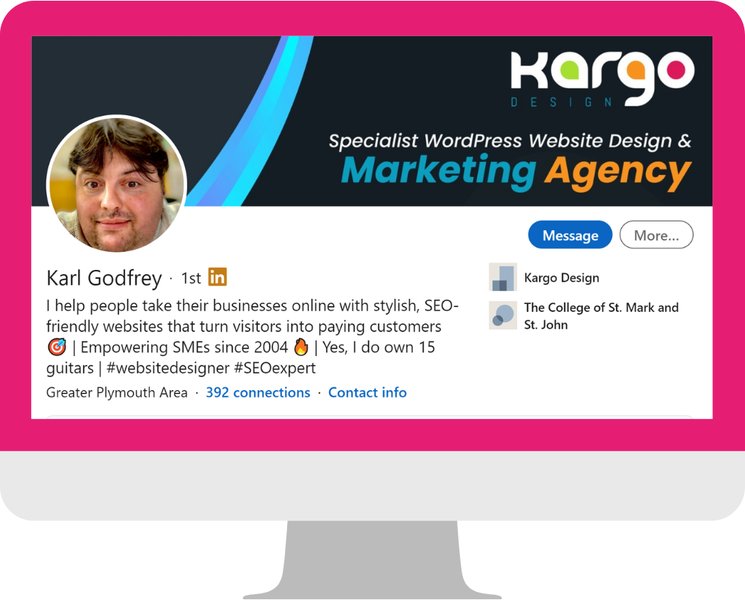
Visual elements like the profile picture and cover banner are crucial for branding.
5. Completing Page Information
- Description ('About' Section): Write a detailed overview of your company (up to 2,000 characters). Explain your mission, values, products/services, and what makes you unique. Use relevant keywords.
- Locations: Add your physical office addresses if applicable.
- Custom Button: Configure a call-to-action button (e.g., "Visit website", "Contact us", "Learn more", "Sign up") directing visitors to a specific destination.
- Hashtags: Associate up to three relevant hashtags with your page to increase discoverability.
6. Publishing and Inviting Followers
Once you've filled in the details, publish the page. You can then start inviting your personal connections to follow the page (LinkedIn often provides credits, e.g., 250 invites per month, to help you grow your audience initially).
Customizing Your Personal LinkedIn Profile
Crafting Your Professional Identity
Your personal profile is your digital professional footprint. Customizing it effectively can significantly impact your networking and career opportunities.
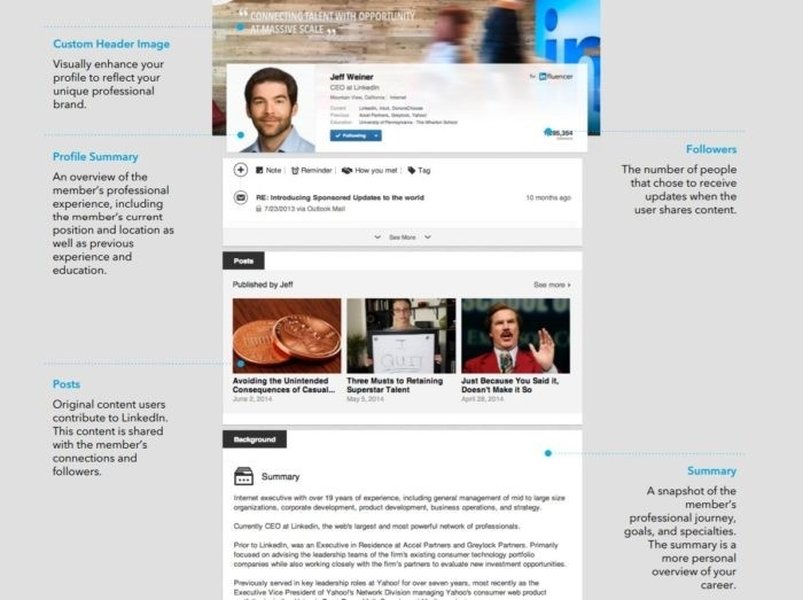
Key structural elements of a well-optimized LinkedIn profile.
1. Visual Elements
- Profile Photo: Use a professional-looking headshot (clear background, smiling, face takes up ~60% of the frame). Recommended size: 400x400 pixels.
- Background Banner: Customize this space (1584x396 pixels) with an image reflecting your industry, interests, personal brand, or company.
2. Headline and Summary ('About' Section)
- Headline: This appears under your name. Go beyond just your job title. Use keywords to describe your expertise, value proposition, or career aspirations (e.g., "Software Engineer specializing in AI | Building Scalable Solutions | Python & Java"). You have up to 220 characters.
- Summary (About): This is your elevator pitch (up to 2,600 characters). Tell your professional story, highlight key achievements, skills, and career goals. Write in the first person and make it engaging. Include keywords naturally.
3. Detailing Experience and Education
- Experience: List your current and past roles. For each, include the company name, title, dates, and 2-5 bullet points describing your responsibilities and quantifiable achievements.
- Education: Add schools attended, degrees, and fields of study.
4. Showcasing Skills and Accomplishments
- Skills: Add at least 5 relevant skills. Ask connections for endorsements. Consider taking LinkedIn Skill Assessments for verification badges.
- Recommendations: Request and give recommendations. These act as testimonials.
- Accomplishments: Add sections for Projects, Publications, Courses, Certifications, Honors & Awards, Patents, Languages, etc., to provide a comprehensive view of your capabilities.
5. Strategic Keyword Use
Incorporate relevant industry keywords throughout your profile (headline, summary, experience, skills) to improve your visibility in LinkedIn search results and to recruiters.
The Power of a Custom Public URL
Making Your Profile Easy to Find and Share
One of the simplest yet most effective customizations for both personal profiles and company pages is setting a custom public URL. Instead of a default URL with random numbers, you can create a clean, branded link.
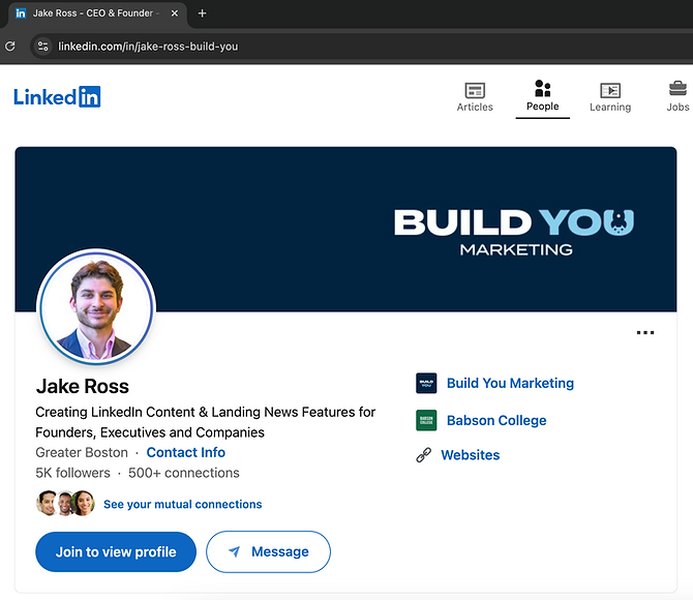
Editing your public profile URL setting on LinkedIn.
How to Customize Your URL:
- Go to your LinkedIn profile page.
- Click on "Edit public profile & URL" on the top right sidebar.
- Under "Edit your custom URL" on the right side of the new page, click the pencil icon.
- Enter your desired custom URL ending. It must be 5-30 letters or numbers long (no spaces, symbols, or special characters).
- Click "Save".
Tips for Choosing a Custom URL:
- For personal profiles: Use your name (e.g., `linkedin.com/in/firstname-lastname` or `linkedin.com/in/yourname`).
- For company pages: Use your company name (e.g., `linkedin.com/company/yourcompanyname`).
- Keep it professional and easy to remember.
A custom URL enhances your professional image, makes your profile more shareable (on resumes, business cards, email signatures), and can improve search engine visibility.
This video provides a visual guide on how to create a custom LinkedIn profile URL.
Visualizing Your Custom LinkedIn Strategy
Mindmap of Key Customization Areas
This mindmap outlines the core components involved in creating and customizing your LinkedIn presence, whether it's a personal profile or a company page.
Relative Importance of Customization Elements
While all aspects of customization are valuable, some have a greater impact on initial impressions and discoverability. This chart provides a comparative view of the perceived importance of key elements for both Personal Profiles and Company Pages. Scores range from 3 (Important) to 10 (Crucial).
As the chart suggests, elements like the Custom URL, Profile/Logo Image, Headline/Tagline, and About Section are generally considered crucial for both types of presences. Regular activity becomes particularly important for Company Pages aiming to engage an audience.
Quick Reference: Customization Best Practices
Key Elements and Recommendations
This table summarizes best practices for the essential customizable components of your LinkedIn presence.
| Element | Recommendation | Best Practice / Tip |
|---|---|---|
| Custom Public URL | 5-30 letters/numbers | Use your name or company name; keep it professional and permanent. |
| Profile Photo (Personal) | 400x400 pixels (min) | Professional headshot, clear background, face prominent. |
| Logo (Company) | 400x400 pixels (min) | High-resolution company logo, clearly recognizable. |
| Cover/Banner Photo | 1584x396 pixels | Visually appealing image relevant to your brand, industry, or personality. Avoid text clutter. |
| Headline (Personal) | Up to 220 characters | Keyword-rich, value-driven description beyond just job title. |
| Tagline (Company) | Up to 120 characters | Concise and clear statement of what your company does. |
| About/Summary Section | Up to 2,600 characters (Personal), 2,000 (Company) | Engaging narrative, keyword-optimized, highlight key value/mission. Use paragraphs and bullet points for readability. |
| Skills (Personal) | Add 5+ relevant skills | Prioritize top skills, seek endorsements, take assessments for validation. |
| Content Posts | Regularly (e.g., 2-5 times/week) | Share valuable insights, industry news, company updates, use relevant hashtags (#). Engage with comments. |
Advanced Customization & Promotion
Embedding LinkedIn on Your Website
While you build and manage your profile/page *on* LinkedIn, you can display parts of it on your personal or company website using LinkedIn's official plugins. This requires adding small snippets of code (JavaScript) provided by LinkedIn to your website's HTML.
For example, to embed a member profile:
<!-- Load the LinkedIn API -->
<script src="https://platform.linkedin.com/in.js" type="text/javascript"> lang: en_US</script>

<!-- Embed a Member Profile -->
<script type="IN/MemberProfile" data-id="https://www.linkedin.com/in/your-custom-url" data-format="inline" data-related="false"></script>
Similarly, code exists for embedding company profiles or follow buttons. You can find generators and documentation on LinkedIn's developer resources or reputable web development forums. This allows you to integrate your LinkedIn presence visually into your other online properties.
Using LinkedIn QR Codes
LinkedIn provides a built-in QR code feature within its mobile app, making it easy to share your profile during in-person networking:
- Open the LinkedIn mobile app.
- Tap the search bar at the top.
- Tap the QR code icon located within or next to the search bar.
- Navigate to the "My code" tab to view and share your personal LinkedIn QR code.
You can download this code or allow others to scan it directly from your phone. This is a quick way to connect without manually searching for names.
Frequently Asked Questions (FAQ)
Can I literally code my own LinkedIn page design using HTML/CSS?
No, you cannot build a LinkedIn page from scratch using your own external code hosted independently. LinkedIn operates as a platform where you create and customize your profile or page using the tools and templates they provide within their website or app. The "customization" comes from how you utilize these tools: choosing images, writing compelling text, setting a custom URL, adding specific sections, and strategically using keywords.
What's the main difference between a Personal Profile and a Company Page?
A Personal Profile represents an individual professional. It focuses on personal branding, skills, experience, networking, and job seeking. A Company Page represents an organization. It focuses on corporate branding, sharing company news, posting jobs, marketing products/services, and engaging with a broader audience (customers, partners, potential employees).
How important is getting a custom LinkedIn URL?
It's highly recommended. A custom URL (e.g., `linkedin.com/in/yourname`) looks much more professional and is easier to remember and share than the default URL containing random characters. It enhances your personal brand, improves shareability on resumes and business cards, and can slightly aid in search engine optimization (SEO).
What are the ideal image sizes for profile pictures and cover photos?
LinkedIn recommends the following sizes for optimal display:
- Profile Photo / Logo: 400 x 400 pixels (minimum). Square format.
- Cover Photo / Banner: 1584 x 396 pixels. Rectangular format (landscape).
Using these dimensions helps ensure your images appear clear and uncropped across different devices.
How do I invite connections to follow my Company Page?
As an admin of your Company Page, you typically receive monthly credits (e.g., 100 or 250) to invite your personal 1st-degree connections to follow the page. Go to your Company Page, look for an option like "Grow your followers" or "Invite connections" (often in the Admin Tools menu), select connections from the list, and send the invitations. Each accepted invitation uses one credit.
Recommended Next Steps
- Explore best practices for writing compelling LinkedIn headlines and summaries.
- Discover strategies for using LinkedIn effectively for professional networking.
- Learn how to optimize a LinkedIn Company Page specifically for business growth and lead generation.
- Find examples of outstanding LinkedIn personal profiles for inspiration.
References
Last updated May 5, 2025