
Unraveling the .deb Package: Your Comprehensive Guide to Debian Packaging
Understanding, Managing, and Leveraging .deb Files in Debian-Based Systems
The .deb package format is the cornerstone of software distribution and installation for Debian and its vast array of derivatives, including popular distributions like Ubuntu and Linux Mint. These self-contained bundles encapsulate all the necessary files, metadata, and scripts required to install, update, and remove software on a Debian-based system. Delving into the world of .deb packages provides a deeper understanding of how software is managed within these robust Linux environments.
Key Insights into .deb Packages
- Foundation of Debian Ecosystem:
.debpackages are the native and preferred method for software distribution on Debian-based Linux distributions, forming the backbone of their robust package management systems. - Automated Dependency Resolution: Tools like APT (Advanced Packaging Tool) and
apt-getexcel at automatically resolving and installing dependencies for.debpackages, greatly simplifying the installation process. - Versatile Installation Methods:
.debfiles can be installed via graphical software centers, command-line utilities likeaptanddpkg, or even through specialized tools like GDebi for local installations.
The Essence of .deb Packages
A .deb file is essentially an archive containing all the necessary components for a software application. This includes the executable binaries, libraries, configuration files, documentation, and crucial metadata. The metadata within a .deb package specifies important information such as the package name, version, architecture, a description of the software, and most importantly, its dependencies. This dependency information is critical for ensuring that all required libraries and other software components are present on the system before the package is installed, preventing "dependency hell" often encountered in manual software installations.
Anatomy of a .deb File
Conceptually, a .deb package is an ar (archive) file that typically contains three main components:
debian-binary: A simple file indicating the version of the Debian binary package format.control.tar.gz: This archive contains control information about the package, such as dependencies, maintainer scripts (preinst,postinst,prerm,postrm), and package metadata. These scripts are executed at various stages of the package lifecycle (e.g., before installation, after installation, before removal, after removal).data.tar.gz: This archive holds the actual application files that will be extracted and placed into the file system during installation.
This structured format allows package managers to efficiently extract, verify, and integrate software into the operating system.
Downloading .deb Packages
While installing software directly from official repositories using package managers like APT is the most common and recommended approach, there are scenarios where downloading individual .deb files is necessary. This could be for offline installations, installing software not available in standard repositories, or for specific testing purposes.
Official Debian Repositories
The primary source for .deb packages is the official Debian Packages website (packages.debian.org). This site allows users to browse and search for packages, view their details, and find direct download links for specific .deb files. It's crucial to select the correct architecture (e.g., amd64 for 64-bit systems) and distribution version when downloading manually.
Utilizing apt for Download-Only Operations
The apt and apt-get utilities, while primarily used for installation, also offer commands to download .deb packages without installing them. This is particularly useful for building an offline repository or for inspection.
sudo apt-get download <package_name>
This command downloads the specified package to the current directory. For example, to download the ppp package, you would use sudo apt-get download pppoe. The downloaded files are often placed in /var/cache/apt/archives if the --download-only switch is used, which might require root permissions to access.
Downloading Packages and Dependencies
For more complex scenarios where you need to download a package along with all its dependencies for offline installation, tools and commands can be combined. One approach involves using apt-cache depends to list dependencies and then piping that output to apt-get download:
apt-cache depends -i PACKAGE | awk '/Depends:/ {print $2}' | xargs apt-get download && apt-get download PACKAGE
This method ensures that all necessary dependencies are also downloaded, allowing for a complete offline installation later. Specialized tools like debget (from the debian-goodies package) or deb-downloader can also streamline the process of downloading packages and their dependencies.
Third-Party Sources and Repositories
Beyond the official Debian repositories, many software developers and communities provide their applications as .deb packages through various channels, including their official websites or Personal Package Archives (PPAs) on platforms like Launchpad. When downloading from third-party sources, it's essential to exercise caution and only download from trusted providers to avoid security risks, as .deb packages can contain scripts that run with root privileges during installation.
Popular sites for finding .deb packages include:
- Launchpad: A well-known platform for Ubuntu and Debian-based PPAs, offering a vast array of packages.
- Direct Developer Websites: Many software developers provide direct
.debdownloads for their applications, especially for proprietary software or newer versions not yet in official repositories (e.g., TeamViewer, Chrome, Skype). - PKGS.ORG: A comprehensive package search engine that provides download links for various Linux distributions, including Debian
.debpackages.
Installing .deb Packages
Installing a .deb package can be done through graphical interfaces or the command line. While graphical methods are user-friendly, command-line tools offer more control and diagnostic information.
Graphical Installation
On most Debian-based distributions (like Ubuntu, Linux Mint), you can typically install a .deb file by simply double-clicking it. This action usually opens the package with a graphical package installer, such as GDebi or the Ubuntu Software Center. These tools often handle dependency resolution automatically, prompting you to install any missing prerequisites before proceeding with the main package installation.
A screenshot showing the graphical installation process for a .deb package in a Debian-based environment.
Command-Line Installation
For users who prefer the terminal, several commands can be used to install .deb files:
Using dpkg
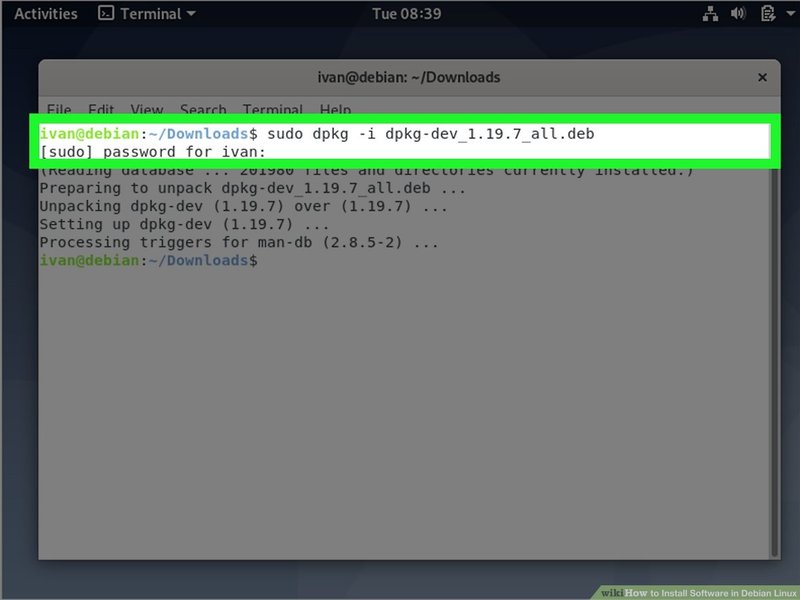
The dpkg command is the low-level tool for managing Debian packages. It can install a .deb file directly:
sudo dpkg -i /path/to/your/package.deb
However, a key limitation of dpkg is its inability to resolve dependencies automatically. If a package has unmet dependencies, dpkg will report an error, and the installation will fail until those dependencies are manually installed. This is where apt comes into play.
Leveraging apt for Dependency Resolution
Modern versions of apt provide a convenient way to install local .deb files while automatically handling dependencies. This is often the recommended command-line method:
sudo apt install ./package_name.deb
The ./ prefix is crucial as it tells apt that you are referring to a local file, not a package from the repositories. If dpkg previously reported dependency issues, running sudo apt --fix-broken install or sudo apt-get install -f can often resolve them by downloading and installing the missing dependencies.
This video demonstrates various command-line and graphical methods for installing .deb packages on Ubuntu, providing a practical guide for users.
.deb vs. .rpm: A Comparison
The Linux ecosystem features various package formats, with .deb and .rpm being the two most prevalent. While both serve the same fundamental purpose of packaging software, they are designed for different distribution families and utilize distinct underlying tools.
Key Distinctions
.deb packages are native to Debian and its derivatives (Ubuntu, Linux Mint, Kali, etc.), managed primarily by dpkg and higher-level tools like APT. .rpm (Red Hat Package Manager) packages are used by Red Hat-based distributions (Fedora, CentOS, RHEL, openSUSE, Mageia, etc.), managed by the rpm tool and front-ends like yum or dnf.
| Feature | .deb (Debian Package) | .rpm (Red Hat Package Manager) |
|---|---|---|
| Associated Distributions | Debian, Ubuntu, Linux Mint, Kali, Deepin, AntiX | Red Hat Enterprise Linux (RHEL), Fedora, CentOS, openSUSE, Mageia, Rocky, AlmaLinux |
| Primary Package Manager | dpkg (low-level), APT (high-level) |
rpm (low-level), yum/dnf/zypper (high-level) |
| Archive Format | ar archive |
cpio archive |
| Dependency Management | Excellent, highly automated by APT. Relies on package names. | Good, handled by yum/dnf. Can declare dependencies on files, offering finer control. |
| Pre/Post-installation Scripts | Multiple hooks (preinst, postinst, prerm, postrm) allow for detailed scripting during package lifecycle stages. |
Can contain scripts, often a single script for various stages. |
| Ease of Use (User Perspective) | Generally considered user-friendly due to APT's robust dependency resolution and widely available pre-built packages. | Historically, dependency resolution was more challenging, but modern tools like dnf have greatly improved the experience. |
| Community Support & Repositories | Vast ecosystem with many official and third-party repositories (PPAs). | Large ecosystem, with official repositories and community-driven RPM Fusion, COPR. |
From a user's perspective, the practical differences are minimal, as modern package managers abstract much of the complexity. The choice between .deb and .rpm largely depends on the Linux distribution one chooses to use. While it's possible to convert between formats using tools like alien, it's generally not recommended as it can lead to instability due to differing system configurations and dependency structures.
The Debian Packaging Workflow
Creating a .deb package involves a structured process, ensuring that software adheres to Debian's standards and integrates seamlessly into the system. This workflow is essential for developers aiming to distribute their applications to Debian and Ubuntu users.
From Source to Package
The general steps for packaging software into a .deb file involve:
- Source Preparation: Starting with the application's source code.
- Debianization: Creating a
debian/directory within the source tree, which contains all the necessary control files and scripts (e.g.,control,rules,changelog,copyright,compat). - Building the Package: Using tools like
dpkg-buildpackage, which automates the process of compiling the source code, generating the package structure, and creating the final.debfile. - Dependency Declaration: Accurately listing all runtime and build dependencies in the
controlfile to ensure proper installation. - Maintainer Scripts: Writing shell scripts (
preinst,postinst,prerm,postrm) to handle pre-installation checks, post-installation configurations, pre-removal cleanup, and post-removal actions.

A visual representation of the various stages involved in creating a Debian package.
Best Practices for Debian Packaging
- Adherence to Policy: Following the Debian Policy Manual is crucial for creating well-behaved packages that integrate smoothly with the system.
- Clear Dependencies: Accurately declare all dependencies to avoid broken installations and ensure a stable system.
- Thorough Testing: Test packages across different Debian releases and architectures to ensure compatibility and stability.
- Security: Be mindful of privileges required by installation scripts and ensure the source is trustworthy.
Understanding Package Management Nuances
While .deb packages are highly effective, it's important to understand the broader context of package management in Debian-based systems, including potential challenges and alternatives.
Challenges with Manual .deb Installation
Although convenient for standalone installations, manually downloading and installing .deb files can present challenges:
- Dependency Hell: If a package has numerous dependencies not present on the system, manual installation can become cumbersome, requiring users to track down and install each missing dependency individually.
- Version Conflicts: Installing a
.debfile that provides a newer or older version of a library than what's expected by other system packages can lead to conflicts and system instability (often referred to as "FrankenDebian"). - Lack of Updates: Manually installed packages won't receive automatic updates from the system's package manager, requiring users to manually check for and install new versions.
- Security Risks: Installing
.debpackages from untrusted sources can introduce malware or system vulnerabilities, as these packages execute scripts with root privileges.
The Role of Alternative Packaging Formats
In recent years, alternative packaging formats like Snaps and Flatpaks have emerged, aiming to address some of the limitations of traditional .deb packages, particularly concerning application sandboxing, distribution independence, and easy updates for third-party software.
- Snaps: Developed by Canonical (the creators of Ubuntu), Snaps are self-contained applications with their dependencies, running in a sandboxed environment. They offer better security and easier updates for independent software.
- Flatpaks: A universal packaging system that also provides sandboxed applications and aims for cross-distribution compatibility, often favored by desktop environments for distributing user-facing applications.
While these alternatives gain traction, .deb packages remain central to the core operating system and many traditional applications, especially within the Debian philosophy of system-level integration.
The Landscape of Package Management Choices
The decision of which package format or installation method to use often depends on user needs, security considerations, and the nature of the software. To illustrate the perceived strengths of different package types in a Debian context, here's a radar chart based on common user perspectives.
This radar chart illustrates the trade-offs between installing .deb packages from official repositories, installing them manually from third-party sources, and using alternative formats like Snaps or Flatpaks. Official .deb packages offer superior system integration and dependency resolution, while Snaps/Flatpaks excel in isolation and cross-distribution compatibility. Manual .deb installations, while flexible, may present challenges in dependency management and long-term updates.
Frequently Asked Questions
What is a .deb package?
.deb package is the standard software package format for Debian-based Linux distributions like Debian, Ubuntu, and Linux Mint. It's an archive containing all the necessary files and metadata for software installation, updates, and removal.How do I download a .deb package without installing it?
.deb package using the command sudo apt-get download <package_name>. This will place the .deb file in your current directory or in /var/cache/apt/archives if you use the --download-only flag. You can also find direct download links on the official Debian Packages website (packages.debian.org).What's the difference between .deb and .rpm packages?
.deb packages are used by Debian-based systems (Debian, Ubuntu), while .rpm packages are used by Red Hat-based systems (Fedora, CentOS, RHEL). They are different package formats and use different underlying package management tools (dpkg/APT for .deb; rpm/yum/dnf for .rpm).Is it safe to install .deb packages from unofficial sources?
.deb packages from unofficial sources. These packages run with root privileges during installation and can potentially compromise your system's security or lead to dependency conflicts if not properly vetted. Always prioritize official repositories or trusted third-party providers.Conclusion
The .deb package format is a robust and fundamental component of the Debian and Ubuntu ecosystems, providing a reliable and efficient way to distribute and manage software. Its integrated dependency resolution capabilities, especially through tools like APT, greatly simplify the user experience. While alternative formats like Snaps and Flatpaks offer sandboxing and cross-distribution compatibility, .deb packages remain the backbone of the system, offering deep integration and a rich set of features for developers and users alike. Understanding how to effectively download, install, and manage .deb files is essential for anyone navigating Debian-based Linux distributions.
Recommended Further Exploration
- How to manage dependencies in Debian packages?
- Creating custom .deb packages for Debian and Ubuntu.
- Comparison of Linux package managers: APT vs. DNF vs. Pacman.
- Understanding Snap and Flatpak for Linux applications.