

- Centralized Control: systemd is the default system and service manager for modern Linux distributions, offering a unified interface for managing processes and services.
- Powerful
systemctlUtility: Thesystemctlcommand is the primary tool for interacting with systemd, allowing users to start, stop, enable, disable, and check the status of services and other system units. - Declarative Unit Files: Services and other system resources are defined through declarative unit files (e.g.,
.servicefiles) which specify their behavior, dependencies, and startup parameters.
Start with systemctl status SERVICE to see a unit’s state. Use journalctl -u SERVICE to read its logs. Starting a service affects the current session, while enabling it configures how it starts on later boots.
Related reading: boot Ubuntu without a graphical desktop or read Ubuntu boot logs.
systemd has fundamentally transformed service management in Linux, replacing older init systems like SysVinit and Upstart. Its design emphasizes parallelization, dependency resolution, and comprehensive system control, leading to faster boot times and more efficient resource utilization. At its core, systemd manages various system resources through "units," with service units being the most common. This deep dive will explore the architecture, essential commands, and advanced features of systemd for effective service management.
The Foundation of Modern Linux: Understanding systemd's Role
The Evolution from Traditional Init Systems to systemd
Before systemd, Linux distributions primarily relied on SysVinit, a sequential boot process where services started one after another. While functional, this approach often led to slow boot times and complex dependency management. systemd, starting as PID 1, revolutionized this by introducing parallel service startup, robust dependency tracking, and a unified control mechanism. It acts as the first process launched by the kernel, responsible for initializing the entire system and managing its lifecycle.
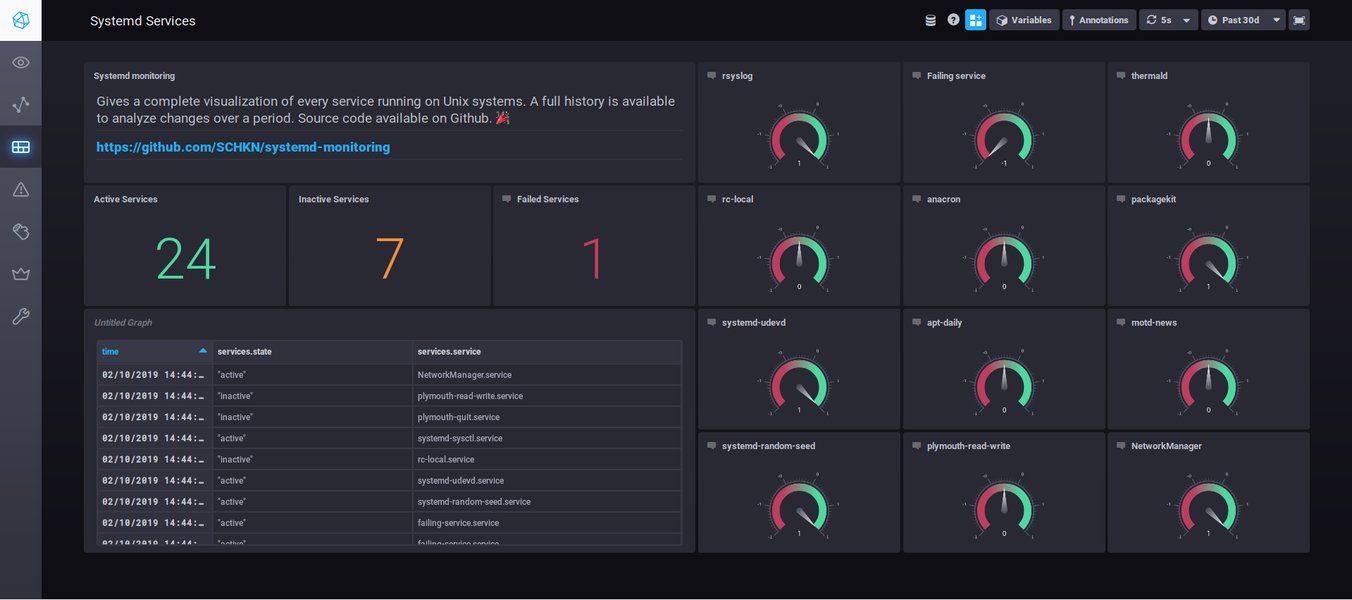
A visual representation of systemd service monitoring.
Key Architectural Components and Principles
Units: The Building Blocks of systemd
At the heart of systemd's architecture are "units." These are configuration files that describe various system resources and how systemd should manage them. While service units (.service files) are the most frequently encountered, systemd also handles other types, including:
- Socket Units (
.socket): Listen on network or IPC sockets, activating services on demand when a connection is received. This improves boot speed and reduces resource consumption for infrequently used services. - Target Units (
.target): Group other units to bring the system into a specific state, similar to runlevels in older init systems (e.g.,multi-user.targetfor a command-line interface,graphical.targetfor a GUI environment). - Mount Units (
.mount): Define how and where filesystems should be mounted. - Automount Units (
.automount): Configure filesystems to be mounted automatically when accessed. - Timer Units (
.timer): Act as cron-like schedulers, triggering service units at specified times or intervals. - Device Units (
.device): Represent kernel-recognized devices, allowing services to be activated when a specific device becomes available.
Parallelization and Dependency Management
One of systemd's most significant advantages is its ability to start services in parallel, dramatically accelerating the boot process. This is achieved through a sophisticated dependency graph. Unit files explicitly define their dependencies using directives like After=, Before=, Requires=, and Wants=. systemd then analyzes this graph to determine the optimal startup order, ensuring that required services or resources are available before a dependent service attempts to start.
Mastering Service Control with systemctl
The Indispensable Command-Line Utility
systemctl is the central command-line interface for interacting with systemd. It provides a comprehensive set of commands to manage the state of services, inspect their configurations, and troubleshoot issues. Understanding these commands is crucial for any Linux administrator or developer working with modern distributions.
Core systemctl Operations: A Practical Guide
The following table outlines essential systemctl commands, their functions, and typical use cases:
| Command | Description | Example Use Case |
|---|---|---|
systemctl start <service>.service |
Starts a service immediately. | systemctl start apache2.service |
systemctl stop <service>.service |
Stops a running service. | systemctl stop sshd.service |
systemctl restart <service>.service |
Stops and then starts a service, applying configuration changes. | systemctl restart nginx.service |
systemctl reload <service>.service |
Reloads a service's configuration without fully stopping and restarting it (if supported by the service). | systemctl reload httpd.service |
systemctl enable <service>.service |
Configures a service to start automatically at boot time. | systemctl enable docker.service |
systemctl disable <service>.service |
Prevents a service from starting automatically at boot time. | systemctl disable cups.service |
systemctl status <service>.service |
Displays the current status of a service, including its active state, PID, and recent log entries. | systemctl status systemd-journald.service |
systemctl is-active <service>.service |
Checks if a service is currently active. | systemctl is-active mariadb.service |
systemctl is-enabled <service>.service |
Checks if a service is enabled to start at boot. | systemctl is-enabled ufw.service |
systemctl list-units --type=service |
Lists all loaded service units and their states. | systemctl list-units --type=service --all |
systemctl list-unit-files --type=service |
Displays all available service unit files and their enablement status. | systemctl list-unit-files | grep enabled |
systemctl daemon-reload |
Reloads the systemd manager configuration. Necessary after editing unit files. | After modifying /etc/systemd/system/myservice.service |
systemctl mask <service>.service |
Strongly prevents a service from starting by symlinking its unit file to /dev/null. |
To prevent a problematic service from ever running. |
systemctl unmask <service>.service |
Reverses the mask operation, allowing a service to start again. | To re-enable a previously masked service. |
systemctl show <service>.service |
Displays detailed properties of a service unit. | To view all configured parameters for a service. |
journalctl -u <service>.service |
Views logs specifically for a given service. | journalctl -u cron.service -f (for live tailing) |
systemd-analyze blame |
Shows which units are slowing down the boot process, sorted by time. | To diagnose slow boot times. |
systemd-analyze verify <path-to-unit> |
Checks the syntax and validity of a unit file. | To validate a custom service unit file before deployment. |
systemctl reboot |
Reboots the system. | Standard system reboot command. |
systemctl poweroff |
Shuts down the system. | Standard system shutdown command. |
Crafting and Customizing systemd Services
Anatomy of a Service Unit File
Service unit files, typically ending in .service, are plain text files that define how systemd should manage a particular service. They are organized into sections, each containing specific directives:
[Unit]Section: Contains generic information about the unit, including aDescription=of the service andDocumentation=links. Crucially, it defines dependencies usingAfter=,Before=,Requires=, andWants=, which dictate the order of startup relative to other units.[Service]Section: Specifies the execution details of the service. Key directives include:Type=: Defines how systemd determines if the service has started successfully (e.g.,simple,forking,oneshot,notify).ExecStart=: The command to execute to start the service.ExecStop=: The command to execute to stop the service.ExecReload=: The command to execute to reload the service's configuration.User=andGroup=: Specify the user and group under which the service should run for security.Restart=: Defines when and if systemd should automatically restart the service (e.g.,always,on-failure,no).RestartSec=: The delay before attempting a restart.WorkingDirectory=: Sets the working directory for the executed program.Environment=: Sets environment variables for the service.
[Install]Section: Contains directives that define how the service is installed and enabled for automatic startup. TheWantedBy=orRequiredBy=directives link the service to a target unit (e.g.,multi-user.target), ensuring it starts when that target is reached.
Example: A Simple Custom Service
To illustrate, consider creating a simple service for a custom application:
[Unit]
Description=My Custom Application Service
After=network.target

[Service]
Type=simple
User=myuser
Group=myuser
ExecStart=/usr/local/bin/my_app --config /etc/my_app/config.ini
Restart=on-failure
RestartSec=10s

[Install]
WantedBy=multi-user.target
This unit file defines a service named "My Custom Application Service" that starts after the network is up. It runs /usr/local/bin/my_app as myuser, and if it fails, systemd will attempt to restart it after a 10-second delay. It is enabled to start with the multi-user.target.
Managing and Overriding Unit Files
Unit files are typically located in /lib/systemd/system/ for system-provided services and /etc/systemd/system/ for custom or overridden services. When customizing an existing service, it's best practice to use an override file or directory rather than modifying the original unit file directly. This prevents your changes from being overwritten by system updates.
- Override Files: Create a directory named
/etc/systemd/system/<service_name>.d/and place.conffiles within it. These files can override or extend specific directives from the original unit file. For instance, to changeExecStartforapache2.service:# /etc/systemd/system/apache2.service.d/custom_exec.conf [Service] ExecStart= ExecStart=/usr/local/apache2/bin/httpd -DFOREGROUNDNote the
ExecStart=to clear previous directives before setting a new one. systemctl edit: Thesystemctl edit <service_name>command provides a safe way to create and edit override files. It opens an editor, and changes are saved to/etc/systemd/system/<service_name>.d/override.conf.
After any modification to a unit file or override, you must run sudo systemctl daemon-reload to inform systemd of the changes, followed by sudo systemctl restart <service_name> to apply them.
Advanced systemd Features and Best Practices
Beyond Basic Service Management
Socket and Path Activation
systemd's socket and path activation capabilities allow services to be started on demand, reducing system resource consumption. With socket activation, systemd listens on a network socket and only starts the associated service when a connection attempts to use that socket. Similarly, path activation can start a service when a specific file path is accessed. This "lazy startup" improves efficiency, especially for services that are not continuously active.
Resource Control with cgroups
systemd leverages Linux control groups (cgroups) to provide fine-grained resource management for services. Within unit files, you can specify limits for CPU usage, memory consumption, I/O bandwidth, and more, ensuring that no single service monopolizes system resources. This is particularly useful in multi-tenant environments or for critical applications requiring guaranteed resources.
Unified Logging with journald
systemd integrates tightly with journald, its centralized logging system. All logs from services, the kernel, and other system components are collected and managed by journald, providing a unified interface for log retrieval and analysis via the journalctl command. This simplifies troubleshooting significantly, as all relevant log data is available from a single source.
Troubleshooting and Diagnostics
When a service misbehaves, systemd provides powerful tools for diagnosis:
systemctl status <service>: The first stop for a quick overview. It shows if the service is active, failed, its main process ID (PID), and the last few log lines.journalctl -u <service> -xe: Provides detailed logs for a specific service, including error messages (-e) and explanations (-x). The-foption can be used to follow logs in real-time.systemd-analyze: A suite of tools for analyzing boot performance.systemd-analyze time: Displays the total boot time.systemd-analyze blame: Lists units by the time they took to start, helping identify bottlenecks.systemd-analyze critical-chain: Shows the critical path of dependencies that most delay boot.systemd-analyze plot > boot.svg: Generates an SVG image of the boot process timeline for visual analysis.
systemd-analyze verify <unit_file_path>: Checks the syntax and validity of a unit file, catching errors before deployment.
Common troubleshooting steps include checking unit file syntax, verifying absolute paths for ExecStart, ensuring correct user/group permissions, and confirming that all specified dependencies are met.
This video provides an excellent walkthrough on mastering systemd in Linux, covering creation, management, and troubleshooting of custom services. It's highly relevant for gaining practical skills beyond theoretical understanding.
Navigating the systemd Ecosystem: A Mindmap Overview
Visualizing systemd's Interconnected Components
To provide a holistic view of systemd's various components and their interrelationships, the following mindmap outlines the core aspects of systemd service management. This visualization helps in understanding how different elements, from unit files to diagnostic tools, contribute to the overall systemd ecosystem.
This mindmap offers a structured overview, from the foundational concepts of systemd and its unit types to the practical systemctl commands used for daily management. It also highlights the detailed anatomy of unit files, advanced features like socket activation and resource control, and the indispensable tools available for troubleshooting and diagnostics. Each branch leads to a deeper understanding of systemd's comprehensive approach to Linux service management.
Frequently Asked Questions about systemd Service Management
What is systemd and why is it used in Linux?
What is the primary command to interact with systemd services?
systemctl. This command allows users to start, stop, restart, enable, disable, check the status of, and perform many other management tasks on services and other systemd units.Where are systemd unit files located?
/lib/systemd/system/ for system-provided services and /etc/systemd/system/ for custom services or local overrides. Customizations for existing services are often placed in drop-in directories like /etc/systemd/system/<service_name>.d/.How do I make a service start automatically at boot?
systemctl enable <service_name>.service command. This creates symbolic links that instruct systemd to activate the service when the system reaches its target state during startup.How can I view logs for a specific systemd service?
journalctl -u <service_name>.service command. To see the most recent errors and detailed explanations, you can add the -xe options (e.g., journalctl -u <service_name>.service -xe). For real-time log following, use the -f option.What is the difference between systemctl disable and systemctl mask?
systemctl disable prevents a service from starting automatically at boot by removing its symlinks from the target directories. However, the service can still be started manually. systemctl mask provides a stronger prevention by symlinking the service's unit file to /dev/null, effectively making it impossible to start, whether manually or automatically, until it is unmasked.What is socket activation in systemd?
How do I apply changes after editing a unit file?
sudo systemctl daemon-reload to inform systemd of the configuration changes. Then, to apply these changes to a running service, you typically need to restart it using sudo systemctl restart <service_name>.service. If the service supports it, you might be able to use sudo systemctl reload <service_name>.service to apply changes without full interruption.Conclusion
systemd has firmly established itself as the cornerstone of service management in modern Linux distributions, offering a robust, flexible, and powerful framework that significantly improves upon its predecessors. By centralizing control, optimizing startup processes through parallelization and dependency management, and providing a comprehensive set of tools via systemctl and journalctl, systemd empowers administrators to manage complex systems with greater efficiency and insight. Its declarative unit files simplify service definition and customization, while advanced features like socket activation and cgroup-based resource control enable highly optimized and secure environments. Mastering systemd is not just about learning commands; it's about understanding a paradigm shift in Linux system administration that delivers enhanced performance, reliability, and diagnostic capabilities.
Recommended Further Exploration
- Understanding systemd unit file types and their uses
- Advanced systemd-analyze techniques for boot optimization
- Implementing resource control with systemd and cgroups
- Best practices for creating and maintaining custom systemd services