
Mastering iMessage Management: Deleting Messages by Date on Your iMac
A Comprehensive Guide to Automating Message Deletion on macOS
Key Highlights for Managing iMessage Deletion
- Automated Deletion: Configure your Mac to automatically delete messages older than a specified timeframe (30 days or 1 year).
- iCloud Sync Considerations: Understand how deleting messages on your Mac impacts other devices synced via iCloud. Disabling iCloud sync can allow you to manage messages independently on each device.
- Manual Deletion Methods: Learn how to quickly delete individual messages, entire conversations, or attachments to free up space and maintain privacy.
Understanding iMessage Deletion Options on Your iMac
Managing your iMessage history on your iMac involves both manual and automated methods. Whether you aim to clear space, maintain privacy, or simply declutter your Messages app, macOS offers several tools to efficiently delete messages. This guide explores how to delete messages after a certain day, focusing on automated deletion features and manual techniques.
Automating Message Deletion Based on Time
macOS allows you to automatically delete old messages, which can be particularly useful for managing storage and privacy. Here’s how to set it up:
Steps to Enable Automatic Deletion
- Open Messages: Launch the Messages application on your iMac.
- Access Preferences: From the Messages menu, select "Preferences."
- Navigate to General: Click on the "General" tab within the Preferences window.
- Set Deletion Duration: Find the "Keep messages" option. Here, you can choose to keep messages forever, 30 days, or 1 year. Selecting 30 days or 1 year will automatically delete messages older than the specified period.
By configuring this setting, your Mac will automatically remove older messages, helping you keep your message history current and manageable.
Managing iCloud Sync and Its Impact on Message Deletion
When using iCloud to sync messages across devices, deleting a message on one device (like your iMac) will delete it on all other synced devices, including your iPhone and iPad. This behavior is important to understand if you want to manage message histories independently on each device.
How iCloud Affects Message Deletion
If iCloud is enabled for Messages, any deletion action you take on your iMac will be reflected on your iPhone and other devices. To avoid this, you can disable Messages in iCloud settings on specific devices where you want to retain the full message history.
Disabling iCloud Messages on a Device
To disable iCloud Messages on a device, follow these steps:
- Open Settings: On your iPhone or iPad, open the Settings app.
- Go to Messages: Scroll down and tap on "Messages."
- Disable iCloud Messages: Toggle the "iCloud Messages" switch to the off position.
Turning off iCloud Messages will prevent the device from syncing messages with iCloud, allowing you to delete messages on your iMac without affecting the message history on that particular device.
Alternative Methods for Deleting Messages
Besides automated deletion, you can also manually delete messages, conversations, or attachments to manage your iMessage history on your iMac.
Deleting Individual Messages
To delete a single message within a conversation:
- Open the Conversation: In the Messages app, open the conversation containing the message you want to delete.
- Control-Click the Message: Control-click (or right-click) on the specific text bubble you want to remove.
- Choose Delete: Select "Delete" from the context menu.
- Confirm Deletion: Confirm that you want to delete the message.
Deleting Entire Conversations
To delete an entire conversation:
- Select the Conversation: In the Messages app, select the conversation you wish to delete from the list.
- Control-Click or Swipe: Control-click (or right-click) on the conversation in the sidebar, or swipe left on the trackpad/Magic Mouse.
- Choose Delete: Select "Delete" from the context menu.
- Confirm Deletion: Confirm that you want to delete the conversation.
Deleting Attachments to Free Up Space
Messages often contain attachments like photos and videos that consume storage space. You can delete these attachments to free up space on your Mac.
- Navigate to Storage Management: Click the Apple menu, go to "About This Mac," click "Storage," and then "Manage."
- Select Messages: In the sidebar, find and select "Messages."
- Review and Delete Attachments: Review the list of attachments and select the ones you want to delete. Click "Delete" to remove them.
Visual Guide: Deleting Messages on macOS
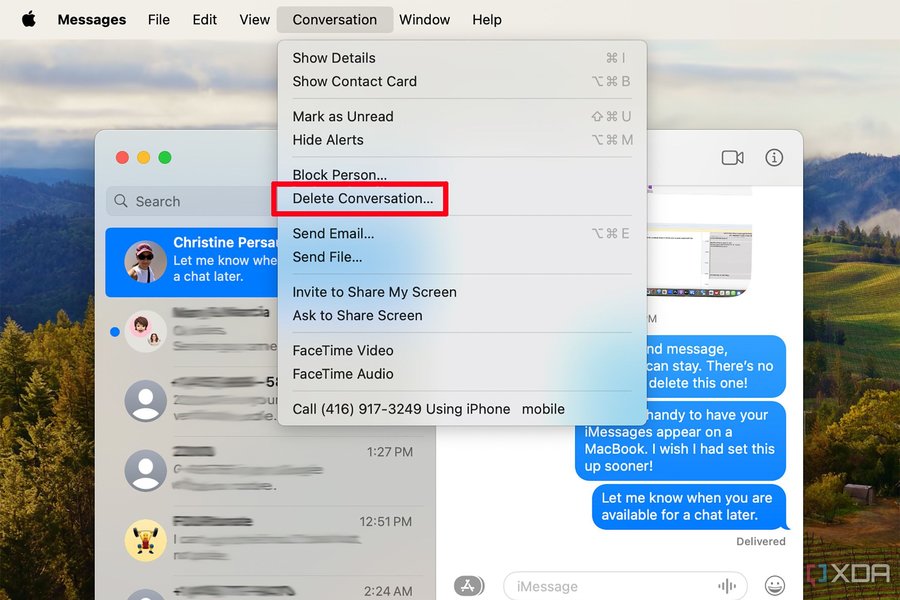
The image visually guides users through the process of deleting messages on a MacBook, illustrating the steps involved in removing unwanted conversations. By following these visual cues, users can efficiently manage their iMessage history, freeing up storage space and maintaining privacy. The image highlights the simplicity and ease of deleting messages, making it accessible for users of all technical levels. It complements the written instructions by providing a clear, step-by-step demonstration of the deletion process, ensuring users can confidently manage their iMessages.
Illustrative Table: Message Deletion Methods on iMac
The following table summarizes the different methods for deleting messages on your iMac, including steps and considerations for each method.
| Method | Steps | Considerations |
|---|---|---|
| Automated Deletion |
|
Affects all devices synced with iCloud. |
| Delete Individual Message |
|
Useful for removing specific content. |
| Delete Entire Conversation |
|
Quickly clears entire conversations. |
| Delete Attachments |
|
Frees up storage space. |
Video Tutorial: Deleting iMessages on Mac
This video tutorial provides a step-by-step guide on how to easily delete iMessages from your Mac. It's relevant because it visually demonstrates the various methods discussed, such as deleting individual messages, entire conversations, and automating the process. The presenter walks you through each step within the macOS Messages application, making it easy to follow along. It's beneficial for users who prefer visual learning and want a clear, concise demonstration of how to manage and delete their iMessage history on their Mac, whether for privacy or to free up storage space.
Frequently Asked Questions (FAQ)
How do I stop my messages from syncing between my iPhone and Mac?
To stop messages from syncing, disable iCloud Messages on either your iPhone or Mac. On your iPhone, go to Settings > Messages and toggle off "iCloud Messages." On your Mac, open Messages, go to Preferences > iMessage, and uncheck "Enable Messages in iCloud."
Will deleting messages on my Mac also delete them on my iPhone?
Yes, if iCloud Messages is enabled, deleting messages on your Mac will also delete them on your iPhone and any other devices using the same iCloud account.
Can I recover deleted messages on my Mac?
Once a message is deleted, it is generally not recoverable through the Messages app itself. However, if you have a Time Machine backup, you might be able to restore older versions of your messages database.
How do I delete multiple messages at once on my Mac?
To delete multiple messages, you can delete entire conversations. Unfortunately, the Messages app doesn't allow selecting multiple individual messages for deletion at once.
Is there a way to archive messages instead of deleting them?
macOS does not have a built-in archiving feature for Messages. However, you can take screenshots of important conversations or copy and paste the text into a separate document for archiving purposes.
References
Last updated April 11, 2025