
Creating a Dynamic Interactive 3D Cube in C++
A Comprehensive Guide to Building an Interactive Textured Cube with Configurable Settings
Key Takeaways
- Configuration Management: Automatically reads and creates a configuration file to manage image directories and cube dimensions.
- Interactive Controls: Enables user interaction through keyboard inputs and mouse dragging to manipulate the cube's rotation.
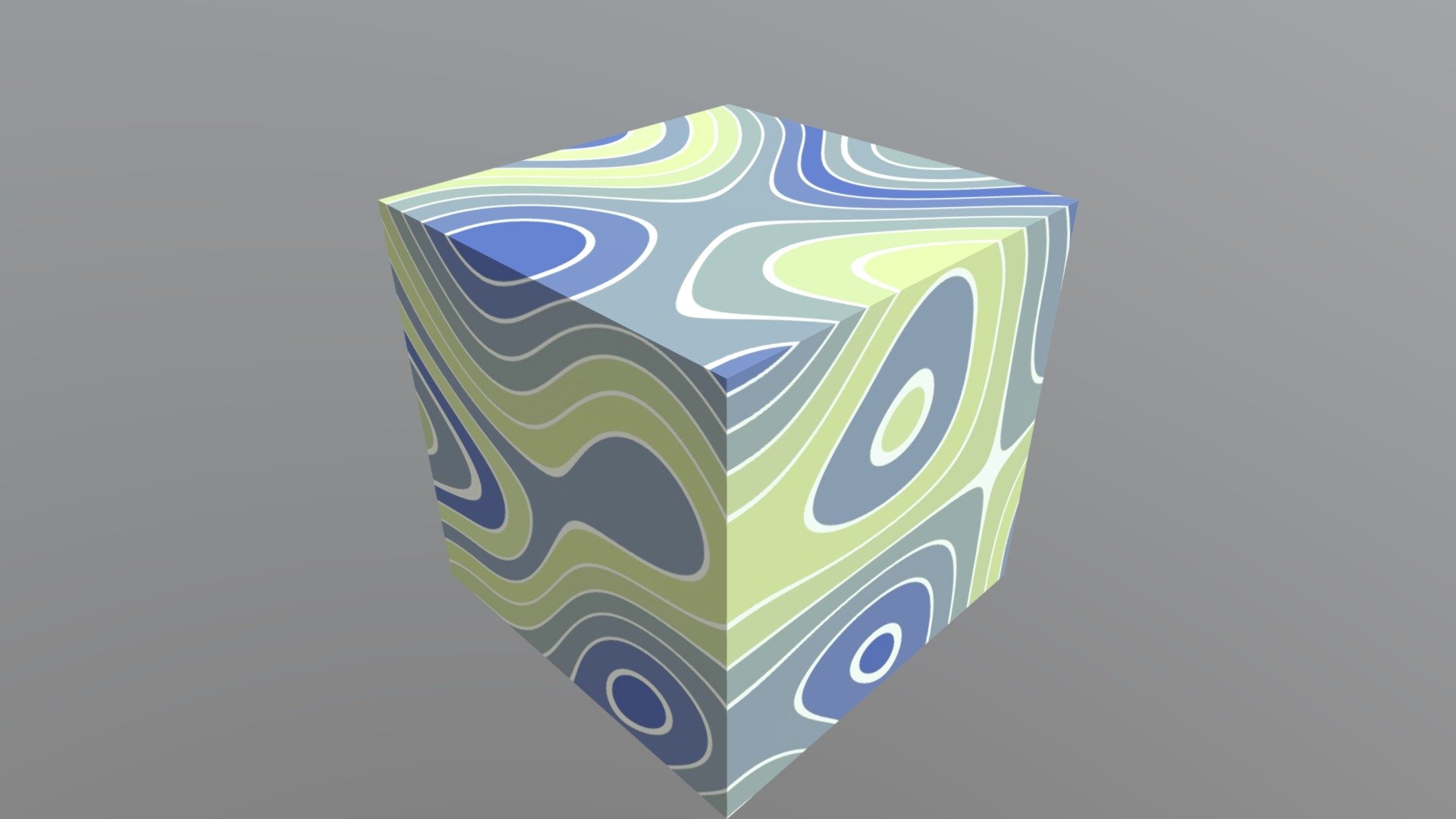
- Texture Mapping: Applies distinct images to each face of the cube, enhancing visual aesthetics and interactivity.
Introduction
Creating an interactive 3D cube in C++ that dynamically displays different images on each face is a captivating project that combines fundamental concepts of computer graphics, user interface design, and file I/O operations. This guide provides a step-by-step approach to developing such an application using OpenGL and GLUT, ensuring that the cube responds seamlessly to user inputs and configurations specified in an external file.
Prerequisites
Development Environment Setup
Before diving into the code, ensure that your development environment is properly set up with the necessary tools and libraries:
- Compiler: A modern C++ compiler like
g++orVisual Studio. - OpenGL: Graphics library for rendering 2D and 3D vector graphics.
- GLUT: OpenGL Utility Toolkit for managing windows and handling user input.
- Image Loading Library: SOIL or stb_image for loading textures.
Installing Required Libraries
Ensure that OpenGL and GLUT are installed on your system. For texture loading, this guide utilizes stb_image, a popular single-header image loading library.
- OpenGL and GLUT:
- Windows: Install through package managers like
vcpkgor download precompiled binaries. - macOS: OpenGL is pre-installed, and GLUT can be installed via Homebrew with
brew install freeglut. - Linux: Install via package managers, e.g.,
sudo apt-get install freeglut3-dev.
- Windows: Install through package managers like
- stb_image:
- Download the
stb_image.hfile from the official repository: stb on GitHub. - Place the
stb_image.hfile in your project's include directory.
- Download the
Configuration File Management
Purpose of cube_conf.txt
The configuration file cube_conf.txt serves as a central point to manage the cube's image sources and initial display size. It contains two key parameters:
- [folder]: Specifies the directory path where the cube's textures (images) are stored.
- [size]: Defines the initial window size in the format
widthxheight, e.g.,640x480.
Reading and Creating the Configuration File
The application checks for the existence of cube_conf.txt in the executable's directory. If absent, it creates the file with default values:
[folder] E:\wallpaper
[size] 640x480
This ensures that the application has the necessary configurations to function correctly.
C++ Implementation
Project Structure
Organize your project directory as follows to maintain clarity and manage dependencies effectively:
DynamicCube/
├── include/
│   └── stb_image.h
├── src/
│   └── main.cpp
├── cube_conf.txt
└── textures/
    ├── front.jpg
    ├── back.jpg
    ├── left.jpg
    ├── right.jpg
    ├── top.jpg
    └── bottom.jpg
Complete C++ Code
The following C++ code leverages OpenGL and GLUT to create a dynamic, interactive 3D cube. Each face of the cube displays a distinct image loaded from the specified folder. The cube responds to keyboard inputs (arrow keys) and mouse dragging for rotation.
<h1>#include <GL/glut.h></h1>
<h1>#include <iostream></h1>
<h1>#include <fstream></h1>
<h1>#include <string></h1>
<h1>#include <vector></h1>
<h1>#include <stb_image.h></h1>

struct Config {
    std::string folder;
    int width;
    int height;
};

struct MouseState {
    bool isDragging = false;
    int lastX = 0;
    int lastY = 0;
};

Config config;
std::vector<GLuint> textureIDs(6);
float rotateX = 0.0f;
float rotateY = 0.0f;
MouseState mouseState;

// Function to load configuration from cube_conf.txt
void loadConfig() {
    std::ifstream configFile("cube_conf.txt");
    if (!configFile.is_open()) {
        // Create default config file
        std::ofstream newConfig("cube_conf.txt");
        newConfig << "[folder] E:\\wallpaper\n";
        newConfig << "[size] 640x480\n";
        newConfig.close();
        // Assign default values
        config.folder = "E:\\wallpaper";
        config.width = 640;
        config.height = 480;
        std::cout << "Configuration file created with default values.\n";
    } else {
        std::string line;
        while (std::getline(configFile, line)) {
            if (line.find("[folder]") != std::string::npos) {
                config.folder = line.substr(line.find("]") + 2);
            } else if (line.find("[size]") != std::string::npos) {
                std::string sizeStr = line.substr(line.find("]") + 2);
                size_t xPos = sizeStr.find('x');
                if (xPos != std::string::npos) {
                    config.width = std::stoi(sizeStr.substr(0, xPos));
                    config.height = std::stoi(sizeStr.substr(xPos + 1));
                }
            }
        }
        configFile.close();
        std::cout << "Configuration loaded successfully.\n";
    }
}

// Function to load a single texture
GLuint loadTexture(const std::string& path) {
    GLuint texture;
    glGenTextures(1, &texture);
    glBindTexture(GL_TEXTURE_2D, texture);

    // Set texture parameters
    glTexParameteri(GL_TEXTURE_2D, GL_TEXTURE_WRAP_S, GL_REPEAT);
    glTexParameteri(GL_TEXTURE_2D, GL_TEXTURE_WRAP_T, GL_REPEAT);
    glTexParameteri(GL_TEXTURE_2D, GL_TEXTURE_MIN_FILTER, GL_LINEAR);
    glTexParameteri(GL_TEXTURE_2D, GL_TEXTURE_MAG_FILTER, GL_LINEAR);

    // Load image using stb_image
    int width, height, nrChannels;
    unsigned char *data = stbi_load(path.c_str(), &width, &height, &nrChannels, 0);
    if (data) {
        GLenum format;
        if (nrChannels == 1)
            format = GL_RED;
        else if (nrChannels == 3)
            format = GL_RGB;
        else if (nrChannels == 4)
            format = GL_RGBA;

        glTexImage2D(GL_TEXTURE_2D, 0, format, width, height, 0, format, GL_UNSIGNED_BYTE, data);
        glGenerateMipmap(GL_TEXTURE_2D);
    } else {
        std::cerr << "Failed to load texture: " << path << std::endl;
    }
    stbi_image_free(data);
    return texture;
}

// Function to load all textures
void loadTextures() {
    std::vector<std::string> faces = {
        "front.jpg",
        "back.jpg",
        "left.jpg",
        "right.jpg",
        "top.jpg",
        "bottom.jpg"
    };
    for (int i = 0; i < 6; ++i) {
        std::string path = config.folder + "\\" + faces[i];
        textureIDs[i] = loadTexture(path);
        if (textureIDs[i] == 0) {
            std::cerr << "Error loading texture for " << faces[i] << std::endl;
        }
    }
}

// Function to initialize OpenGL settings
void initGL() {
    glEnable(GL_DEPTH_TEST);
    glEnable(GL_TEXTURE_2D);
    loadTextures();
}

// Display callback
void display() {
    glClear(GL_COLOR_BUFFER_BIT | GL_DEPTH_BUFFER_BIT);
    glLoadIdentity();

    // Move the cube slightly away from the camera
    glTranslatef(0.0f, 0.0f, -5.0f);

    // Apply rotations
    glRotatef(rotateX, 1.0f, 0.0f, 0.0f);
    glRotatef(rotateY, 0.0f, 1.0f, 0.0f);

    // Draw Cube
    glBegin(GL_QUADS);

    // Front Face
    glBindTexture(GL_TEXTURE_2D, textureIDs[0]);
    glTexCoord2f(0.0f, 0.0f); glVertex3f(-1.0f, -1.0f,  1.0f);
    glTexCoord2f(1.0f, 0.0f); glVertex3f( 1.0f, -1.0f,  1.0f);
    glTexCoord2f(1.0f, 1.0f); glVertex3f( 1.0f,  1.0f,  1.0f);
    glTexCoord2f(0.0f, 1.0f); glVertex3f(-1.0f,  1.0f,  1.0f);

    // Back Face
    glBindTexture(GL_TEXTURE_2D, textureIDs[1]);
    glTexCoord2f(1.0f, 0.0f); glVertex3f(-1.0f, -1.0f, -1.0f);
    glTexCoord2f(1.0f, 1.0f); glVertex3f(-1.0f,  1.0f, -1.0f);
    glTexCoord2f(0.0f, 1.0f); glVertex3f( 1.0f,  1.0f, -1.0f);
    glTexCoord2f(0.0f, 0.0f); glVertex3f( 1.0f, -1.0f, -1.0f);

    // Left Face
    glBindTexture(GL_TEXTURE_2D, textureIDs[2]);
    glTexCoord2f(0.0f, 0.0f); glVertex3f(-1.0f, -1.0f, -1.0f);
    glTexCoord2f(1.0f, 0.0f); glVertex3f(-1.0f, -1.0f,  1.0f);
    glTexCoord2f(1.0f, 1.0f); glVertex3f(-1.0f,  1.0f,  1.0f);
    glTexCoord2f(0.0f, 1.0f); glVertex3f(-1.0f,  1.0f, -1.0f);

    // Right Face
    glBindTexture(GL_TEXTURE_2D, textureIDs[3]);
    glTexCoord2f(1.0f, 0.0f); glVertex3f(1.0f, -1.0f, -1.0f);
    glTexCoord2f(1.0f, 1.0f); glVertex3f(1.0f,  1.0f, -1.0f);
    glTexCoord2f(0.0f, 1.0f); glVertex3f(1.0f,  1.0f,  1.0f);
    glTexCoord2f(0.0f, 0.0f); glVertex3f(1.0f, -1.0f,  1.0f);

    // Top Face
    glBindTexture(GL_TEXTURE_2D, textureIDs[4]);
    glTexCoord2f(0.0f, 1.0f); glVertex3f(-1.0f, 1.0f, -1.0f);
    glTexCoord2f(0.0f, 0.0f); glVertex3f(-1.0f, 1.0f,  1.0f);
    glTexCoord2f(1.0f, 0.0f); glVertex3f( 1.0f, 1.0f,  1.0f);
    glTexCoord2f(1.0f, 1.0f); glVertex3f( 1.0f, 1.0f, -1.0f);

    // Bottom Face
    glBindTexture(GL_TEXTURE_2D, textureIDs[5]);
    glTexCoord2f(1.0f, 1.0f); glVertex3f(-1.0f, -1.0f, -1.0f);
    glTexCoord2f(0.0f, 1.0f); glVertex3f( 1.0f, -1.0f, -1.0f);
    glTexCoord2f(0.0f, 0.0f); glVertex3f( 1.0f, -1.0f,  1.0f);
    glTexCoord2f(1.0f, 0.0f); glVertex3f(-1.0f, -1.0f,  1.0f);

    glEnd();
    glutSwapBuffers();
}

// Reshape callback
void reshape(int w, int h) {
    if (h == 0) h = 1; // Prevent division by zero
    float aspect = (float)w / (float)h;
    glViewport(0, 0, w, h);

    // Set the projection matrix
    glMatrixMode(GL_PROJECTION);
    glLoadIdentity();
    gluPerspective(45.0f, aspect, 1.0f, 100.0f);

    // Return to modelview matrix mode
    glMatrixMode(GL_MODELVIEW);
    glLoadIdentity();
}

// Keyboard callback
void keyboard(int key, int x, int y) {
    switch (key) {
        case GLUT_KEY_UP:
            rotateX -= 5.0f;
            break;
        case GLUT_KEY_DOWN:
            rotateX += 5.0f;
            break;
        case GLUT_KEY_LEFT:
            rotateY -= 5.0f;
            break;
        case GLUT_KEY_RIGHT:
            rotateY += 5.0f;
            break;
    }
    glutPostRedisplay();
}

// Mouse button callback
void mouseButton(int button, int state, int x, int y) {
    if (button == GLUT_LEFT_BUTTON) {
        if (state == GLUT_DOWN) {
            mouseState.isDragging = true;
            mouseState.lastX = x;
            mouseState.lastY = y;
        } else {
            mouseState.isDragging = false;
        }
    }
}

// Mouse motion callback
void mouseMotion(int x, int y) {
    if (mouseState.isDragging) {
        int dx = x - mouseState.lastX;
        int dy = y - mouseState.lastY;
        rotateX += dy * 0.5f;
        rotateY += dx * 0.5f;
        mouseState.lastX = x;
        mouseState.lastY = y;
        glutPostRedisplay();
    }
}

// Initialization function
void initialize() {
    loadConfig();
    glutInitWindowSize(config.width, config.height);
    glutInitWindowPosition(100, 100);
    glutCreateWindow("Dynamic Interactive Cube");
    initGL();

    // Set callback functions
    glutDisplayFunc(display);
    glutReshapeFunc(reshape);
    glutSpecialFunc(keyboard);
    glutMouseFunc(mouseButton);
    glutMotionFunc(mouseMotion);
}

int main(int argc, char** argv) {
    glutInit(&argc, argv);
    initialize();
    glutMainLoop();
    return 0;
}
Code Breakdown
1. Including Necessary Headers
The code begins by including essential headers for OpenGL, GLUT, input/output operations, string manipulation, and image loading:
GL/glut.h: Handles window creation, rendering context, and user input.stb_image.h: Facilitates loading images as textures.
2. Defining Structures for Configuration and Mouse State
Two structures, Config and MouseState, manage the application's configuration settings and mouse interaction state:
struct Config {
    std::string folder;
    int width;
    int height;
};

struct MouseState {
    bool isDragging = false;
    int lastX = 0;
    int lastY = 0;
};
3. Loading and Creating Configuration File
The loadConfig() function handles reading the configuration from cube_conf.txt. If the file doesn't exist, it creates one with default values:
void loadConfig() {
    std::ifstream configFile("cube_conf.txt");
    if (!configFile.is_open()) {
        // Create default config file
        std::ofstream newConfig("cube_conf.txt");
        newConfig << "[folder] E:\\wallpaper\n";
        newConfig << "[size] 640x480\n";
        newConfig.close();
        // Assign default values
        config.folder = "E:\\wallpaper";
        config.width = 640;
        config.height = 480;
        std::cout << "Configuration file created with default values.\n";
    } else {
        std::string line;
        while (std::getline(configFile, line)) {
            if (line.find("[folder]") != std::string::npos) {
                config.folder = line.substr(line.find("]") + 2);
            } else if (line.find("[size]") != std::string::npos) {
                std::string sizeStr = line.substr(line.find("]") + 2);
                size_t xPos = sizeStr.find('x');
                if (xPos != std::string::npos) {
                    config.width = std::stoi(sizeStr.substr(0, xPos));
                    config.height = std::stoi(sizeStr.substr(xPos + 1));
                }
            }
        }
        configFile.close();
        std::cout << "Configuration loaded successfully.\n";
    }
}
4. Texture Loading
The application assigns a unique texture to each face of the cube. The loadTexture() function loads an image from disk, generates an OpenGL texture, and applies necessary parameters:
GLuint loadTexture(const std::string& path) {
    GLuint texture;
    glGenTextures(1, &texture);
    glBindTexture(GL_TEXTURE_2D, texture);

    // Set texture parameters
    glTexParameteri(GL_TEXTURE_2D, GL_TEXTURE_WRAP_S, GL_REPEAT);
    glTexParameteri(GL_TEXTURE_2D, GL_TEXTURE_WRAP_T, GL_REPEAT);
    glTexParameteri(GL_TEXTURE_2D, GL_TEXTURE_MIN_FILTER, GL_LINEAR);
    glTexParameteri(GL_TEXTURE_2D, GL_TEXTURE_MAG_FILTER, GL_LINEAR);

    // Load image using stb_image
    int width, height, nrChannels;
    unsigned char *data = stbi_load(path.c_str(), &width, &height, &nrChannels, 0);
    if (data) {
        GLenum format;
        if (nrChannels == 1)
            format = GL_RED;
        else if (nrChannels == 3)
            format = GL_RGB;
        else if (nrChannels == 4)
            format = GL_RGBA;

        glTexImage2D(GL_TEXTURE_2D, 0, format, width, height, 0, format, GL_UNSIGNED_BYTE, data);
        glGenerateMipmap(GL_TEXTURE_2D);
    } else {
        std::cerr << "Failed to load texture: " << path << std::endl;
    }
    stbi_image_free(data);
    return texture;
}
The loadTextures() function iterates through predefined face names, constructs their full paths, and loads them:
void loadTextures() {
    std::vector<std::string> faces = {
        "front.jpg",
        "back.jpg",
        "left.jpg",
        "right.jpg",
        "top.jpg",
        "bottom.jpg"
    };
    for (int i = 0; i < 6; ++i) {
        std::string path = config.folder + "\\" + faces[i];
        textureIDs[i] = loadTexture(path);
        if (textureIDs[i] == 0) {
            std::cerr << "Error loading texture for " << faces[i] << std::endl;
        }
    }
}
5. OpenGL Initialization
The initGL() function enables depth testing and 2D texturing, ensuring that the cube renders correctly with textures applied:
void initGL() {
    glEnable(GL_DEPTH_TEST);
    glEnable(GL_TEXTURE_2D);
    loadTextures();
}
6. Rendering the Cube
The display() function clears the screen, sets up the viewing transformation, applies rotations based on user input, and renders each face of the cube with its corresponding texture:
void display() {
    glClear(GL_COLOR_BUFFER_BIT | GL_DEPTH_BUFFER_BIT);
    glLoadIdentity();

    // Move the cube slightly away from the camera
    glTranslatef(0.0f, 0.0f, -5.0f);

    // Apply rotations
    glRotatef(rotateX, 1.0f, 0.0f, 0.0f);
    glRotatef(rotateY, 0.0f, 1.0f, 0.0f);

    // Draw Cube
    glBegin(GL_QUADS);

    // Front Face
    glBindTexture(GL_TEXTURE_2D, textureIDs[0]);
    glTexCoord2f(0.0f, 0.0f); glVertex3f(-1.0f, -1.0f,  1.0f);
    glTexCoord2f(1.0f, 0.0f); glVertex3f( 1.0f, -1.0f,  1.0f);
    glTexCoord2f(1.0f, 1.0f); glVertex3f( 1.0f,  1.0f,  1.0f);
    glTexCoord2f(0.0f, 1.0f); glVertex3f(-1.0f,  1.0f,  1.0f);

    // Back Face
    glBindTexture(GL_TEXTURE_2D, textureIDs[1]);
    glTexCoord2f(1.0f, 0.0f); glVertex3f(-1.0f, -1.0f, -1.0f);
    glTexCoord2f(1.0f, 1.0f); glVertex3f(-1.0f,  1.0f, -1.0f);
    glTexCoord2f(0.0f, 1.0f); glVertex3f( 1.0f,  1.0f, -1.0f);
    glTexCoord2f(0.0f, 0.0f); glVertex3f( 1.0f, -1.0f, -1.0f);

    // Left Face
    glBindTexture(GL_TEXTURE_2D, textureIDs[2]);
    glTexCoord2f(0.0f, 0.0f); glVertex3f(-1.0f, -1.0f, -1.0f);
    glTexCoord2f(1.0f, 0.0f); glVertex3f(-1.0f, -1.0f,  1.0f);
    glTexCoord2f(1.0f, 1.0f); glVertex3f(-1.0f,  1.0f,  1.0f);
    glTexCoord2f(0.0f, 1.0f); glVertex3f(-1.0f,  1.0f, -1.0f);

    // Right Face
    glBindTexture(GL_TEXTURE_2D, textureIDs[3]);
    glTexCoord2f(1.0f, 0.0f); glVertex3f(1.0f, -1.0f, -1.0f);
    glTexCoord2f(1.0f, 1.0f); glVertex3f(1.0f,  1.0f, -1.0f);
    glTexCoord2f(0.0f, 1.0f); glVertex3f(1.0f,  1.0f,  1.0f);
    glTexCoord2f(0.0f, 0.0f); glVertex3f(1.0f, -1.0f,  1.0f);

    // Top Face
    glBindTexture(GL_TEXTURE_2D, textureIDs[4]);
    glTexCoord2f(0.0f, 1.0f); glVertex3f(-1.0f, 1.0f, -1.0f);
    glTexCoord2f(0.0f, 0.0f); glVertex3f(-1.0f, 1.0f,  1.0f);
    glTexCoord2f(1.0f, 0.0f); glVertex3f( 1.0f, 1.0f,  1.0f);
    glTexCoord2f(1.0f, 1.0f); glVertex3f( 1.0f, 1.0f, -1.0f);

    // Bottom Face
    glBindTexture(GL_TEXTURE_2D, textureIDs[5]);
    glTexCoord2f(1.0f, 1.0f); glVertex3f(-1.0f, -1.0f, -1.0f);
    glTexCoord2f(0.0f, 1.0f); glVertex3f( 1.0f, -1.0f, -1.0f);
    glTexCoord2f(0.0f, 0.0f); glVertex3f( 1.0f, -1.0f,  1.0f);
    glTexCoord2f(1.0f, 0.0f); glVertex3f(-1.0f, -1.0f,  1.0f);

    glEnd();
    glutSwapBuffers();
}
The function meticulously binds each texture to its corresponding face, ensuring that the cube appears with distinct images on all sides.
7. Handling Window Resizing
The reshape() function ensures that the cube maintains its proportions and perspective when the window size changes:
void reshape(int w, int h) {
    if (h == 0) h = 1; // Prevent division by zero
    float aspect = (float)w / (float)h;
    glViewport(0, 0, w, h);

    // Set the projection matrix
    glMatrixMode(GL_PROJECTION);
    glLoadIdentity();
    gluPerspective(45.0f, aspect, 1.0f, 100.0f);

    // Return to modelview matrix mode
    glMatrixMode(GL_MODELVIEW);
    glLoadIdentity();
}
8. User Interaction Handling
Keyboard Inputs
The keyboard() function captures arrow key presses to rotate the cube accordingly:
void keyboard(int key, int x, int y) {
    switch (key) {
        case GLUT_KEY_UP:
            rotateX -= 5.0f;
            break;
        case GLUT_KEY_DOWN:
            rotateX += 5.0f;
            break;
        case GLUT_KEY_LEFT:
            rotateY -= 5.0f;
            break;
        case GLUT_KEY_RIGHT:
            rotateY += 5.0f;
            break;
    }
    glutPostRedisplay();
}
Mouse Dragging
The application also allows users to click and drag the cube using the left mouse button:
void mouseButton(int button, int state, int x, int y) {
    if (button == GLUT_LEFT_BUTTON) {
        if (state == GLUT_DOWN) {
            mouseState.isDragging = true;
            mouseState.lastX = x;
            mouseState.lastY = y;
        } else {
            mouseState.isDragging = false;
        }
    }
}

void mouseMotion(int x, int y) {
    if (mouseState.isDragging) {
        int dx = x - mouseState.lastX;
        int dy = y - mouseState.lastY;
        rotateX += dy * 0.5f;
        rotateY += dx * 0.5f;
        mouseState.lastX = x;
        mouseState.lastY = y;
        glutPostRedisplay();
    }
}
9. Initialization and Main Loop
The initialize() function sets up the initial configurations, loads textures, and registers callback functions:
void initialize() {
    loadConfig();
    glutInitWindowSize(config.width, config.height);
    glutInitWindowPosition(100, 100);
    glutCreateWindow("Dynamic Interactive Cube");
    initGL();

    // Set callback functions
    glutDisplayFunc(display);
    glutReshapeFunc(reshape);
    glutSpecialFunc(keyboard);
    glutMouseFunc(mouseButton);
    glutMotionFunc(mouseMotion);
}

int main(int argc, char** argv) {
    glutInit(&argc, argv);
    initialize();
    glutMainLoop();
    return 0;
}
Upon execution, the application enters the GLUT main loop, rendering the cube and responding to user interactions in real-time.
Building and Running the Application
Compiling the Code
To compile the application, ensure that all libraries are correctly linked. Below is an example compilation command using g++:
g++ src/main.cpp -o DynamicCube -Iinclude -lglut -lGLU -lGL -lm
Ensure that the stb_image.h file is located within the include directory and that the texture images are placed within the specified textures folder.
Executing the Program
- Ensure that the
cube_conf.txtfile exists in the executable's directory. If not, the program will automatically create it with default values. - Populate the
texturesfolder with six images namedfront.jpg,back.jpg,left.jpg,right.jpg,top.jpg, andbottom.jpg. - Run the executable. A window titled "Dynamic Interactive Cube" will appear, displaying the textured cube.
- Use the arrow keys to rotate the cube along the X and Y axes.
- Click and drag with the left mouse button to rotate the cube interactively.
Enhancements and Best Practices
Error Handling
Implement robust error handling to manage scenarios such as missing texture files or invalid configurations:
- Verify the existence of texture files and alert the user if any are missing.
- Validate the values read from the configuration file to prevent runtime errors.
Performance Optimization
For smoother rendering and interaction:
- Enable V-Sync to synchronize the frame rate with the monitor's refresh rate.
- Optimize texture sizes to balance quality and performance.
- Implement double buffering as done with
GLUT_DOUBLEto prevent flickering.
User Experience Enhancements
-
Add on-screen instructions to guide users on how to interact with the cube.
-
Incorporate animations for smoother transitions between rotations.
-
Allow dynamic loading of textures without restarting the application.
Conclusion
Building a dynamic interactive 3D cube in C++ is an excellent way to delve into computer graphics and user interaction techniques. By following this guide, you can create an application that not only visualizes images on a cube but also responds intuitively to user inputs, enhancing both functionality and user engagement. Further enhancements can lead to more sophisticated graphics applications, paving the way for exploring advanced topics in graphics programming.
References
Last updated January 31, 2025