
Mastering Pivot Tables and Dashboard Design in Excel
Transform Your Data into Strategic Insights with Comprehensive Excel Techniques
Key Takeaways
- Effective Data Preparation: Organizing your data meticulously is the foundation for creating accurate pivot tables and insightful dashboards.
- Interactive Elements Enhance Usability: Incorporating slicers and timelines makes dashboards more dynamic and user-friendly, allowing for real-time data exploration.
- Consistent and Clear Design: A well-formatted dashboard with a uniform color scheme and logical layout significantly improves data readability and interpretation.
Introduction to Pivot Tables and Dashboards
In the realm of data analysis, pivot tables and dashboards in Excel serve as powerful tools that empower users to summarize, analyze, and visualize large datasets effectively. Pivot tables facilitate the manipulation of data to uncover trends and patterns, while dashboards provide a cohesive visual interface to present these insights comprehensively.
Creating an Effective Pivot Table
Step 1: Preparing Your Data
Before diving into pivot table creation, ensuring that your data is clean and well-structured is paramount. Follow these guidelines to prepare your dataset:
- Tabular Format: Organize your data in a table with clear headers. Each column should represent a specific field (e.g., Date, Sales, Region, Product), and each row should represent a unique record.
- Remove Duplicates and Blanks: Eliminate any duplicate entries and ensure there are no blank rows or columns that could disrupt the pivot table functionality.
- Convert to Excel Table: Highlight your data range and convert it into an Excel table by navigating to the Home tab and selecting Format as Table. This aids in managing the data range dynamically as you add or remove data.
Step 2: Inserting a Pivot Table
With your data prepared, follow these steps to insert a pivot table:
- Select any cell within your data range.
- Go to the Insert tab on the Excel ribbon.
- Click on PivotTable. A dialog box will appear prompting you to confirm the data range and choose the placement for the pivot table.
- Choose to place the pivot table in a New Worksheet for better organization and click OK.
Step 3: Configuring the Pivot Table Fields
Once the pivot table framework is established, the PivotTable Fields pane allows you to structure your data effectively:
- Filters: Drag fields here to create overarching filters for your data (e.g., Date, Region).
- Columns: Place fields here to display data horizontally across the pivot table (e.g., Product Categories).
- Rows: Assign fields to this area to display data vertically (e.g., Salespersons, Regions).
- Values: Drag numerical fields here to perform calculations such as Sum, Average, or Count (e.g., Total Sales).
Step 4: Customizing Value Field Settings
Enhance the functionality of your pivot table by customizing how data is summarized:
- Click on the dropdown arrow next to a field in the Values area and select Value Field Settings.
- Choose the appropriate summarization method (e.g., Sum, Count, Average) based on the analysis requirements.
- Apply number formatting to enhance readability, such as currency or percentage formats.
Step 5: Sorting and Filtering Data
Improve data analysis by sorting and filtering pivot table data:
- Sorting: Right-click on a cell within the pivot table, navigate to Sort, and choose options like Sort Largest to Smallest to prioritize key data points.
- Filtering: Utilize the filter dropdowns in column headers or drag specific fields to the Filters area to narrow down the data view.
Step 6: Grouping Data for Enhanced Insights
Grouping allows for more meaningful data analysis, especially with date or numerical fields:
- Right-click on a date or numerical field within the pivot table and select Group.
- Choose the grouping criteria (e.g., Months, Quarters, Years) to aggregate data accordingly.
Designing an Interactive Dashboard
Step 1: Planning Your Dashboard Layout
A well-planned dashboard serves as a strategic tool for data visualization. Begin by:
- Identifying Key Performance Indicators (KPIs): Determine the essential metrics that align with your analysis objectives.
- Understanding the Audience: Tailor the dashboard to meet the informational needs of its intended users.
- Sketching a Layout: Draft a rough layout to organize the placement of pivot tables, charts, and interactive elements logically.
Step 2: Creating the Dashboard Worksheet
Establish a dedicated worksheet for your dashboard to maintain organization:
- Insert a new worksheet and rename it appropriately (e.g., "Dashboard").
- Ensure a clean and professional design by maintaining consistent colors and formatting throughout.
- Use Excel’s drawing tools or shapes to create sections and labels that delineate different components of the dashboard.
Step 3: Adding Visualizations
Visual elements like charts enhance data comprehension. To add visualizations:
- Select the relevant pivot table and navigate to the Insert tab.
- Choose an appropriate chart type (e.g., Bar, Line, Pie) from the Charts group.
- Insert the chart into the dashboard worksheet and adjust its size and position for optimal viewing.
- Repeat the process for additional pivot tables to display various data aspects.
Step 4: Incorporating Interactive Elements
Interactivity enhances user engagement and data exploration capabilities:
- Slicers: Offer a visual way to filter data. To add slicers, select a pivot table, go to the PivotTable Analyze tab, and click Insert Slicer. Choose the fields you want to filter by and place the slicers on the dashboard.
- Timelines: Specifically useful for date-based filtering. Insert timelines by selecting a pivot table, navigating to the PivotTable Analyze tab, and clicking Insert Timeline.
- Arrange slicers and timelines neatly to ensure they are accessible and do not clutter the dashboard layout.
Step 5: Organizing and Formatting the Dashboard
Aesthetics play a crucial role in dashboard effectiveness:
- Consistent Color Scheme: Use a uniform color palette to create a cohesive look across all visual elements.
- Clear Titles and Labels: Ensure that all charts and tables are clearly labeled for easy interpretation.
- Alignment and Spacing: Align charts, tables, and interactive elements properly and utilize white space to prevent clutter.
- Conditional Formatting: Apply conditional formatting to highlight key metrics and trends within pivot tables.
Step 6: Adding Summary Statistics
Summary statistics provide quick insights into key metrics:
- Use Excel formulas to calculate important KPIs such as total sales, average sales, or growth rates.
- Display these metrics prominently on the dashboard to provide at-a-glance information.
- Format summary boxes with distinct colors or borders to distinguish them from other dashboard elements.
Step 7: Finalizing and Testing the Dashboard
Ensure that your dashboard functions seamlessly and presents data accurately:
- Link Verification: Confirm that all charts and pivot tables are correctly linked to the underlying data sources.
- Interactivity Testing: Test slicers and timelines to ensure they filter data as intended.
- Design Review: Assess the overall layout for clarity, ensuring that all elements are easily interpretable and that the dashboard is visually appealing.
- Protection: Optionally, protect certain areas of the dashboard to prevent accidental modifications.
Enhancing Your Dashboard with Advanced Features
Utilizing PivotCharts for Dynamic Visuals
PivotCharts are linked to pivot tables and automatically update as the underlying data changes:
- Select the pivot table and navigate to the Insert tab.
- Choose a PivotChart type that best represents the data (e.g., Clustered Column, Line, Pie).
- Customize the chart’s design and format to align with the dashboard’s aesthetic.
Implementing Advanced Filtering with Multiple Slicers
Enhance data filtering capabilities by adding multiple slicers:
- Insert slicers for different fields (e.g., Region, Product Category) to allow simultaneous filtering.
- Ensure slicers are connected to all relevant pivot tables by using the Report Connections feature.
Integrating Conditional Formatting for Highlighted Insights
Use conditional formatting to emphasize significant data points:
- Select the cells within a pivot table or chart that you wish to format.
- Navigate to the Home tab and choose Conditional Formatting.
- Apply rules such as data bars, color scales, or icon sets to visually distinguish data variations.
Adding Interactive Buttons and Navigation
Enhance user navigation within your dashboard by adding interactive buttons:
- Go to the Insert tab and select Shapes to draw buttons.
- Assign macros or hyperlinks to these buttons to allow users to navigate between different sections or worksheets.
- Ensure buttons are clearly labeled and positioned intuitively within the dashboard layout.
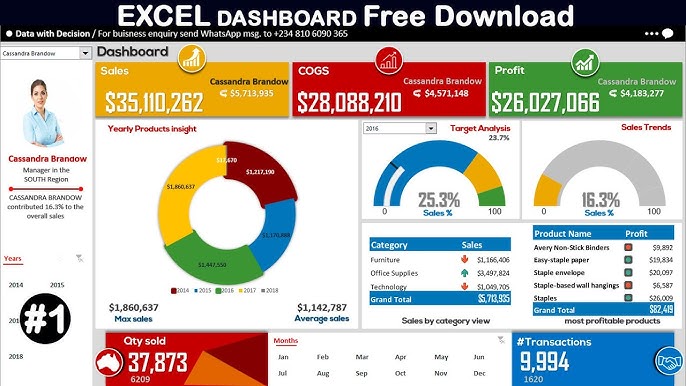
Example Dashboard Layout
| Component | Description |
|---|---|
| Total Sales Chart | A bar chart representing total sales aggregated by region, providing a comparative view of regional performance. |
| Sales Trend Line | A line chart depicting sales trends over time, allowing users to identify growth patterns and seasonal variations. |
| Product Performance Pie Chart | A pie chart showcasing the proportion of sales contributed by different product categories. |
| Region Slicer | An interactive slicer enabling users to filter data based on selected regions, dynamically updating all connected charts and tables. |
| Date Timeline | A timeline control allowing users to filter data by specific date ranges, enhancing temporal data analysis. |
| Summary Statistics Boxes | Key metrics such as Total Sales, Average Sales, and Sales Growth displayed prominently for quick reference. |
Best Practices for Pivot Table and Dashboard Design
Maintain Data Integrity
Ensure that your data sources are reliable and consistently updated to maintain the accuracy of your pivot tables and dashboards.
Optimize for Performance
Large datasets can slow down Excel. Optimize performance by:
- Limiting the use of volatile functions and excessive conditional formatting.
- Avoiding unnecessary pivot tables and charts that consume system resources.
- Using efficient data structures and minimizing the use of merged cells.
Ensure Accessibility and Usability
Your dashboard should be intuitive and easy to navigate:
-
Use clear and descriptive labels for all elements.
-
Ensure that interactive elements like slicers are prominently placed and easily accessible.
-
Provide guidance or legends if necessary to assist users in interpreting data visualizations.
Regularly Update and Maintain
Periodically review and update your dashboards to reflect the latest data and to incorporate user feedback for continuous improvement.
Conclusion
Designing pivot tables and dashboards in Excel is a transformative skill that enables comprehensive data analysis and visualization. By meticulously preparing your data, leveraging Excel’s powerful features, and adhering to best practices in design, you can create interactive and insightful dashboards that drive informed decision-making and strategic planning.
References
Last updated February 13, 2025