
Mastering Fedora 42 Live ISO Customization: Unleashing Full RAM Power
A Comprehensive Guide to Modifying Fedora 42 Live Images for Enhanced Performance and Customization
Highlights of Fedora 42 Live ISO Modification
- Direct Modification Challenges: Fedora Live ISO images are inherently read-only (ISO 9660 filesystem and EROFS in Fedora 42), making direct persistent modifications to the root filesystem challenging.
- Boot Parameter Power: The
rd.live.ram=1kernel parameter is crucial for booting the entire Live environment into RAM, allowing the removal of the USB drive and potentially improving performance, though it demands significant RAM. - Custom ISO Creation: For deeper, persistent modifications like adding software or changing system configurations, creating a custom ISO using tools like Livemedia-creator and Kickstart files is the recommended approach.
Fedora 42 Live ISO images offer a powerful and convenient way to experience Fedora Linux without making permanent changes to your system. These images are designed to be written to a USB stick, providing a portable environment for installation or live testing. However, users often seek to customize these live environments, whether to optimize performance by loading the entire system into RAM or to integrate specific software and configurations. This guide delves into the nuances of modifying Fedora 42 Live ISOs, with a particular focus on enabling the rd.live.ram=1 boot option and exploring broader customization strategies.
Understanding Fedora Live ISOs and Their Read-Only Nature
Fedora Live ISOs are pre-configured bootable images that contain a complete Fedora operating system. When booted from a USB drive, they run in a temporary environment, preserving your system's existing hard disk. Fedora 42, in particular, utilizes the Enhanced Read-Only FileSystem (EROFS) for its live environments, which contributes to their stability and integrity but also makes direct, on-the-fly modifications to the core filesystem non-persistent.
The read-only nature means that any changes you make to the system (e.g., installing new applications, modifying configuration files) while running from the Live ISO will be lost upon reboot, unless specific persistence options are enabled or the system is explicitly installed to a hard drive. This design is beneficial for a safe testing environment but presents a challenge for users who desire a customized, persistent live experience.
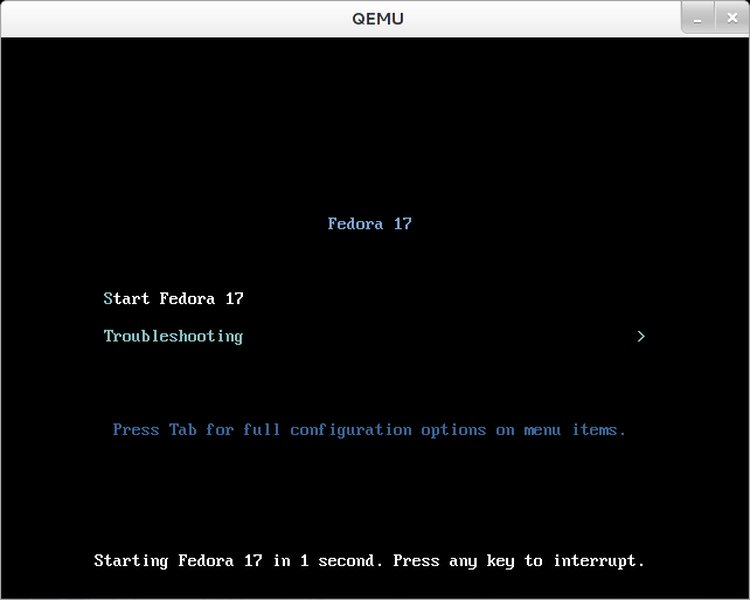
A Fedora Live environment running in QEMU, demonstrating its typical operational state.
Enabling rd.live.ram=1 for In-Memory Booting
The Purpose and Impact of rd.live.ram=1
The rd.live.ram=1 kernel boot parameter instructs the Fedora Live system to copy its entire image into your computer's RAM before booting. This offers several advantages:
- USB Drive Removal: Once the system is fully loaded into RAM, you can safely remove the USB stick, freeing up the port and reducing wear on the drive. This is particularly useful for installations on systems with limited USB ports or for ensuring the integrity of the boot media.
- Performance Boost: Running from RAM is significantly faster than continually reading from a USB drive, leading to a more responsive and fluid user experience.
- Enhanced Security: Since the entire OS is in volatile memory, any traces of your session are wiped clean upon shutdown, making it ideal for sensitive tasks or public computers.
However, it's crucial to acknowledge the memory requirements. While a typical Fedora Live image might be around 4-6 GB, booting it entirely into RAM often requires more than double its size, sometimes up to 20 GB or more, depending on the Fedora version and its components. If insufficient RAM is available, the system may fail to boot or experience severe performance issues.
Steps to Temporarily Set rd.live.ram=1
To temporarily enable rd.live.ram=1 when booting your Fedora 42 Live USB, follow these steps:
- Boot from USB: Start your computer and boot from the Fedora Live USB.
- Access GRUB Menu: When the GRUB boot menu appears (often displaying options like "Start Fedora-Workstation-Live" or "Test media & Start Fedora-Workstation-Live"), highlight the desired boot entry.
- Edit Boot Options: Press
eon UEFI systems orTabon BIOS systems to edit the boot options. This will open a text editor displaying the kernel command line. - Append Parameter: Locate the line that typically begins with
linuxorlinuxefi. At the very end of this line, appendrd.live.ram=1. Ensure there is a space before adding the parameter. - Boot the System: Press
Ctrl+xorF10to boot the system with the modified parameters.

The GRUB boot menu on a BIOS system, where boot options can be edited.
This temporary modification will only apply to the current boot session. For persistent in-memory booting or other permanent boot parameter changes, you would need to create a custom ISO, which is discussed in the next section.
Video Tutorial: Installing Fedora and Related Boot Concepts
While directly demonstrating the rd.live.ram=1 parameter modification through a pre-recorded video might be challenging due to the dynamic nature of GRUB, understanding the general Fedora installation process and interacting with the boot menu is highly relevant. The following video illustrates a full installation of Fedora, which often involves navigating the boot menu where kernel parameters can be adjusted.
"How to Install Fedora Linux Version 42 from Start to Finish + Overview" – A comprehensive guide that includes steps for creating boot media and navigating the installer, where boot options might be accessible.
The video provides a good foundation for understanding how Fedora is installed and how boot media is prepared. The principles of interacting with the boot environment, such as pressing 'e' or 'Tab' to edit boot options, are universal across different Fedora versions and are critical for applying parameters like rd.live.ram=1.
Advanced Customization: Building a Persistent Fedora Live ISO
For more extensive and persistent modifications, such as pre-installing software, customizing desktop environments (e.g., default wallpaper, GNOME extensions), or embedding scripts, you need to create a custom Fedora Live ISO. This involves more advanced techniques than simply adding a boot parameter.

A conceptual diagram illustrating the process of creating a custom Linux image with pre-installed software.
Tools for Custom ISO Creation
Creating a custom Fedora ISO typically involves using tools like:
- Livemedia-creator: This is the official tool recommended by Fedora for building live images. It works in conjunction with Kickstart files.
- Kickstart Files: These are automated installation scripts that define various aspects of the Fedora installation, including package selection, user creation, partitioning, and post-installation scripts. You can specify a Kickstart file to be used by Livemedia-creator to build your custom ISO.
- Squashfs: Live ISOs use Squashfs to create a compressed, read-only filesystem. Modifying an ISO often involves extracting its contents, making changes, and then re-squashing the filesystem.
- Xorriso/Mkisofs: These utilities are used to pack directories back into a bootable ISO image. They require careful handling of numerous options to ensure the resulting ISO is bootable.
Challenges in Custom ISO Generation
Users often encounter difficulties when building custom Fedora Live ISOs:
- Bootability Issues: A common problem is the resulting ISO not being bootable, often due to incorrect configurations with xorriso or mkisofs.
- EFI Manipulation: Some users have reported that Fedora 42 Live ISOs might manipulate EFI boot entries without explicit permission, which can be problematic if not intended.
- Complexity: The process of modifying packages, re-packaging them, and then rebuilding the ISO can be complex and time-consuming.
- Kernel Parameter Integration: While
rd.live.ram=1can be set at boot, integrating it permanently into a custom ISO's GRUB configuration requires modifying the GRUB configuration files within the extracted ISO structure before rebuilding.
Building a Custom ISO with Kickstart (Conceptual Workflow)
A high-level overview of the process for creating a custom Fedora Live ISO with Kickstart would involve:
- Download a Base ISO: Obtain a standard Fedora Live ISO (e.g., Fedora Workstation Live 42).
- Extract ISO Contents: Mount the ISO and extract its contents to a working directory. Tools like
7zormount -o loopcan be used. - Prepare Kickstart File: Create or modify a Kickstart file (
.ks) that specifies your desired packages, scripts, and configurations. This file is where you'd include commands to customize the environment, and potentially, modify GRUB configuration if you wantrd.live.ram=1to be a default boot parameter. - Modify Filesystem (Optional but Complex): If you need to deeply modify system files (e.g., in
/etc), you would ideally modify the packages themselves and re-package them before rebuilding, which is highly advanced. A simpler approach for some persistent changes is to use a post-installation script in your Kickstart file to apply changes after the initial system setup. - Generate New Live Image: Use
livemedia-creatorwith your Kickstart file to build the new custom ISO. This tool will handle the creation of the Squashfs image and the final ISO. - Test the Custom ISO: Crucially, test your newly created ISO in a virtual machine (like VirtualBox or QEMU) to ensure it boots correctly and all your customizations are present.
An example of a script for creating a custom Fedora Live ISO might look something like this (conceptual, simplified):
#!/bin/bash

# Define variables
FEDORA_VERSION="42"
SPIN="Workstation"
ISO_DOWNLOAD_DIR="/tmp/fedora_iso"
CUSTOM_ISO_DIR="/tmp/custom_fedora_iso"
KICKSTART_FILE="my-custom-fedora.ks"
OUTPUT_ISO_NAME="Fedora-${SPIN}-Live-${FEDORA_VERSION}-Custom.iso"

# Create necessary directories
mkdir -p $ISO_DOWNLOAD_DIR $CUSTOM_ISO_DIR

# Download Fedora Live ISO (if not already present)
# Example: wget -P $ISO_DOWNLOAD_DIR https://download.fedoraproject.org/pub/fedora/linux/releases/$FEDORA_VERSION/Workstation/x86_64/iso/Fedora-Workstation-Live-x86_64-${FEDORA_VERSION}-*.iso

# Assume ISO is in ISO_DOWNLOAD_DIR, find its name
FEDORA_ISO=$(find $ISO_DOWNLOAD_DIR -name "Fedora-${SPIN}-Live-x86_64-${FEDORA_VERSION}-*.iso" | head -n 1)

if [ -z "$FEDORA_ISO" ]; then
    echo "Fedora Live ISO not found in $ISO_DOWNLOAD_DIR. Please download it first."
    exit 1
fi

# Create a sample Kickstart file (customize this heavily)
cat <<EOL > $KICKSTART_FILE
# Kickstart file for custom Fedora Live image
# Generated by Ithy
#
# Install packages
%packages
@^gnome-desktop
firefox
vim
# Add more packages here
%end

# Post-installation script (runs inside the live environment after initial setup)
%post
# Example: Add a custom message to motd
echo "Welcome to your custom Fedora Live environment!" >> /etc/motd

# Example: If you want to modify GRUB for rd.live.ram=1 (this is complex and requires careful handling)
# This part is highly illustrative and might need manual adjustment within the extracted ISO before re-packaging
# or a more robust Kickstart method for bootloader modification during image creation.
# For modifying a live ISO, it's typically done by manipulating the squashfs, which is outside the scope of simple %post.
# A more direct way to permanently add rd.live.ram=1 to a custom ISO is to modify the GRUB configuration
# of the *source* ISO before rebuilding it, or using livemedia-creator's options for bootloader customization.
%end

# Set timezone, root password, etc.
timezone Asia/Tokyo --isUtc
rootpw --plaintext fedora
user --name=liveuser --groups=wheel --plaintext --password=liveuser --lock-passwd
keyboard --vckeymap=jp --xlayout=jp
lang en_US.UTF-8
network --hostname=customfedora

# Bootloader
bootloader --location=mbr --append="quiet rhgb"
# Note: rd.live.ram=1 is a kernel parameter. Adding it here makes it default.
# Ensure 'bootloader' and 'kernel' parameters are correct for your scenario.
# If you want rd.live.ram=1 to be *always* on for this custom live image,
# you would append it to the kernel command line within the kickstart or
# directly modify the bootloader configuration during the livemedia-creator process.

# Clear partitions
clearpart --all --initlabel

# System boot
install
text

# Reboot after install
reboot
EOL

echo "Kickstart file created: $KICKSTART_FILE"

# Use livemedia-creator to build the custom ISO
# This command needs to be adjusted based on your Fedora version and desired features.
# You might need to install 'spin-kickstarts' and 'lorax' packages.
# Example command, requires kickstart-trees for the specific Fedora version:
# livemedia-creator --ks $KICKSTART_FILE --iso=$FEDORA_ISO --resultdir=$CUSTOM_ISO_DIR --make-iso --volid $OUTPUT_ISO_NAME

# For simpler modifications, you might explore tools like 'mkisofs' or 'xorriso'
# after extracting and modifying the original ISO's contents, though this is often prone to errors.
# Example:
# mkdir -p extracted_iso
# bsdtar -xf $FEDORA_ISO -C extracted_iso
# (Make modifications within extracted_iso, e.g., edit extracted_iso/EFI/BOOT/grub.cfg)
# xorriso -as mkisofs -o $CUSTOM_ISO_DIR/$OUTPUT_ISO_NAME \
#         -isohybrid-mbr /usr/share/syslinux/isohdpfx.bin \
#         -c isolinux/boot.cat -b isolinux/isolinux.bin \
#         -no-emul-boot -boot-load-size 4 -boot-info-table \
#         -eltorito-alt-boot -e EFI/BOOT/EFIboot.img -no-emul-boot \
#         -full-iso9660-filenames -joliet -rock \
#         extracted_iso
echo "Custom ISO creation process initiated (requires livemedia-creator/lorax and correct kickstart setup)."
echo "Refer to Fedora documentation for precise livemedia-creator usage."
Kernel Boot Parameters in Fedora
Beyond rd.live.ram=1, Fedora supports a wide array of kernel boot parameters that can influence system behavior, troubleshoot issues, or enable specific functionalities. These parameters are appended to the kernel command line during boot.
Common Kernel Parameters and Their Functions
| Parameter | Description | Relevance to Live ISO |
|---|---|---|
quiet |
Suppresses most boot messages, leading to a cleaner boot screen. | Often used by default for a smoother user experience. |
rhgb |
Enables the Red Hat Graphical Boot, showing a splash screen. | Also common for a more visually appealing boot process. |
root=live:CDLABEL=[label] |
Specifies that the root filesystem should be mounted from a Live image identified by its CD label. | Essential for Live ISO booting; typically auto-set. |
rd.live.image |
A flag indicating that a live image is being booted. While it might not do much on its own in newer dracut versions, it historically changed behavior to look for a live image. | Often seen in default live boot parameters. |
rd.live.overlay.size=[size] |
Sets the size of the temporary in-memory copy-on-write overlay, which stores changes made to the read-only filesystem. | Useful if you need more temporary storage than the default for a non-RAM boot. |
rd.writable.fsimg |
Allows writing to the filesystem image (usually rootfs.img or squashfs.img), though this is generally not recommended for Live environments. |
Advanced, usually for specialized use cases, and can compromise data integrity. |
inst.text |
Starts the installer in text mode, useful for systems without graphics or for remote installations via SSH. | Relevant for installing Fedora from a Live environment without a graphical interface. |
ip= |
Configures network interfaces, e.g., ip=dhcp or ip=192.168.1.10::192.168.1.1:255.255.255.0:hostname:eth0:none. |
Useful for network installations or if networking issues arise in the live environment. |
rd.live.check |
Checks the integrity of the Live ISO image before booting. | Good for verifying the downloaded ISO is not corrupted. |
nomodeset |
Disables kernel mode setting, often used for graphics troubleshooting on systems with incompatible video drivers. | Helpful if the Live environment fails to display correctly. |
Impact Analysis of Key Fedora Live ISO Features
To provide a clearer picture of how different aspects of a Fedora Live ISO interact and influence user experience and system requirements, here's a radar chart. This chart represents an opinionated analysis, as precise quantitative data can vary widely based on hardware and specific Fedora spins.
As depicted in the radar chart, a standard Live ISO boot (red) excels in portability and system integrity but lacks persistence and deep customization. Enabling rd.live.ram=1 (blue) significantly boosts boot speed while maintaining portability and integrity, though at a cost of higher RAM consumption. A custom-built Live ISO via Kickstart (green) offers the best balance for ease of customization and persistence of changes, with moderate impact on boot speed and resource use, making it ideal for tailored deployments or environments.
Considerations for Fedora 42 Specifics
Fedora 42 introduces several changes that are relevant to Live ISO customization:
- EROFS Filesystem: Fedora 42 Live environments now use the Enhanced Read-Only FileSystem (EROFS), which is a modern, feature-rich read-only filesystem. This reinforces the challenge of direct modification to the live environment.
- Installer UI: The Workstation Edition features a new installer user interface based on Patternfly, moving from a "Hub & Spoke" to a "Wizard" style. This primarily affects the installation process itself, not the Live environment's runtime behavior, but it's part of the overall experience when working with the ISO.
- Symlinks: In Fedora 42,
/usr/sbinbecomes a symlink tobin, and/binand/sbinare already symlinks to their/usrcounterparts. This standardization of paths simplifies scripting and package management.
FAQ: Fedora Live ISO Customization
How can I make changes persistent on a Fedora Live USB without building a custom ISO?
livecd-iso-to-disk. This tool allows you to allocate a portion of the USB drive for an overlay filesystem, where your changes are stored and persist across reboots. Use options like --overlay-size-mb or --home-size-mb. However, this is still an overlay and not a full modification of the base ISO.What is the difference between rd.live.ram and rd.live.ram=1?
rd.live.ram is a boolean flag, and adding =1 explicitly sets it to true, which is good practice for clarity. Some older documentation might refer to rd.live.ram without the =1, but modern usage often includes it.Why does booting with rd.live.ram=1 sometimes require significantly more RAM than the ISO size?
rd.live.ram=1 is used, the entire compressed filesystem (Squashfs image) from the ISO needs to be uncompressed and loaded into RAM. Additionally, temporary storage (the copy-on-write overlay for user changes and system modifications during the live session) is also allocated in RAM. This overhead, combined with the system's active memory usage, can make the total RAM requirement much higher than just the ISO file size. The default overlay size can be quite generous (e.g., 32 GiB in older versions, even if sparse), which further increases the perceived RAM need during boot.Can I update a Fedora Live ISO with the newest kernel using livemedia-creator?
livemedia-creator is designed to allow this. You would typically point it to updated package repositories or specify a Kickstart file that pulls in the latest kernel and packages from the Fedora mirrors when building the image. The Fedora Respins SIG regularly releases updated ISOs with newer kernels and patches, which is a testament to this capability.Conclusion
Modifying a Fedora 42 Live ISO to include kernel parameters like rd.live.ram=1 or to incorporate deeper customizations is a powerful way to tailor your Fedora experience. While temporary boot parameter changes offer immediate benefits for single sessions, creating a custom ISO via tools like Livemedia-creator and Kickstart files provides a robust and repeatable method for building a personalized and persistent live environment. Understanding the read-only nature of Live ISOs and the specific functions of kernel parameters is key to successfully navigating these customization avenues and unleashing the full potential of Fedora's live capabilities.
Recommended Further Exploration
- How to create a persistent Fedora Live USB?
- Explore advanced Kickstart file customization for Fedora.
- Learn how to troubleshoot common Fedora Live boot issues.
- Dive deeper into understanding Linux kernel boot parameters.