
Food Delivery App Home Page Code
A comprehensive guide and code examples to build your Android home page
Highlights
- Key UI Components: Restaurant listings, search functionalities, and promotional banners
- Multiple Approaches: XML layout, Java and Kotlin implementations, and RecyclerView integration
- Customization and Integration: Easily extendable templates using adapters and API integration
Overview
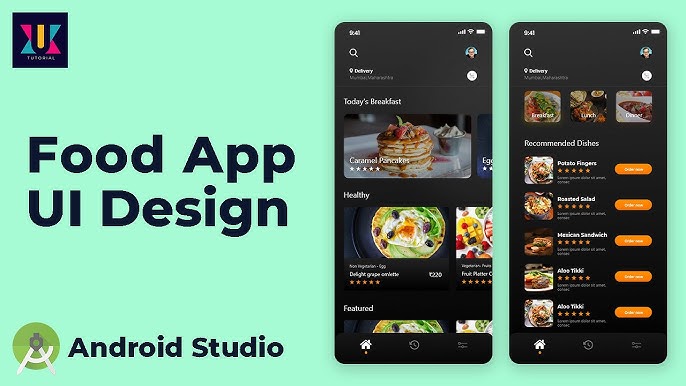
Building a robust home page for a food delivery app in Android Studio involves creating an intuitive user interface that integrates several key components such as a search bar, restaurant listings, category filters, and promotional banners. The design must be user-friendly to allow quick access to various sections, such as exploring restaurants, discovering deals, and searching for cuisines.
This guide combines multiple examples and recommendations to provide a comprehensive starting point. Whether you prefer using Java or Kotlin, this guide covers the essentials for setting up your Android Studio project with an activity layout, adapter setup for displaying restaurant information, and instructions for implementing search functionalities. Additionally, sample codes in XML to define your UI, Java/Kotlin codes for your Activity, and an example adapter class are provided.
Essential Components and Features
For a well-rounded food delivery app's home page, consider including the following features:
- Logo and Welcome Message: Create brand recognition with a prominent logo followed by a welcome message.
- Search Bar: Implement a search bar to let users quickly find restaurants or specific cuisines.
- Category Filters: Use horizontal scrolling categories to filter restaurants based on cuisine types like pizza, sushi, or burgers.
- Restaurant Listings: Display a list or grid view of available restaurants with images, names, ratings, and additional details such as delivery timings.
- Promotional Banners: Showcase special deals or featured restaurants with banners to attract user attention.
XML Layouts
Main Activity Layout (activity_home.xml)
The XML layout represents the structural backbone of the home page. Below are sample XML layouts combining suggestions from various examples:
Option 1: RelativeLayout with a Logo, TextView, Button, and RecyclerView
<?xml version="1.0" encoding="utf-8"?>
<RelativeLayout xmlns:android="http://schemas.android.com/apk/res/android"
    android:layout_width="match_parent"
    android:layout_height="match_parent"
    android:padding="16dp">

    <ImageView
        android:id="@+id/logo_image"
        android:layout_width="wrap_content"
        android:layout_height="wrap_content"
        android:src="@drawable/logo"
        android:layout_centerHorizontal="true"
        android:layout_marginBottom="20dp"/>

    <TextView
        android:id="@+id/welcome_text"
        android:layout_width="wrap_content"
        android:layout_height="wrap_content"
        android:text="Welcome to Foodie!"
        android:textSize="24sp"
        android:textStyle="bold"
        android:textColor="#000"
        android:layout_below="@id/logo_image"
        android:layout_centerHorizontal="true"
        android:layout_marginBottom="10dp"/>

    <Button
        android:id="@+id/order_button"
        android:layout_width="match_parent"
        android:layout_height="wrap_content"
        android:text="Order Now"
        android:layout_below="@id/welcome_text"
        android:layout_marginTop="20dp"
        android:background="@color/colorPrimary"
        android:textColor="#FFFFFF"/>

    <androidx.recyclerview.widget.RecyclerView
        android:id="@+id/restaurant_list"
        android:layout_width="match_parent"
        android:layout_height="wrap_content"
        android:layout_below="@id/order_button"
        android:layout_marginTop="20dp"/>

</RelativeLayout>
Option 2: LinearLayout with SearchView and RecyclerView
<?xml version="1.0" encoding="utf-8"?>
<LinearLayout xmlns:android="http://schemas.android.com/apk/res/android"
    android:layout_width="match_parent"
    android:layout_height="match_parent"
    android:orientation="vertical">

    <SearchView
        android:id="@+id/searchView"
        android:layout_width="match_parent"
        android:layout_height="wrap_content"
        android:queryHint="Search for restaurants or cuisine" />

    <androidx.recyclerview.widget.RecyclerView
        android:id="@+id/recyclerView"
        android:layout_width="match_parent"
        android:layout_height="match_parent" />

</LinearLayout>
Option 3: Combined Home Layout with Header, Categories, and Popular Restaurants
<?xml version="1.0" encoding="utf-8"?>
<LinearLayout xmlns:android="http://schemas.android.com/apk/res/android"
    xmlns:app="http://schemas.android.com/apk/res-auto"
    android:layout_width="match_parent"
    android:layout_height="match_parent"
    android:orientation="vertical">

    <!-- Header Section with Search Bar -->
    <LinearLayout
        android:layout_width="match_parent"
        android:layout_height="wrap_content"
        android:orientation="horizontal"
        android:padding="10dp">

        <EditText
            android:id="@+id/searchBar"
            android:layout_width="0dp"
            android:layout_height="wrap_content"
            android:layout_weight="1"
            android:hint="Search for food"
            android:inputType="text" />

        <ImageButton
            android:layout_width="wrap_content"
            android:layout_height="wrap_content"
            android:src="@drawable/ic_search"
            android:background="@null" />

    </LinearLayout>

    <!-- Categories Section -->
    <LinearLayout
        android:layout_width="match_parent"
        android:layout_height="wrap_content"
        android:orientation="horizontal"
        android:padding="10dp">

        <TextView
            android:layout_width="wrap_content"
            android:layout_height="wrap_content"
            android:text="Categories" />

        <HorizontalScrollView
            android:layout_width="0dp"
            android:layout_height="wrap_content"
            android:layout_weight="1">

            <LinearLayout
                android:id="@+id/categoriesLayout"
                android:layout_width="wrap_content"
                android:layout_height="wrap_content"
                android:orientation="horizontal">

                <!-- Dynamically populated categories -->

            </LinearLayout>

        </HorizontalScrollView>

    </LinearLayout>

    <!-- Popular Restaurants Section -->
    <LinearLayout
        android:layout_width="match_parent"
        android:layout_height="0dp"
        android:layout_weight="1"
        android:orientation="vertical"
        android:padding="10dp">

        <TextView
            android:layout_width="wrap_content"
            android:layout_height="wrap_content"
            android:text="Popular Restaurants" />

        <androidx.recyclerview.widget.RecyclerView
            android:id="@+id/restaurantsRecyclerView"
            android:layout_width="match_parent"
            android:layout_height="match_parent" />

    </LinearLayout>

</LinearLayout>
Activity Code for Home Page
Using Java
The Java implementation involves creating an Activity (e.g., HomeActivity.java) that binds the XML components and sets up the RecyclerView with an adapter. You will initialize your components, set a layout manager, and attach data.
HomeActivity.java (Java Example)
package com.example.fooddeliveryapp;

import android.os.Bundle;
import androidx.appcompat.app.AppCompatActivity;
import androidx.recyclerview.widget.LinearLayoutManager;
import androidx.recyclerview.widget.RecyclerView;

public class HomeActivity extends AppCompatActivity {
    private RecyclerView recyclerView;

    @Override
    protected void onCreate(Bundle savedInstanceState) {
        super.onCreate(savedInstanceState);
        setContentView(R.layout.activity_home);

        recyclerView = findViewById(R.id.restaurant_list); // or recyclerView depending on layout
        recyclerView.setLayoutManager(new LinearLayoutManager(this));

        // Create an instance of RestaurantAdapter to bind data
        // For example, you could create a list of restaurant objects here:
        // List<Restaurant> restaurantList = fetchRestaurants();
        // recyclerView.setAdapter(new RestaurantAdapter(this, restaurantList));
    }
}
Using Kotlin
For Kotlin users, the setup is similar but leverages Kotlin's concise syntax.
HomeActivity.kt (Kotlin Example)
package com.example.fooddeliveryapp

import android.os.Bundle
import androidx.appcompat.app.AppCompatActivity
import androidx.recyclerview.widget.LinearLayoutManager
import androidx.recyclerview.widget.RecyclerView

class HomeActivity : AppCompatActivity() {
    private lateinit var recyclerView: RecyclerView

    override fun onCreate(savedInstanceState: Bundle?) {
        super.onCreate(savedInstanceState)
        setContentView(R.layout.activity_home)

        recyclerView = findViewById(R.id.restaurant_list) // or use recyclerView if different ID
        recyclerView.layoutManager = LinearLayoutManager(this)

        // Initialize your adapter with restaurant data and assign it to the RecyclerView
        // Example:
        // val restaurantList = fetchRestaurants()
        // recyclerView.adapter = RestaurantAdapter(restaurantList)
    }
}
RecyclerView Adapter Setup
The RecyclerView adapter serves as a bridge between your data sources (i.e., a list of restaurants) and the UI components that efficiently display each restaurant entry.
RestaurantAdapter.java Example
package com.example.fooddeliveryapp;

import android.content.Context;
import android.view.LayoutInflater;
import android.view.View;
import android.view.ViewGroup;
import android.widget.TextView;
import androidx.recyclerview.widget.RecyclerView;
import java.util.List;

public class RestaurantAdapter extends RecyclerView.Adapter<RestaurantAdapter.ViewHolder> {
    private List<Restaurant> restaurants;
    private Context context;

    public RestaurantAdapter(Context context, List<Restaurant> restaurants) {
        this.context = context;
        this.restaurants = restaurants;
    }

    @Override
    public ViewHolder onCreateViewHolder(ViewGroup parent, int viewType) {
        View view = LayoutInflater.from(context).inflate(R.layout.item_restaurant, parent, false);
        return new ViewHolder(view);
    }

    @Override
    public void onBindViewHolder(ViewHolder holder, int position) {
        Restaurant restaurant = restaurants.get(position);
        holder.nameTextView.setText(restaurant.getName());
        holder.descriptionTextView.setText(restaurant.getDescription());
    }

    @Override
    public int getItemCount() {
        return restaurants.size();
    }

    public class ViewHolder extends RecyclerView.ViewHolder {
        public TextView nameTextView;
        public TextView descriptionTextView;

        public ViewHolder(View itemView) {
            super(itemView);
            nameTextView = itemView.findViewById(R.id.nameTextView);
            descriptionTextView = itemView.findViewById(R.id.descriptionTextView);
        }
    }
}
item_restaurant.xml Layout
<?xml version="1.0" encoding="utf-8"?>
<LinearLayout xmlns:android="http://schemas.android.com/apk/res/android"
    android:layout_width="match_parent"
    android:layout_height="wrap_content"
    android:orientation="vertical"
    android:padding="10dp">

    <TextView
        android:id="@+id/nameTextView"
        android:layout_width="match_parent"
        android:layout_height="wrap_content"
        android:textSize="18sp"
        android:textStyle="bold" />

    <TextView
        android:id="@+id/descriptionTextView"
        android:layout_width="match_parent"
        android:layout_height="wrap_content"
        android:textSize="16sp" />

</LinearLayout>
Comparison Table
Below is a table comparing the three primary layout approaches and code base implementations:
| Aspect | Description | Key Codes |
|---|---|---|
| Layout Structure | RelativeLayout, LinearLayout, and combined layouts with categories and lists. Provides flexibility to position elements like logos, search bars, and restaurant listings. | activity_home.xml examples |
| Activity Implementation | Java and Kotlin examples have nearly identical roles in initializing views, setting layout managers, and binding adapters. | HomeActivity.java / HomeActivity.kt |
| Data Binding | RecyclerView adapter setup for binding restaurant data efficiently, utilizing item layouts for individual restaurant displays. | RestaurantAdapter.java and item_restaurant.xml |
Additional Considerations
While the provided code samples form the framework of your home page, consider these additional tips for enhancing the app:
Data Integration
Integrating live data from APIs or a local database can elevate your application. In such cases, implement asynchronous network calls and error handling. Use libraries such as Retrofit or Volley for network operations.
User Interactions
Provide engaging user interactivity by handling clicks on restaurant items. Triggering detailed views or booking options improves user satisfaction.
UI Customizations
Adjust the visual aspects such as gradients, color themes, and animations to match your brand identity. Modern design patterns such as material design principles can help refine the overall UX.
Permissions and Manifest
Ensure your AndroidManifest.xml includes the necessary permissions, especially for network access if your app fetches data from API endpoints.
Modular Architecture
Consider separating your code into modules and components for better scalability. Implement MVVM or MVP architectural patterns when your project expands.
References
- Food Delivery App Templates - CodeCanyon
- Food Delivery App on GitHub - GitHub
- Food Delivery App Source Code - DataFlair
- Android Food Delivery App Project - Project Gurukul
- Food Ordering Source Code - AbhiAndroid
Recommended Deep Dive Queries
Last updated March 15, 2025