
Unlocking macOS Shortcuts: Can an API Reveal the Action Behind the Keys?
Discover the methods and limitations for programmatically identifying the function linked to a specific macOS keyboard shortcut ID.
Trying to find a direct macOS API call that takes a keyboard shortcut identifier (like "⌘⇧A" or an internal ID) and spits out a user-friendly "action name" (like "Save All") sounds straightforward, but the reality within the macOS ecosystem is more nuanced. There isn't a single, universal function for this purpose because shortcuts are deeply tied to their context – whether they belong to the system, a specific application's menu, or a custom user setting.
However, this doesn't mean it's impossible. By understanding how macOS manages different types of shortcuts, you can use various tools and APIs to investigate and often determine the associated action. Let's explore the landscape.
Highlights: Key Insights into macOS Shortcut Mapping
- No Universal API: macOS lacks a single, public API to directly map any arbitrary keyboard shortcut ID to a human-readable action name across all contexts.
- Context is King: The method for identifying an action depends heavily on whether the shortcut is system-wide (like Spotlight), application-specific (menu item), user-defined, or part of a Shortcuts workflow.
- Primary Methods: The most viable approaches involve inspecting system settings (like
NSUserKeyEquivalentsvia thedefaultscommand) for user overrides or programmatically examining an application's menu structure. Private APIs exist for some system shortcuts but are not recommended for general use.
Why Isn't There a Simple API Call?
Understanding the Diverse Nature of macOS Shortcuts
Keyboard shortcuts on macOS aren't managed through one central registry with universally defined "action names." Instead, they originate and function within specific domains:
- Application Menu Commands: Many shortcuts are tied directly to menu items within an app (e.g., ⌘S for "Save"). The "action name" here is simply the text of the menu item. Applications define these using structures like
NSMenuItem. - System-Wide Functions: macOS reserves certain shortcuts for core features (e.g., ⌘-Space for Spotlight, ⇧⌘5 for Screenshot). These are managed internally by the operating system.
- User Customizations: Users can define their own shortcuts for specific app menu commands via System Settings > Keyboard > Shortcuts > App Shortcuts. These overrides are stored in preferences.
- Shortcuts App Workflows: A keyboard shortcut can trigger an entire automated workflow built in the Shortcuts app. The shortcut maps to the workflow, not necessarily a single, nameable action within it.
- Developer-Implemented Global Shortcuts: Apps can register global shortcuts that work even when the app isn't in the foreground. The associated "action" is defined purely within the app's code and isn't exposed system-wide.
Because of this fragmented landscape, a single API function to look up any shortcut ID wouldn't have a consistent source of "action names" to draw from.
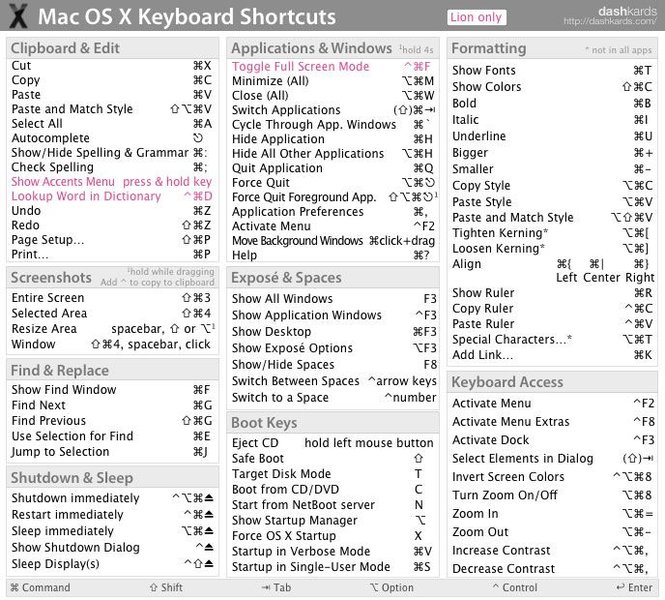
Visual reference for common macOS keyboard shortcuts.
Exploring Different Types of Shortcuts and How to Investigate Them
Mapping the Maze: Methods for Identifying Shortcut Actions
Depending on the type of shortcut you're dealing with, different approaches might yield the information you need. The mindmap below illustrates the different categories and investigation paths.
macOS Shortcut Investigation Paths Mindmap
This mindmap visualizes the different contexts where macOS shortcuts exist and the primary methods you might use to determine the action associated with a shortcut in each context.
defaults command-line utility"]
id1_2_1_2["Scope: User settings in .plist files"]
id1_2_1_3["Output: Menu item text (Action Name)"]
id1_3["App Menu Items (Default)"]
id1_3_1["Method: Inspect App's NSMenu Structure"]
id1_3_1_1["Requires: Accessibility API / Scripting / Direct Process Interaction"]
id1_3_1_2["Finds: keyEquivalent + modifierMask"]
id1_3_1_3["Output: Menu item title (Action Name)"]
id1_4["Shortcuts App Workflows"]
id1_4_1["Method: Check Shortcuts App Configuration"]
id1_4_1_1["Note: Shortcut triggers the entire workflow"]
id1_4_1_2["Output: Workflow Name (not specific internal action)"]
id1_5["Custom Global Shortcuts (in Apps)"]
id1_5_1["Method: App-Specific Implementation"]
id1_5_1_1["Note: Action defined internally by developer"]
id1_5_1_2["Investigation: Requires inspecting app's code or documentation"]
System-Wide Shortcuts: The SymbolicHotkeys Approach (Use with Caution)
macOS uses an internal system, sometimes referred to through the SymbolicHotkeys API, to manage some built-in system shortcuts like activating Mission Control or showing the Desktop. While it's possible to query this system programmatically (often using private, undocumented CGS* functions found in headers within the ApplicationServices framework), this is strongly discouraged for production applications or distribution via the App Store. These private APIs can change or be removed without warning in future macOS updates, breaking your code.
If exploring for personal knowledge or specific internal tools, you might find mappings between numeric IDs and system actions. Some commonly cited (but potentially unstable) examples include:
Common (Unofficial) Symbolic Hotkey IDs
This table lists some commonly referenced Symbolic Hotkey IDs and their typical default actions. Remember that relying on these IDs via private APIs is fragile.
| Symbolic ID (Example) | Typical Default Action |
|---|---|
| 21 | Screenshot - Save picture of screen as a file |
| 22 | Screenshot - Copy picture of screen to the clipboard |
| 23 | Screenshot - Save picture of selected area as a file |
| 24 | Screenshot - Copy picture of selected area to the clipboard |
| 28 | Screenshot - Save picture of window as a file |
| 29 | Screenshot - Copy picture of window to the clipboard |
| 32 | Mission Control - Activate |
| 34 | Mission Control - Application windows |
| 36 | Mission Control - Show Desktop |
| 60 | Spotlight Search Field |
| 62 | Turn Dock Hiding On/Off |
| 101 / 102 / 103 | (Historically linked to Dashboard/Notification Center - may vary) |
User-Defined Application Shortcuts: Using NSUserKeyEquivalents
This is often the most practical and reliable method for shortcuts customized by the user for specific application menu commands. macOS stores these overrides in preference files (.plist), accessible via the NSUserKeyEquivalents domain using the standard defaults command-line tool.
To use this:
- Open the Terminal application.
- To check global overrides (rarely used):
defaults read -g NSUserKeyEquivalents - To check overrides for a specific application (replace
com.apple.finderwith the target app's bundle identifier):
(To find an app's bundle ID, you can use:defaults read com.apple.finder NSUserKeyEquivalentsosascript -e 'id of app "AppName"', e.g.,osascript -e 'id of app "Finder"')
The output will be a dictionary (key-value pairs). The key is the exact text of the menu command (the "action name"), and the value is a string representing the keyboard shortcut combination (e.g., @~^$, where symbols represent modifiers like Command, Option, Control, Shift, followed by the key). You can search this output for a known shortcut string to find its associated menu command text.
Example Output for Finder might look like:
{
    "Show Package Contents" = "@\r"; /* Command + Return */
    "Empty Trash..." = "@\U0008";   /* Command + Backspace (might vary) */
}
Here, "@\r" is the shortcut ID for the action "Show Package Contents".
Default Application Menu Shortcuts: Inspecting the Menu Bar
For an application's default shortcuts (not overridden by the user), you'd typically need to interact with the running application to inspect its menu bar structure (NSMenu and NSMenuItem objects). Each NSMenuItem can have a keyEquivalent (the character) and keyEquivalentModifierMask (the modifier keys like Command, Shift, etc.). The title of the NSMenuItem is the action name.
This usually requires:
- Accessibility APIs: These allow programmatic inspection of UI elements, including menus, but can be complex to implement.
- AppleScript: Can often interact with application menus if the app is scriptable.
- Injecting code or direct process interaction: More advanced techniques usually reserved for development or debugging tools.
This approach is application-specific and requires appropriate permissions.
Shortcuts App and Custom Global Shortcuts
If a shortcut triggers a workflow in the Shortcuts app, the shortcut is simply a trigger for the entire workflow. The "action name" in this context would be the name of the Shortcut workflow itself, which you can find by examining your list of Shortcuts. There's no API to map the trigger shortcut directly back to individual *actions within* the workflow.
For custom global shortcuts implemented by third-party apps (using libraries like sindresorhus/KeyboardShortcuts or lower-level event taps), the action performed is determined entirely by the application's internal code. There's no standard way to query this action name from outside the application unless the developer explicitly provides one.
Comparing the Investigation Methods
Strengths and Weaknesses at a Glance
Choosing the right method depends on your specific needs and constraints. The radar chart below provides a comparative overview of the common approaches based on several factors. Note that these ratings reflect general tendencies and can vary based on the specific shortcut and application.
This chart highlights that while the defaults command for NSUserKeyEquivalents is often the easiest and most reliable method using public mechanisms, it's limited in scope to user-defined menu shortcuts. Accessing system or default app shortcuts often involves less stable or more complex approaches.
Video: Understanding Mac Keyboard Shortcuts
Foundational Knowledge from Apple Support
Before diving deep into APIs, understanding the basics of how macOS handles keyboard shortcuts is essential. This video from Apple Support provides a clear overview of using and finding standard keyboard shortcuts on your Mac, which helps contextualize the technical approaches discussed here.
Frequently Asked Questions (FAQ)
Is there one single API call to get any action name from a shortcut ID?
No, macOS does not provide a single, public API function that can reliably map any given keyboard shortcut ID (whether a key combination string or an internal numeric ID) to a human-readable action name across all possible contexts (system, specific apps, user settings, Shortcuts app). The method depends heavily on where and how the shortcut is defined.
What are the risks of using the SymbolicHotkeys API?
Accessing Symbolic Hotkeys typically involves using private CGS (Core Graphics Services) functions. These are undocumented, not officially supported by Apple for third-party use, and can change or be removed in any macOS update without warning. Relying on them can lead to application instability or crashes after OS updates. They are not permissible for apps distributed through the Mac App Store.
How can I find the bundle identifier for an application?
You can use a simple AppleScript command in the Terminal. Replace "AppName" with the actual name of the application (e.g., "Finder", "Safari", "TextEdit"):
osascript -e 'id of app "AppName"'For example, for Finder, it would be:
osascript -e 'id of app "Finder"'This will output the bundle identifier, such as com.apple.finder.
Can I determine the action for literally *any* keyboard shortcut I encounter?
Not necessarily. While the methods described (defaults command for user overrides, inspecting menus via Accessibility/scripting for app defaults) cover many common cases, some shortcuts might be difficult or impossible to map externally. This includes shortcuts handled entirely internally by an application without using standard menu items, shortcuts managed by low-level system event taps, or actions performed by background utilities or drivers. The feasibility depends entirely on how the shortcut is implemented and exposed by the system or the application.
Recommended
- How can I see a list of all currently active keyboard shortcuts on my Mac?
- Is it possible to use AppleScript to read menu items and their associated shortcuts from an application?
- What are the capabilities of the macOS Accessibility API for inspecting UI elements like menus?
- Where in System Settings can I create or modify keyboard shortcuts for specific application menu commands?
References
Last updated April 29, 2025