
Crafting Your Custom Discord Bot with Discord.js: A Comprehensive Guide
Unlock the Power of Automation and Interactivity on Your Discord Server
Key Highlights for Your Discord Bot Journey
- Foundation with Node.js and npm: Building a Discord bot with Discord.js begins with setting up your development environment, primarily by installing Node.js and initializing your project with npm. This provides the runtime and package management necessary for your bot's operations.
- Discord Developer Portal Essentials: The Discord Developer Portal is your control center for bot creation. Here, you'll register your application, create a bot user, and most importantly, obtain your unique bot token and configure vital permissions and gateway intents.
- Leveraging Discord.js for Rich Functionality: Discord.js is a powerful Node.js module that simplifies interaction with the Discord API. It offers an object-oriented approach, making your bot's code cleaner and enabling you to implement diverse features, from basic commands to complex functionalities like music playback.
Creating a Discord bot using Discord.js allows you to automate tasks, enhance user experience, and add unique functionalities to your server. This guide will walk you through the essential steps, from setting up your development environment to writing and deploying your bot, ensuring a robust and interactive presence on Discord.
Prerequisites: Setting the Stage for Bot Development
Essential Tools Before You Begin Coding
Before diving into the code, it's crucial to establish a solid development environment. The Discord.js library operates on Node.js, a JavaScript runtime. Therefore, having a working knowledge of JavaScript and Node.js is highly recommended to avoid common pitfalls and to fully leverage the library's capabilities.
Node.js and npm Installation
Node.js is the runtime environment that will execute your bot's JavaScript code, while npm (Node Package Manager) is used to install and manage the necessary libraries, including Discord.js. It's advisable to install the latest LTS (Long Term Support) version of Node.js.
- Windows: Download the installer from the official Node.js website and follow the installation prompts.
- macOS: You can use the package installer or Homebrew for installation.
- Linux: Use your distribution's package manager or download from the official site.
To verify your installation, open your terminal or command prompt and type:
node -v
npm -v
This should display the installed versions of Node.js and npm, respectively.
Setting Up Your Project Directory
Create a dedicated folder for your bot project. This helps in organizing your files and keeps your workspace tidy.
mkdir my-discord-bot
cd my-discord-bot
Next, initialize a new Node.js project within this directory. This creates a package.json file, which keeps track of your project's metadata and dependencies.
npm init -yThe -y flag answers "yes" to all prompts, creating a default package.json file.
Registering Your Bot in the Discord Developer Portal
The Official Gateway to Discord's API
The Discord Developer Portal is where you register your bot application and manage its settings, permissions, and obtain the crucial bot token.
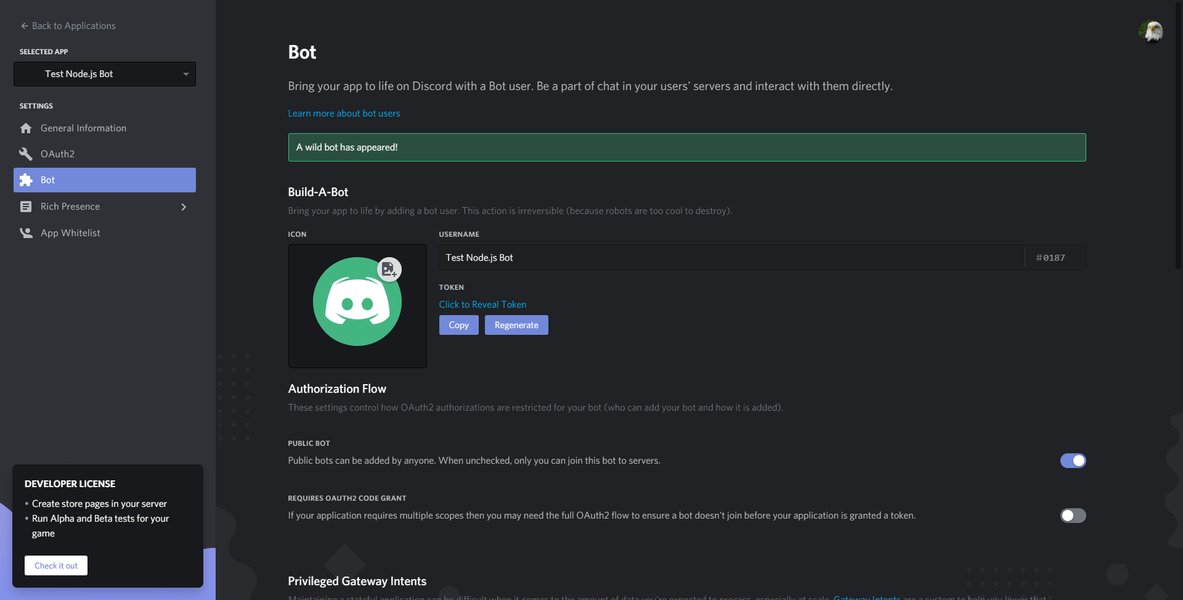
A screenshot illustrating the Discord Developer Portal, where bot applications are managed.
Creating a New Application
- Navigate to the Discord Developer Portal and log in with your Discord account.
- Click on the "New Application" button.
- Give your application a descriptive name and click "Create".
Adding a Bot User to Your Application
- In your application's dashboard, go to the "Bot" tab on the left sidebar.
- Click "Add Bot", then "Yes, do it!" to confirm.
- Once the bot user is created, you will see its username and a unique token. This token is essentially your bot's password and should be kept absolutely confidential. Click "Copy" to save it somewhere safe (e.g., a
.envfile, as discussed later). If your token is ever compromised, immediately regenerate it using the "Reset Token" button.
Configuring Privileged Gateway Intents and Permissions
Discord introduced "Gateway Intents" to control what events your bot receives from Discord. For many functionalities, especially message-based commands, you'll need to enable certain intents.
- Still on the "Bot" tab, scroll down to "Privileged Gateway Intents".
- Enable "Presence Intent" and "Server Members Intent" if your bot will interact with user presence or require access to server member lists beyond basic information. For most bots that listen to messages, "Message Content Intent" will also be critical.
- Navigate to the "OAuth2" tab, then "URL Generator".
- Under "Scopes", select "bot".
- Under "Bot Permissions", select the permissions your bot needs. For a general-purpose bot, "Administrator" grants all permissions, but it's best practice to grant only the necessary permissions for security.
- Copy the generated URL and paste it into your browser. This will allow you to invite your bot to a Discord server where you have administrative privileges.
Implementing Your Bot with Discord.js
Bringing Your Bot to Life with Code
Discord.js is a powerful and object-oriented Node.js module that makes interacting with the Discord API incredibly easy. It allows you to build feature-rich bots capable of managing servers, sending messages, playing music, and much more.
Installing Discord.js and dotenv
In your project directory, install the discord.js library and dotenv (for securely managing your bot token) using npm:
npm install discord.js dotenvStructuring Your Bot's Code
A typical bot project will have at least two files: an index.js (or app.js, bot.js) for the main bot logic and a .env file for environment variables like your bot token.
- Create an
index.jsfile in your project root. - Create a
.envfile in your project root. - Add
.envandnode_modules/to a.gitignorefile if you plan to use Git for version control. This prevents sensitive information and unnecessary files from being pushed to public repositories.
Storing Your Bot Token Securely
In your .env file, add your bot token:
BOT_TOKEN=YOUR_BOT_TOKEN_HEREReplace YOUR_BOT_TOKEN_HERE with the token you copied from the Discord Developer Portal.
Writing Your First Bot Code (index.js)
Here's a basic structure for your index.js file:
// Load environment variables from .env file
require('dotenv').config();

// Import the Client and GatewayIntentBits classes from discord.js
const { Client, GatewayIntentBits } = require('discord.js');

// Create a new Discord client instance with necessary intents
const client = new Client({
    intents: [
        GatewayIntentBits.Guilds,           // Required for guild related events
        GatewayIntentBits.GuildMessages,    // Required for message related events in guilds
        GatewayIntentBits.MessageContent    // Required to read message content (important for commands)
    ]
});

// Event listener: When the bot is ready
client.once('ready', () => {
    console.log(<code>Logged in as ${client.user.tag}!);
    console.log('Bot is online!');
});

// Event listener: When a message is created
client.on('messageCreate', message => {
    // Ignore messages from other bots to prevent infinite loops
    if (message.author.bot) return;

    // Define a prefix for your commands
    const prefix = '!';

    // Check if the message starts with the prefix
    if (!message.content.startsWith(prefix)) return;

    // Extract the command and arguments
    const args = message.content.slice(prefix.length).trim().split(/ +/);
    const command = args.shift().toLowerCase();

    // Example: A simple 'ping' command
    if (command === 'ping') {
        message.reply('Pong!');
    }
    // Example: A simple 'hello' command
    else if (command === 'hello') {
        message.channel.send(Hello, ${message.author.username}!);
    }
});

// Log in to Discord with your bot token
client.login(process.env.BOT_TOKEN);
Understanding Key Discord.js Concepts
Navigating the Bot's Architecture
Client and Intents
The Client class is the main interface for interacting with the Discord API. When you create an instance of Client, you must specify the intents. Intents tell Discord which events your bot needs to receive. Incorrectly configured intents are a common source of issues for new bot developers, especially with Discord.js v13+ where message content is a privileged intent.
For example, GatewayIntentBits.Guilds allows your bot to receive events related to guilds (servers), and GatewayIntentBits.MessageContent is essential if your bot needs to read the content of messages sent in channels to process commands.
Events
Bots are event-driven. They listen for specific events (like a new message being sent, a user joining a server, etc.) and react accordingly. The client.on() method is used to register event listeners.
ready: Fired when the bot successfully logs in and is ready to operate.messageCreate: Fired whenever a message is sent in any channel the bot has access to. This is commonly used for processing text commands.
Commands and Command Handling
As your bot grows, you'll want to organize your commands more efficiently. A common practice is to use a command handler that dynamically loads commands from separate files based on a predefined structure. This promotes modularity and scalability.
Enhancing Your Bot: Advanced Features and Considerations
Beyond the Basics: Building a Robust Bot
Slash Commands
Discord is transitioning towards Slash Commands, which offer a more integrated and user-friendly experience compared to traditional prefix commands. Implementing slash commands requires registering them with Discord via the API, making them discoverable and providing auto-completion features.
Music Bots
Creating a music bot is a popular and engaging project. It involves integrating with libraries like discord-player (for Discord.js v13+) and potentially external services like YouTube or SoundCloud. These bots typically handle functionalities such as playing, pausing, skipping, and queuing songs in voice channels.
Here's a visual representation of the complexity and functionality of different bot types:
This radar chart illustrates how different types of Discord bots vary across key development characteristics. A "Basic Bot" is easy to set up and maintain but lacks features. A "Moderation Bot" involves more API interaction and code complexity. A "Music Bot" has higher API interaction depth due to audio streaming and queuing. "Game Integration Bots" often have the highest code complexity and API interaction, as they need to synchronize with external game data or APIs, demanding significant scalability and feature richness.
Deployment and Hosting
To keep your bot online 24/7, you'll need to deploy it to a hosting service. Options range from free platforms like Repl.it (though sometimes limited) to dedicated cloud services like DigitalOcean, Heroku, or a Virtual Private Server (VPS). When deploying, ensure your .env file is handled securely and not exposed.
Troubleshooting and Community Resources
Bot development can present challenges. If you encounter issues, leverage these resources:
- Discord.js Documentation: The official documentation (https://discord.js.org/ and https://discordjs.guide/) is an invaluable resource for understanding the library's API and best practices.
- Community Servers: Join the official Discord.js server or other bot development communities for real-time support and advice.
- Stack Overflow and GitHub: Search for similar issues or ask new questions on platforms like Stack Overflow. GitHub repositories related to Discord.js often contain helpful examples.
Common Bot Features and Their Implementation Considerations
Expanding Your Bot's Capabilities
Here's a table summarizing common Discord bot features and their corresponding implementation considerations with Discord.js:
| Feature | Description | Discord.js Implementation Considerations | Required Gateway Intents (Example) |
|---|---|---|---|
| Text Commands | Responding to specific prefix-based messages (e.g., !ping). |
Using client.on('messageCreate', ...) to check message.content and parse commands. |
MessageContent, GuildMessages |
| Slash Commands | Interactive commands integrated directly into Discord's UI. | Registering commands globally or per-guild using Discord API, then handling client.on('interactionCreate', ...). |
Guilds |
| Moderation | Kicking, banning, muting users, managing channels. | Using methods like member.kick(), channel.delete(). Requires appropriate bot permissions. |
Guilds, GuildMembers |
| Music Playback | Playing audio in voice channels from various sources. | Requires external libraries like @discordjs/voice and discord-player. Complex audio streaming logic. |
Guilds, GuildVoiceStates |
| Welcome Messages | Sending a message when a new user joins a server. | Listening to the guildMemberAdd event. |
Guilds, GuildMembers |
| Role Management | Assigning or removing roles based on commands or reactions. | Using member.roles.add(), member.roles.remove(). |
Guilds, GuildMembers |
| Logging | Recording server events (e.g., message edits, deletions) to a specific channel. | Listening to various events like messageUpdate, messageDelete. |
GuildMessages, MessageContent (for content logging) |
This table highlights the diversity of bot capabilities and the corresponding technical considerations, emphasizing the importance of understanding Discord.js and Discord's API.
Visualizing Bot Development: A YouTube Tutorial
Learning by Watching and Doing
For many, a visual guide can significantly aid the learning process. The following video offers a comprehensive walkthrough for beginners on how to create a Discord bot using Discord.js v14, covering essential setup and basic functionalities.
A comprehensive tutorial on creating a Discord bot for beginners using Discord.js v14.
This tutorial is highly relevant as it covers the practical steps of setting up a Discord bot, installing Discord.js, obtaining the bot token, and adding the bot to your server. It specifically addresses Discord.js v14, which incorporates the latest API changes and best practices, including the crucial aspect of Gateway Intents. Watching this video can complement the textual guide, providing a clear visual demonstration of each step, from navigating the Discord Developer Portal to writing the initial JavaScript code for your bot's functionality.
Frequently Asked Questions
What is Discord.js?
Do I need to know JavaScript to make a Discord bot with Discord.js?
How do I keep my bot token secure?
dotenv package) or a configuration file (like config.json) that is excluded from public version control repositories (e.g., by adding it to .gitignore). If your token is compromised, immediately regenerate it in the Discord Developer Portal.What are Gateway Intents and why are they important?
Conclusion
Creating a Discord bot with Discord.js opens up a world of possibilities for enhancing your server's interactivity and automating routine tasks. By following the steps outlined in this guide—from setting up your Node.js environment and registering your bot in the Discord Developer Portal to writing your first lines of JavaScript code with Discord.js—you can build a functional and engaging bot. Remember the importance of secure token management, understanding Gateway Intents, and leveraging the extensive Discord.js documentation and community resources as you continue to develop and refine your bot's capabilities. With a solid foundation, your imagination is the only limit to what your Discord bot can achieve.
Recommended Further Exploration
- How to deploy a Discord bot 24/7 for free?
- Exploring the implementation of slash commands in Discord.js v14.
- Detailed guide on building a Discord music bot using discord-player.
- Discovering best practices for Discord bot error handling and robust logging.