
Correcting MHR Zones on Your Apple Watch
Discover actionable strategies to adjust and optimize your heart rate zones
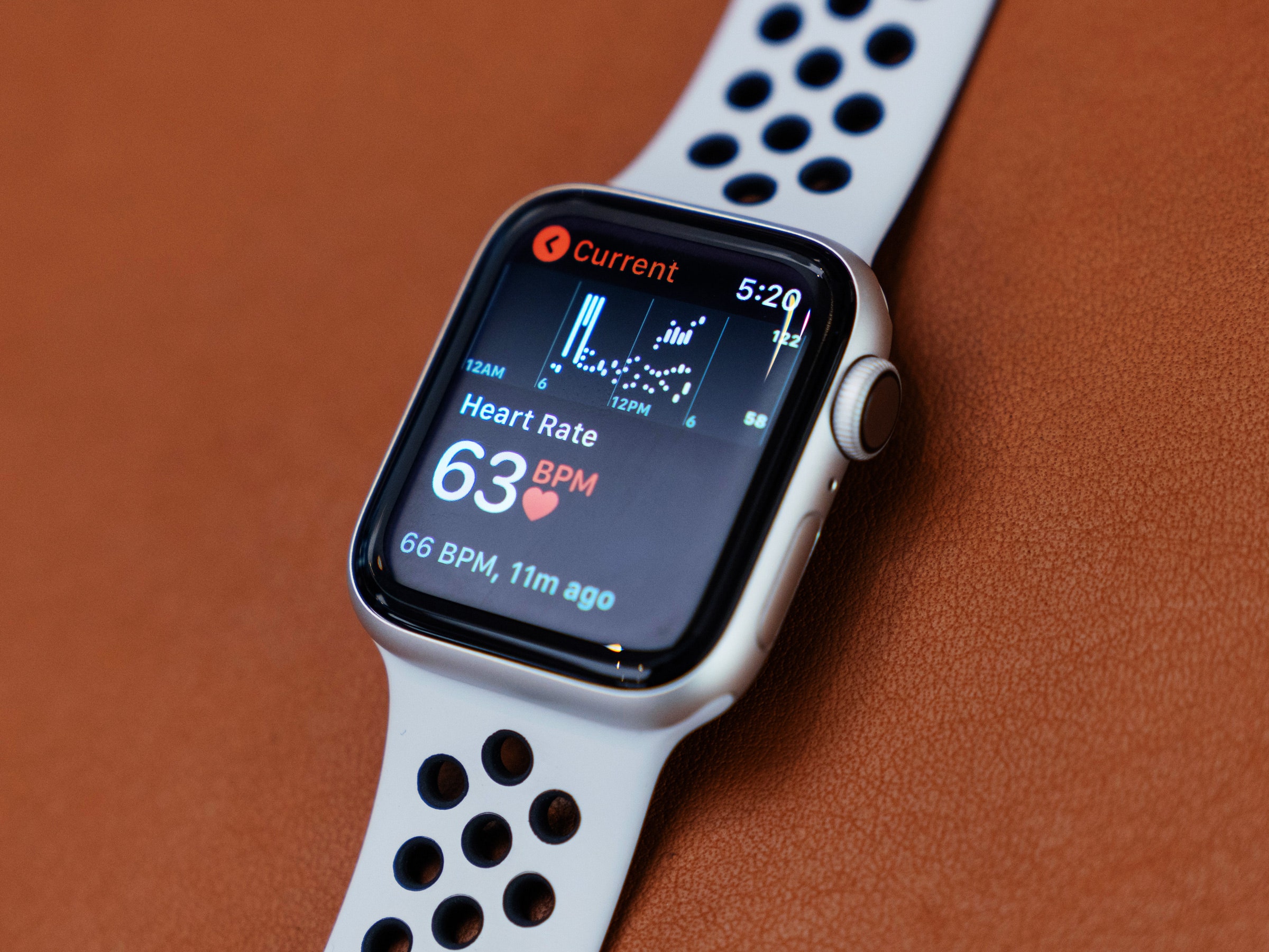
Highlights
- Manual Adjustment: Customize your heart rate zones for more accurate training.
- Field Testing: Use controlled exercise sessions to pinpoint your true maximum heart rate.
- Settings Verification: Ensure your personal details and device settings are properly configured.
Introduction
Accurate heart rate monitoring is critical for maximizing workout efficiency and tracking progress. The Apple Watch is well-regarded as a fitness companion because of its built-in mechanisms for tracking heart rate, yet some users have reported discrepancies in their Maximum Heart Rate (MHR) zones. Often, this issue stems from the reliance on generic formulas, such as “220 minus your age,” which might not adequately reflect an individual's true maximum heart rate. In this detailed guide, we will explore multiple strategies to correct inaccurate MHR zones on your Apple Watch, including manual adjustments, advanced calibration methods, and software troubleshooting.
Understanding Maximum Heart Rate (MHR) Calculations
How the Apple Watch Determines MHR Zones
Typically, the Apple Watch calculates your MHR zones automatically by integrating personal data such as age, sex, weight, and height entered in the Health app. This automatic calculation generally uses standardized formulas like “220 minus your age” to estimate the maximum heart rate. Additionally, Apple’s system may use the Heart Rate Reserve (HRR) method, which includes the formula:
The Heart Rate Reserve Formula
$$HRR = MHR - RHR$$
where MHR is the Maximum Heart Rate and RHR is the Resting Heart Rate. To compute your training zones, the formula often used is:
$$Target\ Rate = (MHR - RHR) \\times Intensity + RHR$$
Although these formulas provide a baseline for training, the inherent limitation is that they do not consider individual variations in fitness levels, genetics, or training adaptations, leading many users to experience inaccuracies in the displayed heart rate zones.
Key Strategies to Correct Inaccurate MHR Zones
1. Manual Adjustment of Heart Rate Zones
Steps to Manually Set Your Zones on the Apple Watch
One of the most straightforward methods to overcome inaccurate MHR estimations is to manually update your heart rate zones. This approach is particularly beneficial if you have already taken steps to determine your true maximum heart rate, either through field tests or professional assessments.
To manually adjust your heart rate zones on your Apple Watch:
- On the Apple Watch, open the Settings app.
- Navigate to Workout and then to Heart Rate Zones.
- Select the option to set zones manually.
- Enter your desired values for each zone. Typically, zones 2, 3, 4, and 5 can be customized to fit your performance and training goals.
Similarly, you can adjust these settings on your iPhone through the Apple Watch app:
- Open the Watch app on your iPhone.
- Go to the My Watch tab and find the Workout section.
- Select Heart Rate Zones and then choose Manual to input your custom ranges.
2. Conducting a Field Test to Identify Your True Maximum Heart Rate
Implementing a Field Test
Field testing is an effective method to determine your actual maximum heart rate, rather than relying on generic formulas. This involves performing an exercise routine that pushes you to your limits and then recording the highest heart rate achieved. The field test can be done by:
- Ensuring you start with a proper warm-up to prepare your body.
- Selecting a flat, open area with minimal distractions and consistent conditions.
- Performing high-intensity intervals, such as sprinting or cycling at maximum effort.
- Monitoring your heart rate closely through the Apple Watch or an external heart rate monitor.
After completing the test, note the peak heart rate reached. This number can be used as your corrected MHR value.
Consider recalculating your training zones using your new MHR value combined with your resting heart rate using the heart rate reserve formula:
$$Target\ Heart\ Rate = (MHR - RHR) \\times Desired\ Intensity + RHR$$
By adjusting your zones based on accurate testing data, you can better tailor your workouts for increased efficiency.
3. Verifying and Updating Personal Data for Accurate Calculations
Importance of Personal Information Accuracy
Your Apple Watch and the Health app use personal details such as your age, sex, weight, and height to determine your heart rate zones. If any of this information is outdated or inaccurate, it can lead to incorrect calculations in your MHR zones. Here’s how you can verify your details:
- Open the Health app on your iPhone.
- Review your personal information including birth date, sex, weight, and height.
- Correct any discrepancies that might have occurred due to data entry errors or changes over time.
4. Software Updates and Recalibration
Addressing Software-Related Inaccuracies
Often, inaccuracies in MHR and other health-related metrics can stem from temporary glitches or outdated software. To mitigate this:
- Update Your Devices: Always ensure that both your Apple Watch and iPhone are running the latest versions of their operating systems. Regular updates often include bug fixes and improvements in sensor accuracy.
- Recalibration: For better accuracy in movement and heart rate detection, recalibrate your device by taking a 20-minute walk or run in an open area with clear GPS signal. This helps the watch fine-tune its algorithms for pace, distance, and heart rate detection.
- Restart Devices: Sometimes, a simple restart can resolve temporary glitches that might interfere with sensor readings.
5. Utilizing Third-Party Applications and Devices
Alternative Apps and External Monitors
If manual adjustments on the Apple Watch do not seem sufficient or if you require a more tailored approach to your heart rate training, third-party applications can offer more refined control:
- There are fitness apps available that allow you to input your actual maximum heart rate and set personalized training zones.
- Pairing your Apple Watch with other external heart rate monitors can provide more precise readings during intense training sessions.
- These apps may provide additional analytics, feedback, and customization which help in optimizing your training program.
6. Consulting with a Fitness Professional
Professional Assessment for Tailored Zones
While technology provides a convenient method to monitor fitness, nothing quite replaces an expert evaluation when it comes to individualized training. A fitness professional can perform:
- An in-depth analysis using laboratory equipment to determine your actual maximum oxygen uptake (VO2 max) and maximum heart rate.
- A comprehensive fitness assessment that incorporates your exercise history, current fitness level, and overall health.
- Recommendations for training zones that will maximize your performance while reducing the risk of overtraining or injury.
This professional insight can provide a tailored approach to your workouts, ensuring that your heart rate zones truly represent your maximum effort and recovery capabilities.
Detailed Comparative Overview
The following table summarizes the key steps and methods to resolve incorrect MHR zones on your Apple Watch. This comparative overview can act as a quick guide:
| Method | Action Steps | Key Benefits |
|---|---|---|
| Manual Adjustment |
|
Customized data; individualized training zones |
| Field Testing |
|
Accurate representation of true maximum heart rate |
| Data Verification |
|
Reliable input for automated zone calculation |
| Software Updates & Recalibration |
|
Fixes temporary glitches; improves sensor data accuracy |
| Third-Party Apps |
|
Enhanced monitoring and personalized feedback |
| Consulting Fitness Professionals |
|
Highly personalized and medically sound recommendations |
Additional Considerations
Understanding Limitations and Expectations
It is important to note that even after manual adjustments and calibrations, the heart rate zones are only as accurate as the data being provided to the Apple Watch. There are several factors that can influence heart rate readings such as stress, hydration, ambient temperature, and even the fit of your watch. Maintaining consistent conditions during your workouts and tests can minimize these external variances.
Moreover, the heart rate formulas used for calculating training zones are based on population averages. That means that for many, the default “220 minus age” method does not capture the nuances of an individual’s cardiovascular fitness. Personal adaptations made through training, and differences in physiology, can lead to genuine variations, rendering a one-size-fits-all approach insufficient. Therefore, supplementing digital data with professional oversight remains a recommended approach.
Integrating Multiple Strategies for Optimal Results
For a long-term solution, consider integrating several of the discussed methods. For instance, manually adjusting your heart rate zones based on an initial field test result and then periodically recalibrating your device after major fitness improvements can yield the most balanced results. Many users have reported that once they have fine-tuned their MHR, their training efficacy improves significantly and their workouts become more data-driven and injury-free.
Regular review of your workout data in the Health app and Apple Watch can provide insights on whether your zones remain suitable as your overall fitness improves or declines over time. In such cases, periodic re-evaluation—coupled with updates to manual entries—is advisable.
Troubleshooting Common Issues
What to Do If Problems Persist
If after following the above steps you still notice inaccuracies in your MHR zones, consider these troubleshooting strategies:
- Double-check your Health app details to ensure there are no typographical errors in your personal information.
- Verify that third-party apps are not interfering with or overriding your Apple Watch’s default settings.
- Consult Apple Support if you suspect a deeper software or hardware issue with your device. They might have specific patches or updates not yet available publicly.
- Revisit your testing methods. If your field tests are not consistent, vary the conditions and see if the calculated MHR remains stable.
These troubleshooting steps ensure that your device is taking full advantage of both manual adjustments and automatic recalibration routines.
Future-Proofing Your Fitness Tracking
Staying Current With Technological Advancements
As wearable technology improves and Apple continues to refine its watchOS, future updates might offer more advanced metrics and automatically account for individual variability. Keeping your device updated and regularly checking for enhancements in the Health and Watch apps ensure that the technology remains a reliable assistant to your fitness goals.
Moreover, engaging with the fitness community and staying informed about best practices in heart rate monitoring can empower you to make more informed adjustments and decisions. Personalizing your training strategy is an evolving process, and leveraging both technology and professional insights remains key.
Conclusion and Final Thoughts
Correcting inaccurate Maximum Heart Rate zones on your Apple Watch is a multi-faceted process that involves manual adjustments, personal data verification, recalibration, and sometimes the use of third-party tools. By performing a field test to accurately identify your true maximum heart rate, you can manually reconfigure your training zones to better match your personal fitness profile. Verifying and updating your personal information in the Health app is critical since even small errors can significantly alter the computed zones. Don’t underestimate the benefits of software updates and recalibration—simple interventions that can ensure your device performs optimally.
Combining multiple approaches not only enhances the accuracy of your heart rate monitoring but also makes your training sessions more effective and tailored to your physiological needs. Touching base with fitness professionals or using advanced third-party applications can further refine your training regimen, ensuring that your Apple Watch remains an indispensable tool in your fitness journey. As the technology evolves, staying proactive and informed about updates, new methodologies, and best practices will continue to pay dividends in your overall health and performance.
References
- How to maximize the heart rate zones on Apple Watch - T&E Repair
- Change settings in Workout on Apple Watch - Apple Support
- How to use your Apple Watch to track heart rate zones - Yahoo
- View Heart Rate Zones - Apple Support
- Comprehensive Guide to Apple Watch Heart Rate Zones - Stephanie Holbrook
Recommended Further Reading
Last updated February 19, 2025