
Mastering DVD Creation: A Comprehensive Guide to Authoring and Burning MKV Files
Unlock the secrets to seamless MKV to DVD conversion, ensuring perfect audio-visual harmony and exploring top-tier software solutions.
Key Insights for Flawless DVD Authoring
- MKV to DVD Conversion is Essential: To play MKV files on standard DVD players, they must be converted and authored into the DVD-Video format, which typically involves re-encoding the video and audio to MPEG-2 and AC3/PCM, respectively.
- Open-Source Solutions Excel in Customization: For users seeking control and flexibility, open-source software like DVDStyler and Open DVD Producer offer robust features for menu creation, chaptering, and subtitle inclusion, often without cost.
- Audio Sync Issues Are Common and Addressable: Out-of-sync audio, as experienced with AVStoDVD, can stem from various encoding parameters; selecting software with advanced audio/video synchronization tools or pre-processing the MKV file can resolve these challenges.
Burning a 5GB MKV file to a standard single-layer DVD while maintaining audio-visual synchronization can be a challenging task, especially given the inherent differences between the MKV container format and the DVD-Video standard. MKV (Matroska Video) is a versatile container that can hold various video, audio, and subtitle tracks, often in high definition. DVDs, on the other hand, adhere to specific formats (MPEG-2 video, AC3 or PCM audio) and resolutions (typically 720x480 for NTSC or 720x576 for PAL).
The issue you're encountering with AVStoDVD—audio being out of sync despite fitting the file on a single-layer DVD—is a common problem that arises during the re-encoding and authoring process. This can be due to incorrect frame rate handling, audio delay compensation, or issues with the encoder's performance. Fortunately, several other software packages, particularly open-source options, are well-equipped to handle MKV to DVD conversion with greater precision and offer features to manage such synchronization challenges.
Understanding the MKV to DVD Conversion Process
Why MKV Files Need Special Treatment for DVD Playback
MKV files are often high-definition and utilize codecs (like H.264 or H.265) and audio formats (like DTS or AAC) that are not natively supported by standard DVD players. To ensure compatibility, the video streams usually need to be re-encoded to MPEG-2, and audio streams to AC3 or uncompressed PCM. This re-encoding is a critical step where synchronization issues can arise if not handled correctly by the software.
The "authoring" process then takes these re-encoded video and audio streams and structures them into a DVD-Video format, complete with menus, chapters, and subtitle tracks, before they are finally burned to a physical disc.
Addressing Audio Synchronization Head-On
Audio synchronization problems usually occur during the re-encoding phase. Causes can include:
- Frame Rate Mismatch: If the original MKV file's frame rate isn't correctly interpreted or converted to the DVD standard (29.97 fps for NTSC, 25 fps for PAL), audio can drift.
- Encoding Errors: Poorly optimized or buggy encoders within the software can introduce delays.
- Interlacing Issues: Incorrect handling of interlaced video can also lead to sync problems.
Choosing software that offers advanced settings for audio delay compensation or intelligent re-encoding can mitigate these issues. Some tools may even allow you to preview the converted content before burning, helping to identify sync problems early.
Top Open-Source and Free DVD Authoring Software for MKV Files
Given your preference for open-source software and the specific requirement of burning MKV files to DVD while resolving audio sync issues, here's a review of prominent options:
DVDStyler: The Community Favorite
DVDStyler is a highly recommended cross-platform (Windows, macOS, Linux) free and open-source DVD authoring application. It's frequently praised for its ability to create professional-looking DVDs with customizable menus. It supports a wide range of video file formats, including MKV, MP4, AVI, and MPG, and allows users to load video files, create DVD menus, and add background music and external subtitles.
Many users report successful MKV to DVD conversions with DVDStyler, making it a strong contender for your needs. Its interface is generally straightforward, and it offers over 20 DVD menu templates, giving you creative control over the final product. For resolving audio sync, DVDStyler often handles re-encoding efficiently, but users can typically adjust audio delays manually if needed within the program.
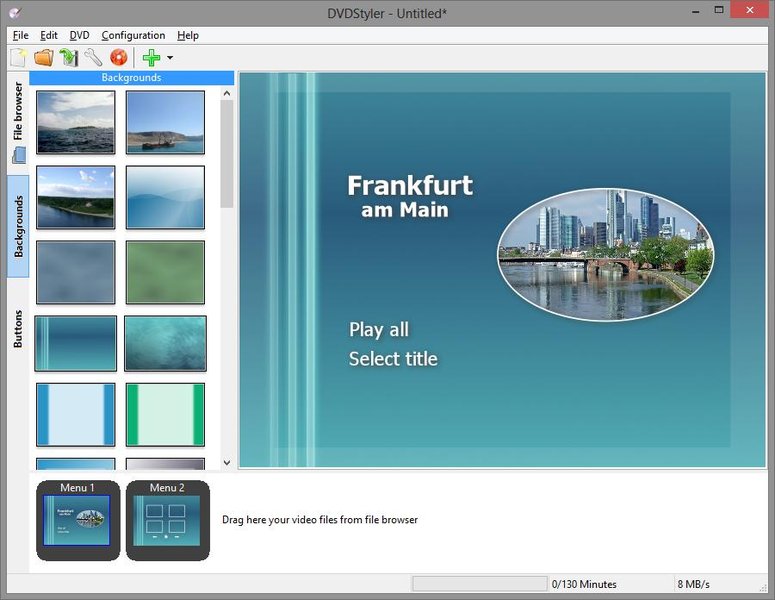
An example of the DVDStyler interface, showcasing its menu design capabilities.
Open DVD Producer: Modern and Cross-Platform
Open DVD Producer is another modern, open-source, cross-platform software designed to produce DVD images and create DVDs with menus and chapters in a professional manner. It aims to implement the main functions of the DVD specification, providing a robust solution for DVD authoring on Ubuntu, Mac, or Windows. If AVStoDVD is causing issues, Open DVD Producer might offer a more stable or different encoding approach that resolves your audio sync problem.
DVD Flick: Simple yet Powerful (Windows Only)
DVD Flick is a simple yet powerful free DVD authoring tool specifically for Windows. It allows you to take various video files, including MKV, and burn them to a DVD that will play on your DVD player. It can create DVD menus and chapters, and handles the conversion of video and audio streams to DVD-compliant formats. While it might lack some of the advanced menu customization of DVDStyler, its simplicity and effectiveness for basic conversions make it a good alternative, especially if you suspect your current software's complexity is contributing to the sync issue.
This video demonstrates how to burn a video file to a DVD using DVD Flick and ImgBurn, providing a practical guide to the process.
The video showcases a common workflow involving DVD Flick for authoring and ImgBurn for the final burning. This two-step approach can be beneficial if one tool excels at conversion/authoring and another at reliable burning, separating potential points of failure and allowing for more controlled troubleshooting.
Bombono DVD: Linux-Focused with Clean GUI
For Linux users, Bombono DVD is an intuitive DVD authoring program with a clean GTK-based graphical user interface. It focuses on ease of use and can work with unconverted MKV files, as some users have reported successful playback of MKV files authored and burned with Bombono DVD. While primarily for Linux, it exemplifies the capabilities of open-source tools in handling diverse video formats for DVD creation.
WinX DVD Author: A Free Option for Windows
WinX DVD Author is a free DVD authoring software primarily designed for Windows. It empowers users to burn a wide array of video formats, including MKV, MP4, AVI, VOB, FLV, MOV, and ISO, to DVD discs. It allows for DVD menu creation, chaptering, adding external subtitles, and background music. Users report it to be fast and easy to use, with output DVD quality comparable to the original MKV files. While some users reported occasional crashes, its feature set for a free tool is extensive and worth considering.
Comparing DVD Authoring Software Capabilities
To help you decide, here's a comparative overview of some key features and considerations for DVD authoring software, focusing on your requirements:
| Software Name | Platform(s) | License | MKV Support | Menu Creation | Subtitle Support | Known for |
|---|---|---|---|---|---|---|
| DVDStyler | Windows, macOS, Linux | Open Source (GPL) | Excellent | Highly Customizable | Yes (external) | Professional-looking DVDs, flexibility |
| Open DVD Producer | Windows, macOS, Linux (Ubuntu) | Open Source (CC) | Good | Professional Menus/Chapters | Yes | Modern interface, comprehensive DVD specification support |
| DVD Flick | Windows | Free | Excellent | Basic to Moderate | Yes | Simplicity, effectiveness for core burning tasks |
| Bombono DVD | Linux | Open Source | Good | Easy-to-use GUI | Yes | Clean interface, Linux native |
| WinX DVD Author | Windows | Free | Excellent | Customizable, templates | Yes (external) | Fast burning, wide format support, user-friendly |
| HandBrake | Windows, macOS, Linux | Open Source | Excellent (as converter) | No (converter only) | Yes (transcoding) | Video transcoding, quality preservation (requires separate authoring/burning) |
It's important to note that while HandBrake is excellent for converting MKV to DVD-compatible video formats (like MPEG-2), it is primarily a transcoder and not an authoring tool for creating menus and DVD structures. You would typically use HandBrake to convert the MKV to VOB or MPEG-2 files, and then use a separate authoring tool (like DVDStyler or DVD Flick) to build the DVD.
Factors Influencing Audio Sync and Quality
When dealing with audio synchronization issues, the characteristics of your source MKV file and the software's re-encoding capabilities play a significant role. Here's a radar chart illustrating typical performance aspects of DVD authoring software, based on common user experiences and feature sets:
This radar chart provides a visual comparison of several key attributes for the discussed DVD authoring software. A higher score indicates better performance or more robust features in that category. For example, DVDStyler rates high on menu customization and MKV compatibility, while DVD Flick excels in ease of use and stability for core burning tasks. WinX DVD Author stands out for its balance of compatibility and speed. These ratings are opinionated assessments based on common user feedback and software capabilities.
Recommendations for Your Situation
Choosing the Best Alternative to AVStoDVD
Given your goal of burning a 5GB MKV file to DVD with correct audio sync using open-source software, I recommend starting with:
Try DVDStyler First
DVDStyler is your strongest candidate. Its cross-platform nature, robust MKV support, and comprehensive authoring features make it suitable for creating professional-looking DVDs. Many users successfully convert MKV files with it, and it provides options to adjust audio/video synchronization if the automatic conversion isn't perfect. Its active development and community support also mean that many common issues have workarounds or are addressed in updates.
Consider a Two-Step Process with HandBrake and DVD Flick/ImgBurn
If direct authoring with DVDStyler still yields sync issues, consider a two-step process:
- Pre-convert with HandBrake: Use HandBrake to convert your 5GB MKV file to a DVD-compatible format (e.g., MPEG-2 video, AC3 audio). HandBrake is exceptionally good at high-quality transcoding and gives you fine control over video and audio settings, which can help resolve inherent sync problems before the authoring phase.
- Author and Burn with DVD Flick or ImgBurn: Once the file is converted, use DVD Flick to author the DVD structure with menus and chapters, then use ImgBurn for the final burning. ImgBurn is renowned for its reliability in burning discs, while DVD Flick simplifies the authoring aspect. This modular approach can isolate where the sync issue might be occurring and allows you to use specialized tools for each step.
Additional Tips for Troubleshooting Audio Sync
Regardless of the software you choose, keep these tips in mind to minimize audio synchronization problems:
- Check Source File Integrity: Ensure your original 5GB MKV file itself doesn't have existing audio sync issues. Play it in a robust media player like VLC to confirm.
- Update Software: Always use the latest stable version of your chosen DVD authoring software. Developers frequently release updates that fix bugs and improve compatibility.
- Experiment with Settings: If the software allows, try different encoding presets or manual settings for audio and video bitrate. Sometimes, slight adjustments can resolve sync problems.
- Use Hardware Acceleration: If your system supports it, enabling hardware acceleration (e.g., Intel Quick Sync Video, NVIDIA NVENC) in the software can lead to faster and potentially more stable encoding, reducing computational errors that might cause sync issues.
- Test Before Burning: Many authoring tools allow you to save the DVD project as an ISO file or a VIDEO_TS folder before burning to a physical disc. Test this output using a software DVD player (like VLC) to verify audio sync before committing to a disc.
Conclusion
Burning a 5GB MKV file to a standard DVD with perfect audio synchronization is achievable with the right software. While AVStoDVD presented challenges, robust open-source alternatives like DVDStyler, Open DVD Producer, and DVD Flick offer reliable solutions. DVDStyler is an excellent all-in-one choice due to its comprehensive features and strong community backing. Alternatively, a two-step approach using HandBrake for precise conversion followed by DVD Flick and ImgBurn for authoring and burning can provide greater control and help pinpoint any lingering sync issues. By carefully selecting your tools and utilizing available troubleshooting techniques, you can successfully create high-quality, playable DVDs from your MKV files.
Frequently Asked Questions
What is the difference between DVD burning and DVD authoring?
Can I burn an MKV file directly to a DVD without converting it?
What causes audio to be out of sync when burning videos to DVD?
Is it possible to burn a 5GB MKV file onto a single-layer DVD?
Recommended Further Exploration
- Explore best practices for DVD video authoring to enhance quality and compatibility.
- Learn advanced troubleshooting techniques for audio sync issues in video encoding.
- Deepen your understanding of video codecs and container formats for better conversion results.
- Discover a comprehensive comparison of DVD burning software features, including paid options.
References
Last updated May 21, 2025