
Unleash Your Game's Full Potential: Mastering DLSS for Every Genre
Unlock peak performance and visual fidelity across all your favorite games with expert DLSS optimization strategies.
Key Insights into DLSS Optimization
- Tailor DLSS Modes to Genre: Different game genres demand unique balances of performance and visual quality. Fast-paced competitive games thrive on "Performance" or "Ultra Performance" for maximum FPS and minimal latency, while visually rich narrative games benefit from "Quality" or "Balanced" modes to preserve immersion.
- Leverage Advanced DLSS Features: Beyond basic upscaling, features like Frame Generation (DLSS 3/4) and Ray Reconstruction (DLSS 3.5/4) can dramatically boost frame rates and enhance visual fidelity, especially in demanding titles with ray tracing. Understanding when and how to combine these features is crucial.
- Consistent Driver Updates and Experimentation: Always keep your NVIDIA GPU drivers up to date to access the latest DLSS models and performance enhancements. The "best" setting is often subjective and depends on your specific hardware and game, necessitating experimentation to find your ideal balance.
NVIDIA's Deep Learning Super Sampling (DLSS) is a revolutionary suite of AI-powered rendering technologies designed to elevate your gaming experience by intelligently balancing performance and image quality. It achieves this by rendering games at a lower resolution and then leveraging advanced artificial intelligence to upscale the image to your monitor's native resolution, or by generating entirely new frames. This innovative approach allows gamers to enjoy higher frame rates without sacrificing visual fidelity, making it an indispensable tool in modern PC gaming. As of May 2025, DLSS continues to evolve, with versions like DLSS 3 and DLSS 4 introducing groundbreaking features such as Multi Frame Generation and enhanced Super Resolution and Ray Reconstruction capabilities. Optimizing DLSS settings requires a nuanced understanding of its various modes and features, and how they interact with different game genres and hardware configurations.
Understanding the Core of DLSS: Modes and Features
DLSS offers a spectrum of modes, each representing a specific compromise between raw performance and visual sharpness. Choosing the right mode is the first step in tailoring your gaming experience.
Deciphering DLSS Presets
- Quality: This mode renders the game at a resolution closest to the target display resolution (e.g., 1440p rendered to 4K). It prioritizes visual quality and actual pixel count, providing the highest image fidelity with a moderate performance uplift. This is ideal when visuals are paramount.
- Balanced: As its name suggests, this mode strikes a middle ground, offering a good compromise between performance gains and visual quality. It's often a great starting point for most games and setups.
- Performance: This mode renders at a significantly lower internal resolution (e.g., 1080p rendered to 4K or 720p rendered to 4K) to maximize frame rates. While highly effective for boosting FPS, especially on less powerful hardware or in demanding scenarios, the visual benefits become less pronounced at lower output resolutions like 1080p.
- Ultra Performance: An even more aggressive mode, primarily designed for extremely high resolutions such as 8K gaming or virtual reality (VR) where achieving playable frame rates is otherwise challenging. It renders at the lowest internal resolution, providing the highest possible frame rates at the cost of noticeable visual compromises.
- DLAA (Deep Learning Anti-Aliasing): Unlike other DLSS modes that upscale, DLAA operates at native resolution. It utilizes the same Super Resolution AI technology to provide superior anti-aliasing, enhancing image quality without upscaling. This mode is perfect when your hardware can already maintain high frame rates at native resolution, and you simply want crisper edges.
Beyond Upscaling: Advanced DLSS Features
Modern DLSS iterations go beyond simple upscaling, incorporating advanced AI-powered features that further revolutionize performance and visual fidelity:
- Frame Generation (DLSS 3 and 4): This groundbreaking feature uses AI to generate entirely new frames between traditionally rendered frames, significantly boosting frame rates. It's particularly effective when combined with Super Resolution, potentially doubling your frame rate in supported titles. This is a game-changer for reaching smoother frame rates in demanding games.
- Ray Reconstruction (DLSS 3.5 and 4): An AI model that enhances the quality of ray-traced lighting, reflections, and shadows. Crucially, it doesn't impact performance negatively; in some complex scenes, it can even lead to slight performance improvements while delivering superior ray tracing visuals.
- NVIDIA Smooth Motion (DLSS 4 with RTX 50 Series): A newer driver-based AI model that infers an additional frame between two rendered frames, aiming to provide smoother gameplay even in games that don't natively support DLSS Frame Generation.
General Strategies for DLSS Optimization
Before delving into genre-specific advice, several universal best practices apply to all DLSS-enabled games, ensuring you get the most out of this powerful technology.
Essential Optimization Pillars
- Update Your Drivers: This cannot be stressed enough. NVIDIA frequently releases new GPU drivers via the NVIDIA GeForce Experience application or the NVIDIA App. These updates often include performance improvements, bug fixes, and, crucially, updated DLSS models that can enhance both stability and image quality.
- Experiment with Modes: The "best" DLSS setting is highly subjective. It depends on your specific hardware, the game in question, your monitor's resolution, and your personal preference for visual quality versus raw frame rate. Start with "Balanced" mode, then try "Quality" for better visuals or "Performance" for higher FPS until you find the ideal equilibrium for your system and the game.
- Combine Features Judiciously: For games that support them, combining DLSS Super Resolution with Frame Generation can lead to substantial performance increases. If the game also features ray tracing, enabling Ray Reconstruction can further elevate visual fidelity without a significant performance hit.
- Resolution Matters: DLSS generally yields the most noticeable benefits at 1440p or 4K resolutions. The upscaling effects are less pronounced at 1080p, where aggressive performance modes might introduce a softer image. If you're targeting 4K, "Quality" mode (rendering at 1440p and upscaling) often provides an excellent balance.
- Monitor Input Latency: While DLSS, especially when paired with NVIDIA Reflex, aims to minimize latency, some users might perceive a slight increase, particularly with Frame Generation enabled. If responsiveness is paramount (e.g., in competitive games), consider disabling Frame Generation or adjusting Reflex settings.
- Utilize NVIDIA App Overrides: The NVIDIA App offers granular control over DLSS settings, allowing you to override model presets for Super Resolution and Ray Reconstruction to use the "Latest" AI models. You can also enable DLAA or "Ultra Performance" modes even if a game doesn't natively expose them, and specify Frame Generation multiplier targets for advanced tuning.
- Optimize In-Game Settings: DLSS is a performance booster, but it works most effectively when other in-game graphics settings are already reasonably configured. Lowering overly demanding settings like shadows or volumetric clouds can free up GPU resources, allowing DLSS to deliver even better results.
- Thorough Testing and Validation: After making changes, always test extensively. Compare frame rates and image quality with and without DLSS enabled, and in different modes. Pay close attention to visual artifacts, especially in fast-moving scenes or areas with fine details. User feedback is invaluable for fine-tuning.
DLSS Optimization by Game Genre: A Tailored Approach
The optimal DLSS settings are highly dependent on the game genre, as each genre has distinct priorities regarding visual fidelity, responsiveness, and frame rates. Here’s a breakdown of recommended strategies:
Fast-Paced Competitive Games (FPS, Esports, Racing)
In genres like competitive first-person shooters or racing games, every millisecond of input lag and every dropped frame can impact performance. The goal is maximum frame rate and lowest latency.
- Priority: Maximum Frame Rate, Lowest Latency, and Clear Visuals for Target Acquisition.
- Recommended DLSS Mode: "Performance" or "Ultra Performance" to achieve the highest possible frame rates. While these modes might soften the image slightly, the trade-off for higher FPS and responsiveness is usually worthwhile in competitive scenarios.
- Key Features: Always enable NVIDIA Reflex Low Latency. For GPU-bound scenarios, use "On+Boost"; for CPU-bound, just "On." While Frame Generation boosts FPS significantly, some competitive players might prefer to disable it if they perceive any additional latency.
- Consider: If your frame rate is already very high (e.g., above 120-144 FPS), DLAA can be an excellent option for superior anti-aliasing without sacrificing much performance, ensuring crisp edges for better target identification.
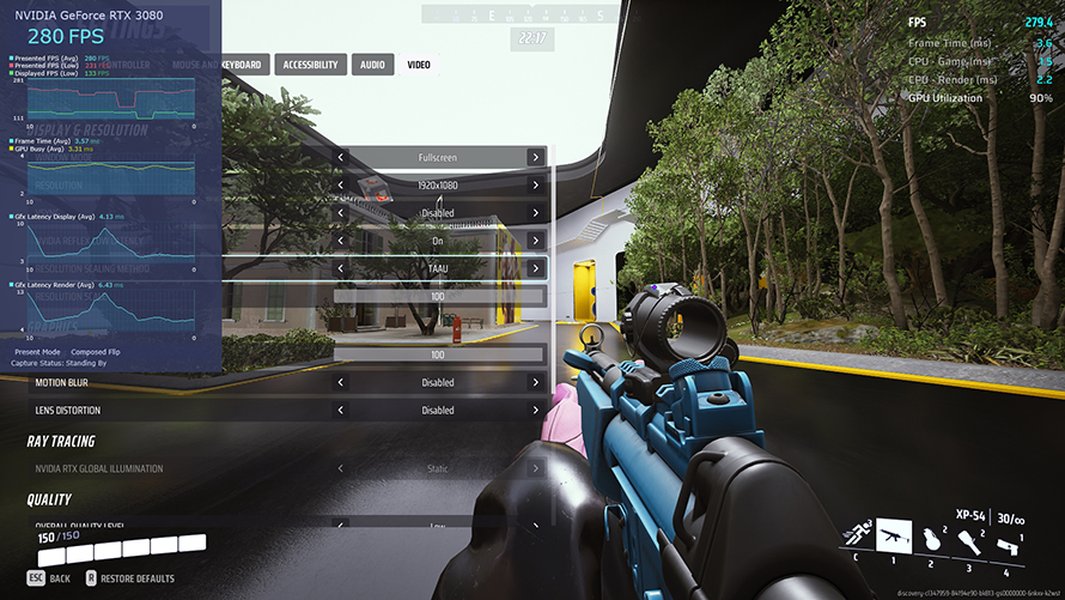
Input latency comparison with and without DLSS, highlighting the impact of NVIDIA Reflex.
Graphically Intensive AAA Games (RPGs, Open-World Adventures)
These genres often feature expansive, detailed environments and complex visual effects, including ray tracing. The focus is on a balance between visual immersion and smooth exploration.
- Priority: Balance between High Visual Quality and Smooth Frame Rates (ideally 60 FPS or higher).
- Recommended DLSS Mode: Start with "Quality" or "Balanced." These modes offer a good visual experience while still providing a substantial performance boost, allowing you to enjoy detailed worlds.
- Key Features: Absolutely enable Frame Generation (DLSS 3/4) if supported, as the performance uplift can be transformative, especially for reaching smoother frame rates (e.g., taking a game from 30 FPS to a consistent 60 FPS). If the game supports ray tracing, enable Ray Reconstruction (DLSS 3.5/4) for improved visual fidelity without a significant performance hit.
- Consider: In extremely demanding games with advanced lighting like path tracing, even aggressive DLSS modes (Performance or Balanced) combined with Ray Reconstruction can be preferable to playing without DLSS due to the immense graphical demands.
Showcasing the visual and performance benefits of DLSS 4 Multi Frame Generation in a high-fidelity game.
Story-Driven / Cinematic Games (Adventure, Horror, Walking Simulators)
For games where atmosphere, narrative, and visual storytelling are paramount, maintaining maximum visual fidelity and consistent frame delivery is crucial for immersion.
- Priority: Maximum Visual Fidelity and Consistent Smooth Gameplay.
- Recommended DLSS Mode: "Quality" or even DLAA if your hardware can maintain a desirable frame rate at native resolution. The focus here is on immersion and visual crispness, ensuring every detail contributes to the experience.
- Key Features: Frame Generation is highly recommended to ensure consistently smooth frame delivery, making cinematic moments and slow exploration feel more fluid. Ray Reconstruction is also a great addition for enhancing environmental details and lighting.
- Consider: If a game feels blurry with DLSS, it might be due to an overly aggressive mode. Experiment with higher quality modes or ensure that in-game sharpening (like TAA sharpening) is adjusted to complement DLSS.
Simulation / Strategy Games
These genres often involve intricate interfaces, detailed maps, and complex systems where clarity and precision are more important than ultra-high, fluctuating frame rates. A stable 60 FPS is usually sufficient.
- Priority: Detailed Visuals and Clarity, with Stable Frame Rates for Smooth UI Interaction.
- Recommended DLSS Mode: "Quality" or "Balanced" mode, depending on hardware and target resolution. Use DLSS to consistently sustain 60 FPS for smooth animations and fluid camera control across large maps.
- Key Features: Frame Generation is less critical here but can be enabled if desired for an extra boost in fluidity, especially during busy late-game scenarios.
- Consider: Since these games often have static or slow-moving scenes, small visual compromises are more noticeable. Thus, higher quality DLSS modes are generally preferred to maintain crisp text and detailed assets.
Virtual Reality (VR) Games
VR gaming demands extremely high, stable frame rates to prevent motion sickness and ensure a comfortable, immersive experience. Visual quality, while important, often takes a secondary role to performance.
- Priority: High, Stable Frame Rates, and Minimal Latency to Avoid Motion Sickness.
- Recommended DLSS Mode: "Ultra Performance" mode is often necessary to gain maximum FPS headroom and maintain a fluid VR experience.
- Key Features: Due to the critical nature of latency in VR, consider disabling Frame Generation if it introduces any perceived input lag. Consistent, low-latency frames are paramount.
- Consider: Ensure DLSS is paired with native resolution rendering as much as possible for the sharpest visuals that the chosen performance mode allows, balancing clarity with motion comfort.
Visualizing DLSS Optimization Priorities Across Genres
The radar chart below provides a visual representation of how different DLSS modes and features align with the primary optimization priorities across various game genres. Each axis represents a key gaming metric, and the intensity of the colored area indicates the relative importance or effectiveness of a DLSS mode/feature for that genre.
Optimizing DLSS: A Comprehensive Mind Map
This mind map illustrates the multifaceted approach to optimizing DLSS settings, branching out from core concepts to specific strategies for different game genres and advanced features.
AI Generated Frames"] id2_2["Ray Reconstruction (DLSS 3.5/4)
Improved Ray Tracing"] id2_3["NVIDIA Smooth Motion (DLSS 4)
Driver-based Frame Inference"] id3["General Optimization Tips"] id3_1["Update GPU Drivers"] id3_2["Experiment with Settings"] id3_3["Combine Features"] id3_4["Consider Resolution (1440p/4K Best)"] id3_5["Monitor Input Latency"] id3_6["NVIDIA App Overrides"] id3_7["Optimize In-Game Settings"] id3_8["Thorough Testing"] id4["Genre-Specific Strategies"] id4_1["Competitive FPS/Esports"] id4_1_1["Priority: Max FPS, Low Latency"] id4_1_2["Mode: Performance/Ultra Performance"] id4_1_3["Features: NVIDIA Reflex, Disable FG if sensitive"] id4_2["Open-World RPG/Adventure"] id4_2_1["Priority: Visuals & Smoothness"] id4_2_2["Mode: Quality/Balanced"] id4_2_3["Features: Frame Generation, Ray Reconstruction"] id4_3["Story-Driven/Cinematic"] id4_3_1["Priority: Max Visual Fidelity"] id4_3_2["Mode: Quality/DLAA"] id4_3_3["Features: Frame Generation, Ray Reconstruction"] id4_4["Simulation/Strategy"] id4_4_1["Priority: Clarity & Stable FPS"] id4_4_2["Mode: Quality/Balanced"] id4_4_3["Features: Frame Generation (Optional)"] id4_5["VR Games"] id4_5_1["Priority: High Stable FPS, Min Latency"] id4_5_2["Mode: Ultra Performance"] id4_5_3["Features: Disable Frame Generation if latency sensitive"]
Optimizing DLSS for Your Gameplay: A Summary Table
This table provides a concise overview of recommended DLSS modes and feature usage across various game genres, helping you quickly identify the best starting points for your optimization efforts.
| Game Genre | Recommended DLSS Mode | Frame Generation Usage | Key Optimization Notes |
|---|---|---|---|
| Fast-paced Action / Competitive (FPS, Esports) | Performance / Ultra Performance | Generally disable if latency is critical, otherwise minimal use. | Prioritize stable, high FPS (144+) and lowest input latency. Combine with NVIDIA Reflex. |
| Narrative-driven / Exploration / Story-based | Quality / DLAA | Enable for smoother cinematic experience and consistent frame delivery. | Focus on maximum visual fidelity and immersion. Enable Ray Reconstruction if supported. |
| Open-World / Visually Rich Games (RPGs) | Quality / Balanced | Enable if FPS dips below desired smoothness (e.g., <60 FPS). | Balance visual detail with fluid exploration. Ray Reconstruction highly recommended for ray tracing. |
| Simulation / Strategy Games | Quality / Balanced | Optional, less critical but can smooth out animations. | Prefer image clarity and detailed UI over ultra-high FPS. Maintain consistent 60+ FPS. |
| VR Games | Ultra Performance | Generally disable due to potential latency impact for comfort. | Achieve highest stable FPS to prevent motion sickness and ensure smooth VR. |
Deep Dive: Leveraging the NVIDIA App for DLSS Control
The NVIDIA App has become a powerful tool for fine-tuning your DLSS experience. It allows you to go beyond in-game settings and truly customize how DLSS operates. This video explains how to utilize these advanced features, including forcing DLSS 4 and overriding model presets, to unlock new levels of performance and visual quality in your games.
The video delves into the NVIDIA App's new features, including DLSS 4 overrides and custom DLSS settings, which can significantly enhance game performance and visuals beyond standard in-game options.
This video is highly relevant as it showcases the granular control offered by the NVIDIA App, which is crucial for advanced DLSS optimization. It highlights how users can force newer DLSS versions (like DLSS 4) or specific AI model presets ("Latest") even if a game doesn't natively expose these options. This level of customization allows for a much more tailored approach to balancing performance and visual quality, especially for specific game genres where subtle adjustments can make a big difference.
Frequently Asked Questions (FAQ)
What is DLSS?
Which DLSS mode is best for my game?
Should I enable Frame Generation?
Does DLSS work at 1080p?
How often should I update my NVIDIA drivers for DLSS?
Conclusion
Optimizing NVIDIA DLSS is not a one-size-fits-all endeavor; it's a strategic process that involves understanding the technology's nuances and tailoring its application to your specific gaming preferences and the demands of each game genre. By intelligently selecting DLSS modes, leveraging advanced features like Frame Generation and Ray Reconstruction, and maintaining up-to-date drivers, gamers can unlock unparalleled levels of performance and visual quality. The key lies in experimentation and a willingness to fine-tune settings, balancing the pursuit of higher frame rates with the desire for immersive, visually stunning experiences. As DLSS continues to evolve, staying informed and adapting your strategies will ensure you always get the best out of your NVIDIA GPU, transforming your gaming sessions into truly optimized and captivating journeys.
Recommended Further Exploration
- How to optimize NVIDIA Reflex for competitive gaming?
- Detailed comparison of DLSS, FSR, and XeSS upscaling technologies.
- What is the impact of DLSS Frame Generation on input latency and competitive play?
- How to use advanced NVIDIA App settings for DLSS overrides and custom profiles?