
Mastering Parametric Waveguides: Integrating R-OSSE Equations in Pro/ENGINEER Wildfire 4.0
A detailed guide to leveraging Pro/ENGINEER's parametric capabilities for advanced acoustic waveguide design using R-OSSE formulas.
Incorporating complex mathematical definitions like the R-OSSE (Oblate Spheroidal Super-Ellipse) parametric equations into CAD software such as Pro/ENGINEER Wildfire 4.0 (a precursor to PTC Creo Parametric) allows for the creation of highly precise and editable waveguide models. This guide will walk you through the recommended approaches to achieve this, ensuring your design remains fully parametric.
Key Insights for R-OSSE Waveguide Modeling
Essential Takeaways for Parametric Control
- Parameter Definition is Crucial: Accurately define all R-OSSE design parameters (R, a, r0, a0, k, r, m, b, q) and auxiliary constants within Pro/ENGINEER's Parameters and Relations tools to drive the geometry.
- Datum Curve from Equation: The most direct method is to use Pro/ENGINEER's "Datum Curve from Equation" feature, inputting the x(t) and y(t) R-OSSE equations directly to generate the waveguide profile.
- Maintain Parametric Associativity: By linking the curve equations to the defined parameters, any change in a design parameter value will automatically update the curve and subsequently the 3D model, fulfilling the core objective of an editable, parametric design.
Understanding the R-OSSE Equations
The Mathematical Foundation of Your Waveguide Profile
The R-OSSE equations define the profile of an acoustic waveguide using a set of parametric equations, typically \(x(t)\) and \(y(t)\), where \(t\) is a parameter that varies from 0 to 1. These equations generate a 2D curve representing the waveguide's cross-sectional profile. The 'x' coordinate usually represents the axial distance along the waveguide, and 'y' represents the radial distance from the central axis.
Core Parametric Equations
The R-OSSE profile is defined by the following Cartesian coordinates \([x(t), y(t)]\):
Axial coordinate \(x(t)\):
\[x(t) = L\left[\sqrt{r^2 + m^2} - \sqrt{r^2 + (t - m)^2}\right] + bL\left[\sqrt{r^2 + (1 - m)^2} - \sqrt{r^2 + m^2}\right] t^2\]Radial coordinate \(y(t)\):
\[y(t) = (1 - t^q) \left[\sqrt{c_1 + c_2 L t + c_3 L^2 t^2} + r_0(1 - k)\right] + t^q \left[R + L\left(1 - \sqrt{1 + c_3(t - 1)^2}\right)\right]\]Where \(t\) ranges from 0 to 1.
Design Parameters
These are the primary inputs you will define in Pro/ENGINEER to control the waveguide's shape. The R-OSSE paper specifies the following design parameters:
| Parameter | Description |
|---|---|
| \(R\) | Waveguide outer radius at the mouth. |
| \(a\) | Nominal coverage angle (determines the main OS section expansion). Typically in degrees. |
| \(r_0\) | Throat radius (entry radius of the waveguide). |
| \(a_0\) | Throat opening angle (initial expansion angle at the throat). Typically in degrees. |
| \(k\) | Throat expansion factor (relates \(r_0\) to the actual starting radius of the OS section, \(k \cdot r_0\)). |
| \(r\) | Apex radius factor (influences the curvature of the OS profile part in \(x(t)\), related to the virtual apex of the oblate spheroid). |
| \(m\) | Apex shift factor (shifts the virtual apex position for the \(x(t)\) component). |
| \(b\) | Bending factor (introduces additional "bending" to the \(x(t)\) profile component). |
| \(q\) | Throat shape factor (controls the smoothness of the transition from throat to the main waveguide body in \(y(t)\)). |
This table outlines the key input variables that will drive your parametric model. Understanding their influence is key to effective waveguide design.
Auxiliary Constants
These constants are derived from the design parameters and are used within the main \(x(t)\) and \(y(t)\) equations. They should be defined as relations in Pro/ENGINEER.
\[c_1 = (k \cdot r_0)^2\] \[c_2 = 2 \cdot k \cdot r_0 \cdot \tan(a_0)\] \[c_3 = (\tan(a))^2\] \[L = \frac{\sqrt{c_2^2 - 4 c_3 \left(c_1 - \left(R + r_0(k - 1)\right)^2\right)} - c_2}{2 c_3}\]Note: Ensure that angle parameters \(a\) and \(a_0\) are correctly handled (e.g., converted to radians if Pro/ENGINEER's equation system expects radians for trigonometric functions, though typically Pro/E relations use degrees directly for tan(), sin(), etc.). The formulas above assume \(a\) and \(a_0\) are used in a way compatible with the tan function's expected input.
Modeling Workflow in Pro/ENGINEER Wildfire 4.0
Step-by-Step Implementation
The primary method to incorporate the R-OSSE equations into Pro/ENGINEER Wildfire 4.0 while maintaining full parametric control involves defining parameters, creating relations for auxiliary constants, and then generating a datum curve from these equations. This curve then forms the basis for the 3D waveguide model.
Step 1: Define Design Parameters and Relations
-
Define Design Parameters:
- Navigate to Tools > Parameters.
- In the Parameters dialog box, add each of the R-OSSE design parameters (R, a, r0, a0, k, r, m, b, q).
- Assign appropriate types (e.g., Real Number for lengths, Angle for angles) and initial values. For example:
R(Type: Real, Unit: mm, Value: 150)a(Type: Real, Unit: deg, Value: 45)r0(Type: Real, Unit: mm, Value: 25)
- These parameters will be referenced in your equations.
-
Define Auxiliary Constants using Relations:
- Navigate to Tools > Relations.
- In the Relations dialog box, enter the equations for the auxiliary constants c1, c2, c3, and L, referencing the design parameters you defined. For example:
c1 = (k * r0)^2 c2 = 2 * k * r0 * tan(a0) c3 = (tan(a))^2 L = (sqrt(c2^2 - 4 * c3 * (c1 - (R + r0 * (k - 1))^2)) - c2) / (2 * c3) - You can use Utilities > Verify within the Relations dialog to check for syntax errors.
- These relations will automatically calculate the values of c1, c2, c3, and L whenever the design parameters change.
Step 2: Create the Datum Curve from Equations
-
Initiate Curve Creation:
- Go to Insert > Model Curve > From Equation (or Insert > Datum > Curve > From Equation, depending on your specific Wildfire 4.0 configuration).
- A dialog box for curve definition will appear.
-
Set Up Coordinate System and Equations:
- Choose Cartesian as the coordinate system type. The equations are given in x and y coordinates.
- In the equation editor section, you will input the parametric equations for the waveguide profile. The independent variable is typically 't', which Pro/ENGINEER will vary from 0 to 1 by default (this range is usually adjustable if needed, but 0 to 1 matches the R-OSSE definition).
- Map the R-OSSE x(t) and y(t) to Pro/ENGINEER's coordinate axes. For a profile intended to be revolved around the Z-axis:
x = y(t)(R-OSSE radial distance becomes Pro/E's X-coordinate in the sketching plane)y = 0(If sketching in the XY plane with X as radial and Z as axial, then Y would be 0. Or, sketch in XZ plane with X radial, Z axial)z = x(t)(R-OSSE axial distance becomes Pro/E's Z-coordinate)
- Pro/E
x_coord = y_func_of_t(radial component from R-OSSE) - Pro/E
y_coord = 0(if sketching in XZ plane) - Pro/E
z_coord = x_func_of_t(axial component from R-OSSE)
- Enter the equations, referencing the parameters (R, a, r0, etc.) and calculated relations (c1, c2, c3, L) you defined earlier.
Example entry for Pro/E's x-coordinate (assuming it's the radial part of the waveguide):
x = (1 - t^q) * (sqrt(c1 + c2*L*t + c3*L^2*t^2) + r0*(1 - k)) + t^q * (R + L*(1 - sqrt(1 + c3*(t - 1)^2)))Example entry for Pro/E's z-coordinate (assuming it's the axial part):
z = L * (sqrt(r^2 + m^2) - sqrt(r^2 + (t - m)^2)) + b*L*(sqrt(r^2 + (1 - m)^2) - sqrt(r^2 + m^2)) * t^2And if sketching in the XZ plane for revolution around Z:
y = 0
-
Generate and Verify Curve:
- After inputting the equations, Pro/ENGINEER will generate the curve.
- Visually inspect the curve to ensure it matches the expected profile based on the R-OSSE principles. If errors occur (e.g., curve not generating, "domain error"), double-check equation syntax, parameter values, and the potential for issues like square roots of negative numbers for the given parameter set.
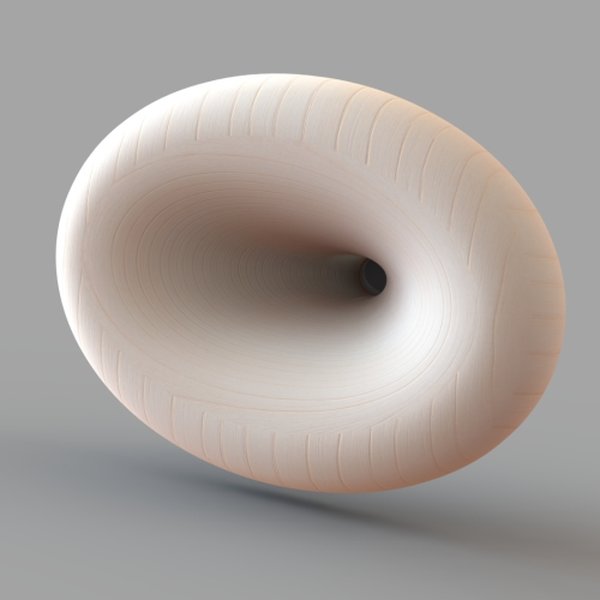
Visual representation of an Oblate Spheroid horn, similar in concept to the profiles generated by R-OSSE equations.
Step 3: Create the 3D Waveguide Model
-
Revolve the Profile:
- Once the 2D datum curve is successfully created and represents the desired waveguide profile, use the Revolve feature to create the 3D solid or surface model.
- Select Insert > Solid > Revolve (or equivalent for surfaces).
- Select the datum curve as the profile to be revolved.
- Select the appropriate axis of revolution (e.g., the Z-axis if you defined your profile relative to it).
- Specify a 360-degree revolution to create the full waveguide.
Step 4: Parametric Modification and Iteration
- With the model set up this way, changing any of the initial R-OSSE design parameters (via Tools > Parameters) will automatically trigger:
- Recalculation of the auxiliary constants (c1, c2, c3, L) via the Relations.
- Regeneration of the datum curve based on the new parameter values.
- Updating of the 3D revolved feature based on the modified datum curve.
- This allows for rapid design iteration and exploration of different waveguide geometries simply by editing the parameter values.
Visualizing Parametric Design Factors
Comparative Strengths of Modeling Approaches
When modeling complex parametric shapes like the R-OSSE waveguide, different CAD techniques offer varying advantages. The radar chart below provides a conceptual comparison of the "Datum Curve from Equation" method (ideal for this scenario) against other potential approaches in terms of key design considerations. The scores (1-5, 5 being best) are illustrative.
As illustrated, using datum curves directly from equations in Pro/ENGINEER provides an excellent balance of parametric control, accuracy, and iteration speed, aligning well with the user's objectives, even if the initial setup of complex equations requires care.
Workflow Overview: R-OSSE Waveguide in Pro/ENGINEER
A Visual Map of the Modeling Process
The following mindmap illustrates the key stages involved in transforming the R-OSSE mathematical definitions into a fully parametric 3D model within Pro/ENGINEER Wildfire 4.0.
(R, a, r0, a0, k, r, m, b, q)"] id1b["Identify Auxiliary Constants
(c1, c2, c3, L)"] id1c["Note x(t) and y(t) formulas"] id2["2. Pro/ENGINEER Setup"] id2a["Define Design Parameters
(Tools > Parameters)"] id2b["Define Auxiliary Constants
(Tools > Relations)"] id2c["Verify Relations Syntax"] id3["3. Create 2D Profile"] id3a["Use 'Datum Curve from Equation'
(Insert > Model Curve > From Equation)"] id3b["Select Cartesian Coordinates"] id3c["Input x(t) & y(t) mapping to Pro/E axes
(Referencing defined parameters/relations)"] id3d["Set parameter 't' range (0 to 1)"] id3e["Verify generated curve shape"] id4["4. Generate 3D Waveguide Model"] id4a["Use 'Revolve' Feature
(Insert > Solid > Revolve)"] id4b["Select Datum Curve as Profile"] id4c["Select Axis of Revolution"] id5["5. Parametric Editing & Iteration"] id5a["Modify Design Parameters
(Tools > Parameters)"] id5b["Observe Automatic Model Update
(Curve & 3D Solid regenerate)"] id5c["Explore Design Variations"]
This mindmap provides a clear, sequential overview of the actions required to successfully model the R-OSSE waveguide parametrically.
Video Tutorial: Working with Relations in Pro/ENGINEER
Understanding Equations for Parametric Design
While specific to a clam-shell part, the following video demonstrates the fundamental concept of using relations (equations) in Pro/ENGINEER, which is directly applicable to defining the auxiliary constants (c1, c2, c3, L) for your R-OSSE waveguide. Understanding how to create and manage these relations is key to a robust parametric model.
E19 Pro/Engineer Wildfire 4.0 - Relations Equations. This video introduces using equations (Relations) in Pro/E.
The principles shown for defining equations between parameters and dimensions are the same ones you'll use for the R-OSSE auxiliary constants, linking them back to your primary design parameters.
Advanced Considerations and Alternatives
Exploring Other Options and Best Practices
Potential Challenges
- Equation Complexity & Syntax: The R-OSSE equations are non-trivial. Meticulous attention to syntax, parentheses, and function names (e.g.,
sqrt()for square root,tan()for tangent) within Pro/ENGINEER's equation editor is vital. - Domain Errors: Certain combinations of parameters might lead to mathematically undefined results (e.g., square root of a negative number, division by zero). This can prevent the curve from generating. It's good practice to test with known valid parameter sets first.
- Units for Angles: Pro/ENGINEER relations and some equation inputs for curves typically expect angles in degrees for trigonometric functions like
tan(a). Ensure your input parameters for angles (like 'a' and 'a0') are defined in degrees and that the functions are used consistently.
Alternative Approaches (Less Direct for Full Parametric Control)
- Point Discretization: One could calculate a series of [x,y] points from the R-OSSE equations externally (e.g., using a script or spreadsheet) and then import these points into Pro/ENGINEER to create an interpolated spline. However, this approach makes direct parametric updates within Pro/ENGINEER (by simply changing a parameter value) more cumbersome, as it would require re-importing points.
- Scripting with Pro/TOOLKIT: For highly complex automation or integration, Pro/TOOLKIT (Pro/E's C/C++ API) could be used to programmatically generate the geometry. This is a very powerful but significantly more advanced approach requiring programming skills and is generally beyond the scope of typical parametric part modeling.
- Family Tables: Once a base parametric R-OSSE waveguide is created, Pro/ENGINEER's Family Table functionality can be used to efficiently manage multiple design variations (instances) by defining different sets of parameter values.
Best Practices
- Start Simple: If issues arise, try implementing a simplified version of the equations first, or test individual components of the formula.
- Verify Intermediate Calculations: Use the Relations dialog to check the calculated values of auxiliary constants (c1, c2, c3, L) for plausibility with a given set of input parameters.
- Incremental Building: Ensure parameters are defined correctly before moving to relations, and that relations are error-free before attempting to create the datum curve.
Frequently Asked Questions (FAQ)
Clarifying Common Queries
What if the datum curve doesn't generate or shows errors?
If the curve fails to generate or Pro/ENGINEER reports an error, consider the following:
- Syntax Errors: Double-check the equations entered into the curve definition for typos, missing parentheses, incorrect function names, or incorrect use of operators. Pro/E's equation syntax can be particular.
- Parameter References: Ensure all parameters (R, a, r0, etc.) and relations (c1, c2, L, etc.) are correctly named and referenced in the curve equations. Case sensitivity might apply.
- Mathematical Domain Errors: The most common issue is often a mathematical impossibility for the given parameter values, such as:
- The argument of a
sqrt()function being negative. - Division by zero (e.g., if
c3becomes zero in the calculation ofL).
- The argument of a
- Range of 't': Ensure the parameter 't' is correctly defined (typically 0 to 1). While Pro/E usually handles this, confirm its settings.
- Relations Errors: Verify that the relations for c1, c2, c3, and L are calculating valid numerical values. Use Tools > Relations > Utilities > Verify and also check their computed values in the Parameters table if you list them there.
How do I ensure the waveguide model remains fully parametric and editable?
To ensure full parametric control:
- Use Parameters for All Inputs: All driving values for the R-OSSE equations (R, a, r0, etc.) must be defined as Pro/ENGINEER parameters (via Tools > Parameters). Avoid hardcoding numbers directly into the curve equations if they are intended to be design variables.
- Use Relations for Derived Values: All intermediate calculations (like c1, c2, c3, L) should be defined in Tools > Relations, referencing the primary design parameters.
- Link Curve Equations to Parameters/Relations: The equations entered for the datum curve must explicitly reference these defined parameters and relations.
- Associative Features: Ensure that subsequent features (like the Revolve feature) are created associatively from the parametric datum curve. Pro/ENGINEER does this by default.
- When you change a value in the Parameters table, the entire model (relations, curve, 3D geometry) should update automatically upon regeneration. This is the hallmark of a parametric model.
Can I use this method to create waveguides of different sizes or profiles?
Absolutely. That's the primary advantage of this parametric approach.
- By changing the values of the defined R-OSSE design parameters (R, a, r0, a0, k, r, m, b, q) in the Tools > Parameters dialog, the R-OSSE equations will yield a different curve profile.
- Since the 3D model is built associatively from this curve, the entire waveguide geometry will update to reflect the new dimensions and shape characteristics.
- You can use Family Tables (Tools > Family Table) to create a set of predefined variations of the waveguide, each with different parameter values, all managed within a single part file.
Is Pro/ENGINEER Wildfire 4.0 still commonly used or supported?
Pro/ENGINEER Wildfire 4.0 is an older version of the software. PTC, the developer, has since transitioned Pro/ENGINEER into the Creo Parametric family.
- Official support for Wildfire 4.0 from PTC has likely ended. Most companies using PTC products will have migrated to newer versions of Creo Parametric.
- However, the core parametric modeling principles, such as defining parameters, using relations, and creating curves from equations, are foundational and largely carry over into Creo Parametric. The user interface and specific menu locations might differ in Creo, but the underlying capabilities for this type of task are present and often enhanced in newer versions.
- If you are using Wildfire 4.0, the methods described here are applicable. If you have access to Creo Parametric, the process will be very similar, potentially with an improved user experience for equation entry.
Recommended Next Steps & Further Exploration
Deepen Your Understanding
- Learn about optimizing complex parametric equations in Pro/ENGINEER for faster model regeneration.
- Explore advanced techniques for surface modeling of acoustic waveguides, particularly if non-axisymmetric features are needed.
- Discover how to effectively use Pro/ENGINEER or Creo Family Tables with equation-driven parts to manage multiple waveguide design variations.
- Find common troubleshooting steps when datum curves from equations fail or produce unexpected results in Pro/ENGINEER or Creo.
References
Sources and Further Reading
Last updated May 10, 2025