
Demystifying React Table Sorting with a TypeScript Function
Understanding and Enhancing the Provided handleSort Function
Sorting data in tables is a fundamental requirement for many web applications, allowing users to organize and analyze information efficiently. When working with React and TypeScript, implementing robust sorting functionality often involves managing state and applying sorting logic to your data. The provided TypeScript function, handleSort, is a common approach to managing sorting state in a React component, likely used in conjunction with a table component. This response will break down the function, explain its behavior, and discuss how to integrate and enhance it within a React table implementation.
Key Insights
- State Management: The
handleSortfunction primarily focuses on updating the sorting state of a table, likely controlled by a state variable namedsortConfig. - Sorting Logic: It implements a three-state sorting cycle for each column: ascending, descending, and unsorted.
- TypeScript Usage: The function leverages TypeScript's type safety with
keyof PatientTypeandSortKeyto ensure correct usage of column keys.
Deconstructing the handleSort Function
Understanding the Core Logic
The handleSort function takes a single argument, columnKey, which is the key representing the column that the user wants to sort by. It uses the setSortConfig function, which is presumably a state updater function provided by the useState hook in React. This function updates the sortConfig state, which holds information about the current sorting state of the table.
Let's examine the logic within the setSortConfig updater function:
    setSortConfig((prevSortConfig) => {
      // Check if the clicked column is the same as the currently sorted column
      if (prevSortConfig.key === columnKey) {
        console.log(columnKey,"columnKey"); // Logging the column key

        // If currently sorted in ascending order, switch to descending
        if (prevSortConfig.direction === "asc") {
          return { key: columnKey as SortKey, direction: "desc" };
        }
        // If currently sorted in descending order, switch to unsorted state
        else if (prevSortConfig.direction === "desc") {
          return { key: null, direction: null }; // Unsorted state
        }
        // If not sorted (initial state or after unsorted), switch to ascending
        else {
          return { key: columnKey as SortKey, direction: "asc" };
        }
      }
      // If a different column is clicked, sort in ascending order by the new column
      else {
        return { key: columnKey as SortKey, direction: "asc" };
      }
    });
Handling the Same Column Click
The first part of the if statement checks if the columnKey of the clicked column is the same as the key in the prevSortConfig. This means the user is clicking on the header of the column that is already being sorted.
- If the current direction is
"asc"(ascending), the function returns a new sort configuration with the samecolumnKeybut changes thedirectionto"desc"(descending). - If the current direction is
"desc"(descending), the function returns a sort configuration withkeyanddirectionset tonull. This represents an unsorted state, effectively clearing the sorting for that column. - If the current direction is neither
"asc"nor"desc"(which would be the initial state wheredirectionis likelynullor undefined), it sets the direction to"asc". This ensures that the first click on a column header always sorts in ascending order.
Handling a Different Column Click
The else block of the main if statement is executed when the user clicks on a column header that is different from the currently sorted column. In this case, the function resets the sorting to the newly clicked column and sets the direction to "asc". This is a common and intuitive behavior for table sorting.
Integrating handleSort with a React Table
Connecting State and UI
To make this handleSort function work with a React table, you would typically:
- Define State: In your table component, declare a state variable using
useStateto hold the sorting configuration. This state would be an object withkey(the column key being sorted) anddirection('asc', 'desc', or null).const [sortConfig, setSortConfig] = React.useState<{ key: SortKey | null; direction: "asc" | "desc" | null }>({ key: null, direction: null }); - Pass
handleSortto Table Headers: In your table rendering logic, specifically for the table header elements (<th>), you would attach anonClickevent handler that calls thehandleSortfunction, passing the relevant column key.<th onClick={() => handleSort('columnName')}>Column Name</th> - Apply Sorting Logic to Data: Before rendering the table rows, you would apply sorting to your data array based on the current
sortConfigstate. This involves using the JavaScriptArray.prototype.sort()method with a comparison function.const sortedData = React.useMemo(() => { let sortableItems = [...data]; // Create a mutable copy if (sortConfig !== null) { sortableItems.sort((a, b) => { if (sortConfig.key === null) return 0; // No sorting const aValue = a[sortConfig.key]; const bValue = b[sortConfig.key]; if (aValue < bValue) { return sortConfig.direction === 'asc' ? -1 : 1; } if (aValue > bValue) { return sortConfig.direction === 'asc' ? 1 : -1; } return 0; }); } return sortableItems; }, [data, sortConfig]); // Re-run only when data or sortConfig changesUsing
React.useMemois a good practice here to prevent unnecessary re-sorting of data when other parts of the component re-render but the data and sort configuration haven't changed.
Visualizing the Sorting State
Adding Sorting Indicators
To provide visual feedback to the user about the current sorting state, you can add icons to the table headers. These icons typically indicate the sorting direction (ascending or descending) or show no icon when the column is not sorted.
You can conditionally render icons based on the sortConfig state within your table header elements. For example, using Font Awesome icons:
    <th onClick={() => handleSort('columnName')}>
      Column Name{' '}
      {sortConfig.key === 'columnName' && (
        <i className={<code>fa fa-sort-${sortConfig.direction === 'asc' ? 'asc' : 'desc'}}></i>
      )}
      {sortConfig.key !== 'columnName' && sortConfig.key !== null && (
           <i className="fa fa-sort"></i> // Optional: show a generic sort icon for other columns
      )}
    </th>
This snippet shows a basic example. You would need to include the Font Awesome library in your project.
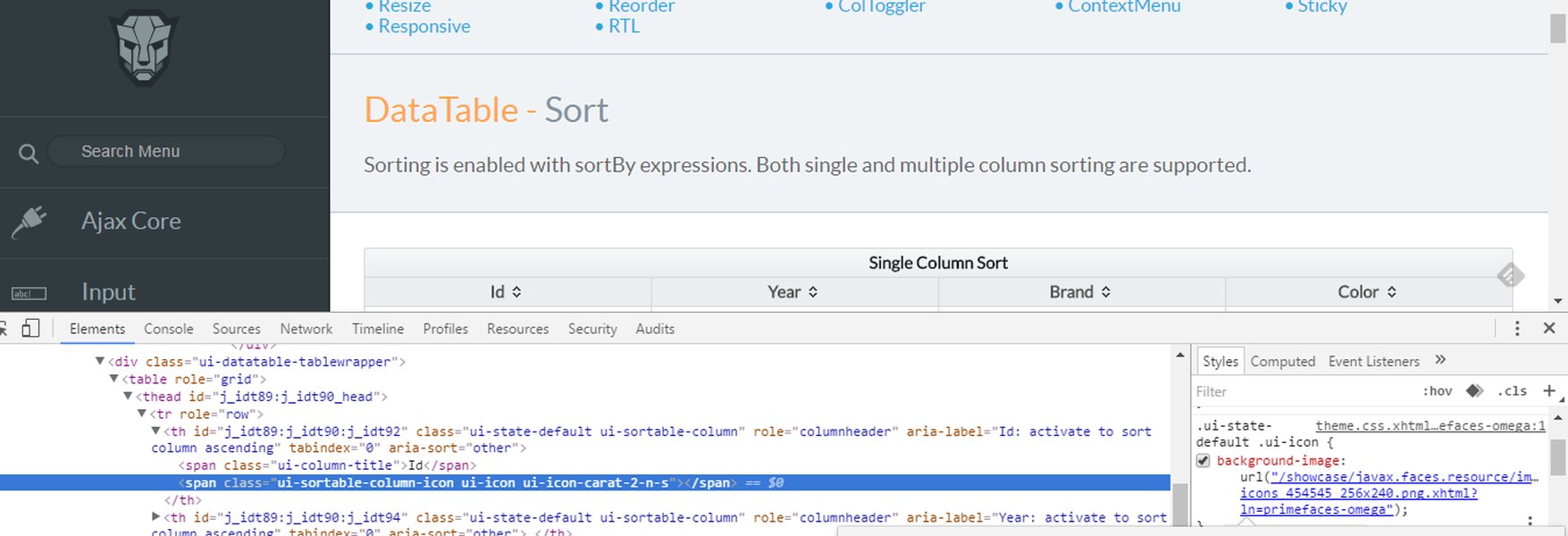
Example of sorting icons in table headers.
Refining the Sorting Logic
Handling Different Data Types
The provided handleSort function and the basic sorting logic assume that the data in the columns can be directly compared using the < and > operators. This works well for strings and numbers. However, for other data types like dates, custom objects, or when you need specific sorting rules (e.g., case-insensitive string sorting), you'll need a more sophisticated comparison function within the sort method.
You could enhance the sorting logic to handle different data types by:
-
Checking Data Type: Inside the comparison function, check the type of the values being compared and apply the appropriate comparison logic.
-
Providing Custom Comparators: Allow defining custom comparison functions for specific columns based on their data type or required sorting behavior. This could be done by including a comparator function alongside the column definition.
Implementing Server-Side Sorting
For large datasets, performing client-side sorting can lead to performance issues. In such cases, you would typically implement server-side sorting. When a user clicks a column header, instead of sorting the data in the frontend, you would send a request to the server with the column key and sorting direction. The server would then return the sorted data.
If you were to adapt the handleSort function for server-side sorting, the setSortConfig call would likely trigger a data fetching process that includes the sorting parameters in the API request. The state update would still track the current sorting, but the actual sorting operation would happen on the backend.
Alternative Approaches and Libraries
Utilizing React Table Libraries
Building a feature-rich and performant table with sorting, filtering, pagination, and other functionalities from scratch can be complex and time-consuming. React table libraries like TanStack Table (formerly React Table) and AG Grid provide hooks and components that abstract away much of this complexity.
A tutorial on using the TanStack Table library for building React tables with features like sorting.
Libraries like TanStack Table often provide a useSortBy hook that integrates with their core useTable hook. This hook handles the sorting state management and provides helper functions and properties to easily implement sortable headers and apply sorting to your data.
    import { useTable, useSortBy } from 'react-table';

    const {
      getTableProps,
      getTableBodyProps,
      headerGroups,
      rows,
      prepareRow,
    } = useTable({ columns, data }, useSortBy);
Using such libraries can significantly reduce the amount of boilerplate code you need to write and provide optimized solutions for common table functionalities.
Custom Hooks
Another approach, especially if you need to reuse sorting logic across multiple tables in your application, is to create a custom React hook. This hook could encapsulate the state management (like the sortConfig) and the data sorting logic, providing a clean and reusable interface.
    import { useState, useMemo } from 'react';

    interface SortConfig<T> {
      key: keyof T | null;
      direction: "asc" | "desc" | null;
    }

    function useSortableData<T>(items: T[], config: SortConfig<T> | null = null) {
      const [sortConfig, setSortConfig] = useState<SortConfig<T>>(config || { key: null, direction: null });

      const sortedItems = useMemo(() => {
        let sortableItems = [...items];
        if (sortConfig !== null && sortConfig.key !== null) {
          sortableItems.sort((a, b) => {
            const aValue = a[sortConfig.key!];
            const bValue = b[sortConfig.key!];

            if (aValue < bValue) {
              return sortConfig.direction === 'asc' ? -1 : 1;
            }
            if (aValue > bValue) {
              return sortConfig.direction === 'asc' ? 1 : -1;
            }
            return 0;
          });
        }
        return sortableItems;
      }, [items, sortConfig]);

      const requestSort = (key: keyof T) => {
        let direction: "asc" | "desc" | null = "asc";
        if (sortConfig && sortConfig.key === key && sortConfig.direction === "asc") {
          direction = "desc";
        } else if (sortConfig && sortConfig.key === key && sortConfig.direction === "desc") {
           direction = null;
        }
        setSortConfig({ key, direction });
      };

      return { items: sortedItems, requestSort, sortConfig };
    }
This custom hook, useSortableData, takes the data and an optional initial sort configuration. It returns the sorted data, a function to request sorting (similar to handleSort), and the current sort configuration. This pattern promotes code reusability and keeps your component logic cleaner.
Example Table Structure
Basic HTML Table Structure
A sortable HTML table in React and TypeScript would typically have a structure like this:
{/* More rows */}| Column Header 1 | Column Header 2 | Column Header 3 |
|---|---|---|
| Row 1 Data 1 | Row 1 Data 2 | Row 1 Data 3 |
| Row 2 Data 1 | Row 2 Data 2 | Row 2 Data 3 |
In a React component, you would map over your sorted data array to render the table body (<tbody>) and rows (<tr>). The column headers (<th>) would have the onClick handlers calling your handleSort function or a similar function from a custom hook or library.
FAQ
What is the purpose of keyof PatientType?
keyof PatientType in TypeScript is a indexed access type. It creates a union type of all the public property keys of the PatientType type. This provides type safety by ensuring that the columnKey argument passed to handleSort is a valid key of the PatientType object, preventing typos and runtime errors.
Why is as SortKey used?
The as SortKey is a type assertion. It tells the TypeScript compiler to treat columnKey as a SortKey type. This is likely because the SortKey type is a subset or a specific representation of the possible column keys used in the sorting state, and the developer is asserting that columnKey will conform to this type in the context of the sortConfig state.
How can I sort by multiple columns?
The provided handleSort function implements single-column sorting. To support multi-column sorting, your sortConfig state would need to be an array of sorting configurations, where each object in the array specifies a column key and its direction. The sorting logic would then iterate through this array, applying the sorting criteria sequentially. Libraries like TanStack Table offer built-in support for multi-sort.
Is client-side sorting always suitable?
Client-side sorting is suitable for small to medium-sized datasets. For large datasets (thousands of rows or more), performing sorting in the browser can become slow and unresponsive. In such cases, server-side sorting is recommended, where the data is sorted on the server and the client only displays the currently needed subset of data.
References
Last updated May 5, 2025