
Mastering AWS SageMaker Notebook Automation with AWS CLI
Explore a comprehensive guide for automating AWS SageMaker environments using CLI and auxiliary AWS services
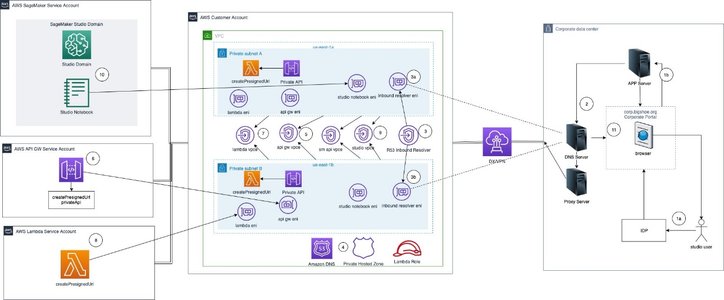
Key Highlights
- Lifecycle Configurations: Automate startup procedures by configuring initialization scripts for installing packages and setting environments.
- AWS CLI Commands: Leverage commands such as create-notebook-instance, start-notebook-instance, and stop-notebook-instance to manage your notebooks programmatically.
- Integration with AWS Services: Utilize AWS Lambda, CloudFormation, EventBridge, and Service Catalog for creating event-driven and scheduled workflows.
AWS SageMaker Notebook Automation Overview
Automating AWS SageMaker notebooks using the AWS CLI provides a versatile and efficient means of managing machine learning environments. With the increasing demand for rapid deployment and scalable machine learning workflows, automating key tasks — from creating and starting notebook instances to scheduling notebook jobs — can greatly reduce operational overhead. This guide explores multiple strategies, best practices, and complementary methods to achieve full automation for your SageMaker environments.
Understanding the Automation Workflow
Automation using AWS CLI is not just about streamlining the creation of notebook instances; it involves setting up an integrated environment where several automated processes work together. Key components include lifecycle configurations for automated initialization, AWS CLI commands for direct control, and additional AWS services that help schedule, monitor, and secure notebook operations.
Lifecycle Configuration Scripts
Lifecycle configurations are critical to ensuring that every SageMaker notebook instance is set up consistently. These configurations use shell scripts that run at the creation and startup of a notebook instance.
- Purpose: Automate the installation of packages, libraries, and custom configuration settings.
- Implementation: By providing a lifecycle configuration document when creating the notebook, you ensure that each instance is ready for immediate use.
- Benefits: Consistency in the environment setups, reduced manual error, and reproducibility.
Utilizing the AWS CLI
The AWS CLI provides a streamlined method for managing different aspects of SageMaker. The core commands you will frequently use include:
- create-notebook-instance: This command provisions a new notebook instance.
- start-notebook-instance: Launches an instance that has been created but is not active.
- stop-notebook-instance: Shuts down the notebook instance when not in active use, helping to save costs.
- list-notebook-instances: Provides a current view of all the notebook instances in your account.
For example, a typical command to create a notebook instance is:
# Create a new notebook instance with lifecycle configuration
aws sagemaker create-notebook-instance \
    --notebook-instance-name MyNotebookInstance \
    --instance-type ml.t2.medium \
    --role-arn arn:aws:iam::123456789012:role/SageMaker-Role \
    --direct-internet-access Enabled \
    --volume-size-in-gb 5 \
    --root-access Enabled \
    --tags Key=Name,Value='AWS CLI Automation'
Scheduling and Event-Driven Automation
Besides direct management via the AWS CLI, automation can be greatly enhanced using event-driven architectures. AWS Lambda and Amazon EventBridge are key to scheduling and triggering tasks automatically based on events or time.
- AWS Lambda: Create functions that respond to events such as the creation of a notebook instance. Lambda functions can perform tasks like generating presigned URLs for secure access or sending notifications.
- Amazon EventBridge: Schedule Lambda invocations using rules. For example, you can set up a rule to stop idle notebook instances after a period of inactivity to reduce costs.
- CloudWatch Events: Monitor the state of notebook instances and log activities for auditing and diagnostic purposes.
Integrating AWS Services for Enhanced Automation
Automation of SageMaker notebooks is elevated when integrating additional AWS services into the workflow. This integration not only ensures that resources are optimally used but also enhances security and enables centralized management.
CloudFormation and Service Catalog
AWS CloudFormation provides a powerful way to manage infrastructure as code. By defining your notebook instances and their configurations in a CloudFormation template, you can deploy a consistent environment across multiple regions or accounts.
- CloudFormation Templates: Specify all necessary parameters including instance type, IAM roles, and network settings. This is ideal for setting up standardized environments for data science teams.
- Service Catalog: Use Service Catalog to allow end-users to request notebook instances from a curated portfolio, ensuring that all deployed resources comply with organizational policies.
Comprehensive Automation Architecture
By combining multiple AWS services, you can design a robust automation architecture. The table below summarizes the key services and their roles in automating SageMaker notebook management:
| Service | Role in Automation | Key Commands/Features |
|---|---|---|
| AWS CLI | Create, start, stop, and list SageMaker notebook instances | create-notebook-instance, start-notebook-instance, stop-notebook-instance |
| Lifecycle Configurations | Automate startup scripts and environment customization | User-defined shell scripts, package installation |
| AWS Lambda | Execute functions based on notebook events | Lambda functions, presigned URL generation |
| Amazon EventBridge | Schedule and trigger automation tasks via events | Event rules, CloudWatch integrations |
| CloudFormation | Deploy infrastructure as code | Templates to define SageMaker instances and related resources |
| Service Catalog | Streamline the provisioning process for end users | Centralized resource portfolio, compliance enforcement |
Step-by-Step Walkthrough
Step 1: Install and Configure AWS CLI
Before automating anything, ensure that your AWS CLI installation is up to date and properly configured with the necessary credentials. A quick verification can be done using:
aws configure
This command prompts you for your AWS Access Key, Secret Access Key, region, and output format. Ensure that the IAM role or user has permissions pertinent to SageMaker operations.
Step 2: Create a Notebook Instance
Utilize the AWS CLI command:
aws sagemaker create-notebook-instance \
    --notebook-instance-name MyNotebookInstance \
    --instance-type ml.t2.medium \
    --role-arn arn:aws:iam::123456789012:role/SageMaker-Role \
    --direct-internet-access Enabled \
    --volume-size-in-gb 5 \
    --root-access Enabled \
    --tags Key=Name,Value='Automated Instance'
This command creates the notebook instance. You can also include a lifecycle configuration if additional setup is required during the instance initialization.
Step 3: Start and Monitor the Notebook Instance
To start the instance, use:
aws sagemaker start-notebook-instance --notebook-instance-name MyNotebookInstance
Monitoring the instance can be done via the AWS Management Console or by invoking:
aws sagemaker list-notebook-instances
This command lists active instances, allowing you to verify that the instance is in the correct state.
Step 4: Automate Shutdown Using Lambda and EventBridge
To minimize unnecessary cost, you may want an automated shutdown of idle instances. Here’s how you can accomplish this:
- Create an AWS Lambda function that checks the activity status of your notebook instances and issues a stop command when idle.
- Configure an EventBridge rule to trigger the Lambda function at regular intervals.
- Ensure that the Lambda function has the appropriate permissions to call the stop-notebook-instance command.
With this configuration, idle notebooks are automatically terminated, saving on running costs.
Step 5: Enhance Automation With CloudFormation
Implement CloudFormation templates to define the infrastructure required for your SageMaker notebooks. This not only speeds up onboarding but also ensures that every environment is standardized. A sample template might include:
- Definition for the notebook instance, including the specific instance type and IAM role.
- Lifecycle configurations to initialize the instance environment.
- Bindings to AWS Lambda for managing start/stop events based on usage.
Best Practices for AWS CLI Automation in SageMaker
Security Considerations
Security is paramount at every stage of automation. Ensure that:
- Your IAM policies restrict access to only the necessary operations. Use the principle of least privilege for both users and roles managing SageMaker operations.
- Sensitive data, such as access keys, are never hard-coded or exposed in your automation scripts. Instead, utilize AWS Secrets Manager or environment variables.
- Use presigned URLs generated by Lambda functions if notebook access needs to be controlled dynamically.
Testing and Validation
Automation workflows should be thoroughly tested:
- Use staging environments to validate your lifecycle configuration scripts and AWS CLI commands.
- Automate tests to catch regressions in your CloudFormation templates or Lambda functions.
- Monitor logs from CloudWatch to diagnose execution issues.
Cost Optimization Strategies
Automating notebook management also presents cost optimization opportunities:
- Ensure that idle notebook instances are stopped automatically, reducing hourly expenses.
- Use scheduled CloudWatch events to trigger cost-saving measures during off-peak hours.
- Optimize the instance types to match your use case, balancing performance and cost.
Additional Automation Strategies
Integrating with Data and Model Training Pipelines
For organizations with extensive machine learning workflows, it is beneficial to integrate notebook automation into broader data processing and model training pipelines. Consider:
- Setting up automated data ingestion from AWS S3, which triggers notebook jobs to process and transform data upon file uploads.
- Integrating automated deployment pipelines that start testing and training notebooks as part of CI/CD workflows.
- Creating a centralized dashboard for monitoring notebook performance, costs, and usage trends.
Leveraging Notebook Jobs in SageMaker Studio
SageMaker Studio offers the Notebook Jobs feature which is particularly useful for non-interactive notebook executions. This feature allows you to:
- Create scheduled jobs that run notebooks for data preparation, model evaluation, or batch inference at set intervals.
- Seamlessly integrate the output of these notebook jobs with other components in your machine learning workflow.
- Maintain a clean, version-controlled notebook environment by executing preset jobs in an automated manner.
Using this feature in tandem with AWS CLI commands further amplifies your ability to manage notebook workloads seamlessly.
References
- StackOverflow - AWS SageMaker Studio Notebook Automation
- AWS Documentation - Lifecycle Configurations
- AWS CLI Reference - Start Notebook Instance
- AWS CLI Documentation - Create Notebook Instance
- AWS Blog - Next Generation SageMaker Notebooks
Recommended Next Searches
 docs.aws.amazon.com
docs.aws.amazon.com
docs.aws.amazon.com
docs.aws.amazon.com
docs.aws.amazon.com
docs.aws.amazon.com
docs.aws.amazon.com
docs.aws.amazon.com
docs.aws.amazon.com
 awscli.amazonaws.com
docs.aws.amazon.com
docs.aws.amazon.com
awscli.amazonaws.com
awscli.amazonaws.com
awscli.amazonaws.com
awscli.amazonaws.com
docs.aws.amazon.com
awscli.amazonaws.com
docs.aws.amazon.com
docs.aws.amazon.com
awscli.amazonaws.com
awscli.amazonaws.com
awscli.amazonaws.com
awscli.amazonaws.com
docs.aws.amazon.com
 aws.amazon.com
docs.aws.amazon.com
aws.amazon.com
docs.aws.amazon.com
Last updated March 27, 2025