
Establishing a Secure Samba Administrator Share on Debian 12
A Comprehensive Step-by-Step Guide for Robust File Management
Key Highlights for Your Samba Administrator Share
- Foundation First: Ensure your Debian 12 system is fully updated and the Samba packages are correctly installed, laying a stable groundwork for your file-sharing environment.
- Precision Configuration: The core of a secure Samba share lies in meticulously editing the
smb.conffile, defining global settings and specific share parameters, including administrator access. - Security through Permissions: Implement robust user management with
smbpasswdand configure file system permissions (chmod,chown) to precisely control who can read, write, and manage the shared resources.
Samba is a versatile open-source software suite that acts as a bridge between Linux/Unix systems and Windows clients, enabling seamless file and printer sharing across a network. For administrators managing a Debian 12 server, setting up a secure Samba share is crucial for efficient resource management and collaborative workflows. This guide will walk you through the process of creating an administrator-level Samba share on Debian 12, ensuring that only authorized users have full control over the shared files and directories.
Understanding Samba's Role in Network File Sharing
Bridging Operating Systems for Unified Access
Samba leverages the Server Message Block (SMB) and Common Internet File System (CIFS) protocols, which are native to Windows environments. This allows Linux servers to function as file and print servers that are fully compatible with Windows, macOS, and other Linux clients. For an administrator, this means a centralized point for managing shared data, user access, and network resources. Samba's flexibility also extends to acting as a domain controller or integrating with Active Directory environments, providing comprehensive directory services.
Prerequisites for Samba Installation
Preparing Your Debian 12 Environment
Before diving into the installation and configuration, ensure your Debian 12 server meets the following requirements:
- Debian 12 Bookworm System: The instructions are tailored for Debian 12.
- Root or Sudo Privileges: You'll need administrative access to install packages and modify system files.
- Network Connectivity: Your server should have a stable network connection, preferably with a static or known IP address for easier access and consistent identification on the network.
- Basic Linux Command Line Knowledge: Familiarity with essential Linux commands will be beneficial.
Step-by-Step Installation and Configuration
Setting Up Your Secure Samba Share
Step 1: Update System Packages
Always begin by updating your system's package list and upgrading existing packages to their latest versions. This ensures you have the most recent security patches and compatible software versions.
sudo apt update && sudo apt upgrade -yThis radar chart illustrates the perceived strengths and areas for attention when configuring Samba for administrative shares. It compares Samba's characteristics against typical file server expectations across key dimensions such as security, performance, ease of configuration, compatibility, scalability, and troubleshooting difficulty. A higher value indicates a stronger presence or easier experience in that area. For instance, Samba typically excels in cross-platform compatibility, making it a robust choice for mixed environments, while its security requires careful, granular configuration to achieve its full potential. The chart highlights that while Samba offers significant power, its advanced features may entail a steeper learning curve for configuration and troubleshooting compared to basic file sharing.
Step 2: Install Samba Packages
Install the necessary Samba packages. This includes the core Samba server and common utilities.
sudo apt install samba samba-common-bin -yOnce the installation is complete, the Samba service should start automatically. You can verify its status:
sudo systemctl status smbd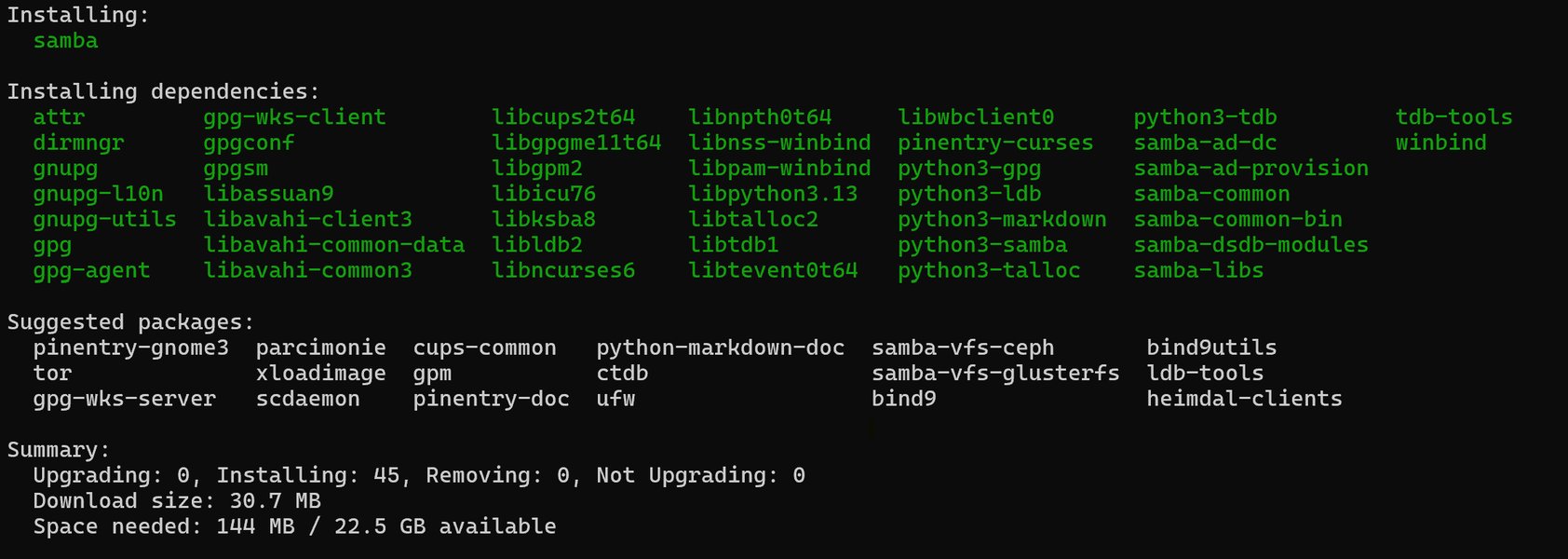
Confirmation of Samba installation success on Debian.
Step 3: Back Up the Original Samba Configuration
Before making any changes, it's critical to back up the default Samba configuration file (smb.conf). This allows you to revert to a working state if issues arise.
sudo cp /etc/samba/smb.conf /etc/samba/smb.conf.backupStep 4: Create the Shared Directory
Create a dedicated directory that will serve as your administrator share. For this guide, we'll create one in /srv/samba/admin_share. Ensure you give it appropriate permissions.
sudo mkdir -p /srv/samba/admin_share
sudo chown -R root:root /srv/samba/admin_share
sudo chmod -R 0770 /srv/samba/admin_share
Setting chmod 0770 ensures that only the owner (root) and members of the owning group (root in this case) have read, write, and execute permissions, while others have no access. This is a crucial step for an administrator share.
Step 5: Configure the Samba Global Settings
Edit the main Samba configuration file, /etc/samba/smb.conf, to set global parameters. Open the file using a text editor like Nano:
sudo nano /etc/samba/smb.confLocate the [global] section and ensure the following settings are present or add them:
[global]
    workgroup = YOUR_WORKGROUP_NAME  ; Replace with your network's workgroup or domain name
    netbios name = DEBIANSERVER   ; A unique name for your Samba server
    security = user                  ; User-level security requiring a Samba password
    map to guest = bad user          ; Prevent guest access for incorrect usernames
    dns proxy = no                   ; Prevents Samba from acting as a DNS proxy
Editing the Samba configuration file.
Step 6: Define the Administrator Share
At the end of the smb.conf file, add a new section for your administrator share. Replace admin_share with your desired share name and ensure the path points to the directory you created earlier.
[admin_share]
    comment = Administrator Share
    path = /srv/samba/admin_share
    valid users = @admin_group your_admin_user
    read only = no
    browsable = yes
    writable = yes
    create mask = 0660
    directory mask = 0770
    force group = admin_group
    admin users = your_admin_user @admin_group
Explanation of parameters:
comment: A descriptive note for the share.path: The absolute path to the directory being shared.valid users: Specifies which users or groups are allowed to access this share.@admin_groupallows all members of the 'admin_group', andyour_admin_userspecifies an individual user.read only: Set tonoto allow writing.browsable: Allows the share to be seen when browsing the network.writable: Set toyesto allow users to write to the share.create mask: Sets the permissions for new files created (0660 for owner/group read/write).directory mask: Sets the permissions for new directories created (0770 for owner/group read/write/execute).force group: Forces all new files and directories created within this share to inherit the specified group (admin_group).admin users: This is a crucial setting for an administrator share. Users listed here (or members of specified groups, prefixed with@) will have root-like privileges within this specific share, overriding standard file system permissions.
Enhancing Security and Access Control
For an administrator share, granular control is paramount. Here’s how you set up users and groups:
Step 7: Create a Dedicated Linux Group for Administrators (Optional but Recommended)
Creating a Linux group for your Samba administrators simplifies management, especially for multiple admins.
sudo addgroup admin_groupStep 8: Create Linux Users and Add Them to the Samba Database
Samba uses its own password database, separate from system passwords. You'll need to create a system user and then add them to the Samba database. For administrator access, you might use an existing administrative user or create a new one.
sudo adduser your_admin_user
sudo usermod -aG admin_group your_admin_user
sudo smbpasswd -a your_admin_user
You will be prompted to set a Samba password for your_admin_user. This password can be different from their Linux system password. Repeat this for any other administrator users.

Creating a new Samba user and setting their password.
This video provides a detailed walkthrough of setting up a Samba server on Ubuntu, covering installation and configuration for secure file sharing. While it focuses on Ubuntu, many principles of Samba configuration, especially regarding user management and share definitions, are directly applicable to Debian 12 due to their shared Linux heritage. It emphasizes best practices for securing shares, making it a valuable resource for anyone aiming to establish robust administrative file sharing.
Step 9: Adjust Firewall Settings
Ensure your firewall allows Samba traffic. If you're using UFW (Uncomplicated Firewall), allow the Samba service:
sudo ufw allow samba
sudo ufw enable
If you're using iptables, you might need to add rules for ports 139 (NetBIOS session service) and 445 (SMB over TCP/IP).
sudo iptables -A INPUT -p tcp -m tcp --dport 139 -j ACCEPT
sudo iptables -A INPUT -p tcp -m tcp --dport 445 -j ACCEPT
sudo iptables -A INPUT -p udp -m udp --dport 137 -j ACCEPT
sudo iptables -A INPUT -p udp -m udp --dport 138 -j ACCEPT
sudo netfilter-persistent save
Step 10: Restart Samba Services
After making changes to smb.conf or adding users, you must restart the Samba services for the changes to take effect.
sudo systemctl restart smbd
sudo systemctl restart nmbd
Accessing the Samba Administrator Share
Connecting from Client Machines
Once Samba is configured, you can access the share from Windows, Linux, or macOS clients. You'll need the IP address of your Debian 12 server.
Access from Windows
Open File Explorer (Windows + E) and enter the following in the address bar:
\<Debian-IP>\admin_shareReplace <Debian-IP> with your server's actual IP address. You will be prompted for credentials. Enter the Samba username (e.g., your_admin_user) and the Samba password you set earlier.
Access from Linux (File Manager)
In most Linux file managers (e.g., Nautilus, Thunar, Dolphin), you can go to "Other Locations" or "Connect to Server" and enter:
smb://<Debian-IP>/admin_shareProvide your Samba username and password when prompted.
Access from Linux (Command Line)
You can use the smbclient utility to test access from the server itself or another Linux client:
smbclient //<Debian-IP>/admin_share -U your_admin_userEnter the Samba password when prompted. This command will allow you to browse the share's contents.
Key Considerations for an Administrator Share
Best Practices for Robust Management
Managing an administrator share requires attention to several details to maintain security and functionality:
| Aspect | Description and Best Practices |
|---|---|
| Permissions (Linux Filesystem) | Ensure the underlying Linux file system permissions on /srv/samba/admin_share are correctly set (e.g., chmod 0770 and chown root:admin_group). Samba respects these permissions unless overridden by specific smb.conf directives like force user or admin users. |
| Samba User Passwords | Samba passwords are independent of system passwords. Encourage strong, unique passwords for Samba users, especially for administrators. Regularly rotate these passwords. |
| SELinux/AppArmor | If SELinux or AppArmor are enabled on your Debian system, they might restrict Samba's access to shared directories. You might need to adjust their policies to allow Samba to read/write to your shared path. For SELinux, commands like semanage fcontext and restorecon may be necessary. |
| Logging and Monitoring | Regularly check Samba logs (usually in /var/log/samba/) for any error messages, access denied attempts, or unusual activity. This helps in troubleshooting and security auditing. |
| Network Security | Beyond the server's firewall, consider network-level security. Limit access to your Samba server to trusted networks or IPs if possible. |
| Regular Updates | Keep your Debian system and Samba packages updated to protect against known vulnerabilities. |
Troubleshooting Common Issues
Diagnosing and Resolving Access Problems
If you encounter issues accessing your Samba share, consider the following:
- Firewall Configuration: Double-check that ports 139 and 445 are open on your Debian server's firewall.
- User Permissions and Passwords: Verify that the Samba user exists and has the correct password. Ensure the user has the necessary Linux file system permissions to the shared directory.
- Samba Service Status: Confirm that
smbdandnmbdservices are running. - Configuration File Syntax: Use
testparmto check for syntax errors in yoursmb.conffile.
testparm /etc/samba/smb.confFrequently Asked Questions (FAQ)
What is Samba used for?
Do Samba users need to be Linux system users?
smbpasswd -a <username> and set a Samba-specific password.How can I make a Samba share accessible to guests without a password?
guest ok = yes, public = yes, and map to guest = Bad User within the share definition in smb.conf. This allows unauthenticated users to access the share. However, for an administrator share, this is generally not recommended due to security implications.What is the purpose of admin users in Samba configuration?
admin users parameter allows specified users or members of a group to act with root-like privileges within that particular Samba share, regardless of the underlying Linux file system permissions. This is useful for administrators to manage files and directories without needing to constantly change permissions.Conclusion
Setting up a Samba administrator share on Debian 12 provides a robust and efficient solution for centralized file management in a mixed-OS environment. By following the detailed steps for installation, configuration, user management, and security, you can establish a secure and fully controlled share accessible to your administrative team. Adhering to best practices, such as strong password policies, diligent firewall configuration, and regular updates, will ensure the long-term stability and security of your Samba file server. This setup empowers administrators with the flexibility to manage critical data while maintaining strict access controls.
Recommended Further Exploration
- Explore advanced Samba security hardening techniques for Debian 12 to further protect your data.
- Learn how to integrate Samba with Active Directory on Debian 12 for centralized user authentication.
- Investigate common Samba performance issues and optimization strategies on Debian 12.
- Discover methods for automatically mounting Samba shares on Linux client machines for persistent access.
References
Last updated May 21, 2025