
Is Your Deleted Data Truly Gone? The Ultimate Guide to Securely Erasing Your Phone
Discover the definitive methods to permanently wipe your phone's data, making it unrecoverable even with advanced forensic tools.
Essential Takeaways for Data Obliteration
- Encryption is Key: Enabling device encryption before performing a factory reset is the most critical step for rendering data unrecoverable on modern smartphones.
- Factory Reset Isn't Foolproof Alone: While necessary, a factory reset primarily removes pointers to data, not always the data itself, which specialized tools might still recover if the drive wasn't encrypted.
- Overwriting Adds Security: For maximum assurance, especially on older devices, using specialized tools or methods to overwrite the storage space multiple times significantly hinders data recovery efforts.
Why Simply Deleting or Resetting Isn't Enough
Understanding Data Remnants
When you delete a file or perform a standard factory reset on your phone, the device doesn't usually erase the data immediately. Instead, it marks the space occupied by that data as "available" for new information to be written. The actual data bits often remain on the storage medium (like flash memory) until they are overwritten by new data. High-tech recovery tools are designed to scan these "available" sectors and reconstruct deleted files, potentially exposing your sensitive information.
Modern storage technologies like flash memory (used in smartphones and SSDs) also employ complex techniques like wear leveling. This process distributes writes across memory cells to extend the lifespan of the storage, but it can also mean that data remnants might exist in blocks that are no longer directly accessible by the operating system but could potentially be accessed by forensic tools.
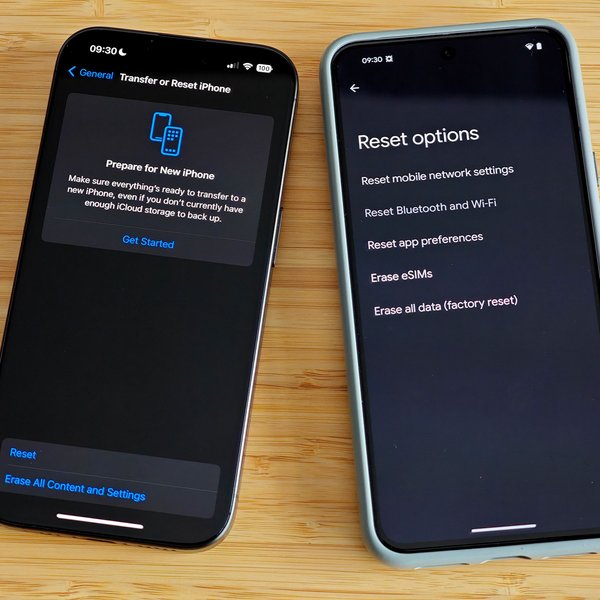
Performing a factory reset is a crucial step, but often needs to be combined with encryption for true security.
The Gold Standard: Encryption Combined with Factory Reset
Leveraging Built-in Security
For most modern smartphones (both Android and iPhone), the combination of full-disk or file-based encryption followed by a factory reset is considered a highly effective method for preventing data recovery. Here's why and how:
How Encryption Works
Encryption scrambles your data using a complex algorithm and a unique key. Without the correct key, the data appears as meaningless gibberish. Modern phones often have encryption enabled by default when a passcode, PIN, or pattern is set.
The Process:
-
Confirm or Enable Encryption:
- Android (9.0+ often default): Go to
Settings>Security(orSecurity & Location/Biometrics and security) >Encryption & credentials. Look for an option stating the phone is encrypted. If not, find and select "Encrypt phone". This process might take some time and requires the phone to be charged and plugged in. - iPhone (iOS): Encryption (called "Data Protection") is automatically enabled when you set a passcode or use Face ID/Touch ID. There's no separate switch to toggle.
- Android (9.0+ often default): Go to
-
Perform the Factory Reset:
- Android: Go to
Settings>System(orGeneral Management) >Reset>Factory data reset(orErase all data (factory reset)). Confirm the action. - iPhone: Go to
Settings>General>Transfer or Reset iPhone>Erase All Content and Settings. You will likely need to enter your passcode and potentially your Apple ID password if Find My is enabled.
- Android: Go to
Why It's Secure
When you perform a factory reset on an encrypted device, the unique encryption key required to decrypt the data is securely discarded. While the scrambled data might technically remain on the storage until overwritten, it's rendered permanently inaccessible and useless without the key. Recovery tools might find the encrypted data blocks, but they cannot decipher them.
Enhancing Security: Overwriting and Specialized Tools
While encryption plus a factory reset is strong, some situations or older devices might benefit from additional steps. These methods focus on actively overwriting the storage space to obliterate data remnants.
Manual Overwriting (Optional Layer)
If your device doesn't support robust encryption or you seek extra assurance, you can manually attempt to overwrite the storage after a factory reset:
- Perform a factory reset (as described above).
- Set up the phone minimally without signing into personal accounts.
- Fill the phone's internal storage completely with large, non-sensitive "dummy" files (e.g., record long videos of a blank wall, copy large generic files).
- Once the storage is full, perform another factory reset.
This process aims to overwrite previously occupied data sectors. However, due to wear leveling on flash memory, it's not guaranteed to overwrite every single remnant, but it significantly increases the difficulty of recovery.
Using Specialized Data Erasure Apps and Software
For the highest level of certainty, dedicated data erasure tools (often called "file shredders" or "data wipers") are available. These tools are designed to overwrite the storage media multiple times using specific patterns and algorithms (like DoD 5220.22-M or the Gutmann method) recognized by security standards.
How They Work
These tools repeatedly write patterns of data (e.g., zeros, ones, random characters) across the entire accessible storage space, effectively destroying any underlying original data. The number of "passes" (overwrites) often determines the level of security.
Examples of Tools (Based on provided answers):
- For Android: iShredder, Secure Eraser, Dr.Fone - Data Eraser (Android), MobiKin Eraser for Android, BitRaser Mobile Eraser, iMyFone Android Data Eraser. These can often be found on the Google Play Store or as desktop software that connects to your phone.
- For iPhone: Due to Apple's robust hardware encryption and secure key management, specialized third-party erasure tools are generally considered less necessary if the standard "Erase All Content and Settings" function is used on an encrypted device. However, tools like iMyFone Umate Pro or Dr.Fone - Data Eraser (iOS) exist and claim to offer secure wiping.
When using these tools, follow their specific instructions carefully. Some may require connecting your phone to a computer. Choose a tool with good reviews and a clear explanation of the erasure methods used.
Data Erasure Method Effectiveness Comparison
Visualizing Security Levels
Different data erasure methods offer varying levels of security and practicality. This chart provides a comparative overview based on key factors. Note that 'Security Level' reflects the resistance to recovery by high-tech tools, with higher scores being better. 'Ease of Use' and 'Time Required' are inverse measures (lower scores mean easier/faster).
Essential Preparation Steps Before Wiping
Before initiating any erasure process, take these crucial preparatory steps:
1. Back Up Your Important Data
This is the most critical first step. Ensure anything you want to keep (photos, contacts, documents, app data, messages) is securely backed up to a cloud service (like Google Drive/Photos, iCloud) or transferred to another device or computer. Once the erasure process begins, retrieving data will be impossible.
2. Sign Out of All Accounts
Manually sign out of all accounts linked to the device. This includes:
- Your primary Google Account (Android) or Apple ID (iPhone). This often disables device protection features that could hinder a reset or cause issues for a new owner.
- Cloud storage accounts (Dropbox, OneDrive, etc.).
- Social media apps (Facebook, Twitter, Instagram, etc.).
- Messaging apps (WhatsApp, Signal, Telegram - ensure backups are made if needed).
- Banking and payment apps.
On Android, go to Settings > Accounts or Users & accounts, select each account, and choose "Remove account". On iPhone, signing out of your Apple ID in Settings is the main step, often done during the "Erase All Content and Settings" process, which also disables "Find My".
3. Disable Security Locks and Features
Remove any screen locks (PIN, pattern, password, fingerprint, face recognition). Also, ensure features like "Find My iPhone" (iOS) or Google's "Find My Device" / Factory Reset Protection (Android) are disabled, typically by removing the associated primary account.
4. Remove SIM Card and External Storage (SD Card)
Physically remove your SIM card and any microSD card from the device. These can contain personal data (contacts on older SIMs, files on SD cards) that won't be affected by wiping the phone's internal storage. Securely erase or destroy the SD card separately if it contains sensitive information.
Visualizing the Secure Erasure Workflow
A Mindmap of the Process
This mindmap provides a visual summary of the recommended steps for securely erasing your phone to prevent data recovery.
(Cloud/External)"] id1b["Sign Out Accounts
(Google/Apple ID, Apps)"] id1c["Disable Screen Locks"] id1d["Remove SIM & SD Card"] id2["Core Erasure Method
(Modern Phones)"] id2a["Ensure/Enable Encryption"] id2b["Perform Factory Reset
(Erase All Content)"] id3["Enhanced Security
(Optional/Older Devices)"] id3a["Manual Overwrite"] id3a1["Reset -> Fill Storage -> Reset Again"] id3b["Use Specialized Tools"] id3b1["Install Erasure App/Software"] id3b2["Select Multi-Pass Overwrite"] id3b3["Run Erasure Process"] id4["Verification (Optional)"] id4a["Attempt Recovery (Ethically)"] id4b["Check Erasure Tool Report"]
Video Guide: Wiping Your Android Phone Securely
Step-by-Step Visual Instructions
Watching a visual guide can often clarify the steps involved in securely wiping your device. This video provides a walkthrough focusing on Android phones, covering essential steps like backups, account removal, encryption checks, and the factory reset process, emphasizing why overwriting is important for security when selling or disposing of your phone.
Video guide on securely wiping an Android phone before selling.
Comparing Erasure Techniques
Pros and Cons at a Glance
Choosing the right method depends on your device, sensitivity of data, and desired level of security. This table summarizes the key characteristics of the main approaches discussed:
| Method | Security Level | Pros | Cons | Best Suited For |
|---|---|---|---|---|
| Factory Reset (Alone) | Low-Moderate | Simple, fast, built-in. | Data potentially recoverable, especially if not encrypted first. | Non-sensitive data, devices already encrypted by default (with caution). |
| Encryption + Factory Reset | High | Very secure for modern devices, utilizes strong built-in features, relatively easy. | Encryption process can take time initially; effectiveness relies on robust implementation by manufacturer. | Most modern Android (9+) and all passcode-protected iPhones; standard best practice. |
| Manual Overwrite + Reset | Moderate-High | Free, adds a layer over simple reset. | Time-consuming, tedious, effectiveness not guaranteed due to wear leveling. | Older devices without reliable encryption, users wanting extra non-tool-based security. |
| Specialized Erasure Tools | Very High / Highest | Uses certified erasure standards (multi-pass overwrite), provides verification reports. | Often requires third-party software (may cost money), can take significant time depending on passes, potential compatibility issues. | Highly sensitive data, corporate devices, meeting compliance requirements, maximum assurance. |
Frequently Asked Questions (FAQ)
Is a factory reset enough to prevent data recovery?
Generally, no, not on its own, especially for older devices or if encryption wasn't active. A factory reset primarily deletes the file system's pointers to the data, but the data itself might remain on the storage media until overwritten. If the device was encrypted before the reset, then the reset effectively destroys the key, rendering the underlying data unreadable, which is much more secure.
Do I need to worry about wear leveling affecting secure erasure?
Wear leveling, used in flash memory (like in phones and SSDs), can complicate secure erasure because the drive controller might remap data blocks, potentially leaving old data in inaccessible areas. This is why simple overwriting isn't always foolproof. However, using the built-in encryption + factory reset method circumvents this, as the data becomes useless without the key, regardless of where it physically resides. Specialized erasure tools designed for flash memory also attempt to account for these factors, often using specific commands (like Secure Erase ATA commands, though implementation varies) or multiple overwrite passes.
Is physical destruction necessary for absolute security?
For the vast majority of users, physical destruction (shredding or pulverizing the memory chips) is overkill. Modern encryption combined with a factory reset, potentially supplemented by specialized erasure software, provides extremely high security against even sophisticated forensic tools. Physical destruction guarantees data is unrecoverable but is typically only warranted for devices containing extremely sensitive national security, corporate espionage, or high-level classified information.
Are iPhones or Android phones easier to erase securely?
Both platforms offer strong security when handled correctly. iPhones have mandatory hardware encryption tied to the passcode ("Data Protection"), making the standard "Erase All Content and Settings" highly effective at destroying the encryption keys and securing data. Modern Android versions (typically 9.0+) also use strong file-based or full-disk encryption, often by default. The process (Encrypt + Reset) is similarly effective. Older Android devices might require manual encryption activation or benefit more from specialized erasure tools compared to iPhones.
Recommended Further Exploration
- How does file-based encryption differ from full-disk encryption on Android?
- What are the specific data erasure standards like DoD 5220.22-M?
- Can data be recovered from a physically damaged phone?
- Are cloud backups secure after I erase my device?
References
Last updated April 30, 2025