
Comprehensive Guide to Setting Up Letta with Docker on Mac or Linux Using Homebrew
Streamline your Letta deployment with Docker and Homebrew on your preferred operating system
Key Takeaways
- Seamless Installation: Utilize Homebrew to effortlessly install Docker on both Mac and Linux systems.
- Efficient Management: Learn to pull, configure, and run Letta through Docker containers for optimal performance.
- Enhanced Security: Implement best practices for environment variables and container management to secure your Letta setup.
Introduction
Setting up Letta with Docker on a Mac or Linux machine provides a robust and scalable environment for deploying your applications. Leveraging Docker's containerization capabilities ensures consistency across different environments, while Homebrew simplifies the installation process on macOS and Linux systems. This guide offers a step-by-step approach to installing Docker via Homebrew, pulling the Letta Docker image, configuring necessary environment variables, and managing your Letta container effectively.
Prerequisites
Before proceeding with the setup, ensure you have the following:
- A Mac or Linux machine with administrative privileges.
- Homebrew installed. If not, you can install it by running the following command in your terminal:
/bin/bash -c "$(curl -fsSL https://raw.githubusercontent.com/Homebrew/install/HEAD/install.sh)" - Basic knowledge of terminal commands and Docker operations.
Step 1: Install Docker Using Homebrew
For macOS
Docker provides a Desktop application tailored for macOS, which simplifies container management.
- Open your Terminal application.
- Install Docker using Homebrew with the following command:
brew install --cask docker - After installation, launch Docker Desktop from the Applications folder or use Spotlight search.
- Upon launching, Docker may prompt you to enter your system password to grant necessary permissions. Follow the on-screen instructions to complete the setup.
- Verify that Docker is running by checking for the Docker whale icon in the menu bar.
For Linux
Installing Docker on Linux can vary slightly depending on the distribution. Here, we provide a general approach using Homebrew on Linux.
- Open your Terminal.
- Install Docker using Homebrew with the command:
brew install docker - Start the Docker service:
sudo systemctl start docker - Enable Docker to start on boot:
sudo systemctl enable docker - Add your user to the Docker group to manage Docker without sudo:
sudo usermod -aG docker $USER - Apply the group changes:
newgrp docker - Verify the installation by checking the Docker version:
You should see output similar todocker --versionDocker version 24.0.0, build abcdefg.
Step 2: Pull the Letta Docker Image
With Docker installed, the next step is to obtain the Letta Docker image from Docker Hub.
- Pull the official Letta Docker image using the following command:
docker pull letta/letta-server - Alternatively, if you prefer building the image from source, clone the Letta repository:
git clone https://github.com/letta-ai/letta.git - Navigate to the cloned directory:
cd letta - Build the Docker image using the provided Dockerfile:
docker build -t letta . - Verify the image has been successfully pulled or built by listing your Docker images:
Look for letta/letta-server or letta in the image list.docker images
Step 3: Configure Environment Variables
Proper configuration of environment variables is crucial for Letta to interact seamlessly with LLM API providers and manage its database.
Setting Up a .env File
Create a .env file to store sensitive information securely. This file will be used to pass environment variables to the Docker container.
OPENAI_API_KEY=your_openai_key
POSTGRES_USER=letta
POSTGRES_PASSWORD=letta_password
POSTGRES_DB=letta_db
Ensure that this .env file is located in the same directory where you plan to run the Docker container.
Passing Environment Variables to Docker
When running the Docker container, pass the environment variables using the --env-file flag:
docker run --env-file .env -p 8283:8283 -p 5432:5432 letta/letta-serverThis command ensures that Letta has access to the necessary API keys and database credentials.
Step 4: Run Letta with Docker
With Docker installed, the Letta image pulled or built, and environment variables configured, you can now run the Letta container.
Launching the Container
Execute the following command to run Letta in a detached mode, which allows it to run in the background:
docker run -d -p 8283:8283 -p 5432:5432 --name letta-server letta/letta-serverParameters Explained:
-d: Runs the container in detached mode.-p 8283:8283: Maps port 8283 on your host to port 8283 in the container (used for Letta's interface).-p 5432:5432: Maps port 5432 on your host to port 5432 in the container (used for PostgreSQL).--name letta-server: Assigns a name to the container for easier reference.letta/letta-server: Specifies the Docker image to use.
Verifying the Running Container
Check if the Letta container is running properly:
docker psYou should see an entry for letta-server with status Up along with the mapped ports.
Access Letta by navigating to http://localhost:8283 in your web browser. You should see the Letta interface indicating a successful setup.
Step 5: Manage the Letta Container
Efficient container management ensures that your Letta instance runs smoothly and can be maintained without issues.
Starting and Stopping the Container
To stop the running Letta container:
docker stop letta-serverTo start the stopped Letta container again:
docker start letta-serverRemoving the Container
If you need to remove the Letta container, ensure it is stopped first:
docker rm letta-serverBe cautious as this will delete all data within the container unless volumes are mapped for persistence.
Updating Letta
To update Letta to the latest version:
- Pull the latest Letta Docker image:
docker pull letta/letta-server - Stop and remove the existing container:
docker stop letta-server docker rm letta-server - Run a new container with the updated image:
docker run -d -p 8283:8283 -p 5432:5432 --name letta-server letta/letta-server
Advanced Configuration
Persistent Database Storage
To ensure your PostgreSQL database data persists beyond the lifecycle of the Docker container, map a local directory to the container's data directory.
docker run -d \
    -p 8283:8283 \
    -p 5432:5432 \
    -v /path/to/local/data:/var/lib/postgresql/data \
    --env-file .env \
    --name letta-server \
    letta/letta-server
Replace /path/to/local/data with the actual path on your host machine where you want the database data to reside.
Resource Allocation
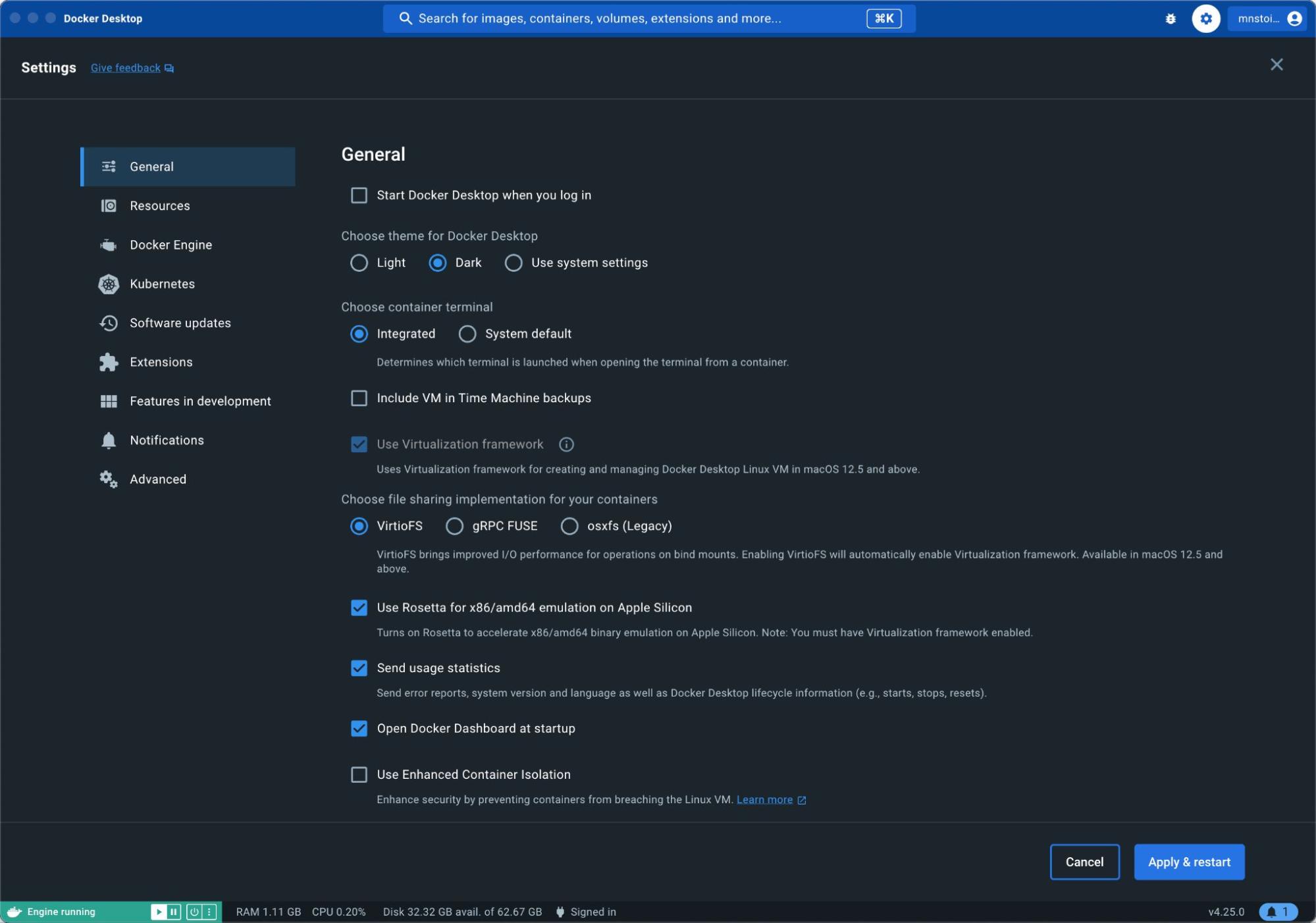
Ensure that Docker has sufficient resources allocated, especially on Mac systems where Docker Desktop manages resource usage.
- Open Docker Desktop settings.
- Navigate to the Resources tab.
- Adjust CPU, Memory, and Disk Image Size as per Letta's requirements and your system's capacity.
Environment Variable Security
To enhance security, avoid hardcoding sensitive information like API keys directly into environment variables. Consider using Docker secrets or environment variable management tools.
# Example using Docker secrets
echo "your_openai_key" | docker secret create openai_api_key -
docker run -d \
  --secret openai_api_key \
  -p 8283:8283 \
  -p 5432:5432 \
  --name letta-server \
  letta/letta-server
Ensure your application reads these secrets appropriately.
Troubleshooting
Common Issues and Solutions
| Issue | Possible Cause | Solution |
|---|---|---|
| Docker Daemon Not Running | Docker service is not active. | Start Docker manually using sudo systemctl start docker on Linux or launch Docker Desktop on Mac. |
| Port Conflicts | Another service is using port 8283 or 5432. | Identify the conflicting service using lsof -i :PORT_NUMBER and stop it or map Letta to different ports. |
| Environment Variables Not Loaded | Incorrect path to the .env file or syntax errors. | Ensure the .env file is in the correct directory and follows proper formatting without spaces around the = sign. |
| Insufficient Resources | Docker allocated resources are too low. | Increase CPU and memory allocation in Docker Desktop settings. |
Accessing Logs for Debugging
To diagnose issues, access the Letta container logs using:
docker logs letta-serverReview the logs for any error messages or warnings that can guide your troubleshooting efforts.
Consulting Documentation
If problems persist, refer to Letta's official Docker documentation or community forums for support:
Best Practices
Security Considerations
- Regularly update Docker and Letta to the latest versions to benefit from security patches.
- Restrict access to environment variables containing sensitive information.
- Use Docker networks to isolate Letta containers from other services.
Performance Optimization
- Allocate sufficient CPU and memory resources to Docker to prevent performance bottlenecks.
- Use volume mounting for persistent storage to enhance data retrieval speeds.
- Monitor container performance using Docker's built-in tools or third-party monitoring solutions.
Scalability
-
Leverage Docker Compose to manage multi-container setups if your deployment grows.
-
Implement load balancing and auto-scaling strategies to handle increased traffic.
-
Consider container orchestration platforms like Kubernetes for large-scale deployments.
Conclusion
Setting up Letta with Docker on a Mac or Linux machine using Homebrew is a streamlined process that enhances deployment efficiency and scalability. By following this comprehensive guide, you can ensure a robust and secure Letta environment tailored to your specific needs. Remember to adhere to best practices for security and performance to maintain an optimal setup. With Docker and Homebrew, managing your Letta deployment becomes both manageable and efficient, allowing you to focus on leveraging Letta's capabilities to their fullest.
References
Last updated January 25, 2025