
Clearing Up Confusion: Do Input Fields Need a Clear Button Under WCAG?
Unpacking accessibility guidelines for a common UI feature, and what it means for inclusive design.
When designing web forms, a common question arises: should an input field include a "clear" button (often an "X" icon) to allow users to easily erase their typed content? More importantly, do the Web Content Accessibility Guidelines (WCAG) have specific requirements for this? Let's delve into what WCAG says and what best practices dictate for implementing such a feature accessibly.
Key Accessibility Highlights
- WCAG Mandate: The Web Content Accessibility Guidelines (WCAG) do not explicitly require input fields to have a clear button. Its inclusion is a design choice.
- Conditional Compliance: However, if a clear button is implemented, it absolutely must adhere to WCAG principles to be accessible to all users, including those with disabilities.
- Essential Features: Key accessibility considerations for a clear button include full keyboard operability, a clear and accessible name (especially for screen readers), sufficient visual contrast, and a visible focus indicator.
The Role of Clear Buttons in User Experience
Why Consider a Clear Button?
While not mandated by WCAG, a clear button can enhance usability for many users. It provides a quick way to delete text from an input field, which can be particularly beneficial for:
- Users who make frequent typing errors.
- Individuals with motor impairments who might find selecting and deleting text with a keyboard or mouse challenging.
- Mobile users where selecting text can be less precise.
- Situations like search fields where users might try multiple queries.
However, its utility must be balanced with ensuring it doesn't introduce accessibility barriers.

An example of a clear button (X icon) within an input field.
WCAG's Stance: Optional Feature, Mandatory Accessibility
WCAG focuses on ensuring that web content is Perceivable, Operable, Understandable, and Robust (POUR). It doesn't dictate specific UI components like clear buttons unless their absence or presence directly impacts these principles. The consensus is that a clear button is an enhancement, not a fundamental requirement for an input field to be accessible.
If you choose to implement a clear button, it becomes an interactive element and thus falls under WCAG's purview. An inaccessible clear button can be more detrimental than not having one at all.
Core Accessibility Requirements for Clear Buttons
If you decide to include a clear button, the following aspects, aligned with WCAG principles, are crucial:
1. Perceivable
- Visual Clarity and Contrast: The button (icon or text) must have sufficient color contrast against its background (at least 4.5:1 for text/icons, WCAG SC 1.4.3 & 1.4.11 for non-text contrast). It also needs to be distinguishable from the input field itself and surrounding elements (at least 3:1 for graphical objects, SC 1.4.11).
- Accessible Name: The button must have an accessible name that describes its function, e.g., "Clear input" or "Clear search." For icon-only buttons (like an "X"), this is typically provided using an
aria-labelattribute on the<button>element. This ensures screen reader users understand its purpose (WCAG SC 4.1.2 Name, Role, Value; SC 3.3.2 Labels or Instructions). - Size and Target: While WCAG 2.1 SC 2.5.5 Target Size (AAA) recommends a target size of at least 44x44 CSS pixels, ensuring the button is large enough to be easily tapped or clicked is good practice for all users, especially those with motor difficulties.
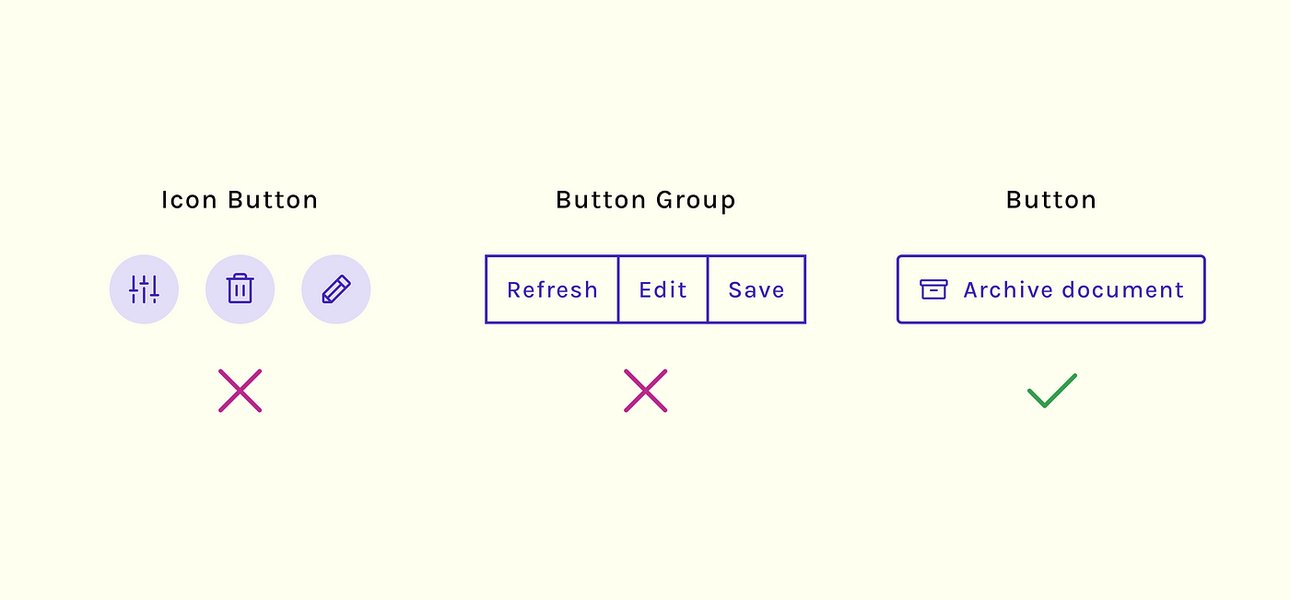
Considerations for designing an accessible button component.
2. Operable
- Keyboard Accessibility: The clear button must be focusable and operable using only the keyboard (WCAG SC 2.1.1 Keyboard). Users should be able to navigate to it using the Tab key and activate it using Enter or Spacebar.
- Focus Indication: When the button receives keyboard focus, a visible focus indicator (e.g., an outline) must be present (WCAG SC 2.4.7 Focus Visible). This helps keyboard users identify which element is currently active.
- Logical Focus Order: The button should appear in a logical order in the focus sequence, typically immediately after the input field it controls (WCAG SC 2.4.3 Focus Order). Avoid using
tabindexvalues greater than 0, as this can disrupt the natural tabbing order. - No Keyboard Traps: Ensure that keyboard focus can move into and out of the clear button without getting stuck (WCAG SC 2.1.2 No Keyboard Trap).
3. Understandable
- Intuitive Design and Purpose: The button's function should be immediately clear. If using an icon, choose one that is widely recognized for "clear" or "close" (like an "X"). Its placement, usually inside or directly adjacent to the input field, also aids understanding.
- Consistent Behavior: The button should reliably perform its stated function: clearing the associated input field.
- Preventing Accidental Data Loss: While a simple clear button usually doesn't require confirmation, for inputs containing substantial or critical data, consider if clearing could be highly disruptive. However, for most common uses (like search), immediate clearing is expected. Ensure changes "on input" allow user control (WCAG Principle 3.2 Predictable).
4. Robust
- Correct Semantic Markup: The clear button should be implemented as a native HTML
<button type="button">element. Usingtype="button"prevents it from accidentally submitting a form if it's within a<form>tag. Avoid using<div>or<span>elements styled to look like buttons unless appropriate ARIA roles (role="button") and keyboard event handlers are meticulously added. - Assistive Technology Compatibility: Proper markup ensures that assistive technologies like screen readers can correctly identify the element as a button and convey its name and state (e.g., enabled/disabled) to the user.
Visualizing Accessibility Priorities for Clear Buttons
The following radar chart illustrates the perceived importance of various accessibility features when implementing a clear button, considering different user needs. While all aspects are important, some may have a more critical impact on specific user groups.
This chart visualizes how different accessibility considerations for a clear button might be prioritized based on the needs of various user groups. For example, ARIA labeling and keyboard access are paramount for screen reader users, while visual contrast and target size are crucial for users with low vision or motor impairments.
Mapping Clear Button Accessibility to WCAG Principles
The following mindmap illustrates the relationship between implementing a clear button and adhering to the core WCAG principles. If a clear button is used, it must satisfy criteria under each of these POUR principles.
This mindmap shows that while the clear button itself isn't a WCAG requirement, its implementation triggers a cascade of accessibility considerations under the Perceivable, Operable, Understandable, and Robust principles.
Implementation Best Practices
Overall form accessibility is key, and clear buttons are one part of that consideration.
Here’s a summary table of key WCAG Success Criteria that apply if you implement a clear button:
| WCAG Success Criterion (SC) | Level | Relevance to Clear Buttons | Key Implication |
|---|---|---|---|
| 1.4.3 Contrast (Minimum) | AA | Visual presentation of text and images of text (or icon acting as text). | Clear button icon/text must have 4.5:1 contrast with its immediate background. |
| 1.4.11 Non-text Contrast | AA | Visual presentation of user interface components and graphical objects. | Clear button itself (as a UI component) needs 3:1 contrast with adjacent colors. Icon graphics also need 3:1. |
| 2.1.1 Keyboard | A | All functionality of the content is operable through a keyboard interface. | Button must be focusable and activatable via keyboard. |
| 2.4.3 Focus Order | A | If content can be navigated sequentially, focusable components receive focus in an order that preserves meaning and operability. | Button should be in a logical tab order, usually after the input. |
| 2.4.7 Focus Visible | AA | Any keyboard operable user interface has a mode of operation where the keyboard focus indicator is visible. | A clear visual indicator must show when the button has focus. |
| 3.3.2 Labels or Instructions | A | Labels or instructions are provided when content requires user input. | Button's purpose must be clear, often via an accessible name. |
| 4.1.2 Name, Role, Value | A | For all user interface components, the name and role can be programmatically determined. | Button must have an accessible name (e.g., aria-label="Clear search") and correct role (e.g., button). |
Guidance on Coding Accessible Buttons
Understanding how to code buttons accessibly is fundamental. The following video provides a quick introduction to creating accessible buttons, covering key HTML and ARIA considerations that are directly applicable to implementing a clear button within an input field.
This video touches upon the importance of semantic HTML (using the <button> element), providing accessible names (especially for icon buttons), and ensuring keyboard operability. These are all critical aspects when adding a clear button to ensure it doesn't become an accessibility hurdle.
Frequently Asked Questions (FAQ)
Is a clear button for input fields mandatory under WCAG?
No, WCAG does not explicitly require input fields to have a clear button. It's considered a user experience enhancement. However, if you choose to include one, it must comply with WCAG accessibility requirements like any other interactive element.
What happens if a clear button isn't accessible?
An inaccessible clear button can create significant barriers for users with disabilities. For example, if it's not keyboard operable, keyboard-only users can't use it. If it lacks an accessible name, screen reader users won't know its purpose. This can lead to a frustrating user experience and failure to meet WCAG success criteria.
How should an icon-only clear button (e.g., an "X") be labeled for accessibility?
For an icon-only button, you must provide an accessible name programmatically. The most common method is to use the `aria-label` attribute on the `
Does the clear button need a visible focus indicator?
Yes, absolutely. According to WCAG SC 2.4.7 Focus Visible, any keyboard-operable user interface component must have a visible focus indicator when it receives focus. This is crucial for keyboard users to know where they are on the page.
Recommended Further Exploration
Dive deeper into related accessibility topics:
- How can I properly implement ARIA attributes for custom button controls to ensure they are accessible?
- What are the most common keyboard accessibility mistakes found in web forms and how can I avoid them?
- What are the specific WCAG guidelines for icon-only buttons, particularly concerning their contrast and accessible naming?
- What are the best practices for designing accessible search input fields that include additional controls like clear or search buttons?
References
Sources and further reading:
Last updated May 19, 2025